The best MSI Trident X setup starts with three moves: update the BIOS and chipset drivers, enable the correct memory profile, then tune temperatures before chasing extra clock speed. After that, a sensible 1440p graphics profile, a calibrated display, and a clean Windows power plan will usually deliver smoother gaming than aggressive overclocking. The exact CPU and GPU vary by Trident X generation, so use the model label and installed hardware as your source of truth.
Start With the Trident X Hardware You Actually Own
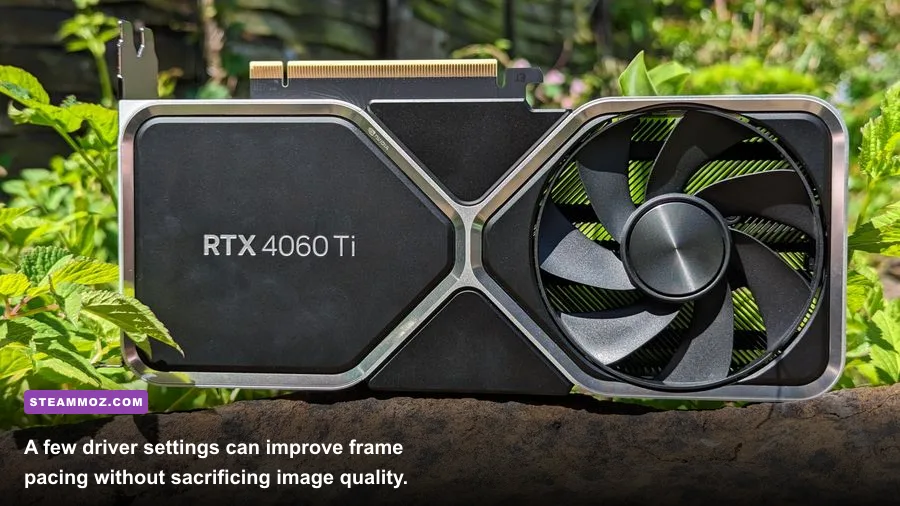
MSI has sold several Trident X configurations, including systems with Intel Core i7-8700K, i7-10700K, i7-11700K, and later Core i7 or i9 processors. Graphics cards range from the GeForce RTX 2070 and RTX 2080 Ti to RTX 3080, RTX 4070, and RTX 4080 variants. That difference matters: a profile that is comfortable for an RTX 4070 Super is not automatically safe for a compact RTX 2080 Ti enclosure.
Press Win + R, enter msinfo32, and record the System Model, BIOS Version, processor, and installed memory. Then open Task Manager > Performance to confirm the GPU and RAM capacity. For a deeper readout, MSI Afterburner can show GPU clock, memory clock, temperature, power, and frame rate in real time.
| Component | What to Check | Recommended Target | Why It Matters |
|---|---|---|---|
| CPU | Exact Intel generation and cooler | Identify before changing voltage | Power limits and BIOS options differ by generation |
| GPU | Model, VRAM, driver version | Latest stable Game Ready driver | GPU limits determine resolution and ray-tracing headroom |
| Memory | Capacity, speed, channel mode | 16GB minimum; 32GB ideal for new games | Single-channel RAM can hurt 1% lows |
| Storage | NVMe or SATA SSD free space | Keep at least 15% free | Prevents updates and shader caches from choking |
| Cooling | CPU and GPU load temperatures | CPU under 85°C; GPU under 80°C | Lower heat improves boost stability and noise |
Before changing anything, install a repeatable benchmark. Cyberpunk 2077 and Shadow of the Tomb Raider are useful real-game tests, while 3DMark Time Spy gives you a consistent DirectX 12 baseline. Run each test twice and compare average FPS plus 1% lows. A higher average that comes with worse frame pacing isn't a real upgrade.

🎮 Matter
Looking to experience this game? Grab your digital key directly on our store for $4.99.
View on Steammoz Store →Update BIOS, Drivers, and MSI Utilities Safely
Download BIOS files only from the official MSI Support page for your exact Trident X model. Do not flash a visually similar system's firmware. Plug the PC into stable power, close background programs, and avoid touching the machine while the update runs. A failed BIOS flash can turn a quick optimization session into a repair job.
After the BIOS update, install the motherboard chipset driver, Intel Management Engine package, LAN or Wi-Fi driver, and the latest NVIDIA driver. MSI Center can be useful for monitoring and firmware utilities, but its automatic performance modes aren't always ideal. The User Scenario modes can increase fan noise and power draw for tiny gains, so start with Balanced and create your own fan curve only after recording temperatures.
Use Intel's Driver and Support Assistant for Intel platform updates, then check NVIDIA's official driver download page. If a new graphics driver causes stutter, use Display Driver Uninstaller in Safe Mode and reinstall a known-good version. Don't stack multiple hardware-control utilities; MSI Center, Afterburner, and motherboard monitoring apps can fight over fan or voltage control.
The Best BIOS Profile for Everyday Gaming
Enter the Trident X BIOS by tapping Delete during startup. The safest performance adjustment is usually the memory profile. Find XMP under the OC menu, enable Profile 1, save, and test. XMP may set DDR4-2666, DDR4-3200, or DDR5-5600 depending on the model and installed kit. Never assume the number printed on a replacement memory kit is guaranteed by the compact system's motherboard.
If Windows crashes, games throw memory errors, or the machine repeatedly boots back into BIOS, disable XMP and update the BIOS before trying a lower memory speed. For a 32GB upgrade, matching modules as a tested kit is preferable to mixing two unrelated pairs.
Leave CPU voltage on Auto at first. Many Trident X systems already use a generous factory power profile, and raising voltage inside a small chassis creates heat faster than it creates useful FPS. If your BIOS exposes Intel power limits, a sensible daily profile is the processor's documented PL1 and PL2 values rather than unlimited power. For an older 65W CPU, 65W sustained and roughly 90W short duration is a reasonable starting point; K-series chips may need higher limits, but cooling decides whether that is worthwhile.
| BIOS Option | Starting Value | Performance Effect | Risk Level |
|---|---|---|---|
| XMP Profile 1 | Enabled | Improves CPU-limited FPS and 1% lows | Low, if memory is compatible |
| CPU Voltage | Auto | Preserves factory stability | Lowest |
| Intel Turbo Boost | Enabled | Maintains normal boost behavior | Low |
| CPU Power Limits | Intel or MSI default | Balances sustained speed and heat | Low |
| Manual CPU Overclock | Disabled initially | Small gains with much higher heat | Medium to high |
Run ten minutes of Cinebench 2024 multicore and at least 30 minutes of your most demanding game. Watch for clock drops rather than obsessing over a single peak temperature. The compact Trident X can briefly boost hard, then settle lower once its cooler reaches saturation.
Thermal Tuning Beats a Reckless Overclock
Compact gaming PCs often lose performance through heat soak. Dust the front and rear intake areas with compressed air, hold the fans still while cleaning, and make sure the system has several centimetres of clearance on every vent. Don't push the Trident X into a closed cabinet; that turns a manageable GPU temperature into a constant thermal limit.
Use HWiNFO64 sensors to log CPU package temperature, GPU temperature, GPU hotspot, fan RPM, and effective clock. A typical target is a CPU that stays below 85°C in a sustained game and a GPU core below 80°C. NVIDIA GPUs can safely operate higher than that, but compact systems become louder and more likely to reduce boost clocks as the internal air warms.
In Afterburner, start with a modest GPU undervolt rather than an overclock. A common RTX 30-series starting point is around 0.900V at the card's normal boost frequency, but the correct clock varies by GPU and silicon quality. Reduce the voltage gradually, test a demanding game for 20 to 30 minutes, and revert immediately if you see driver resets, flickering, or corrupted textures. Undervolting isn't magic: it can lower power and noise while keeping nearly the same FPS, but it cannot rescue a blocked intake or a failing fan.
For fans, build a curve that stays quiet below 55°C, reaches about 60 percent around 70°C, and climbs toward 80 percent near 80°C. Treat those as starting points, not commandments. Fan acoustics matter, and a 3 FPS gain isn't worth making the PC sound like a miniature vacuum cleaner.
Best Windows and NVIDIA Settings for Smooth FPS
Install games on the fastest SSD, enable Game Mode, and turn off unnecessary startup applications. In Windows 11, test Hardware-accelerated GPU scheduling rather than assuming it helps every game. Reboot after changing it and compare frame-time graphs in the same scene. Disable overlays you don't use, especially when diagnosing stutter: Xbox Game Bar, Discord, GeForce Experience, and RGB software can all inject extra processes.
In NVIDIA Control Panel, set Power management mode to Normal globally and use Prefer maximum performance per game only when a title downclocks aggressively. Set Low Latency Mode to On for games without NVIDIA Reflex; if Reflex is available, use Reflex in the game and leave the driver option alone. Cap FPS slightly below your display's refresh rate—for example, 141 FPS on a 144Hz monitor—to keep adaptive sync engaged.
| Setting | Recommended Value | Typical FPS Impact | Visual or Latency Note |
|---|---|---|---|
| Resolution | Native 1080p or 1440p | Largest performance control | Use DLSS before dropping native resolution |
| Ray Tracing | Off or Medium | Minus 15% to 45% | Keep reflections only if the GPU has headroom |
| Textures | High, within VRAM limit | Low unless VRAM-bound | Improves detail without major GPU cost |
| Shadows | Medium or High | Minus 5% to 15% | High shadows often have poor value |
| Volumetrics | Medium | Minus 5% to 12% | Strong impact in foggy scenes |
| Upscaling | DLSS Quality | Plus 15% to 35% | Best first step at 1440p |
| Frame Generation | On above 60 base FPS | Higher displayed FPS | Doesn't replace low-latency base frames |
For an RTX 3060 Ti or RTX 3070 Trident X, 1440p with High textures, Medium shadows, DLSS Quality, and ray tracing off is an excellent competitive baseline. An RTX 3080 or RTX 4080 model can push Ultra settings, but turn down volumetric fog and ray-traced lighting before touching textures. If a game stutters during traversal, clear its shader cache only after a driver update and allow time for shaders to rebuild.
Calibrate the Display Instead of Chasing Fake Color
Start the monitor in its Standard, sRGB, or Gamer 1 preset. Disable Vivid, Dynamic Contrast, black equalizer boosts, and artificial sharpening while calibrating. Set brightness using a white screen in your normal room; around 100 to 140 nits is comfortable for a dim room, while a bright room may need 180 to 220 nits. The right value depends on lighting, not a universal slider number.
For SDR gaming, leave Windows HDR off unless the display handles HDR properly. Washed-out blacks and grey desktop text usually mean HDR is enabled on a mediocre panel or the game's HDR calibration is incomplete. For HDR-capable monitors, enable HDR in Windows, run the Windows HDR Calibration app, and adjust the black and peak-brightness patterns until the first invisible symbol is genuinely invisible.
Keep Digital Vibrance near its default 50 percent before experimenting. Raising it can make enemies easier to spot, but it clips color and hides detail in bright surfaces. Competitive players may prefer 55 to 60 percent; for cinematic games, default is more accurate. Use the game's own brightness slider to reveal the darkest test icon without lifting every shadow into grey.
Benchmark, Troubleshoot, and Keep the Gains
Capture a baseline before each major change: average FPS, 1% low FPS, GPU utilization, CPU temperature, GPU temperature, and fan noise. If GPU utilization sits at 95 to 99 percent, lower resolution or DLSS will help. If the GPU is below 90 percent while one CPU thread is maxed, reduce crowd density, view distance, simulation quality, or background applications instead.
Random crashes deserve a stability check, not more voltage. Test memory with MemTest86, run Windows Event Viewer for display-driver errors, verify game files through Steam, and inspect temperatures under a repeatable load. For more PC troubleshooting patterns, Steamoz's ELEX crash and FPS fixes and low-FPS troubleshooting guide cover the same diagnostic logic.
Finally, save two profiles: a quiet everyday profile with stock power limits and a performance profile with your tested fan curve and GPU undervolt. If an update breaks something, restore the stable profile instead of guessing. The MSI Trident X rewards restraint: clean airflow, correct XMP, sensible graphics settings, and controlled temperatures deliver the smoothest experience far more reliably than an unstable all-core overclock.
For older systems, compare your results against Steamoz's Far Cry 6 max-FPS settings and Filament performance settings. The principle is the same across both: measure frame pacing first, then spend your visual budget where your eyes actually notice it.