To lock down a rock-solid, sub-10ms response time and achieve buttery-smooth 60 to 120 FPS in Parsec, you must align your host’s hardware encoder directly with your client’s decoding limits. The winning formula is simple: set your client renderer to DirectX 11, lock your stream codec to H.265 (HEVC) with YUV 4:2:0 chroma subsampling, clamp your maximum bitrate between 30 and 45 Mbps, and disable stream VSync in favor of driver-level frame capping on the host PC. Making these precise adjustments bypasses software rendering bottlenecks, stops network packet bursts in their tracks, and delivers remote desktop gameplay that feels indistinguishable from running bare metal hardware.
The Core Parsec Host and Client Settings Breakdown

Parsec lives and dies by how cleanly the host PC captures and compresses frames before blasting them over UDP to your client device. Inside the Parsec desktop client, heading over to the Settings > Host tab reveals your primary levers. If your host rig houses an NVIDIA GeForce GTX 10-series card or newer, you're tapping into the dedicated NVENC silicon block. AMD hosts utilize the Advanced Media Framework (AMF), while Intel systems rely on QuickSync. To get pure performance without micro-stutters, you never want your capture engine guessing what resources to allocate.
Start by setting Bandwidth Limit between 30 Mbps and 50 Mbps. Many players mistakenly crank this setting up to its 100 Mbps ceiling, assuming higher numbers automatically mean a crisper picture. In reality, shoving excessive data down an unmanaged home pipe over-saturates your local network buffer, inflating queue latency and creating massive decode spikes on the receiving client. A 30 Mbps stream for 1080p resolution or 45 Mbps for 1440p offers near-lossless visual fidelity while keeping frame packaging fast and tight.
Under the Codec setting, bypass the older H.264 standard and enforce H.265 (HEVC). H.265 delivers identical visual clarity to H.264 at roughly half the bitrate, effectively doubling the bandwidth efficiency of your pipeline. However, keep an eye on your client's hardware. If you are streaming to an ancient laptop running an early Intel Core i-series chip without dedicated HEVC decoding silicon, H.265 will offload decoding to the CPU, causing decode times to spike beyond 20 milliseconds. If that happens, stick to H.264 on that specific client.
Color space is another critical decision point. While Parsec supports YUV 4:4:4 under its paid Warp subscription, you should deliberately leave this set to YUV 4:2:0 for fast-paced gaming. Chroma subsampling at 4:2:0 cuts the raw color payload down significantly, slashing the hardware encoding tax on the host GPU. Save 4:4:4 color for productivity tasks like graphic design or software coding where fine colored text needs pinpoint clarity. For gaming, 4:2:0 is the uncontested speed champion.
| Setting Location | Recommended Value | FPS & Latency Impact | Strategic Engineering Note |
|---|---|---|---|
| Host: Bandwidth Limit | 30–45 Mbps | -5ms to -12ms network queue delay | Prevents packet congestion; scales smoothly up to 1440p60. |
| Host: Video Codec | H.265 (HEVC) | +15% visual clarity at lower bitrates | Requires hardware decoding capability on the client machine. |
| Host: Color Space | YUV 4:2:0 | -2ms to -4ms host encode time | Avoids 4:4:4 compression overhead; standard for real-time play. |
| Client: Renderer Backend | DirectX 11 (D3D11) | Lowest client render pipeline jitter | More predictable frame pacing than OpenGL on modern Windows builds. |
| Client: VSync | Off | Eliminates 1-2 frames of display lag | Rely on host GPU driver frame capping to prevent stream tearing. |
| Client: Decoder | Hardware Accelerated | Drops decode time below 3ms | Prevents CPU thermal throttling on thin laptops and handhelds. |

🎮 FORM
Looking to experience this game? Grab your digital key directly on our store for $14.99.
View on Steammoz Store →Host GPU Driver and Windows Engine Tweaks
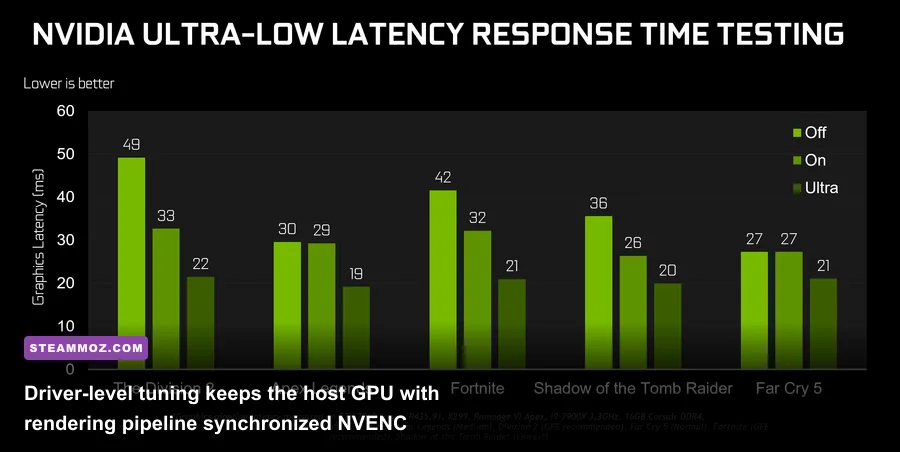
Optimizing the Parsec application window only gets you halfway across the finish line. If the host machine's operating system and graphics driver aren't tuned to hand off frames to the video encoder instantaneously, your client will suffer from pacing judder. You want to configure the host GPU so game rendering never starves the dedicated hardware encoder of internal PCIe memory bandwidth.
Open the NVIDIA Control Panel (or AMD Software: Adrenalin Edition) on your host PC and head straight into Manage 3D Settings. Set Power Management Mode to Prefer Maximum Performance. This prevents the GPU core clock from dynamically down-throttling during less intensive scenes, which is a notorious culprit behind sudden encode latency spikes. Next, toggle Low Latency Mode to Ultra. This instructs the graphics driver to submit frame buffers just in time for the display scan-out, keeping the render queue lean and reducing backpressure on the Parsec desktop capture service.
Equally crucial is setting a hard Max Frame Rate limit in the driver. If your client display runs at 60Hz, lock your host GPU to 60 FPS (or 59 FPS if you experience frame-buffer overrun). If you are running high-refresh hardware at 120Hz or 144Hz, lock the host to that exact target. Letting an uncapped 3D engine render at 180 FPS while your Parsec stream transmits at 60 FPS wastes compute power, drives up host thermals, and causes uneven frame delivery. Just like balancing internal graphics options in our Far Cry 6 settings guide for max FPS, clean frame limiting keeps hardware overhead completely stable.
Inside Windows 10 or Windows 11 on the host, open Settings > System > Display > Graphics Settings and check your status on Hardware-Accelerated GPU Scheduling (HAGS). For modern remote streaming architectures, keeping HAGS enabled allows the host graphics driver to manage its own video memory directly. This reduces DWM (Desktop Window Manager) composition overhead when Parsec's hook captures the screen via the Windows Desktop Duplication API. However, if you run into mysterious driver-level stream crashes—a classic troubleshooting scenario seen across complex titles like those outlined in our guide on ELEX PC fixes that rescue your FPS—toggling HAGS off serves as an immediate diagnostic test to isolate system instability.
Advanced Parsec config.txt Hacks for Power Users
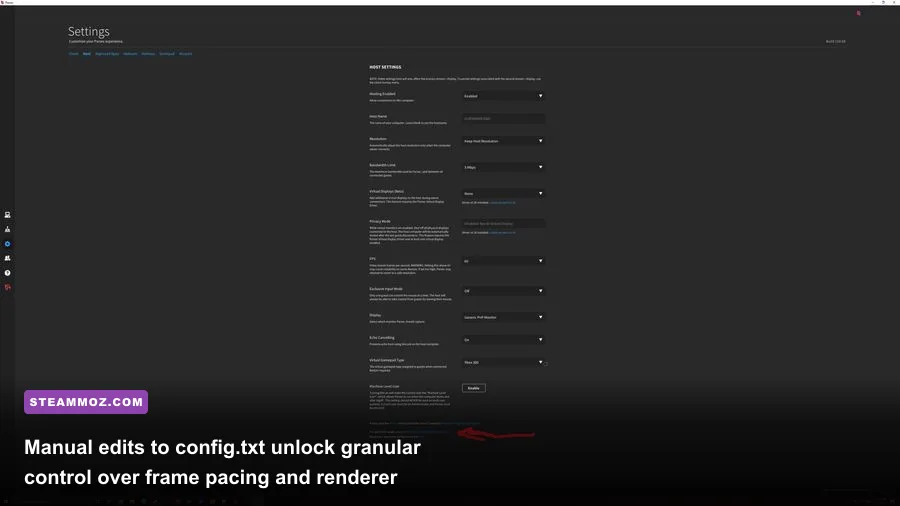
While the graphical user interface covers typical user preferences, the true engine room of Parsec sits inside the config.txt file. Located at %appdata%\Parsec\config.txt on Windows, this plain-text configuration file accepts low-level commands that override client and host handshakes, allowing you to fine-tune network sockets and rendering pipelines beyond default constraints.
To inspect your current configuration or add deep modifications, completely close Parsec from your system tray, launch Notepad as administrator, and open the configuration file. For an exhaustive breakdown of newly introduced internal variables, consult the official Parsec Support Documentation. Here, power users can enforce custom decoder backends, lock down packet fragmentation sizing, and suppress unnecessary background services.
One of the most potent additions for network stability is the network_upnp = 1 flag combined with custom port assignments. This instructs your host to negotiate direct port mappings via Universal Plug and Play, drastically minimizing the chances of falling back to relay servers that destroy frame-rate consistency. Another vital client-side tweak is forcing the DirectX rendering backend via client_renderer = 1, which ensures the video stream bypasses experimental rendering contexts and hooks straight into the Windows Direct3D 11 compositing tree, matching standards detailed in the Microsoft Direct3D 11 Architecture Guide.
| Config Parameter | Default Value | Optimized Custom String | Functional Architecture Impact |
|---|---|---|---|
encoder_bitrate |
10 | encoder_bitrate = 35 |
Forces a strict, non-fluctuating target bitrate on host initialization. |
encoder_min_bitrate |
5 | encoder_min_bitrate = 20 |
Stops aggressive bitrate drops during high-motion visual sequences. |
client_vsync |
1 | client_vsync = 0 |
Completely disengages client swapchain sync to shave mouse input delay. |
encoder_fps |
0 (auto) | encoder_fps = 60 (or 120) |
Locks the host capture thread to an unyielding, predictable tick-rate. |
network_audio_buffer |
20000 | network_audio_buffer = 10000 |
Cuts audio buffer depth in half for tighter, real-time auditory feedback. |
client_window_mode |
0 (windowed) | client_window_mode = 2 |
Forces Borderless Fullscreen for instant display surface synchronization. |
Tuning the audio buffer alongside your video rendering loop might seem minor, but human perception is remarkably sensitive to audiovisual sync. If your video arrives in 8 milliseconds but your audio is buffered for 20 milliseconds, your brain perceives high input drag. Tightening these values creates the snappy, direct response necessary for responsive gameplay, whether you're navigating complex puzzle spaces like those in Filament Marmalade Edition or running fast-paced action titles.
Eliminating Input Lag and Decoding Bottlenecks
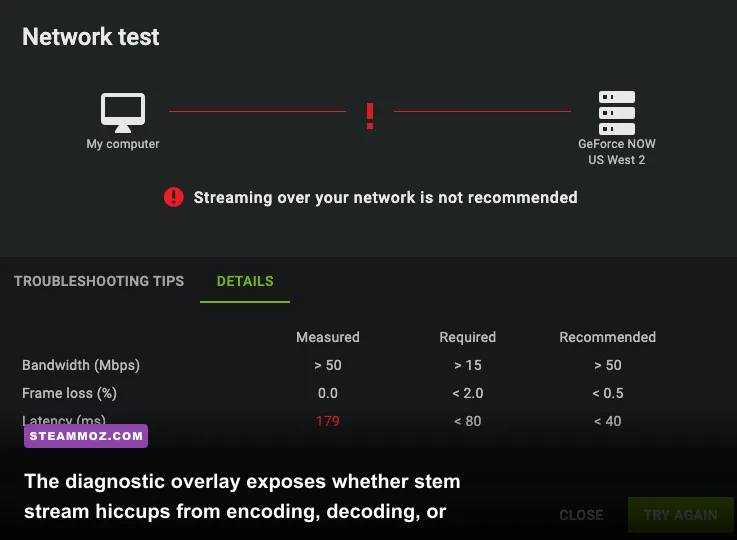
When a remote stream drops frames or feels like your cursor is dragging through molasses, you need to pinpoint the exact failure point rather than blindly adjusting settings. Pressing the key combo Ctrl + Shift + M (or clicking the floating Parsec icon) brings up the in-game diagnostic overlay. This heads-up display shows three vital performance metrics: Encode, Decode, and Network latency, all measured in fractional milliseconds.
Your benchmark targets are explicit: Encode should hover between 2ms and 5ms; Decode should sit between 1ms and 4ms; and Network should remain entirely flat below 15ms for local networks, or below 40ms for cross-town internet connections. If your Encode time balloons over 8ms, your host GPU is heavily overburdened by background graphics tasks. Drop in-game volumetric lighting, shadows, or screen-space reflections to free up GPU compute cycles for the capture pipeline, much like standard performance triage in our Everspace 2 troubleshooting breakdown.
When Decode latency spikes above 7ms, the receiving client is your system bottleneck. This frequently occurs when playing on integrated graphics chips running outdated OEM display drivers. Update the client's GPU drivers directly from Intel, AMD, or NVIDIA rather than relying on standard Windows Update packages. Furthermore, verify that your client OS is operating under a high-performance power plan; battery-saving modes on laptops often aggressively down-clock the video decoder core to save milliwatts, destroying client-side playback performance.
Mouse handling is another subtle area where hidden latency creeps into the pipeline. In the Parsec client settings, ensure that Cursor Mode is configured to Direct Capture. Direct capture grabs hardware raw input at the operating system driver level rather than emulating a software cursor. Software emulation creates visual separation between where your physical hand moves and where the cursor renders across the stream. If you are troubleshooting intense interactive titles where latency spikes completely break the experience—similar to the render pipeline hurdles explored in EscapeVR crashing and FPS fixes—direct input capture is an absolute prerequisite.
Network Stack Tuning for Flawless Frame Delivery
Even with pixel-perfect host encoding and lightning-fast client decoding, a chaotic network stack will completely ruin your stream with stuttering, dropped packets, and visual artifacting. Parsec uses a proprietary custom UDP protocol called BUD (Better User Datagram). Unlike TCP, which demands packet acknowledgement and holds up data streams until lost packets are resent, BUD prioritizes ultra-fast real-time delivery. However, that means packet drops show up immediately on your monitor as macroblocking or hitching.
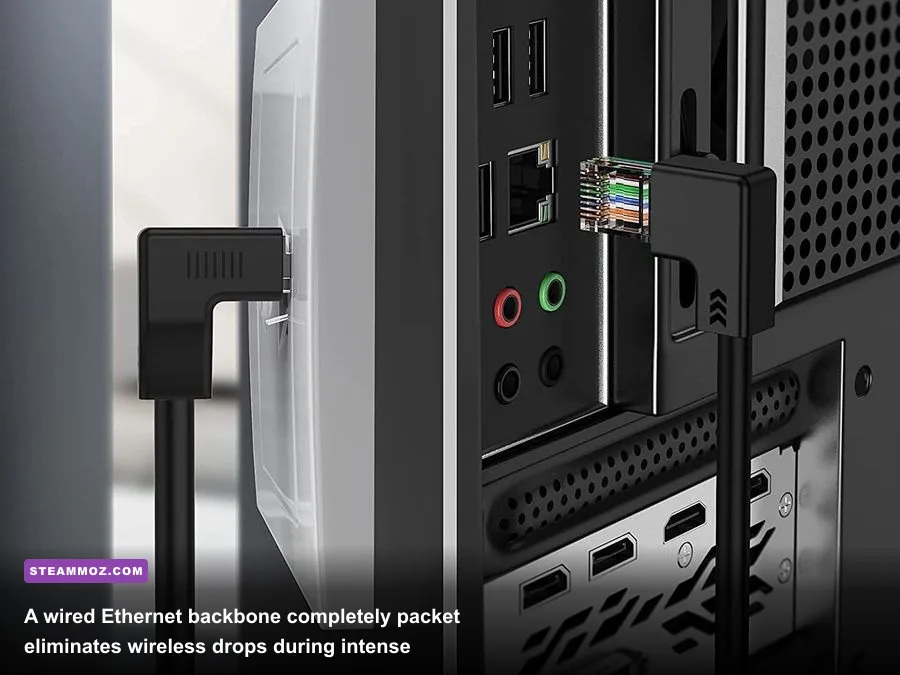
The primary commandment of game streaming: ditch Wi-Fi entirely on the host machine. Even top-tier Wi-Fi 6E routers suffer from ambient radio frequency interference, channel contention, and beamforming shifts that trigger random 50ms latency spikes. Connect your host rig directly to your router with a Cat6 or Cat5e Ethernet cable. If your client device must connect over Wi-Fi, you must strictly bind it to a dedicated 5GHz or 6GHz band with channel widths set to 80MHz or 160MHz. The legacy 2.4GHz spectrum is heavily congested with Bluetooth, smart devices, and household appliances, guaranteeing ruined frame pacing.
On your local network router, navigate to the web management panel and configure Quality of Service (QoS) rules. Give outbound UDP traffic from your host PC's local IP address the highest queuing priority. If your router features an automated Bufferbloat Mitigation engine or FQ-CoDel (Fair Queueing Controlled Delay), toggle it on. Bufferbloat happens when someone on your network starts downloading a large file or streaming 4K video, causing your router's packet buffer to flood and inflating your gaming stream's latency by hundreds of milliseconds.
Finally, consider your physical host hardware environment when operating a headless setup (a gaming PC operating without a real monitor connected). If your host PC boots up without a physical display attached, Windows will disable GPU hardware acceleration completely, or fall back to the sluggish Microsoft Basic Display Adapter. To bypass this, purchase a cheap HDMI or DisplayPort Hardware Dummy Plug (EDID emulator). These tiny dongles trick your host GPU into initializing its hardware display pipeline at 1080p, 1440p, or 4K at 60Hz to 120Hz. Verifying baseline hardware requirements is just as crucial for remote streaming setups as confirming system baselines for demanding fighters in our Fatal Fury City of the Wolves specs analysis or checking legacy hardware profiles in our review of Far Cry 2 system requirements.
Once you implement this optimized network foundation, lock down your host driver framerates, enforce the H.265 codec, and trim the excess bloat from your configuration file, Parsec transforms into an ultra-responsive, uncompromising gaming display pipeline that holds steady under any workload.