If Forza Horizon 4 keeps abruptly crashing straight to your desktop or stuttering every time you drift into Edinburgh, the breakdown usually traces back to three hidden bottlenecks: conflicting third-party audio services like Nahimic hooking into the game engine, Windows Control Flow Guard misinterpreting game memory, or brutal VRAM choking caused by aggressive MSAA combined with dynamic night shadows. You can resolve most of these headaches immediately by disabling background audio hooks, creating a specific Windows Exploit Protection override for the game executable, and locking your display cadence using your GPU driver rather than relying on the game's finicky internal frame limiter.
Nailing Down Desktop Crashes: The Background Service Culprits
Forza Horizon 4 operates on Playground Games' proprietary Forzatech engine, which relies heavily on strict low-level Windows Universal Windows Platform (UWP) and DirectX 12 execution protocols. When a background utility attempts to hook into the game's rendering pipeline or audio threads, the engine triggers an unhandled access violation exception, sending you crashing straight back to your desktop without an error code. Just like troubleshooting hiccups covered in our ELEX PC crash fix breakdown, the secret lies in hunting down aggressive third-party background software.
The number one trigger for startup crashes and random freeze-outs roughly 15 minutes into a session is third-party audio software. Pre-installed motherboards and laptops running software suites from ASUS, MSI, Alienware, and HP silently launch background services that Forza Horizon 4 despises. Follow these direct steps to terminate them:
- Press Ctrl + Shift + Esc to open Task Manager, navigate to the Services tab, and click Open Services at the bottom.
- Locate Nahimic Service, right-click it, select Properties, change the Startup Type to Disabled, and click Stop.
- Repeat this exact process for Sonic Studio, Asus Sonic Radar, and A-Volute.
- Disable aggressive software overlays. Open your overlay management tools (such as RivaTuner Statistics Server, MSI Afterburner, Discord, and GeForce Experience). If you use RivaTuner Statistics Server (RTSS) for framerate monitoring, configure its Application Detection Level for
ForzaHorizon4.exeto None, or enable the stealth hook toggle.
Next up is a legendary platform quirk: Windows Exploit Protection. Windows 10 and 11 apply Control Flow Guard (CFG) across running apps by default, but CFG frequently misflags Forza's streaming memory pointers as memory-injection attacks. To create an exception, open your Start menu, type Exploit Protection, click on the Program Settings tab, and hit Add program to customize. Select Choose exact file path, locate your executable in your Steam or Xbox Games folder, scroll down to Control Flow Guard (CFG), check Override system settings, switch it to Off, and hit Apply. This tweak alone fixes random crashes for thousands of players across both the Steam version and Microsoft Store client.
Eradicating Micro-Stuttering and Frame Pacing Hitching
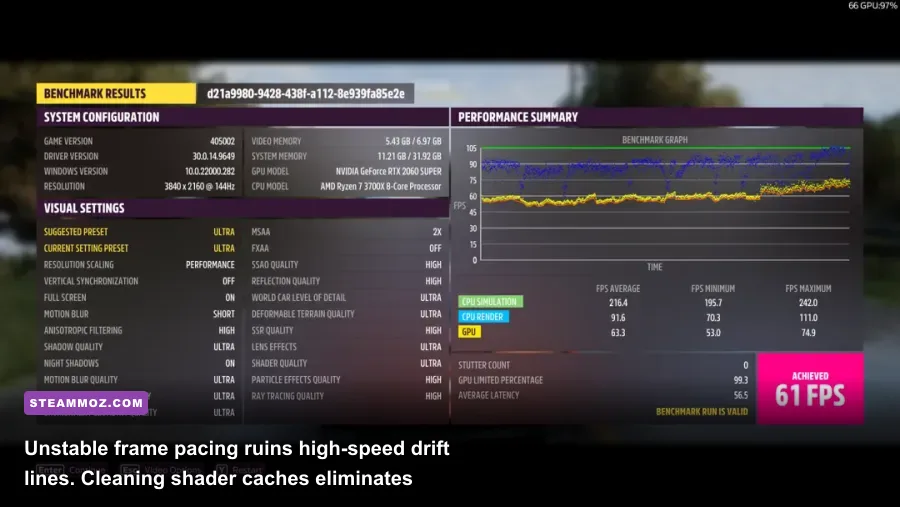
Micro-stuttering in Forza Horizon 4 feels like brief, jarring micro-pauses that shatter your steering input just as you clip an apex around Bamburgh Castle. This happens when the engine desynchronizes from your monitor's display refresh cycle or trips over compiled DirectX pipeline shaders stored in a bloated, corrupted local cache. If you've tackled stutter in other open-world titles—similar to our troubleshooting steps in the EscapeVR crashing and low FPS guide—you know smooth frame delivery matters far more than arbitrary peak frame rates.
First, purge your corrupt DirectX shader cache. Open your Windows search bar, type Disk Cleanup, pick your primary operating system drive (typically C:), scroll through the list, tick DirectX Shader Cache, and click OK. This forces the Forzatech engine to freshly recompile its shaders on your next launch, completely wiping out hitching that cropped up after modern graphics driver upgrades.
Second, fix your frame rate limiter conflict. The in-game frame limiter in Forza Horizon 4 introduces atrocious frame pacing flutter unless you set it up deliberately. Never run both an unlocked in-game frame rate and third-party V-Sync without driver-level enforcement. Instead, follow this universal synchronization framework:
- Inside Forza Horizon 4's Video Settings, turn V-Sync OFF and set the Frame Rate cap to Unlocked.
- If you run an Nvidia graphics card, open Nvidia Control Panel > Manage 3D Settings > Program Settings, and select
Forza Horizon 4. - Set Monitor Technology to G-Sync Compatible (if supported by your display).
- Set Max Frame Rate to precisely 3 FPS below your display's native refresh rate (e.g., 141 FPS on a 144Hz monitor, 162 FPS on a 165Hz monitor, or 57 FPS on a 60Hz screen).
- Set Vertical Sync inside the Nvidia driver to On. This prevents tearing at low frame dips while letting G-Sync or FreeSync handle smooth frame delivery without input latency.
Best In-Game Graphics Settings for Maximum FPS and Stability
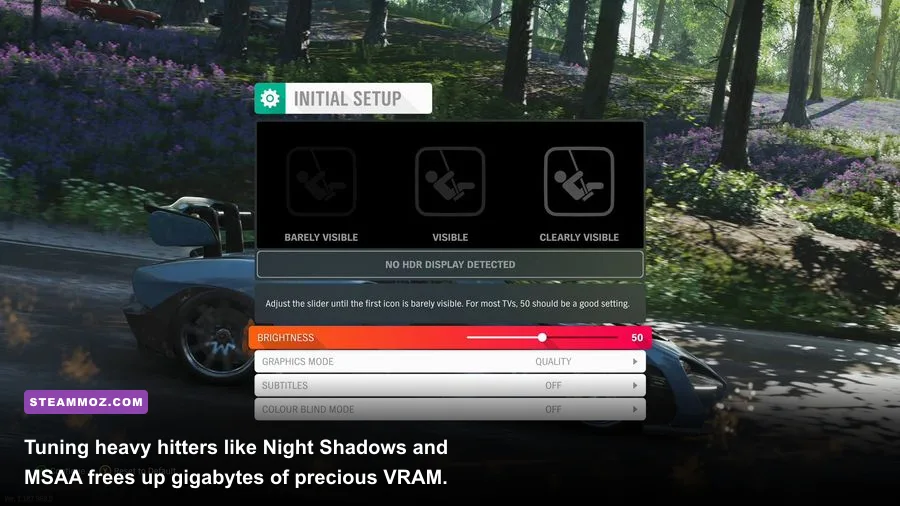
Forza Horizon 4 is packed with dozens of granular graphics toggles, but only a handful of them drain your GPU resources significantly. Blasting through the autumn foliage of Lakehurst Forest requires different hardware overhead than cruising through the open fields of the Cotswolds. Striking the ideal balance between pristine visuals and locked performance requires knowing which sliders deliver diminishing visual returns. To see similar hardware trade-offs analyzed in detail, check out our guide on Far Cry 6 settings for maximum FPS.
| Graphic Setting | Optimal Recommendation | Performance Impact | Visual Impact & Engineering Note |
|---|---|---|---|
| MSAA (Multi-Sampling AA) | 2x (or 4x on 8GB+ VRAM) | Extremely High (12-18% FPS) | 8x devours video memory bandwidth and triggers out-of-memory crashes. Combine 2x MSAA with FXAA for crisp edges. |
| Night Shadows | Medium or OFF | Very High (8-14% FPS) | Projects dynamic shadow calculations from streetlamps and car headlights. Turn off to eliminate nighttime stutter. |
| Dynamic Geometry Quality | High | Moderate (4-6% FPS) | Controls asset LOD popping at distance. Ultra hits CPU draw calls hard during dense street races. |
| Shadow Quality | High | Moderate (5-8% FPS) | Ultra renders high-resolution shadow maps across vast distances. High looks nearly identical with far better stability. |
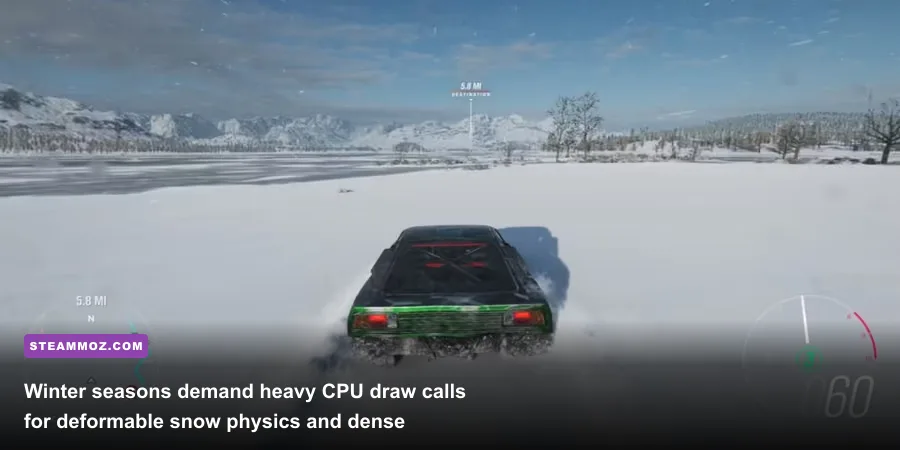
| Deformable Snow | High | Low-Moderate (3-5% in Winter) | Controls real-time surface deformation mesh during winter months. Minimal impact outside the winter season cycle. |
| Reflection Quality | High | High (6-10% FPS) | Computes real-time planar reflections on wet roads and puddles. Ultra introduces noticeable frame dips in heavy rain. |
| Wind Simulation | High | Low (1-2% FPS) | Simulates tree and vegetation sway dynamics. Modern multi-core CPUs handle High effortlessly. |
| SSAO Quality | High | Moderate (3-5% FPS) | Adds essential ambient contact shading underneath vehicle chassis and roadside walls. Ultra costs extra GPU compute. |
The single most dangerous setting in this menu is MSAA at 8x. Unlike modern temporal anti-aliasing (TAA) solutions, hardware MSAA renders sub-pixel geometric samples across every visible polygon edge. In an open-world racing title packed with thousands of individual fence posts, power lines, and tree leaves, 8x MSAA over-allocates your GPU's frame buffer, rapidly spilling assets into system RAM and causing catastrophic frame drops down into the single digits.
Windows 10 and 11 Tweaks: HAGS, Game Mode, and Memory Management
Beyond the graphics menu, deep operating system mechanics heavily influence how Forza's engine accesses system memory. If you've ever fine-tuned indie or mid-tier PC titles using tips from our Filament Marmalade Edition optimization guide, you'll know that Windows-level toggles often determine whether a game runs smoothly or crashes to desktop.
Start with Hardware-Accelerated GPU Scheduling (HAGS). Introduced into modern Windows display subsystems, HAGS offloads high-frequency scheduling tasks from the CPU directly to dedicated GPU processors. In Forza Horizon 4, older GTX 10-series, RTX 20-series, or early Radeon RX cards can experience random driver hang crashes when HAGS is enabled alongside aggressive background recording. If you encounter random frozen screens where audio keeps looping in the background, navigate to Settings > System > Display > Graphics Settings, and switch Hardware-accelerated GPU scheduling to Off, then restart your PC.
Conversely, ensure that Windows Game Mode is set to ON. In older Windows 10 versions Game Mode was problematic, but current builds prioritize CPU thread allocation strictly toward the active gaming window while parking noisy background update processes. Combine this with setting your PC's power management configuration to High Performance or Balanced with PCIe Link State Power Management set to Off to stop your GPU from down-clocking during loading transitions.
Resolving Low Streaming Bandwidth Warnings and Storage Bottlenecks
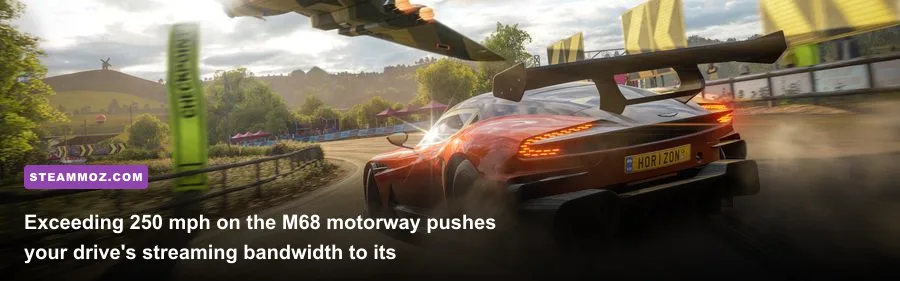
Driving ultra-fast hypercars like the Koenigsegg Jesko, Bugatti Chiron, or McLaren Senna down the M68 motorway at speeds exceeding 260 mph places immense pressure on your storage drive. If your drive cannot stream road textures, guardrails, and trackside architecture fast enough, the game pauses abruptly, displays a grey "Low Streaming Bandwidth" notification, and drops your car through an unrendered floor.
This is purely an I/O read-speed bottleneck. Forza Horizon 4 decompresses high-resolution geometry and MIP-maps continuously as your vehicle traverses the map. If you installed the game on an aging 5400 RPM or 7200 RPM mechanical hard disk drive, your heads simply cannot keep up with high-velocity asset calls. Moving the game installation to a fast SATA SSD or, ideally, an NVMe M.2 drive completely eliminates the issue. For players who want to verify that their hardware comfortably clears the minimum baselines across different genres, comparing your specs with technical breakdowns like the Fatal Fury City of the Wolves PC specs or our baseline review of classic open-world PC specs helps identify where your storage or memory limits sit.
| Hardware Profile Tier | Target Resolution & FPS | Recommended Preset Profile | Crucial System Configuration |
|---|---|---|---|
| Budget Tier (GTX 1650 / RX 580 / 8GB RAM) | 1080p @ Locked 60 FPS | Medium-High Mix, 2x MSAA, FXAA On, Night Shadows Off | 16GB System Pagefile enabled; install on minimum SATA SSD. |
| Mid-Range Tier (RTX 3060 / RX 6700 XT / 16GB RAM) | 1440p @ 90-120 FPS | Ultra Mix, 4x MSAA, FXAA Off, Dynamic Geometry High | NVMe M.2 install; Driver-level frame cap (Monitor Hz - 3). |
| Enthusiast Tier (RTX 4070+ / RX 7800 XT+ / 32GB RAM) | 4K Native @ 120+ FPS | Max Settings / Extreme, 4x MSAA, SSAO Ultra | Full G-Sync/FreeSync sync pipeline; CFG override enabled. |
Finally, check your Windows Virtual Memory (Pagefile) allocation. Even if your rig sports 16GB or 32GB of physical DDR4 or DDR5 RAM, Forza Horizon 4 reserves large chunks of committed virtual memory addresses. If your Windows pagefile is manually set too low or restricted to an exhausted boot SSD, the game engine will crash out the instant it requests extra memory pools. Let Windows manage your pagefile automatically on your fastest SSD, or configure a static custom size with an initial size of 12288 MB and a maximum size of 16384 MB. For official diagnostic updates and developer-side patches, you can always monitor the official Forza Support portal alongside the broader Xbox Gaming Support service status.
By taming background software hooks, dialing in driver-side refresh caps, setting MSAA reasonably, and running the game from high-speed solid-state storage, you transform Forza Horizon 4 from an unstable crash-fest into one of the smoothest, most breathtaking open-world driving experiences available on the PC platform.