To optimize anime games like Genshin Impact, Honkai: Star Rail, Granblue Fantasy: Relink, and Scarlet Nexus on your PlayStation 5, you must configure a combination of console-level system settings, in-game display profiles, and hardware storage management. By disabling redundant system features, forcing Performance Mode options, and ensuring your display utilizes Variable Refresh Rate (VRR), you can eliminate frame drops, minimize input latency, and experience crystal-clear cel-shaded visuals.
Understanding PS5 System Settings for Cel-Shaded Titles
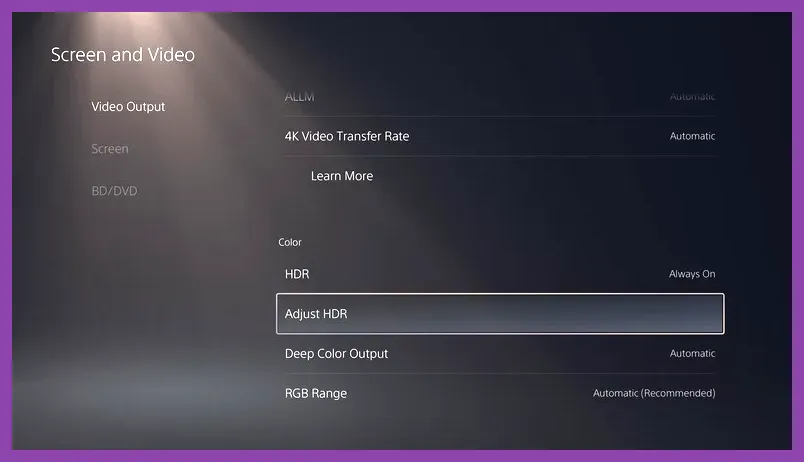
Many players overlook the base operating system configurations of the PlayStation 5, assuming that games automatically run at their peak performance out of the box. However, dynamic scaling features and high-resolution output preferences can introduce micro-stutters into fast-paced anime action titles. To begin your optimization overhaul, navigate to your PS5 Settings menu and adjust the core video and screen configurations.
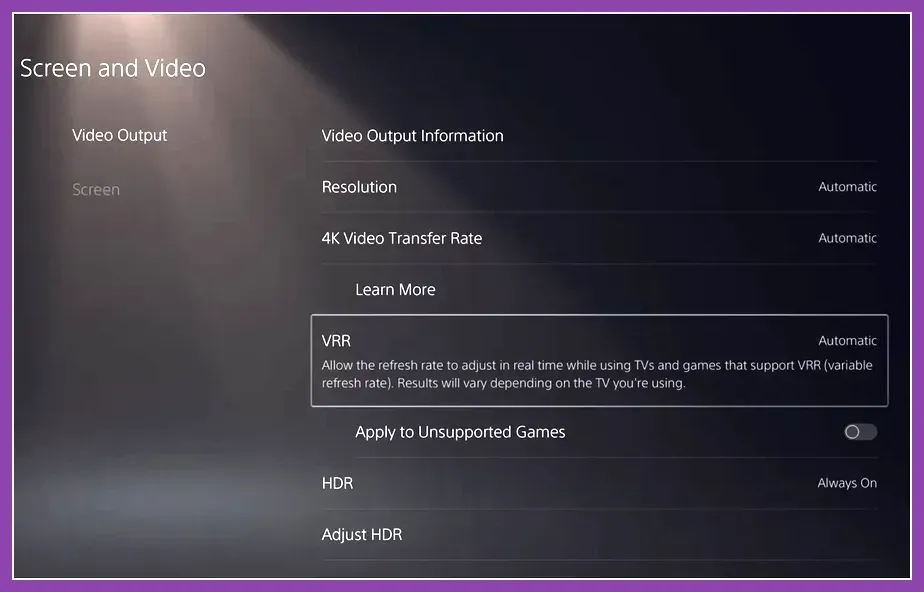
Start by heading into Settings > Screen and Video > Video Output. Ensure that your resolution is explicitly set to match your television or monitor's native panel—typically 2160p for 4K displays—rather than leaving it on automatic if your hardware handshakes inconsistently. Furthermore, lock your 4K Video Transfer Rate to Automatic, but if you experience screen flickering during dense particle effect sequences in games like HoYoverse titles, drop the setting down to -1 or -2 to stabilize the HDMI bandwidth. For more deep dives into squeezing every ounce of performance out of Sony's hardware, check out this PS5 Pro endgame build guide for broader hardware tuning concepts.
Mastering In-Game Graphics and Performance Toggles
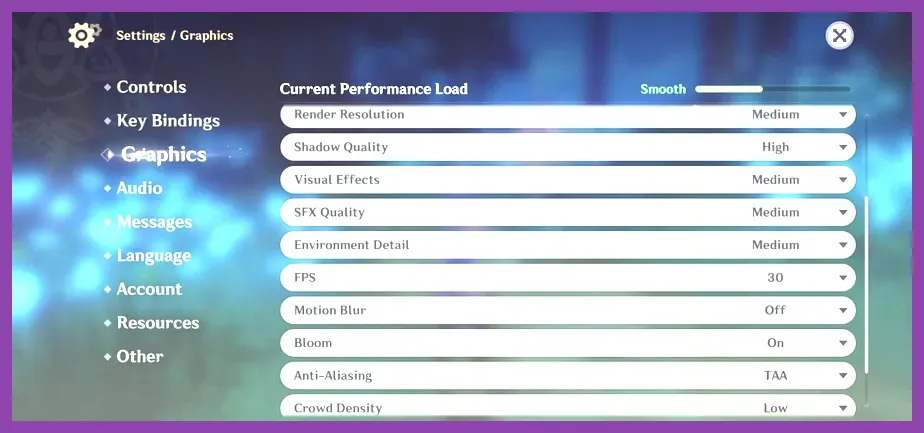
Anime titles heavily rely on clean outlines, vibrant color saturation, and immediate responsiveness. Unlike realistic western AAA games that benefit from heavy motion blur and chromatic aberration, cel-shaded art styles look significantly worse when post-processing filters muddy the lines. Inside your specific anime game's options menu—whether you are configuring frame rates in action-oriented RPGs or turn-based adventures—you need to apply a strict preset.
Recommended In-Game Settings Profile
- Display Mode / Performance: Performance (Always prioritize 60 FPS over 30 FPS Quality modes).
- Vertical Sync (V-Sync): Enabled (Prevents screen tearing during high-speed aerial dashes).
- Motion Blur: Off or Low (Keeps camera rotations sharp and readable).
- Camera Sensitivity: High (Allows snappy target acquisition during chaotic boss encounters).
- Shadow Quality: Medium to High (Depending on if the engine supports dynamic shadows without frame drops).
Keeping your framerate locked at 60 frames per second is vital for executing frame-perfect dodges and elemental bursts. If you enjoy optimizing complex game builds and tactical combat rotations, you might also find inspiration in how players configure setups in guides like this Monster Hunter Wilds starting build guide or this strategic breakdown of Smite best skills to unlock first.
Leveraging Variable Refresh Rate (VRR) and HDR Calibration
Anime art styles feature stark, high-contrast color palettes with deep blacks and blindingly bright neon effects. If your HDR is improperly calibrated, vibrant hair colors and UI elements will look washed out or clipped. Go to Settings > Screen and Video > HDR and follow the system's calibration wizard carefully, making sure the final screen darkens until the symbol is barely visible. This ensures that cel-shaded lighting engines render highlights cleanly without crushing shadow details.
Additionally, enable Variable Refresh Rate (VRR) under your video output settings and set it to "Applied to All Games" if your monitor or TV supports HDMI 2.1. VRR dynamically matches your display's refresh rate to the PS5's frame output. This completely eliminates screen tearing and softens the visual impact of occasional frame dips that happen during screen-clearing Ultimate animations in massive multiplayer environments.
Storage Management and M.2 SSD Optimization
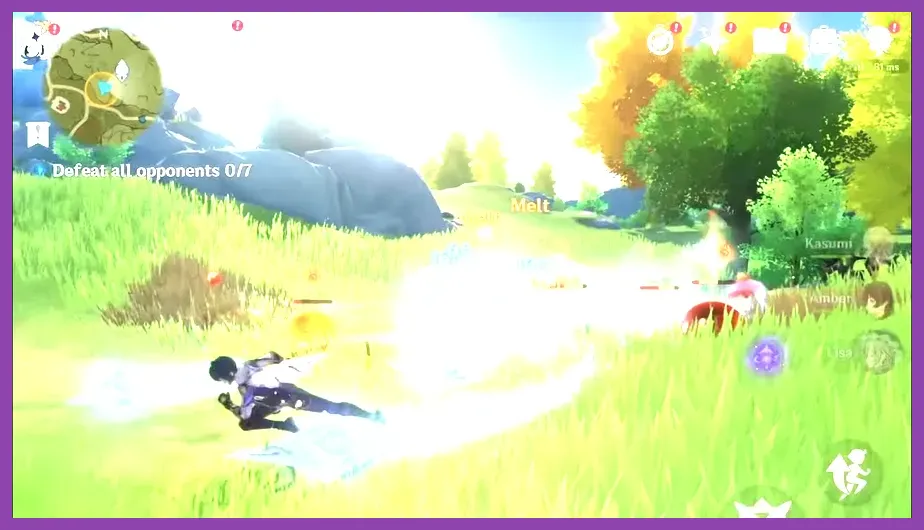
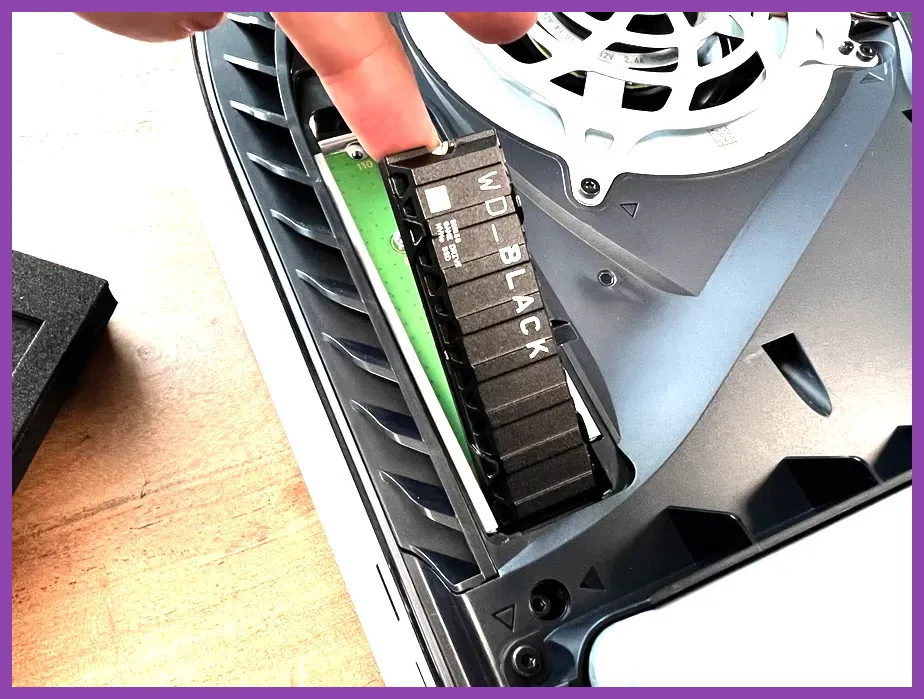
Anime games are notorious for receiving massive, continuous content updates, event patches, and expansion modules that bloat file sizes. When your internal PS5 storage approaches maximum capacity, file fragmentation and slower read/write efficiencies can cause asset streaming stutters during open-world exploration. Ensuring your game is installed on a fast drive is paramount.
If you are running titles off external USB HDDs, move them immediately to the internal ultra-high-speed SSD or an installed compatible M.2 NVMe SSD (such as a drive with read speeds of 5,500 MB/s or faster equipped with a heatsink). Fast asset streaming ensures that textures, character models, and audio cues load instantly when teleporting across regions or entering domain instances. For similar performance-minded organization tips regarding heavy assets and item inventories, review strategies from this Roblox crafting guide.
Optimizing Audio Settings for Immersive Anime Soundtracks
A massive component of the anime gaming experience is the orchestral score, voice acting, and dynamic combat sound design. Default audio setups often compress these elements, leading to muddy battle effects that drown out character dialogue. To optimize your audio output on PS5, go to Settings > Sound > Audio Output and configure your output device correctly.
If you are using a gaming headset, enable 3D Audio and run through the custom profile customization tool to match your acoustic profile. Inside the specific game's audio menu, adjust the sliders so that Voice/Dialogue is set to 100%, Sound Effects (SFX) to 80%, and Background Music (BGM) to 70%. This guarantees that critical audio telegraphs—such as enemy spell chants and dodge cues—cut cleanly through the musical score during intense boss fights. For more insights on optimizing complex loadouts and end-game audio-visual cues, check out this comprehensive Phasmophobia endgame loadout guide.
Network Configuration and Latency Reduction
Because the vast majority of popular anime games on PlayStation 5—such as Genshin Impact and other live-service gacha titles—require a constant internet connection, input latency can feel sluggish if your network packet loss is high. Even single-player focused anime experiences often authenticate server connections on startup.
To secure the most responsive combat experience:
- Connect your PS5 directly to your router using a wired Ethernet cable rather than relying on Wi-Fi 5 or Wi-Fi 6 bands, which are prone to local interference.
- Configure your router's Quality of Service (QoS) settings to prioritize your PlayStation 5's MAC address above other household devices.
- Manually test your internet connection via the PS5 network settings menu to ensure your NAT Type is set to Type 2 (Open) rather than Type 3 (Strict), which can restrict seamless co-op matchmaking and cause rubber-banding during boss domains.
By pairing a stable, low-latency network connection with refined 60 FPS performance modes, proper HDR calibration, and uncompromised internal storage streaming, your PlayStation 5 will deliver the smoothest, most visually stunning anime gaming experience possible.