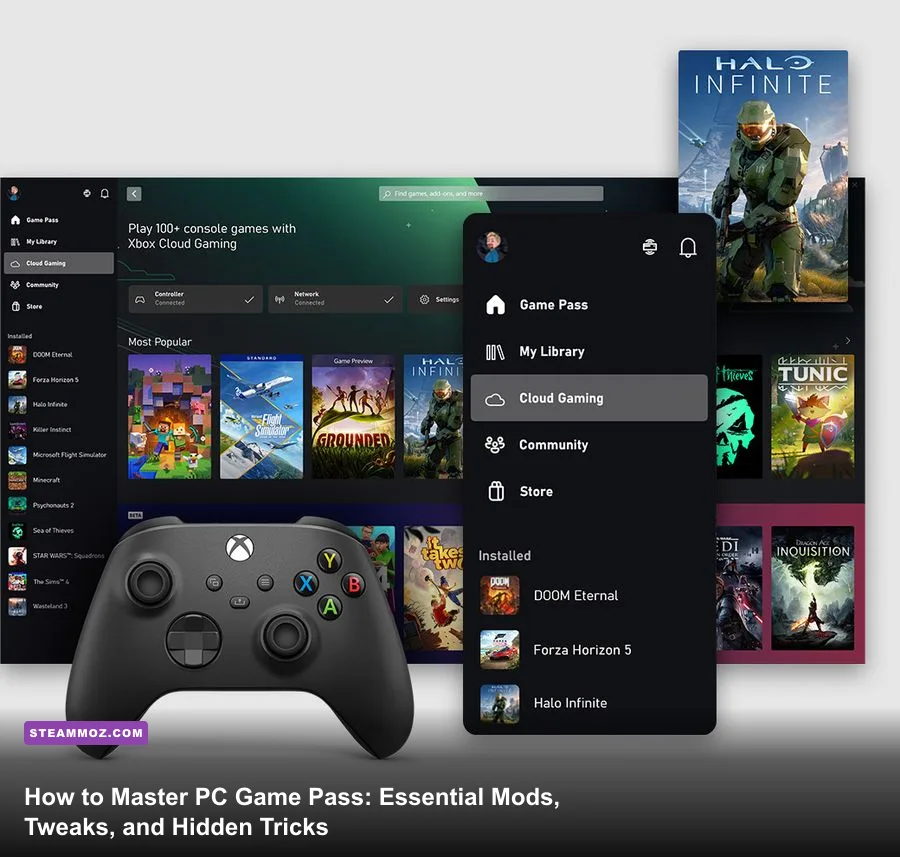
Getting the most out of PC Game Pass isn't just about queueing up whatever hits the "Recently Added" carousel; it's about breaking through Microsoft's finicky ecosystem to make games run, look, and mod like native Steam titles. To instantly supercharge your experience, open your Xbox App for PC settings, set your default installation path to an open folder like C:\\XboxGames to enable file access, uncap your download speeds in Windows Delivery Optimization, and link your third-party EA Play and Ubisoft Connect accounts. Stop treating Game Pass like an immutable console dashboard—with a handful of tactical tweaks, you can force custom graphics profiles, inject community mods, and eradicate the dreaded download freezes that have plagued the Windows store for years.
Unlocking Custom Install Folders and Bypassing WindowsApps Lockdowns
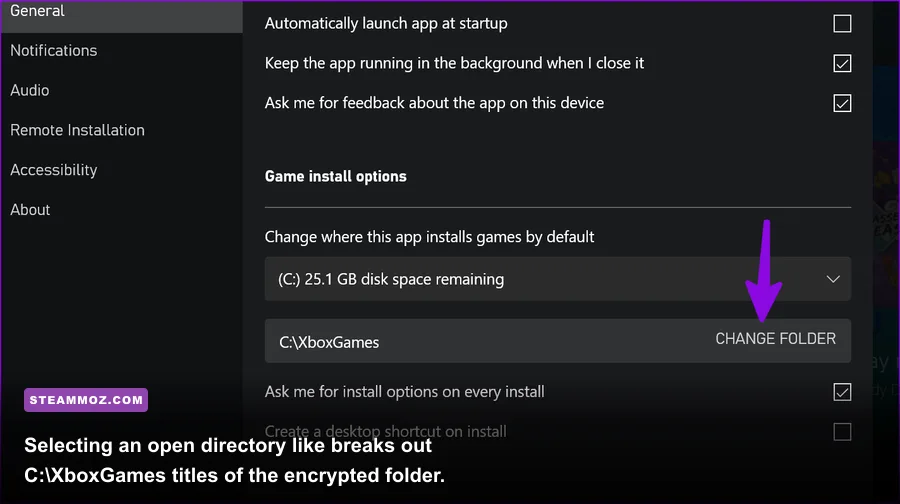
For years, the biggest headache with PC Game Pass was the notorious WindowsApps folder—an encrypted, permission-locked vault that prevented gamers from touching their own game files, installing ReShade, or editing configuration INIs. Microsoft finally caved by introducing "Advanced Management Features," but millions of players still install their libraries into legacy locked structures without realizing it.
To fix this, fire up the Xbox App, click your profile icon in the top-left corner, and select Settings > General. Under Game Install Options, change your drive location to a custom directory like D:\\XboxGames. Next, look at your existing library in the left sidebar. Right-click any previously installed title, hit Manage > Files, and look for an option that says Enable Advanced Management or Move. If the files are still encrypted, moving them to your newly specified folder immediately grants standard user write permissions.
Why does this matter? Once your game files live in open folders, you can add executable profiles directly to the NVIDIA Control Panel or AMD Software Adrenalin Edition. This allows you to force driver-level Low Latency Mode, inject custom Anti-Aliasing, or set anisotropic filtering to 16x on older titles that lack in-game options. If you're constantly fighting random framerate drops or stability quirks across various game ports, checking out our guide on stopping game crashes and stuttering will show you how vital direct executable access is for system-level overrides.
Modding PC Game Pass Titles: What Actually Works
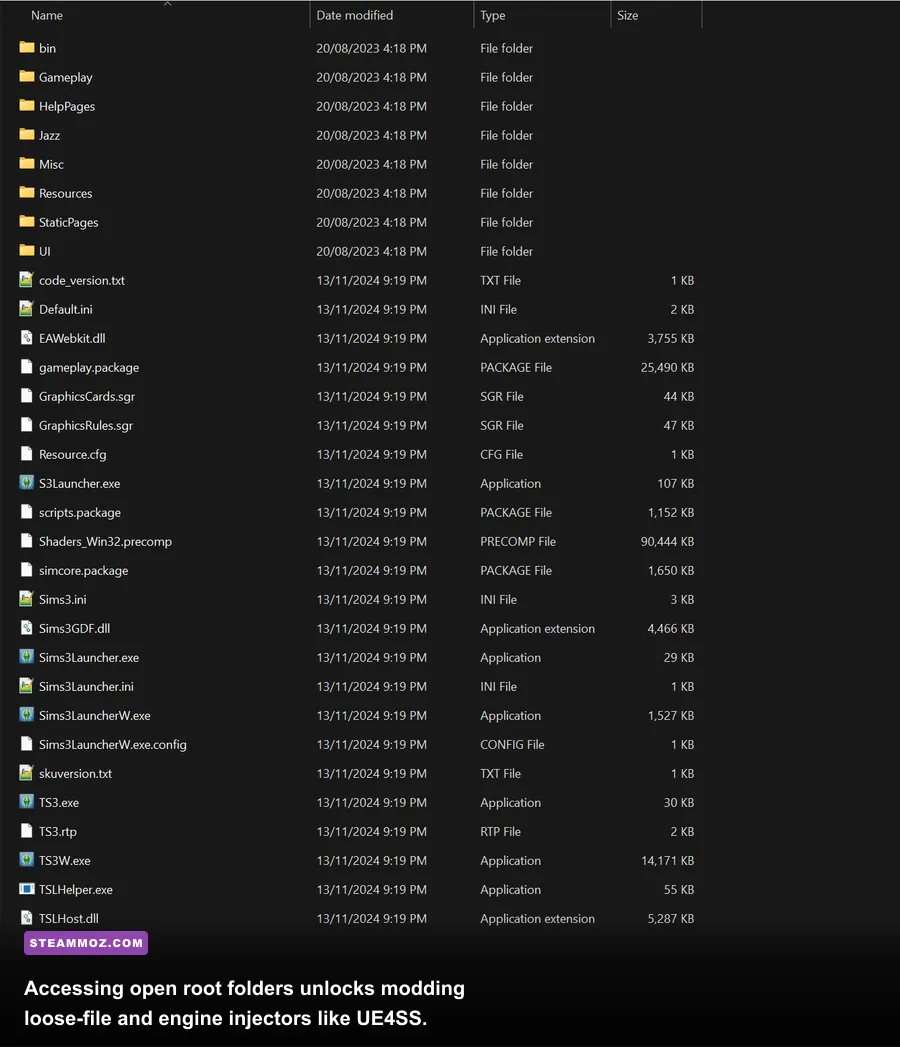
There is a stubborn myth that you can't mod PC Game Pass games. You can—you just need to know the engine architecture and file injection boundaries. Because Game Pass executables run through lightweight Microsoft Store licensing wrappers, tools that rely on low-level memory hooking (such as the standard Skyrim Script Extender or Fallout 4 Script Extender) often fail to hook into the runtime. However, loose-file mods, texture packs, Unreal Engine injectors, and configuration tweaks work flawlessly.
For games running on Unreal Engine 4 and 5 (like Palworld or Lies of P), you can use tools like UE4SS (Unreal Engine 4/5 Scripting System). Drop the DLLs right into the game's binary folder—typically found under XboxGames\GameName\Content\Binaries\WinGDK. This grants Lua scripting capabilities, blueprint mod loading, and free-cam tools that match the Steam release feature-for-feature.
For Bethesda titles like Starfield, community modders developed ASI loaders specifically tuned for the Windows Store edition. You can safely install custom UI replacements like StarUI, texture revamps, and balance overhauls directly into your Documents\\My Games directory or the game's native Content\\Data folder.
| Engine / Game Category | Modding Method | Compatibility Rating | Key Directory / Gotcha |
|---|---|---|---|
| Bethesda Creation Engine (Starfield, FO4) | Loose files, Plugins, Game Pass ASI Loader | High (No standard F4SE) | Starfield\\Content\\Data (Requires custom StarfieldCustom.ini) |
| Unreal Engine 4 & 5 (Palworld, Ark) | UE4SS, PAK file drops | Very High | Content\\Paks\\~mods or Binaries\\WinGDK |
| Unity Engine (Indie RPGs, Roguelikes) | BepInEx (IL2CPP / Mono) | Moderate | Check whether the build is compiled as IL2CPP or standard Mono |
| Proprietary Engines (Forza, Halo) | ReShade, Texture swaps | Low / High Risk | Avoid online-enabled files; anti-cheat triggers instant bans |
If you're jumping between genres and testing combat-heavy titles on the service, you'll find that tweaking local configuration files makes a massive difference. Just as we explored when dialing in loadouts for beginner combat strategies, knowing where your local profile files reside prevents cloud-sync overwrites from wiping your custom bindings and display tweaks.
Killing Download Bottlenecks and Vanishing Storage Bugs
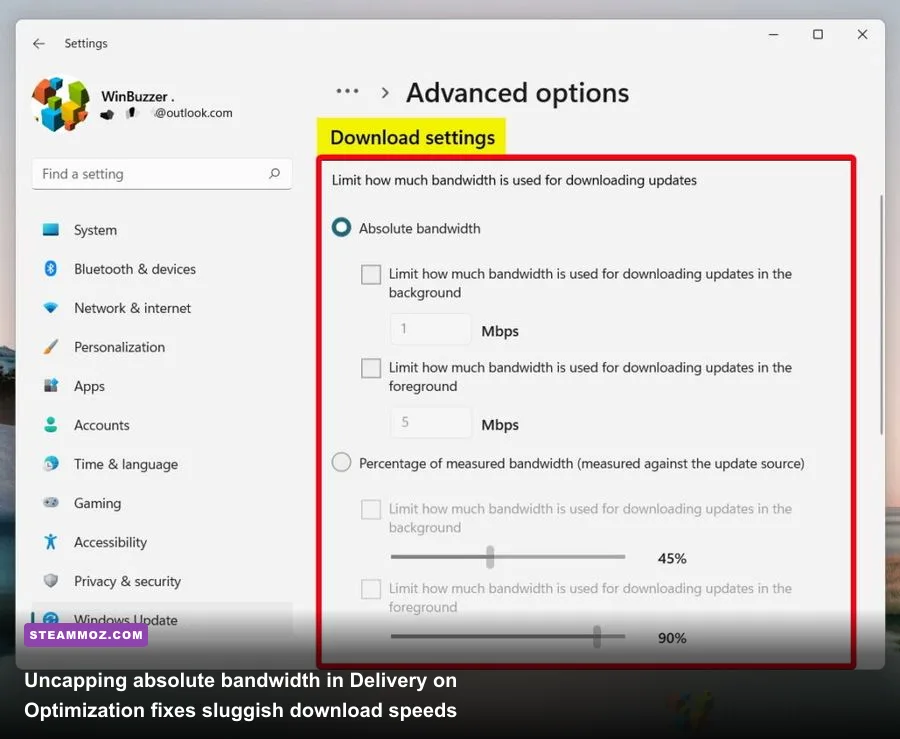
Nothing kills the excitement of an 80GB download quite like watching the Xbox App throttle your fiber connection down to 4 MB/s, or worse, watching an installation stall out at "0% Preparing" before throwing error code 0x80070005. The root cause is almost always Windows Delivery Optimization treating your PC like a restricted bandwidth node.
To unleash your full download speeds:
- Hit the Windows Key, type Delivery Optimization advanced settings, and press Enter.
- Under Download settings, check Absolute bandwidth.
- Check both boxes for foreground and background downloads, and crank the sliders up to match your actual ISP ceiling (e.g., 500–1000 Mbps).
- Toggle off "Allow downloads from other PCs" unless you actively sync Game Pass titles across multiple local rigs on your home network.
If the app refuses to install games, claiming you have "0 bytes available" despite having a 2TB NVMe SSD sitting empty, your Gaming Services package is out of sync. Don't waste hours reinstalling Windows. Fire up PowerShell as Administrator and run the following command to completely purge the corrupted dependency cache:
get-appxpackage Microsoft.GamingServices | remove-AppxPackage -allusersAfter clearing the package, restart your machine, launch the Xbox App, and it will immediately prompt you to reinstall Gaming Services cleanly via an official popup. Resolving internal driver handshakes is just as critical here as it is when applying troubleshooting fixes for startup crashes, ensuring the app reads your NTFS drive sectors without glitching out.
Maximizing Performance: Graphics Overrides and Audio Profiles
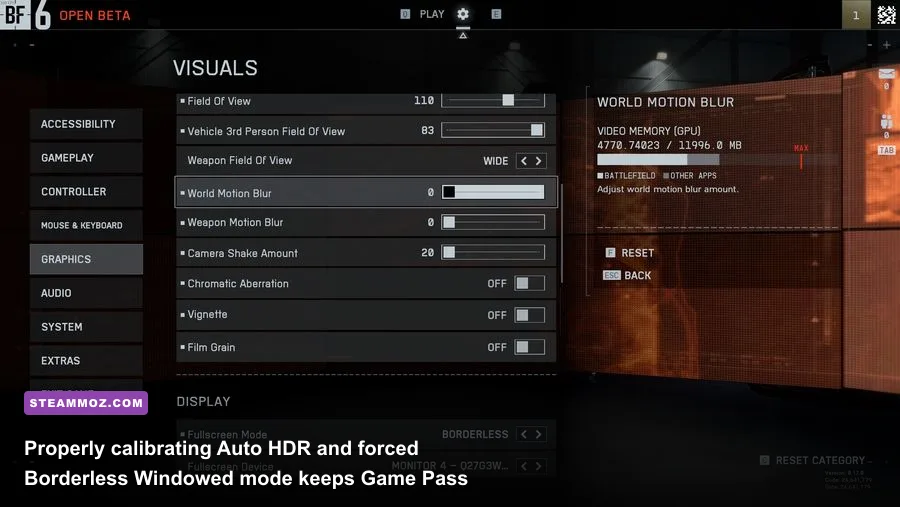
Because Game Pass titles run through the Desktop App Assessor architecture, many launch by default in Borderless Windowed mode without an option for Exclusive Fullscreen. On modern Windows 11 builds, this is actually a benefit if you configure system-level pipeline features correctly.
Turn on Optimizations for windowed games in Windows 11 by navigating to Settings > System > Display > Graphics > Change default graphics settings. This enables the modern flip model presentation for older DirectX 11 titles, significantly slashing input latency and unlocking Auto HDR. If you have an HDR-capable gaming monitor, Auto HDR enriches older SDR Game Pass additions—making vintage shooters and classic indie games pop with remarkable dynamic range.
Similarly, keep your eye on storage performance. Games supporting Microsoft's DirectStorage (such as Forza Motorsport) require your game folder to live on an NVMe SSD formatted to standard 4KB sector sizes. If you installed your library onto an external SATA drive or an improperly partitioned secondary volume, load times can triple and asset streaming will stutter during fast traversal.
| System Feature | Menu Location | Performance Impact | Recommended Configuration |
|---|---|---|---|
| Windowed Game Optimizations | Windows Graphics Settings | Reduces input lag; unlocks Auto HDR | ON (Essential for DirectX 11 titles) |
| Hardware-Accelerated GPU Scheduling (HAGS) | Windows Graphics Settings | Required for DLSS 3 Frame Gen | ON (Reboot required) |
| Delivery Optimization | Windows Update > Advanced | Speeds up game download pipelines | Absolute Bandwidth: Maxed Out |
| DirectStorage Drive Allocation | Xbox App Installation Paths | Cuts load times; ends asset hitching | Install strictly on Internal NVMe M.2 SSDs |
Fine-tuning these display settings pairs directly with game-specific engine adjustments. When tweaking dense open worlds, dialing back internal volumetric scaling makes all the difference, exactly like the optimizations covered in our breakdown on maximizing FPS settings and our hardware walkthrough for squeezing out higher frame rates.
Claiming Hidden Ecosystem Perks, EA Play, and Riot Rewards
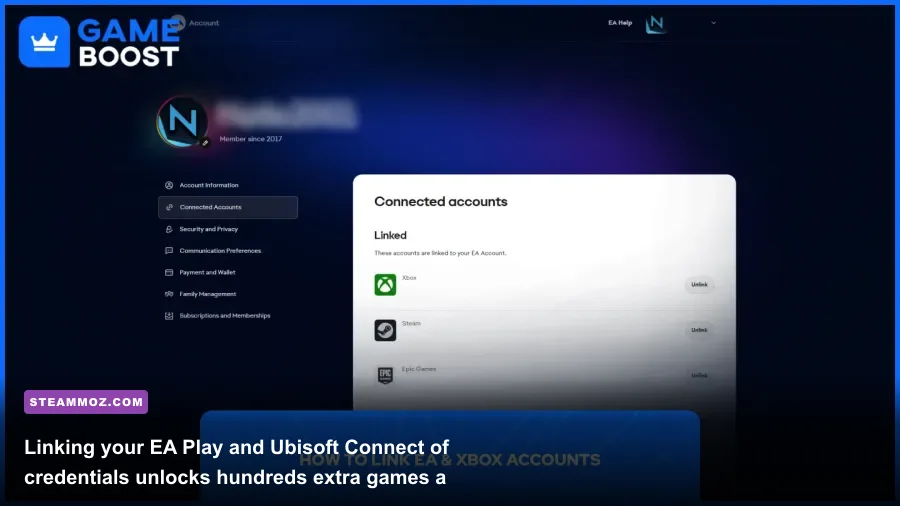
A massive chunk of PC Game Pass value goes completely unclaimed because players forget to bridge their accounts with third-party publishers. Your subscription includes a full tier of EA Play at zero extra charge, granting instant access to the Dead Space Remake, Star Wars Jedi: Survivor, and the Mass Effect Legendary Edition.
To claim this, you must download the standalone EA App. In the Xbox App, click on any EA title (like Battlefield 2042) and hit install. This initiates a handshake that prompts you to link your Xbox profile to your EA account. Once bound, you don't even need to touch the Xbox App to install EA titles; you can launch and manage them directly inside the native EA App launcher, avoiding double-layered background service conflicts.
The exact same principle applies to Ubisoft Connect and Riot Games. Linking your Riot ID unlocks every single agent in Valorant and every champion in League of Legends the second you log in—saving hundreds of hours of character grinding. Combine that with the monthly "Perks" tab in the Xbox App (which regularly hands out Discord Nitro subscriptions, premium currency for free-to-play shooters, and cosmetic starter bundles), and you'll easily recoup the cost of the subscription before even booting up a game.
Finally, if you bounce between a desktop rig and a handheld like the ROG Ally or Lenovo Legion Go, pay attention to the Xbox Play Anywhere tag on store pages. Titles with this tag share unified cloud saves between your PC, Xbox Series X, and cloud streaming sessions seamlessly. Whether you're fighting crash errors like those detailed in our Everspace 2 troubleshooting guide or jumping into a lightweight indie roguelike, mastering these background settings turns PC Game Pass from a clunky Windows storefront into an elite, highly customized gaming library.