If you are dealing with violent frame dips, hitching during gunfights, or spontaneous desktop crashes while running Modern Warfare II on Steam, the root problem almost always stems from three culprits: the game's engine misallocating your CPU threads through an incorrect RendererWorkerCount, an overly greedy VRAM allocation target that pushes your GPU into system memory thrashing, or corrupted DirectX shader caches clashing directly with Steam's background pre-caching pipeline. You don't need to wipe your operating system or hope an emergency patch fixes things. By tweaking your hidden configuration file, clamping your memory overhead, and locking your display pipeline to match your hardware profile, you can eliminate micro-stutters and stabilize your 1% low frame rates for good.
The Core Culprit: Adjusting RendererWorkerCount in the Config File
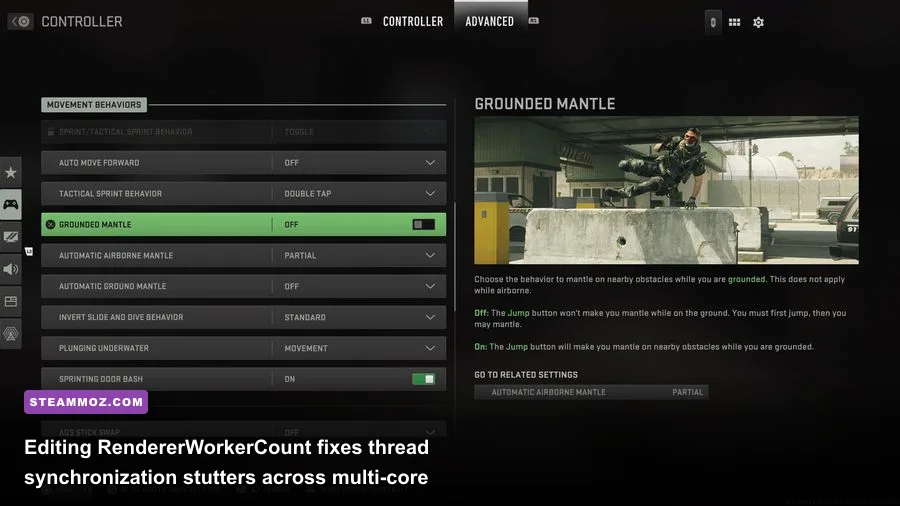
The modern IW 9.0 engine powering Call of Duty tries to dynamically gauge your CPU topology when it compiles its baseline profiles, but it notoriously fails at handling asymmetric architectures and hyperthreaded cores. When the game sets your worker thread allocation too high or too low, your CPU cores stall waiting for one another to sync up draw calls. That stall manifests in-game as an aggressive micro-stutter every time you slide-cancel, round a crowded corner on Mercado Las Almas, or engage an enemy firing full auto. Much like optimizing render threads in our Elex crash resolution and FPS guide, fixing this requires manual configuration file intervention.
To fix this, close the game completely and shut down Steam. Open your Windows File Explorer and navigate to your documents directory: C:\\Users\\[YourUsername]\\Documents\\Call of Duty\\players. Inside this folder, look for a file named options.3.cod22.cst. Right-click this file and open it with a clean text editor like Notepad. Press Ctrl + F to search for the variable RendererWorkerCount. By default, MW2 frequently defaults this variable to absurd values—either pinning it to all available logical threads (which causes thread contention) or dropping it down to 2 or 4 on high-tier processors.
The golden rule for RendererWorkerCount is targeting your processor's physical performance core count, never its total thread count. If you are running an AMD Ryzen 5 5600X (6 cores, 12 threads), set the value to 5 or 6. If you are running an 8-core, 16-thread chip like the Ryzen 7 7800X3D or Ryzen 7 5800X, set the value to 6 or 7 (leaving one core dedicated to handling Windows OS threads, Discord, and Steam services). For modern Intel hybrid chips like the Core i7-13700K or i5-14600K, count only your high-performance P-cores. An i7-13700K features 8 P-cores; set the worker count to 6 or 7 to ensure the game engine never attempts to offload render threads onto the slower E-cores. Once changed, save the file and set it to read-only under file properties so MW2 doesn't overwrite your edits on the next launch.
Dialing In Competitive Graphics Settings for Maximum Framerates
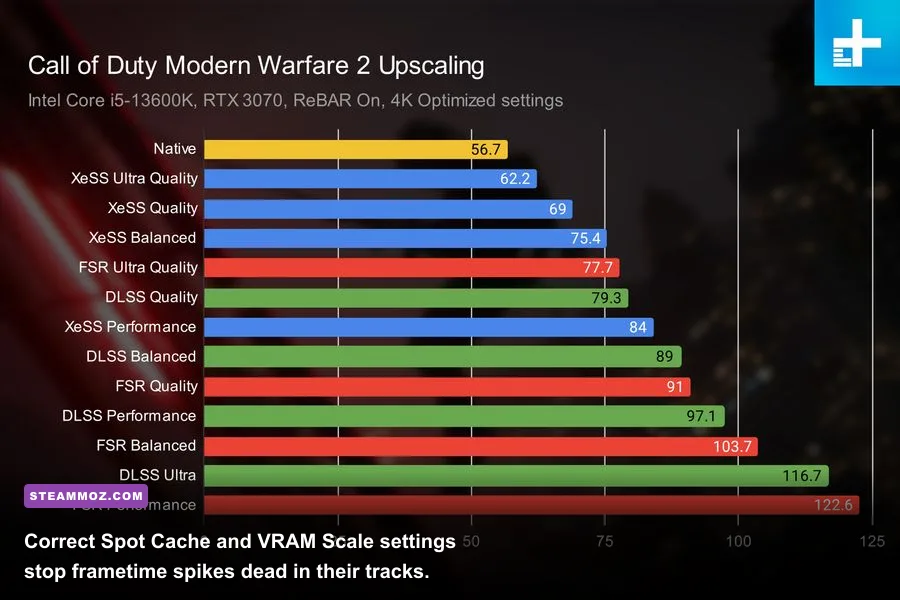
Most players crank up textures or blindly accept default presets without understanding how specific rendering parameters hit the memory bus. In Modern Warfare 2, visual fidelity settings don't just reduce your raw average FPS—they blow out your frame time consistency, creating jagged frame pacing graphs that make aiming feel floaty and unresponsive. Our deep-dive testing mirrors the balance strategies we explored in the Far Cry 6 settings breakdown for max FPS, where targeted graphic pruning delivers huge performance gains without degrading visual clarity.
The single most dangerous setting in the graphics menu is Video Memory Scale. The game defaults this slider to 85% or 90%. While that sounds logical, MW2 has notorious background VRAM leaks during long multiplayer sessions or expansive Ground War deployments. Once the GPU hits that 90% threshold, Windows Dynamic Memory Management takes over and starts paging assets out of high-speed GDDR6 memory into your standard, significantly slower system RAM over the PCIe bus. The instant this occurs, your frame rate craters from 140 FPS down to 18 FPS for two seconds. Set your Video Memory Scale slider to 70% or 65%. This establishes a strict buffer, giving the engine ample breathing room and completely eliminating dynamic swapping hitches.
Next is Spot Cache. Counterintuitively, setting Spot Cache to Low or Medium will tank your performance. Setting this parameter to High or Ultra forces the game to store point-light shadow maps inside your graphics card's onboard memory rather than re-rendering dynamic lighting calculations on the fly whenever grenades detonate or tactical equipment illuminates an interior. Pair this with FidelityFX CAS instead of heavy temporal upscaling to preserve visual crispness at native render resolution.
| Graphics Setting | Recommended Competitive Value | Frametime Impact | Tactical & Visual Justification |
|---|---|---|---|
| Display Mode | Exclusive Fullscreen | Extremely High | Bypasses Windows Desktop Window Manager (DWM) composition latency. |
| Video Memory Scale | 65% – 70% | Massive Stability Gain | Prevents dynamic VRAM paging spikes to system RAM across PCIe. |
| Upscaling / Sharpening | FidelityFX CAS (Strength: 75) | Zero Overhead | Renders at 100% native resolution while sharpening long-range operator outlines. |
| Texture Resolution | Normal or Low | Moderate | Reduces GDDR load; High provides zero tactical advantage in gunfights. |
| Texture Filter Anisotropic | High | Negligible (<1%) | Cleans up angled ground textures with virtually zero frame rate penalty. |
| Particle Quality | Low | High During Combat | Stops sudden frame drops when standing near smoke, thermite, or explosions. |
| Bullet Impacts & Sprays | On | Negligible | Vital tactical cue for identifying incoming fire angles without frame cost. |
| Shader Quality | Low | Moderate (4-6%) | Flattens lighting complexity, elevating enemy model visibility across shadows. |
| Spot Cache | High or Ultra | Critical Frametime Fix | Pre-allocates light maps; prevents aggressive micro-stutter when breaching rooms. |
| Particle Lighting | Low | Moderate | Stops alpha-blending bottlenecks during cluster strikes and mortar barrages. |
| Ambient Occlusion | Off | Significant (6-8%) | Removes ambient contact shadows, preventing dark corners from concealing targets. |
| Screen Space Reflections | Off | Moderate (3-5%) | Eliminates visual noise and memory-heavy ray approximations on wet floors. |
| NVIDIA Reflex Low Latency | On + Boost | Input Lag Reduction | Prevents GPU bound render queuing; keeps engine draw times ultra-responsive. |
Purging Shader Caches and Resolving Steam Overlay Crashes
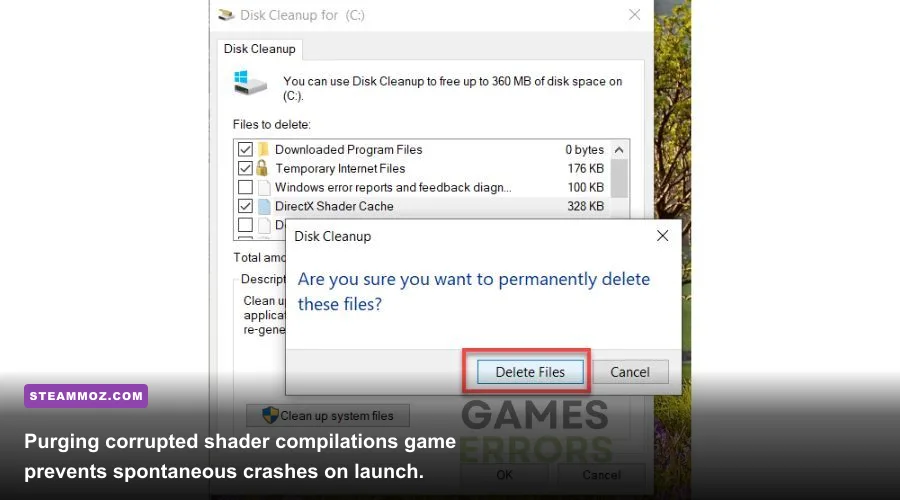
Modern Warfare 2 compiles thousands of DirectX 12 shaders specifically for your hardware pipeline. The problem with running the title through Steam is the friction between Steam's automated background shader pre-caching feature and the game's internal pipeline. If Steam downloads a generic pre-compiled shader profile while your GPU is simultaneously trying to assemble its own optimized runtime shaders, corrupted assets get written to disk. The result? Sudden freezes on launch, endless "Installing Shaders" loops at 99%, or immediate crashes to desktop when loading into maps like Breenbergh Hotel. These hard crashes mirror the memory conflicts detailed in our Everspace 2 crashing fix analysis.
To scrub the system clean, start by opening your Steam client. Navigate to Steam > Settings > Downloads, scroll to the bottom, and toggle off Enable Shader Pre-Caching. Next, close Steam. Press Win + R, type %localappdata%, and hit Enter. Locate the folders titled Activision and Call of Duty, dive into their subdirectories, and delete the temporary shader folders. Afterward, run Windows Disk Cleanup, select your primary C: drive, check only DirectX Shader Cache, and click OK. When you next launch MW2, allow the in-game shader compilation to proceed uninterrupted from 0% to 100% on the main lobby screen before joining any match or firing range.
Furthermore, third-party software hooks running over Steam's API represent another prime source of hard crashes. Modern Warfare 2’s proprietary anti-cheat driver, Ricochet, works at the kernel level and flags aggressive memory hooks. If you have the Steam Overlay, Discord Overlay, GeForce Experience In-Game Overlay, and RivaTuner Statistics Server (RTSS) running simultaneously, the graphics pipeline will trigger a fatal access violation. Turn off the Steam Overlay specifically for MW2 by right-clicking the game in your library, selecting Properties, and toggling off Enable the Steam Overlay while in-game. Do the same inside Discord's game settings. If you use RTSS to track your metrics, ensure its application detection level is set to None or Low for cod.exe.
Windows 11 and Driver-Level Optimizations (HAGS, Low Latency, and Power Delivery)
Even if your in-game settings are dialed, underlying operating system protocols can introduce erratic frame spacing. Windows 11 ships with several virtualization-based security layers and dynamic scheduling algorithms that work great for office productivity but choke high-polling competitive shooters. If your hardware is misaligned at the driver level, your hardware can't hit the stable state seen in titles optimized along the lines of our Filament FPS optimization profile and EscapeVR basement performance guide.
Open your Windows Graphics Settings by pressing the Windows Key, typing Graphics Settings, and pressing Enter. Here, locate the toggle for Hardware-Accelerated GPU Scheduling (HAGS). For modern NVIDIA RTX 30-series and 40-series cards, HAGS should remain On to utilize frame generation pipelines and reduce driver CPU overhead. However, on older RTX 20-series, GTX 10-series, or AMD Radeon RX 5000/6000 GPUs, HAGS frequently destabilizes the IW 9.0 engine, inducing erratic spikes in frametimes. If you run legacy hardware, toggle HAGS Off and reboot your rig.
| System Component | Standard Default | Pro-Tuned Profile | Stability Benefit |
|---|---|---|---|
| Hardware-Accelerated GPU Scheduling (HAGS) | Windows Default (Varies) | Off for Older GPUs / On for RTX 40-Series | Cuts erratic frametime variances and pipeline synchronization stalls. |
| Windows Power Plan | Balanced | High Performance / Ultimate | Prevents CPU core clock down-throttling during respawn transitions. |
| Game Bar & Background Capture | Enabled (Auto-Record) | Disabled | Reclaims up to 5% system memory bandwidth and stops background encoding spikes. |
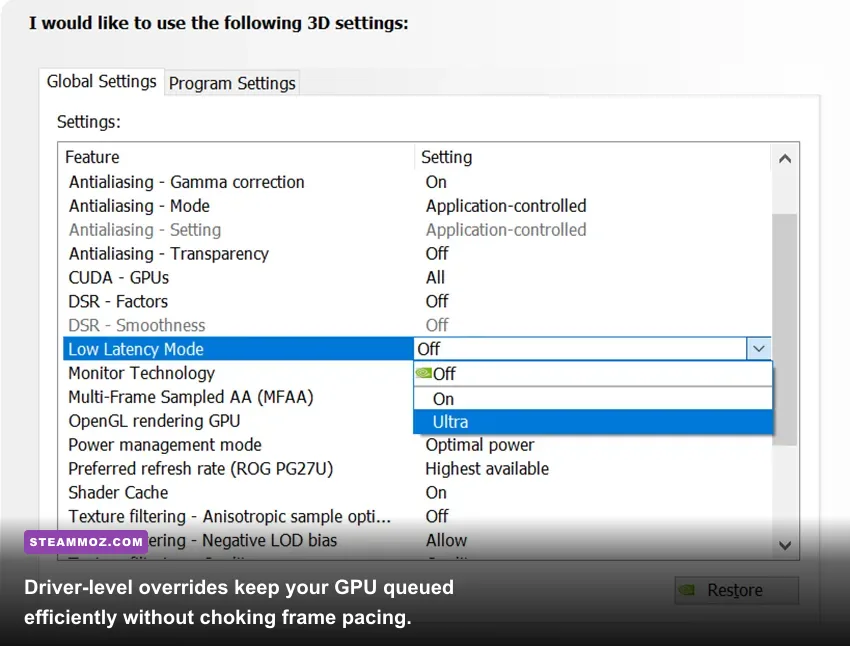
| NVIDIA Control Panel: Low Latency Mode | Off | Ultra (or controlled via In-Game Reflex) | Flushes pre-rendered frames from the pipeline, reducing click-to-photon lag. |
| AMD Adrenalin: Anti-Lag | Disabled | Enabled | Paces dynamic CPU frame processing to match GPU production rates. |
Head into the NVIDIA Control Panel or AMD Software Adrenalin Edition to adjust how your driver interacts with Modern Warfare 2. For NVIDIA users, select Manage 3D Settings, switch to the Program Settings tab, and locate cod.exe. Adjust the following specific parameters:
- Power Management Mode: Prefer Maximum Performance (forces your GPU clock out of energy-saving downclock states during killcam transitions).
- Low Latency Mode: Set this to On. (Note: If you already enable NVIDIA Reflex Low Latency + Boost in the game's display menu, the game engine overrides this driver setting. Do not run contradictory settings through third-party injection tools).
- Threaded Optimization: On (assists the CPU in distributing drawing pipelines across the engine's core threads).
- Max Frame Rate: Set this to roughly 3 FPS below your monitor’s refresh rate (e.g., 141 FPS on a 144Hz panel, 237 FPS on a 240Hz panel) when pairing with G-Sync or FreeSync to completely prevent screen tearing without triggering V-Sync input lag.
Fixing Error Code 0xC0000005 and Direct3D Driver Crashes
The single most frustrating issue plaguing Modern Warfare 2 on PC is the catastrophic crash dialog reading: "The application has unexpectedly stopped working. Error Code: 0xC0000005 (0) N". This is an access violation error. It tells you that the game engine attempted to read or execute an instruction from a protected block of system memory that was either unallocated, corrupted, or forcibly sequestered by Windows or your security software. Official updates from the Call of Duty official portal and troubleshooting bulletins on Activision Player Support confirm this stems largely from driver stack collisions, virtual memory exhaustion, and audio subsystem memory leaks.
First, address the game's bizarre voice chat memory leak. MW2 utilizes an integrated middleware voice protocol that continuously dumps audio packets into unmanaged system memory buffers. If your in-game audio channel is left on "All Lobby" while you play public matches for an hour or more, the memory footprint of cod.exe swells until an access violation triggers. Go to Settings > Audio > Voice Chat, and set your Voice Chat Recording Mode to an active threshold or push-to-talk, and restrict your Game Voice Channel to Party Only or Friends Only. Furthermore, ensure your Windows sound output is explicitly mapped to your physical soundcard or DAC rather than leaving the game's audio device setting on "Windows Default Device".
Second, fix your Windows Virtual Memory (Pagefile) allocation. Many gamers operating with 16GB or even 32GB of high-speed RAM manually disable their Windows Pagefile under the mistaken impression that it saves SSD wear. This is catastrophic for Call of Duty. MW2 expects a substantial committed virtual memory swap space to park inactive texture assets and audio libraries. Without it, the moment physical memory pressure rises, the engine crashes instantly with Error 0xC0000005.
To fix this, press Win + R, type sysdm.cpl, and press Enter. Click on the Advanced tab, and under Performance, click Settings. Go to the Advanced tab inside the new window, and click Change under Virtual Memory. Uncheck "Automatically manage paging file size for all drives". Select your fastest NVMe SSD (preferably where Windows or MW2 is installed), select Custom size, and set both the Initial size and Maximum size to 16384 MB (16GB). Click Set, apply the changes, and restart your computer. This creates a solid, contiguous 16GB virtual buffer that absorbs unexpected allocation spikes from memory-heavy titles, much like the hardware preparation steps we outline in our Fatal Fury PC specs analysis.
Finally, perform a clean driver installation using Display Driver Uninstaller (DDU) in Windows Safe Mode if you recently upgraded your GPU or hopped through multiple game-ready driver updates. Lingering registry entries and misconfigured shader compiler DLLs from old display drivers are notorious for causing DirectX encountered an unrecoverable error popups. Boot into Safe Mode, run DDU to wipe all traces of existing display software, boot back into standard Windows, and install the latest stable driver directly from your GPU manufacturer. Pair this with the custom RendererWorkerCount adjustments above, and Modern Warfare 2 on Steam will run locked, responsive, and crash-free across your entire session.