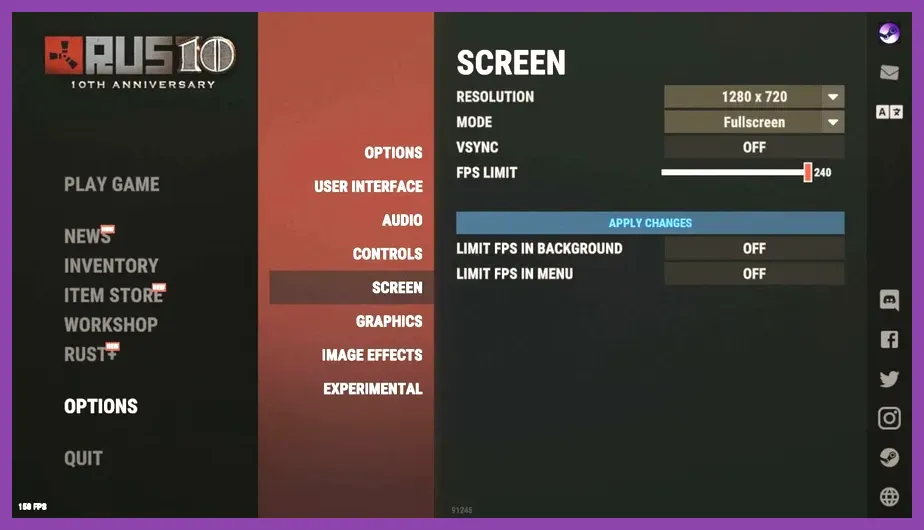
To fix lag and low FPS in Rust, lower the CPU-heavy settings first, cap frames with fps.limit, install the game on an SSD, close background overlays, and separate connection problems from rendering problems. Start with Graphics Quality 3, Shadow Quality 0, Shadow Cascades None, Water Quality 0, Max Gibs 0, and a sensible resolution before changing advanced Windows settings.
Use a Performance Baseline Before Changing Settings
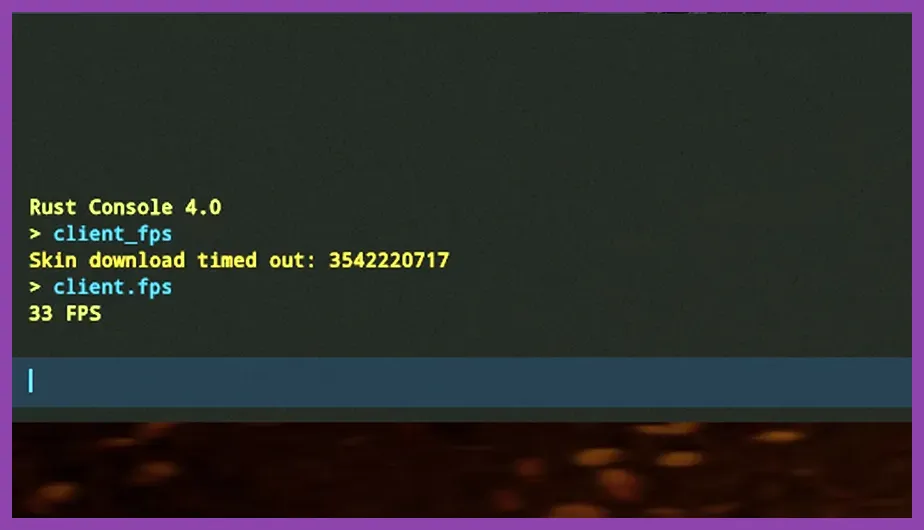
Test in the same location before and after every major change. Rust can run smoothly in an empty beach area but lose frames near Outpost, Launch Site, or a player-built compound containing hundreds of deployables. Press F1 to open the console and enter perf 1. The overlay reports FPS, frame time, ping, and other useful values; enter perf 0 to hide it.
Low FPS means the rendered frame rate is poor, while rubber-banding, delayed hits, and players teleporting usually indicate network trouble. If FPS falls from 90 to 45 while entering Outpost but ping stays near 30 ms, the problem is local performance. If FPS remains stable while ping jumps from 40 to 180 ms or packet loss appears, change servers or troubleshoot the connection instead.
Also check Rust’s published requirements on the official Steam page. Rust streams a large, constantly changing world, so an older quad-core processor, 8GB of RAM, or a mechanical hard drive can cause stutter even when the average FPS looks acceptable. A 16GB dual-channel system with the game on an SSD is a far more practical baseline.
Best Rust Graphics Settings for Higher FPS
Use this 1080p starting profile on a mid-range gaming PC:
- Screen Mode: Exclusive Fullscreen; use Borderless only if you regularly switch applications.
- Resolution: Native 1920x1080. If the GPU remains at 95-100% usage, test 1600x900 before lowering every quality option.
- Graphics Quality: 3. This keeps terrain and material detail usable without the heavy cost of the highest presets.
- Shadow Quality: 0 and Shadow Cascades: None. Shadows are among the quickest ways to recover frames in forests and compounds.
- Water Quality: 0, Water Reflections: Off, and Water Distortion: Off.
- Draw Distance: 1,500 to 2,000. Raising it to 2,500 or more can hurt CPU performance around monuments.
- Object Quality: 50-75. Keep it at 75 if distant structures become difficult to identify.
- Tree Quality: 50, Terrain Quality: 50, and Grass Quality: 0-25.
- Particle Quality: 0, Contact Shadows: Off, and Lens Dirt: Off.
- Max Gibs: 0 and Decor Quality: 0. These settings matter during explosions and crowded base fights.
Keep textures at 1-2 rather than dropping them immediately. Texture quality primarily uses VRAM and often changes image clarity more than FPS. If you have an 8GB-or-better graphics card, try Texture Quality 2 while monitoring VRAM usage. Turn off motion blur, depth of field, vignette, and sharpen effects if you want a clearer competitive image.
Cap FPS and Apply Safe Console Tweaks
Open the F1 console and use fps.limit 90 for a 90Hz display, fps.limit 120 for 120Hz, or a value your PC can sustain consistently. A stable 90 FPS usually feels better than an unstable 140 FPS that repeatedly drops to 50. Use fps.limit 0 only when benchmarking, since an unlimited frame rate can increase heat, power draw, and stutter.
Useful visual commands include graphics.shadowdistance 50, graphics.shadowcascades 0, graphics.parallax 0, and grass.displacement false. These are performance-oriented changes, not magic fixes: they cannot repair a CPU bottleneck or a slow drive. If a command does not work after a Rust update, remove it rather than relying on an outdated configuration file.
Do not use third-party “FPS booster” injectors, DLL replacements, or suspicious launch parameters. Rust’s official Facepunch Rust Wiki is the safest reference for current console behavior. Steam launch options should remain minimal; avoid copying long command strings from random videos, because many are obsolete or can cause unwanted resolution and input changes.
Fix Stutter, Freezes, and Asset-Streaming Problems

Move Rust to an SSD with at least 25-30GB of free space beyond the installed game. The world, player skins, monuments, and base pieces stream constantly, and a hard drive can produce several-second pauses when you approach Outpost, Bandit Town, the Airfield, or a dense clan base. Keep Windows’ page file system-managed on the fastest drive; disabling virtual memory can turn a memory spike into a crash.
Close Chrome tabs, recording software, RGB utilities, and launchers before joining a crowded server. Disable Steam Overlay, Discord Overlay, Xbox Game Bar, and GeForce Experience or AMD recording overlays one at a time to identify conflicts. In Steam, open Rust’s Properties, choose Installed Files, and select Verify integrity of game files. Then update the GPU driver from NVIDIA or AMD, preferably using a clean installation when problems began after a driver update.
Watch temperatures with a trusted monitor. If the GPU or CPU repeatedly reaches its thermal limit, clocks drop and FPS follows. Clean dust filters, confirm that laptop performance mode is enabled, plug in the charger, and avoid playing Rust in a battery-saving profile. For more general open-world troubleshooting, Steamoz’s open-world optimization guide covers similar storage, power, and frame-pacing principles.
Reduce Rust Network Lag and Rubber-Banding
Graphics changes cannot reduce a 200 ms ping. In the Rust server browser, sort by ping and choose a nearby official or well-administered community server. A server with 35 ms ping but frequent tick or performance warnings may still feel worse than a stable server at 60 ms. Test two or three servers before blaming your PC.
Use Ethernet whenever possible. On Wi-Fi, switch to the 5GHz or 6GHz band, move closer to the router, and stop large downloads or cloud backups. Restart the router, then run a continuous ping test to your router and a reliable public address. Packet loss or wildly varying latency points to the router, wireless signal, ISP, or route—not Rust’s graphics settings.
Disable VPNs and traffic-shaping software during testing. If only one server lags while others remain stable, report the issue to that server’s administrators. If every server has loss, update network drivers and contact your ISP. Facepunch’s official support portal is the correct place to report persistent crashes, anti-cheat errors, or reproducible connection faults.
Hardware Upgrades That Actually Help
Rust performance is often CPU-limited in large bases, while resolution and reflections mainly stress the GPU. Monitor usage during a dip: GPU usage below roughly 80% with one CPU thread heavily loaded suggests a processor bottleneck. GPU usage near 99% means reducing resolution, water effects, shadows, and draw distance should help.
Upgrade from 8GB to 16GB of RAM before buying a new graphics card if the game stutters while Windows swaps memory. Dual-channel memory is important, and 32GB can improve consistency when Rust runs alongside Discord, a browser, and recording software. A modern six-core CPU, an SSD, and a graphics card with at least 6GB of VRAM form a sensible upgrade target for high-refresh 1080p play.
Apply changes in this order: confirm the server and ping, install Rust on an SSD, use the performance graphics profile, cap FPS, disable overlays, verify files, and then investigate thermals or hardware limits. This method identifies the actual cause instead of hiding network lag behind a lower-resolution image.