To fix lag, stuttering, and low FPS in Crusader Kings 3, you must lower the VSync and Shader Quality settings, disable 3D portrait rendering via launch commands or mods, and optimize your CPU priority to handle heavy late-game pathfinding calculations. Paradox Interactive's grand strategy engine heavily taxes your processor as hundreds of AI realms process marriages, wars, and plots simultaneously, causing severe frame drops once you reach the 12th century.
Optimize In-Game Graphics Settings for Smooth Performance
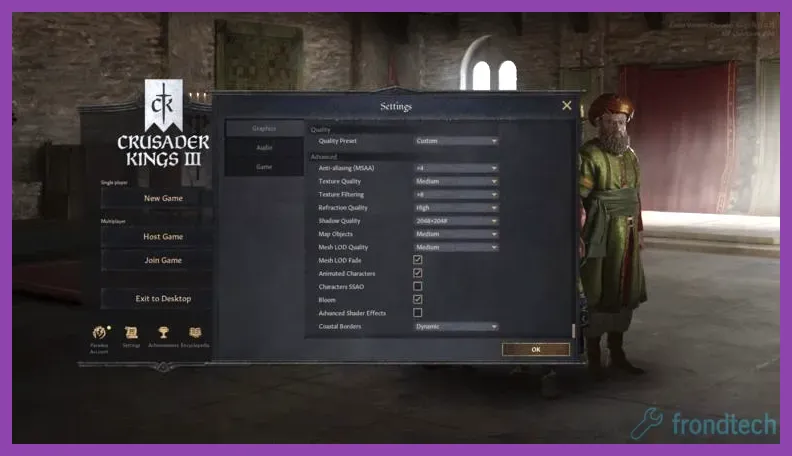
While Crusader Kings 3 is primarily CPU-bound, dropping your GPU load frees up system resources to handle background calculations. Navigate to the video settings menu via the official Crusader Kings 3 Steam page launcher and apply these optimized performance parameters to stabilize your frame rate during massive continental wars:
- Display Mode: Exclusive Fullscreen (never use Borderless Windowed to prevent input lag and overhead).
- Resolution: Match your native monitor resolution (e.g., 1920x1080 or 2560x1440).
- VSync: Off (enable adaptive sync through your Nvidia Control Panel or AMD Software instead to avoid input latency).
- Max Framerate: Cap to your monitor's refresh rate (e.g., 60 FPS or 144 FPS) to prevent the GPU from wasting cycles rendering unplayable frames).
- Texture Quality: High (if you have 6GB+ VRAM) or Medium (for budget GPUs).
- Shader Quality: Medium or Low (this setting introduces massive micro-stutters when rotating the map if left on Ultra).
- Shadows: Low or Off (shadow map rendering heavily tanks frame rates when zooming into dense urban holdings).
- Reflections: Off (imperceptible on the world map and drains precious GPU compute power).
For players seeking a similar hardware balancing act on handheld devices or lower-end rigs, check out the Lenovo Legion Go best graphics settings for performance guide for configuration strategies that apply directly to complex strategy titles.
Disable 3D Portrait Rendering to Fix Late-Game Stutter
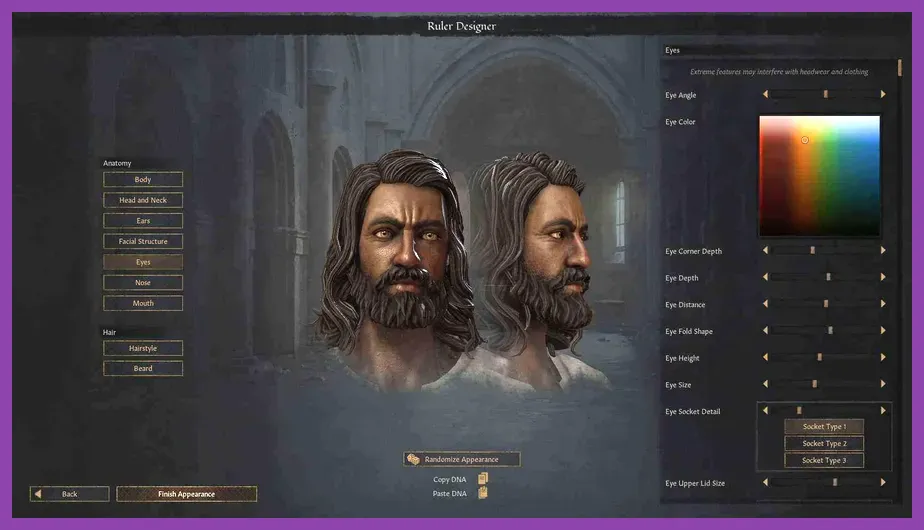
One of the single biggest performance drains in Crusader Kings 3 is the real-time rendering of animated 3D character models in the council, court, and character finder screens. Every time you open the character interaction menu, your hardware loads complex skeletal meshes and dynamic lighting for rulers, heirs, and courtiers.
To drastically improve frame times:
- Download a lightweight performance mod from the Steam Workshop that flattens character portraits into 2D static images.
- Alternatively, open your game launch options in Steam and append the command line argument
-sdror reduce the graphical fidelity scale to 75%. - Limit background application usage by closing browser tabs and heavy memory hogs, keeping your system architecture clean much like optimizing resource management in games discussed in the Manor Lords best beginner tips and tricks overview.
Manage CPU Bottlenecks and Background Processes
Crusader Kings 3 simulates thousands of individual characters, vassal contracts, opinion modifiers, and mercenary bands every single day. As your empire expands from a minor count in Munster to the Emperor of Italia, tick rates drop because your CPU struggles with single-core processing limits. If you enjoy deep management mechanics that push hardware limits, you might also appreciate mastering the survival loops outlined in how to unlock all achievements in RimWorld.
Take these steps to maximize your CPU throughput:
- Open Windows Task Manager (Ctrl + Shift + Esc), navigate to the Details tab, locate
ck3.exe, right-click, select Set Priority, and change it to High. - Disable cloud save synchronization if you experience hitching at the start of every month when autosaves trigger.
- Lower the autosave frequency from monthly to yearly in the in-game settings to eliminate periodic 3-second freezing.
- Ensure your RAM is running at its advertised XMP/EXPO speed in your BIOS, as grand strategy games benefit immensely from high memory bandwidth and low latency.
Clean Up Mod Lists and Reduce Save Game Bloat
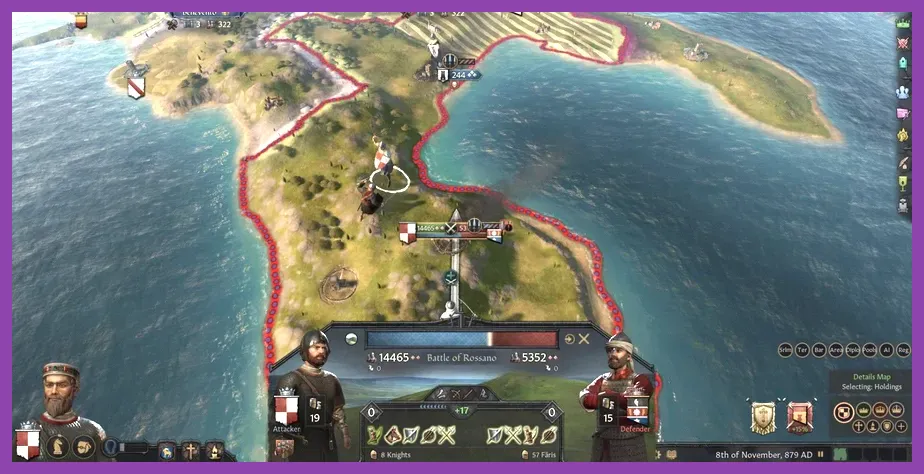
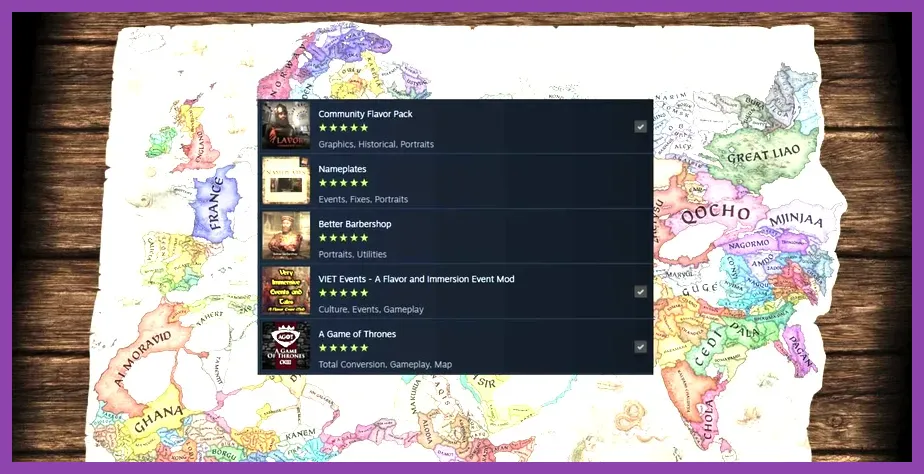
Running fifty different total conversion mods, clothing expansions, and flavor packs simultaneously is a guaranteed recipe for crashes, memory leaks, and catastrophic frame rate drops. Paradox grand strategy titles load every single script, event trigger, and historical adjustment into active memory upon launching a campaign.
Audit your active mod load order by disabling mods that add excessive dynamic historical characters or continuous background script checks. If your save game file size has bloated past 30MB due to centuries of generated courtiers, low fertility pruning, and endless war declarations, game performance will inevitably degrade. For tips on streamlining complex game systems and progression tracking, refer to the guides on how to unlock all achievements in Nine Sols and discover advanced performance tweaks via Nine Sols best graphics settings for high performance.
Adjust Map Detail and Weather Effects
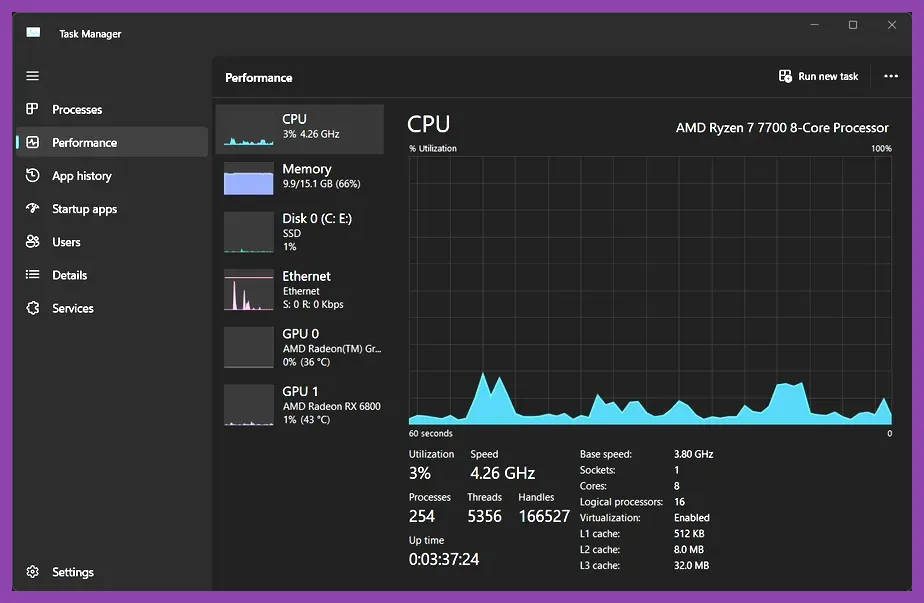
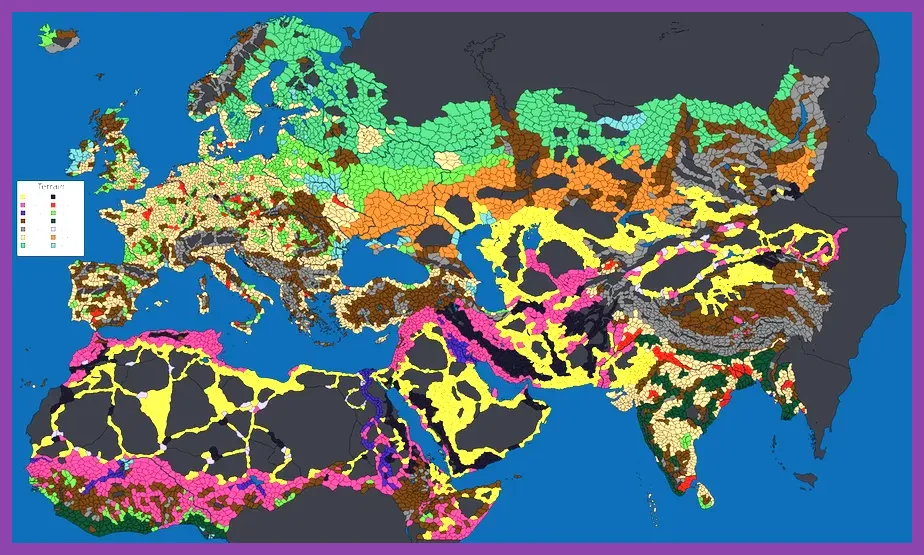
The transition between the paper map view and the physical 3D terrain map consumes massive graphical overhead. When you zoom out to view the entire continent of Eurasia, the game renders physical terrain textures, water shaders, moving clouds, and animated waves.
To eliminate lag spikes while panning across the map:
- Disable Bloom, Depth of Field, and Full Screen Glow in the advanced graphics menu.
- Turn off Water Tessellation and lower Terrain Detail to minimum values.
- Force the game to default to the paper map view earlier when zooming out by tweaking configuration files or using dedicated map optimization mods.
- Keep your graphics card drivers fully updated by visiting the official Nvidia official website or AMD official website to ensure optimal DirectX 11/12 API performance.
Verify Game Files and System Integrity
Corrupted installation files or fragmented hard drives can cause unexpected stuttering and long loading times when launching Crusader Kings 3. Head to your Steam Library, right-click Crusader Kings 3, select Properties, navigate to the Installed Files tab, and click Verify integrity of game files to repair any damaged assets.
Furthermore, ensure the game is installed on an NVMe or SATA SSD rather than a traditional mechanical HDD. Strategy games stream vast amounts of texture and database data continuously during gameplay, and an SSD completely eliminates the streaming hitching associated with older storage hardware.