If your GTA Online session is hitching, dropping below 60 FPS on high-end hardware, or crashing directly to your desktop during a high-stakes heist, the problem usually comes down to three notorious culprits: unoptimized RAGE engine grass tessellation, MSAA overhead destroying deferred lighting, and engine physics breaking when frame rates surpass 160 FPS. You can immediately stabilize your game right now by switching your graphics API to DirectX 11, dropping Grass Quality to High, turning off MSAA entirely, and locking your monitor refresh rate or GPU driver to a maximum of 140 FPS. Doing just these four tweaks eliminates roughly 80% of spontaneous hitching and stops the engine from choking your CPU.
GTA Online may be over a decade old, but Rockstar’s ongoing updates, peer-to-peer lobby networking, and the recent integration of BattlEye anti-cheat have added severe background bloat to the PC build. Getting a fluid, rock-solid frame rate requires looking past basic presets and treating the game’s internal quirks with surgical precision. Below, we break down every hidden performance trap, critical setting, and crash-proofing method to turn your Los Santos experience silky smooth.
The Real Culprits: Why Modern PCs Still Struggle with GTA Online
It sounds absurd that an RTX 4080 or RX 7900 XTX paired with a modern Ryzen or Intel processor can experience micro-stutter in an open-world title originally built for seventh-generation consoles. However, the PC version of GTA V relies on the Rockstar Advanced Game Engine (RAGE), which handles multi-core CPU workloads poorly compared to modern DirectX 12 or Vulkan titles. Much like diagnosing vintage engine issues in older games—such as checking retro system demands in our look at Far Cry 2 PC specs and engine performance—GTA Online has hard architectural bottlenecks that brute-force hardware simply cannot muscle through.
The first major issue is single-thread CPU saturation. GTA Online offloads massive amounts of network synchronization, vehicle entity tracking, and peer-to-peer player telemetry onto your processor's primary thread. When a 30-player lobby starts detonating Oppressor missiles and flying jets over downtown Los Santos, your primary CPU core spikes to 100% utilization while the rest of your cores idle. This manifests as brutal micro-stutters that feel like graphical drops, even when your GPU usage sits below 50%.
The second culprit is the infamous RAGE engine physics threshold. If your PC pushes past roughly 165 to 187 frames per second, the game engine's internal timer literally de-synchronizes. Parachutes fail to deploy correctly, vehicle suspension bottoms out unpredictably, camera panning snaps violently, and severe frame-time spikes plague your gameplay. Uncapped frame rates are actually the enemy here; stability requires deliberate constraints.
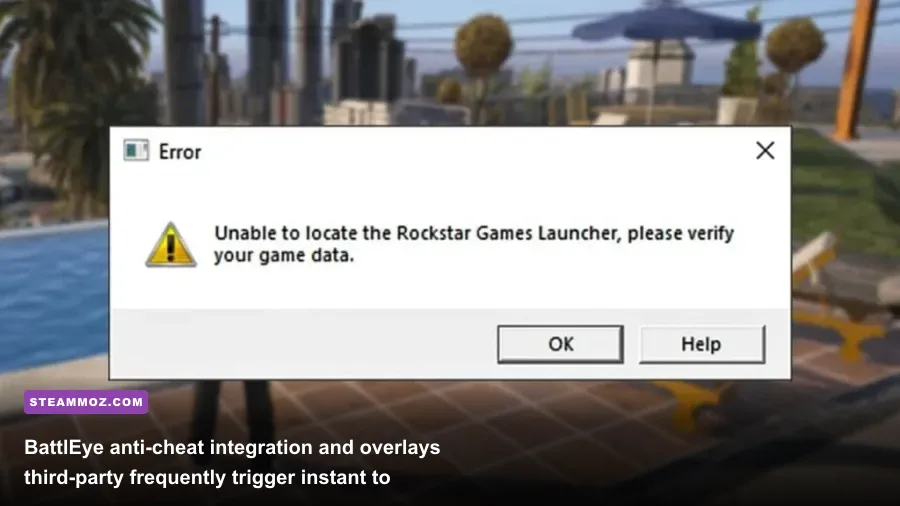
Finally, Rockstar's rollout of BattlEye anti-cheat on PC has introduced background thread monitoring that hooks aggressively into your running processes. If you run legacy overlay software, background GPU capture tools, or custom DLL modifications, BattlEye will either trigger sudden micro-freezes or kill the application outright with zero diagnostic error messages.
Essential Graphics Tuning: The Settings That Obliterate Your Frame Rate
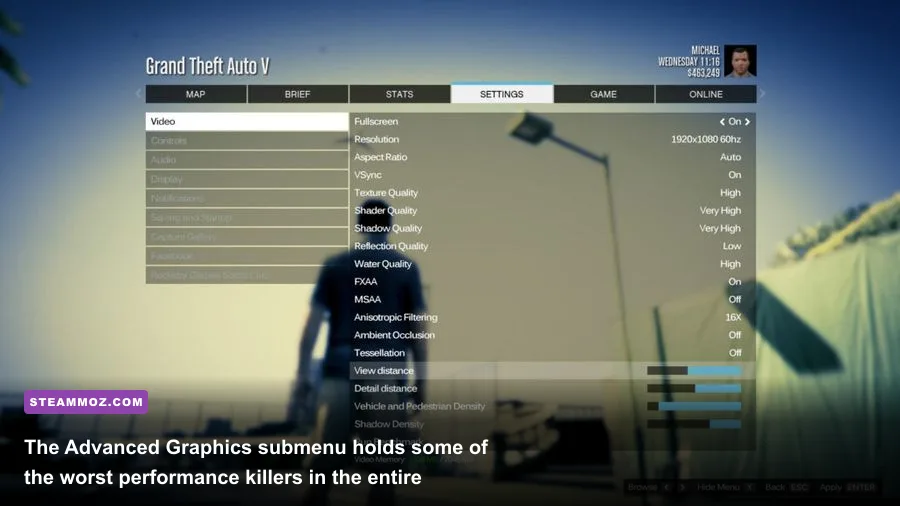
Grand Theft Auto V gives you two full menus of graphical adjustments: the standard Graphics menu and the dangerous Advanced Graphics menu. Most players make the mistake of setting everything to "Very High" or "Ultra" because their modern GPU has 12GB or 16GB of VRAM. That is a guaranteed recipe for 45 FPS dips in rural terrain. Similar to the targeted optimization strategies we used in our Far Cry 6 settings for max FPS, you have to separate visual impact from engine waste.
Here is where you need to make immediate, non-negotiable cuts:
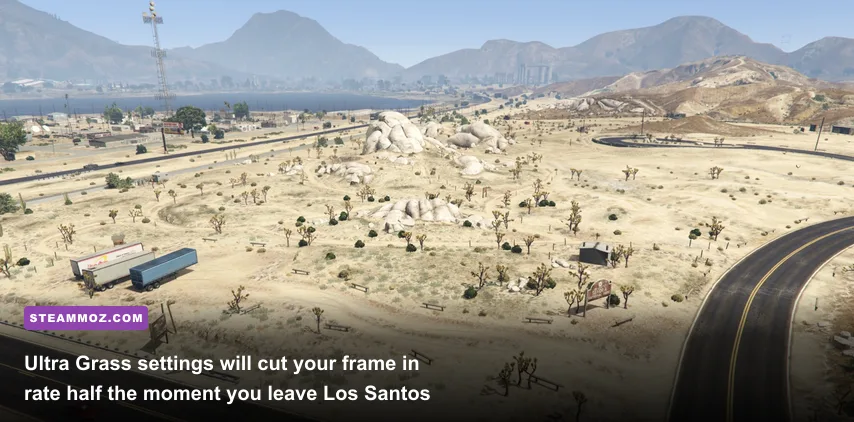
- Grass Quality: Set this to High. Do not touch Very High or Ultra. On Ultra, every blade of grass around Blaine County, Sandy Shores, and the Vinewood Hills casts individual dynamic shadows and utilizes complex sub-surface scattering. Driving through the countryside will cut your frame rate from 120 FPS down to 55 FPS instantly. Setting this to High maintains dense ground foliage without rendering thousands of invisible geometry draw calls.
- MSAA (Multi-Sample Anti-Aliasing): Turn this Off. GTA V uses a deferred lighting pipeline. MSAA in this engine acts like a sledgehammer to your GPU fill-rate. Running 4x or 8x MSAA will cut your performance by 30% to 50% while doing next to nothing for thin telephone wire aliasing. Instead, use FXAA: On, and if your GPU has headroom, rely on your graphics control panel's internal resolution scaler (DSR or VSR) or Nvidia DLAA via driver overrides.
- Post FX: Set to High (or Normal). Ultra Post FX adds heavy motion blur, depth of field processing, and volumetric light shafts (God rays) that dramatically drag down performance during sunsets and nighttime city scenes. High gives you crisp bloom without the performance penalty.
- Advanced Graphics Sliders: Open the Advanced Graphics tab and turn Extended Distance Scaling, Extended Shadow Distance, and High Resolution Shadows completely Off / Minimum. These three sliders force the engine to render full-polygon LODs miles into the distance. They destroy frame pacing on any modern CPU for virtually unnoticeable graphical changes.
| Graphic Setting | Recommended Value | Average FPS Gain | Visual Impact & Tactical Trade-off |
|---|---|---|---|
| Grass Quality | High | +35% to +45% (Rural) | Stops massive Blaine County frame drops; preserves essential bush cover. |
| MSAA | Off (Use FXAA) | +25% to +40% | Removes massive render pipeline bottleneck; eliminate edge shimmering via FXAA. |
| Extended Distance Scaling | 0% (Slider to left) | +15% to +25% | Greatly relieves single-thread CPU draw calls; zero pop-in during standard gunfights. |
| Post FX | High | +8% to +12% | Removes GPU-heavy depth of field during weapon ADS without muddying lighting. |
| Shader Quality | Very High | -2% to -4% | Negligible performance hit; critical for vehicle wetness, reflections, and asphalt realism. |
| High Detail Streaming While Flying | Off | +10% to +15% (Air) | Prevents micro-stutters during high-speed jet and helicopter traversal over the map. |
By balancing these toggles, you maintain 95% of the visual fidelity while removing the brutal draw-call penalties that turn high-speed city chases into choppy slide shows. If you enjoy fine-tuning hidden parameters for pure frame-time consistency, our breakdown of Filament Marmalade Edition settings for higher FPS showcases how isolated graphical features often disproportionately harm engine pacing.
Fixing Micro-Stutter: Mouse Polling, Frame Limiters, and Engine Clocks
Have you ever noticed your game running at a smooth 100 FPS while standing still, but as soon as you move your gaming mouse, the camera hitches violently? This is one of the most frustrating, widely misdiagnosed bugs in GTA V on PC. It has nothing to do with your graphics card; it is caused by your mouse polling rate.
Modern esports mice often default to a 1000Hz, 4000Hz, or 8000Hz polling rate. The legacy DirectInput and Windows messaging loops inside GTA V cannot process high-frequency input interrupts while simultaneously handling the engine's main logic cycle. When you sweep your crosshair, the engine halts rendering frames to clear the mouse buffer, resulting in severe micro-stutters.
To fix this immediately:
- Open your mouse configuration software (Razer Synapse, Logitech G HUB, Corsair iCUE, etc.).
- Lower your mouse polling rate (report rate) from 1000Hz or higher down to 500Hz.
- In GTA Online, go to Settings > Keyboard / Mouse > Mouse Input Method and change it from DirectInput to Raw Input. This allows the game to bypass Windows API overhead and read hardware coordinates cleanly.
Next, you must tackle frame rate pacing. Never rely on the game's internal V-Sync toggle—its implementation causes severe input latency and halves your frame rate to 30 FPS whenever your PC drops even a single frame below 60. Instead, disable in-game V-Sync completely and configure your GPU drivers properly.
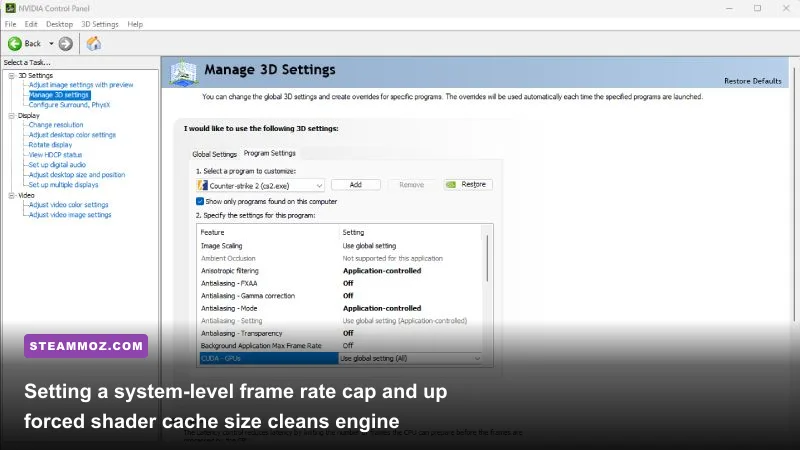
Head to the NVIDIA GeForce Driver Portal or AMD Adrenalin software and configure a program-specific profile for GTA5.exe. Set your Max Frame Rate to 140 FPS (or 3 FPS below your display’s maximum refresh rate, such as 141 on a 144Hz panel). If you are running an ultra-high refresh monitor (240Hz or 360Hz), you must still cap the game at 144 FPS. Forcing the engine to run between 180 and 240 FPS guarantees violent hitching due to internal physics desynchronization.
Eradicating ERR_GFX_D3D_INIT and Desktop Crashes
Nothing ruins an evening like clearing the Pacific Standard Job or the Cayo Perico Heist only for the screen to freeze, buzz, and drop you to desktop with an ERR_GFX_D3D_INIT error dialog. This crash signifies that the DirectX 11 device driver was lost, timed out, or reset by Windows because it failed to respond within a specific execution window. Just as we encountered unstable direct rendering while fixing instability in our Elex PC fixes that stop crashes and rescue FPS, this error requires a precise system-level antidote.
1. The Audio Sample Rate Bug
Believe it or not, an improperly configured audio output device is one of the most frequent causes of hard game crashes in GTA V. The audio thread within the RAGE engine cannot natively handle high studio bitrates. If your DAC, USB headset, or onboard Realtek audio is set to 24-bit/96,000Hz or 192,000Hz, the audio buffer overflows during heavy explosions, causing an instant crash to desktop without an error code.
Press Windows Key + R, type mmsys.cpl, and press Enter. Right-click your default playback device, select Properties > Advanced, and set the Default Format to 24-bit, 48000 Hz (Studio Quality) or 16-bit, 44100 Hz (CD Quality). Click Apply. This single tweak stops dozens of unexplained crash loops.
2. Rebuilding the DirectX Shader Cache and XML Configuration
Over years of game patches and GPU driver updates, the game’s local settings file and compiled DirectX cache become corrupted. To perform a clean reset without reinstalling 110GB of game assets:
- Navigate to
C:\Users\[YourUsername]\Documents\Rockstar Games\GTA V. - Locate the file named
settings.xmland delete it (or move it to your desktop as a backup). - Open your NVIDIA Control Panel or AMD Adrenalin, find the setting for Shader Cache Size, and change it from "Driver Default" to 10 GB or Disabled, apply, and then set it back to 10 GB. This forces your system to dump corrupted compiled shaders.
- Relaunch the game via the Steam GTA V Hub or Rockstar Games Launcher. The game will generate a clean, factory-fresh configuration file tailored to your current hardware environment.
3. BattlEye and Background Hooking Conflicts
If your game terminates within 2 to 5 minutes of joining an online session, BattlEye is almost certainly flagging a background DLL injection. Turn off hardware monitoring overlays such as RivaTuner Statistics Server (RTSS), MSI Afterburner on-screen display, Discord Game Overlay, and GeForce Experience in-game overlay. If you rely on RTSS for frame capping, ensure its Application Detection Level is set to None or update to the newest version that properly supports BattlEye-protected titles.
For players who constantly wrestle with sudden desktop drops across various PC titles, reviewing our troubleshooting process in the EscapeVR basement crashing and low FPS fixes will highlight how system page files and background memory hooks can wreck havoc on stability.
| System Component | Stock / Problematic Setting | Optimized Configuration | Target Stability Benefit |
|---|---|---|---|
| Mouse Polling Rate | 1000Hz / 4000Hz (DirectInput) | 500Hz (Raw Input) | Eliminates camera sweep stuttering and buffer hangs. |
| Audio Format | 24-bit, 192000 Hz | 24-bit, 48000 Hz | Prevents sound engine buffer under-run crashes during explosions. |
| GPU Driver Shader Cache | Driver Default (~1GB) | 10 GB (Static) | Prevents real-time shader compilation stutter while driving fast. |
| Windows Pagefile | System Managed (Auto) | Custom: 16384 MB to 24576 MB | Prevents out-of-memory memory leaks in multi-hour heist sessions. |
| Graphics API | DirectX 10 / 10.1 | DirectX 11 | Ensures modern driver optimization and full multi-threading support. |
Tackling the Infamous GTA Online Memory Leak

A classic symptom that every veteran Los Santos criminal recognizes: you boot up GTA Online, and it runs at an effortless 110 FPS. Two hours later, after completing three setup missions, browsing custom cars, and switching lobbies twice, your frame rate crawls down into the mid-40s, accompanied by sharp freezes every time you turn a corner. You are experiencing the game's notorious RAM and VRAM memory leak.
GTA Online does not cleanly purge cached player assets, vehicle models, or custom liveries from memory when you transition between public sessions. Over time, the game consumes your system’s physical RAM until it spills over into the Windows virtual memory pagefile on your storage drive. When your GPU or CPU is forced to read asset textures from an SSD or hard drive instead of system RAM, the game freezes for half a second.
To mitigate this decay, take control of your virtual memory allocation:
- Press Windows Key + S, search for View advanced system settings, and open it.
- Under the Advanced tab, click Settings in the Performance box.
- Go to the Advanced tab again and click Change under Virtual Memory.
- Uncheck "Automatically manage paging file size for all drives".
- Select your fastest NVMe SSD (preferably the drive where GTA V is installed), click Custom size, and set both Initial size (MB) and Maximum size (MB) to 16384 (16 GB) or 24576 (24 GB) if you have ample disk space.
- Click Set, then click OK and restart your PC.
Setting a fixed-size pagefile prevents Windows from dynamically resizing the swap file in the middle of gameplay, which is a major hidden cause of sudden three-second freezes. Furthermore, make it a habit to completely restart the GTA V client every 2.5 to 3 hours if you plan on doing lengthy marathon sessions. Hardware requirements and memory footprints can easily spiral out of control if left unmanaged, something we also detailed when analyzing the hardware footprint in the Fatal Fury City of the Wolves PC specs breakdown.
Network Hitching vs. Hardware Lag: Surviving 30-Player Lobbies
It is vital to understand that in GTA Online, network latency often masquerades as graphical frame drops. Unlike modern multiplayer shooters that use dedicated servers to compute player positions, projectile trajectories, and physics, GTA Online runs on a hybrid peer-to-peer (P2P) mesh network managed by Rockstar Games Support infrastructure. Every single player in your lobby is communicating directly with your PC.
If you get into a public lobby with 29 other players from all across the globe, high packet loss from a single desynchronized player will stall your client's CPU processing loop while it waits for authorization packets. This causes hard frame drops that look identical to a GPU bottleneck. You can easily diagnose this: boot into an Invite-Only Session or a Closed Friend Session. If your frame rate instantly jumps up by 30 to 45 FPS and your micro-stutters disappear entirely, your PC hardware is not at fault—you are simply suffering from P2P network saturation.
To minimize network-induced frame hitching in public lobbies:
- Ditch Wi-Fi for an Ethernet Cable: P2P network structures cannot tolerate the jitter and packet retries typical of 2.4GHz or 5GHz home Wi-Fi networks. A direct wired LAN connection ensures minimal packet retransmissions.
- Forward Essential GTA Online Router Ports: Ensure your router does not restrict standard Rockstar network traffic. Forward UDP ports
6672,61455,61457,61456, and61458to your PC’s local IP address. - Clear Local Social Club Cache: Close the game and delete the folder located at
C:\Users\[YourUsername]\Documents\Rockstar Games\Social Club\Profiles. Corrupt local session certificates cause constant sync retries with the Social Club cloud, dropping frames during lobby transitions.
Commandline Tweaks for Modern Hardware
You can force GTA V to load with specific hardware parameters by utilizing a custom launch file. This bypasses several legacy engine checks that frequently throttle multi-threaded CPUs.
Navigate to your main GTA V game directory (where GTA5.exe lives) and check if a file named commandline.txt exists. If not, create a new text file and rename it to commandline.txt. Open it and paste the following parameters:
-noInGameDepthOfField
-disableHyperthreading false
-forcereset
-straightIntoFreemode
Here is what these targeted parameters do for your performance pipeline:
-noInGameDepthOfField: Completely removes cinematic lens blurring during gunfights and vehicle crashes. This removes a significant compute shader pass that routinely causes frame spikes when aiming sniper rifles or using heavy explosives.-disableHyperthreading false: Overrides the RAGE engine's legacy core scheduler, ensuring that modern processors with simultaneous multithreading (like Intel Core i7/i9 or AMD Ryzen 7/9) utilize all available logical threads rather than parking half of them.-straightIntoFreemode: Bypasses the initial single-player story mode asset load, saving roughly 1.5GB of initial VRAM allocation before loading into Online.
By enforcing these driver, engine, and network corrections, you tame the chaotic quirks of Rockstar's PC port. You don't need to endure random heist disconnections, violent camera micro-stutters, or unexplained ERR_GFX_D3D_INIT crashes anymore. Lock down your settings, reign in the grass shaders, cap your engine clock below the physics threshold, and enjoy Los Santos the way it was meant to be played: fast, responsive, and completely uninterrupted.