If your journey through the USG Ishimura feels like a jarring slide-show plagued by traversal hitching, micro-stutters, or hard crashes to desktop, you are wrestling with Frostbite's notorious asset-streaming pipeline rather than an underpowered graphics card. You can immediately stabilize your performance by disabling Variable Rate Shading (VRS), setting your GPU driver shader cache size to 10GB, disabling Windows Control Flow Guard (CFG) specifically for DeadSpace.exe, and capping your frame rate 3 FPS below your monitor's native refresh rate. These targeted tweaks bypass the engine's broken frame-pacing loops and instantly clear up the aggressive texture smearing caused by default rendering bugs on PC.
Immediate Fixes for Dead Space Remake Traversal Stutter and Shader Cache
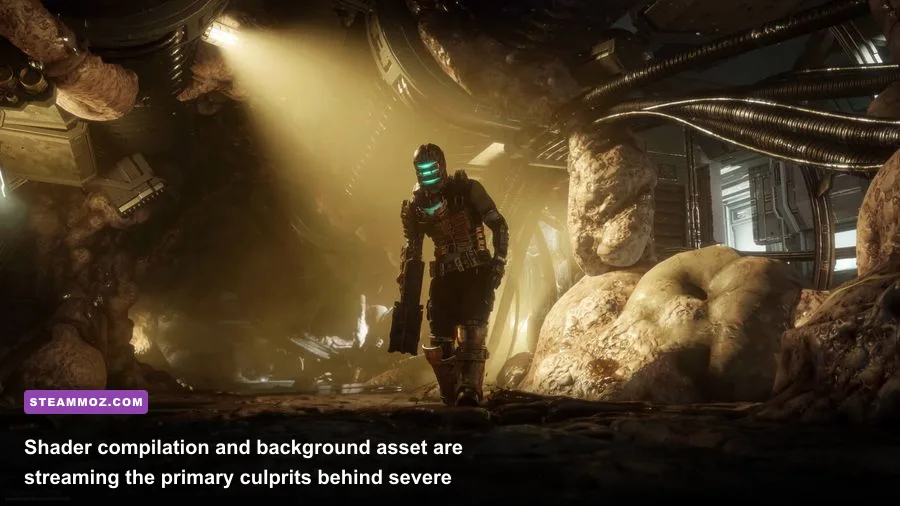
Motive Studio rebuilt this sci-fi survival horror classic from the ground up, delivering jaw-dropping atmospheric lighting across interconnected zones. However, the Frostbite engine relies on aggressive runtime asset streaming that frequently halts execution threads when Isaac crosses invisible room thresholds. Moving between the Flight Lounge, the Tram Station, and the Medical Bay triggers rapid data transfer between storage drives and system RAM. If that pipeline hits even a minor bottleneck, the engine drops several frames simultaneously, registering as a massive stutter.
The first mandatory fix involves the game's shader compilation. While the title compiles shaders upon initial boot, graphics driver updates or game patches often invalidate this cache silently, forcing the engine to compile lighting and particle shaders in real time during intense combat. To fix this, wipe your existing cache completely. On Windows, navigate to %LOCALAPPDATA%\D3DSCache and delete all subfolders. Nvidia users should also clear the directory at %LOCALAPPDATA%\NVIDIA\DXCache, while AMD owners should open the Adrenalin software and select Reset Shader Cache under the Gaming tab.
Next, ensure the game is installed on an internal NVMe SSD operating at PCIe Gen3 speeds or faster. Running the title off a mechanical HDD or an external SATA drive creates catastrophic hitching whenever necromorphs burst through ventilation shafts. If you have resolved similar streaming bottlenecks using our guides for Everspace 2 stability tweaks, you already know that high-bandwidth asset streaming demands unhindered drive access. For additional background on developer updates and known engine behavior, check the Dead Space Steam community hub for the latest patch notes.
Optimal In-Game Graphics Settings for Maximum FPS and Visual Clarity
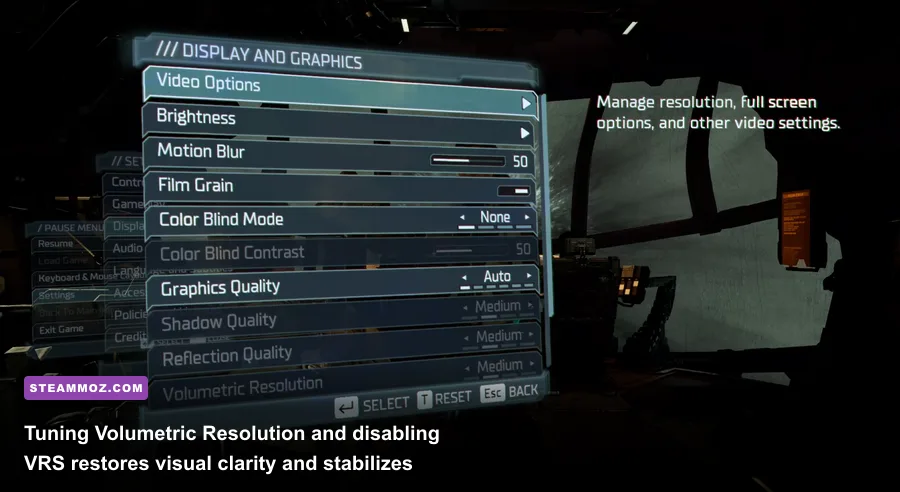
The PC port ships with a broken Variable Rate Shading implementation that degrades image fidelity—making metallic surfaces look like vaseline-smeared low-resolution textures—without offering a measurable performance benefit. Turn VRS completely off. Doing so immediately restores sharp ambient reflections, crisp blood splatters, and detailed rivets on Isaac's RIG suit without sacrificing your framerate.
Ray-Traced Ambient Occlusion (RTAO) is the single largest performance vampire in the graphics menu. In enclosed corridors, RTAO drains anywhere from 25% to 40% of your rendering budget while introducing noticeable temporal noise around moving character models. Standard Ambient Occlusion provides exceptional depth to ship corridors at a fraction of the hardware cost. Pair this with lowering Volumetric Resolution from Ultra to Medium; this changes how the engine calculates localized volumetric steam and spore particles without softening the terrifying mood lighting of the Ishimura.
| In-Game Setting | Recommended Value | Framerate Impact | Visual Impact & Tactical Recommendation |
|---|---|---|---|
| Variable Rate Shading (VRS) | Disabled | 0% (Neutral) | Massive visual fix. Removes low-res edge artifacts and blur. |
| Ambient Occlusion | SSAO (Turn Off RTAO) | +25% to +35% FPS | Disables heavy ray tracing calculations; restores silky frametimes. |
| Volumetric Resolution | Medium | +10% to +15% FPS | Maintains thick fog atmospherics while shedding pixel fillrate weight. |
| Lighting Quality | High | +4% to +6% FPS | Ultra adds subtle light bounces with excessive compute cost. |
| Shadow Quality | Medium or High | +5% to +8% FPS | Medium softens shadow maps slightly; perfect sweet spot for 60+ FPS. |
| Reflections | High | +3% FPS | Retains realistic glossy blood pools and floor sheen. |
| Dynamic Resolution Scale | Disabled | Neutral | Prevents erratic resolution swings that induce hitching. |
| Upscaling Method | DLSS / FSR 2 (Quality) | +30% to +45% FPS | Provides pristine temporal anti-aliasing and superior internal resolution. |
If you run a display resolution of 1440p or 4K, rely on DLSS or FSR set strictly to Quality mode. Running native resolution in Frostbite with temporal anti-aliasing (TAA) causes noticeable motion ghosting when sweeping Isaac's aim flashlight across unlit bays. Much like optimizing performance budgets in our Far Cry 6 PC optimization guide, striking the balance between internal render scales and spatial lighting ensures your GPU avoids sudden thermal throttling during explosive zero-G encounters.
Eliminating Hard Crashes, Freezes, and the Black Screen on Launch
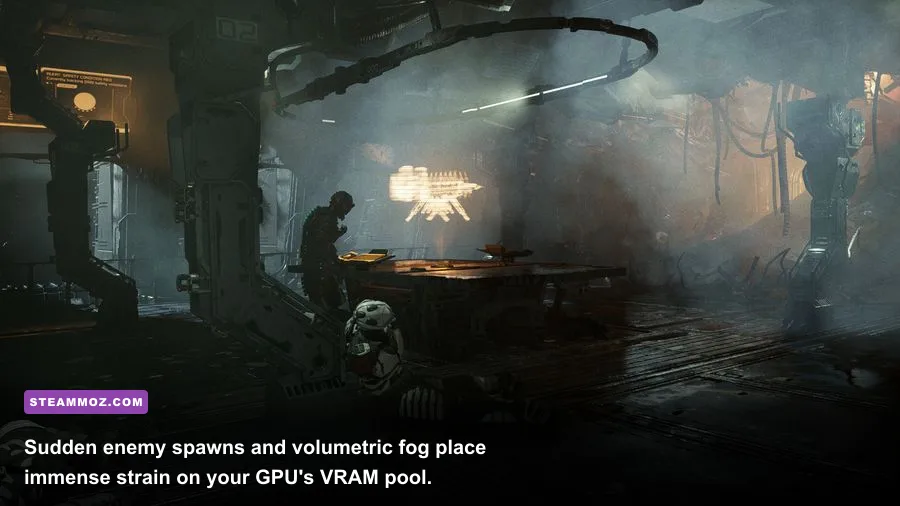
Hard crashes in the remake generally fall into two categories: third-party overlay hooks clashing with the Frostbite engine or severe virtual memory exhaustion on modern GPUs with 8GB of VRAM. If your display turns pitch black during the initial safety disclaimers, or your game abruptly closes to desktop during intense plasma explosions, you must resolve these software conflicts first.
Begin by disabling background overlays. The EA App in-game overlay is notorious for causing memory access violations when the game hooks into DirectX 12. Open the EA App, enter the Settings menu, click the Application tab, and toggle off the in-game overlay. Repeat this process for Discord's game overlay, Steam overlay, and RivaTuner Statistics Server (RTSS). If you prefer using RTSS for framerate monitoring, ensure your Application Detection Level is set to Low to prevent engine hook collisions.
| Error / Symptom | Root Cause | Verified Troubleshooting Action | System Impact |
|---|---|---|---|
| Crash to Desktop (No Error Code) | EA App or Discord overlay injection fault | Disable all background game overlays completely | Restores clean DirectX 12 swapchain integrity |
| DirectX Function Error / Out of Memory | VRAM overflow on 8GB cards using Ultra textures | Lower textures to High; set Windows pagefile to 16GB min | Prevents memory allocation buffer overflow |
| Black Screen on Startup with Audio | Resolution mismatch in settings profile file | Delete settings file in Documents\Dead Space (2023) |
Forces the engine to redetect display parameters |
| Infinite Loading Loop on Save File | Corrupted cloud sync or local autosave state | Load previous manual save point; verify Steam game files | Overwrites corrupted streaming sector records |
Encountering continuous stability drops is a headache shared across multiple modern releases; if you have ever tackled memory errors using our crash-fix methods for Elex or tackled launch issues detailed in our EscapeVR troubleshooting guide, you know that Windows virtual memory allocations are critical. If your system runs 16GB of total physical RAM, the remake's aggressive data swapping will easily exhaust your memory ceiling if your Windows paging file remains system-managed. Setting a custom pagefile directly relieves that pressure.
Advanced Windows Tweaks: Exploit Protection, Pagefile, and Resizable BAR
One of the most effective, battle-tested fixes discovered by the PC enthusiast community targets a specific Windows security feature: Control Flow Guard (CFG). While CFG defends your operating system against memory corruption vulnerabilities, its constant execution checks introduce severe frametime volatility inside Frostbite's rapid memory-cycling loop.
To safely bypass this bottleneck without lowering your system's global security, create a specific program override:
- Press the Windows Key, type Exploit Protection, and open the system settings panel.
- Click on the Program settings tab, then click Add program to customize and select Choose exact file path.
- Locate your game directory (typically
Steam\steamapps\common\Dead Space (2023)\DeadSpace.exe). - Scroll down to Control Flow Guard (CFG), check the box labeled Override system settings, toggle the setting to Off, and click Apply.
Next, configure a dedicated, static virtual memory pagefile. Right-click This PC, open Properties, click Advanced system settings, choose the Advanced tab, and select Settings under the Performance category. Navigate to the Advanced tab, click Change under Virtual Memory, uncheck automatic management, select your fastest NVMe drive, and set both the Initial size and Maximum size to 16384 MB (or 24576 MB if you have ample free drive space). Setting static values prevents Windows from expanding and contracting the file on the fly, eliminating in-game pauses.
Finally, confirm that Resizable BAR (for Nvidia) or Smart Access Memory (for AMD) is active in your system BIOS and driver dashboard. This allows your CPU to access your GPU's entire VRAM frame buffer in single bursts rather than being choked by 256MB chunks. Verifying your underlying hardware capabilities against established specifications—much like comparing modern system baselines in our hardware specs analysis—ensures that PCIe communication bandwidth remains fully open during chaotic necromorph breaches.
Nvidia and AMD Driver Profile Adjustments for Smooth Frametimes
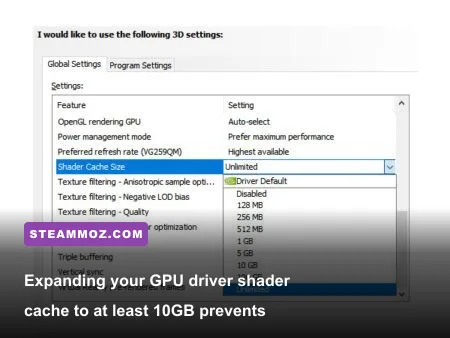
Once Windows is tuned, you need to configure your GPU driver to handle the game's shader caching and display synchronization correctly. The default global driver profiles often allocate insufficient disk space for shader caching, forcing the driver to dump compiled Frostbite assets after short play sessions. As confirmed by technical threads on the EA Answer HQ technical boards, increasing driver-level cache size yields measurable stability gains.
For GeForce owners, open the Nvidia Control Panel and navigate to Manage 3D Settings. Select the Program Settings tab and add DeadSpace.exe. Adjust the following settings manually:
- Shader Cache Size: Set to
10 GB(orUnlimited). This ensures no pre-compiled shaders are flushed when cycling between different mining decks. - Low Latency Mode: Set to
On(orUltra). This keeps the render queue synchronized and lowers input lag when swinging your Plasma Cutter or Line Gun. - Max Frame Rate: Set to 3 FPS below your monitor's refresh ceiling (e.g., 141 FPS on a 144Hz panel, or 162 FPS on a 165Hz panel). Capping through the driver maintains G-Sync engagement and avoids erratic engine-level timing loops.
- Power Management Mode: Set to
Prefer maximum performanceto prevent clock core fluctuations inside quiet hallways.
Radeon owners can achieve the identical frametime lock through AMD Software: Adrenalin Edition. Enable Radeon Anti-Lag, assign a custom target via Radeon Chill matching your variable refresh window, and verify that Surface Format Optimization is enabled under the graphics sub-menu. If you frequently implement fine-grained driver tweaks like those in our Filament frame rate optimization setup, you understand that taking control away from internal game vsync engines is the golden rule for eliminating persistent micro-stutters.
Once you apply these operating system overrides, driver configurations, and graphics settings, the Dead Space Remake transitions from an erratic, hitching crawl into a terrifying, fluid cinematic experience. The atmospheric fog, claustrophobic corridors, and brutal necromorph combat will render with the crisp clarity and rock-solid frametimes Isaac Clarke deserves as you carve your way toward survival aboard the Ishimura.