
To fix crashing on PC in Lies of P, you must immediately disable HDR in Windows settings, switch your display mode from Borderless Windowed to Exclusive Fullscreen, and verify your game file integrity through Steam to replace corrupted Unreal Engine 4 shader caches. Technical instability in Round 8 Studio's dark souls-inspired soulslike often stems from aggressive memory leaks during zone transitions or shader compilation hitches when exploring areas like Krat Central Station or Hotel Krat. If you are experiencing sudden desktop CTDs (Crashes to Desktop) or fatal Unreal Engine errors mid-boss fight against the Parade Master or King's Flame, Fuoco, applying these targeted configuration fixes will restore your system stability.
Verify and Repair Corrupted Game Files
Corrupted pak files and incomplete shader installations are the leading causes of startup crashes and random runtime errors in Unreal Engine 4 titles. When downloading patches or large updates for Lies of P, minor packet loss can corrupt essential assets located in your content directory. To resolve this, you need to execute a full file verification through your game launcher client. For more hardware-heavy PC setups, you can cross-reference system overhead requirements similar to those outlined in the Street Fighter 6 system requirements guide to ensure your rig meets baseline rendering demands.
Open your Steam library, right-click on Lies of P, and select 'Properties'. Navigate to the 'Installed Files' tab and click on 'Verify integrity of game files'. This process scans every asset package against the official master server database hosted on the Lies of P Steam Store Page. Any missing or modified bytes will be automatically re-downloaded, typically resolving persistent crashes that occur immediately after the developer logos appear on startup.
Optimize Advanced Graphics and Display Settings

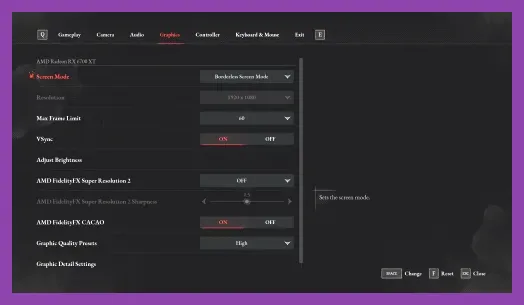
Unoptimized graphical configurations can overwhelm your VRAM, leading to sudden out-of-memory crashes during intensive particle effects like the Puppet-Devouring Green Monster's acid attacks. Lowering specific post-processing and shadow parameters reduces frame drops and prevents hardware trips. Configure your display settings to the following optimized profile:
- Display Mode: Exclusive Fullscreen (Avoid Borderless Windowed to prevent Windows DWM memory conflicts)
- Resolution: Native monitor resolution (e.g., 2560x1440 or 1920x1080)
- Vsync: Off (Use Nvidia Control Panel or AMD Adrenalin to cap frame rates externally)
- Graphics Quality: Custom
- Shadow Quality: Medium (High shadows heavily tax CPU draw calls in urban environments)
- Texture Quality: High (Set to High only if your GPU has 8GB+ VRAM; otherwise, drop to Medium)
- Effects Quality: Medium
- Post-Processing: Low (Disables aggressive chromatic aberration and motion blur that trigger hitching)
- FSR / DLSS: Quality Mode (Essential for maintaining stable frame pacing in densely populated areas)
Balancing these settings keeps your frame time graphs flat and eliminates sudden spikes that trigger crash-to-desktop routines in the game engine. If you enjoy optimizing complex multi-platform setups, you might also find performance tweaking tips useful from resources like the State of Survival PC emulator settings guide.
Disable Overlays and Background Applications
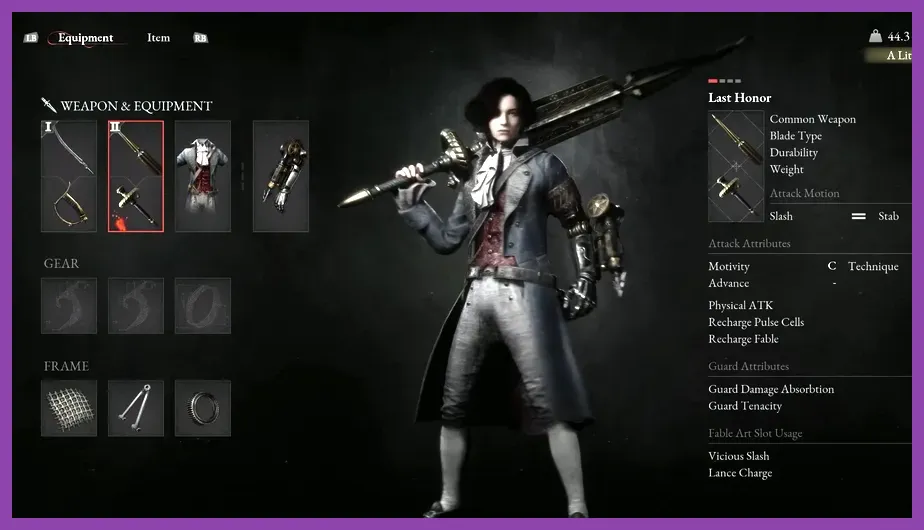
Third-party software overlays hook directly into the DirectX 12 or Vulkan graphics pipeline, frequently causing fatal exception errors in Lies of P. Applications featuring built-in performance monitors, screen recorders, or instant replay buffers conflict directly with the game's anti-cheat and rendering architecture. Before launching your session, completely close out of Discord overlay, Nvidia GeForce Experience overlay, Steam overlay, and MSI Afterburner / RivaTuner Statistics Server (RTSS).
Furthermore, resource-heavy web browsers running in the background can deplete available system RAM, causing Windows paging file exhaustion. Ensure you close all active Chrome or Firefox instances. If your gameplay feels sluggish or stuttery alongside crashes, optimize your underlying hardware workflow similarly to tactics discussed in tactical character management guides like the Summoners War skill progression guide.
Update GPU Drivers and Windows Build Versions
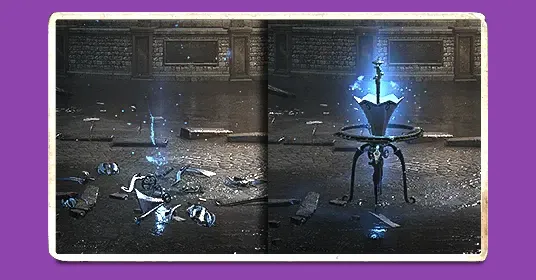
Outdated graphics drivers lack critical vendor-specific game-ready optimizations required to handle Unreal Engine 4 memory management effectively. Both Nvidia and AMD frequently release hotfix drivers specifically addressing memory leaks and pipeline compilation crashes for major RPG releases. Navigate to the official Nvidia Driver Downloads portal or AMD Software suite to install the latest WHQL-certified driver package.
After updating your display drivers, ensure your operating system is up to date. Go to Windows Update and check for pending cumulative updates. Older Windows 10 and 11 builds contain scheduling bugs that misallocate thread priorities for high-performance games, leading to thread stalling and application termination.
Adjust Virtual Memory and Page File Allocation

Lies of P relies heavily on rapid asset streaming when moving between Stargazers and rendering complex puppet models. If your physical RAM reaches capacity, Windows utilizes a page file (virtual memory) on your storage drive to hold overflow data. If this page file is disabled or set too small, the game will instantly crash with an out-of-memory error.
To configure a custom page file size, press the Windows key, type 'Advanced system settings', and open 'View advanced system settings'. Under the 'Advanced' tab, click 'Settings' in the Performance section. Navigate to the 'Advanced' tab again and click 'Change' under Virtual Memory. Uncheck 'Automatically manage paging file size for all drives', select your fastest NVMe SSD drive, and choose 'Custom size'. Set the Initial Size to 8192 MB (8GB) and the Maximum Size to 16384 MB (16GB). Click 'Set', apply the changes, and restart your computer.
Run the Game with Administrator Privileges and TDR Fixes
Permission restrictions can prevent Lies of P from writing temporary cache files into your AppData directory, causing unexpected crashes during save-state creation at Stargazers. Locate your main game installation folder, right-click on `LiesofP.exe`, select 'Properties', go to the 'Compatibility' tab, and check 'Run this program as an administrator'.
Additionally, if your GPU experiences a micro-freeze during intense combat sequences, the Windows Timeout Detection and Recovery (TDR) feature might mistakenly assume your graphics card has crashed and force-terminate the application. While advanced users can modify registry keys to increase the TDR delay threshold, ensuring your GPU is running at stock clock speeds without factory overclocks is the most reliable way to prevent TDR-induced crashes. For players exploring cooperative and progression-heavy titles after stabilizing their systems, checking out guides like the Terraria co-op multiplayer builds guide offers great cooperative gaming alternatives.