To fix crashing on PC in Half-Life: Alyx, you need to address memory leaks, lower your SteamVR render resolution, disable async reprojection, and update your NVIDIA or AMD graphics drivers to the latest hotfix versions. Because Valve's flagship VR title heavily stresses both your CPU and GPU simultaneously, standard game verification or a fresh install of the Half-Life: Alyx Steam page files is usually just the first step in a broader troubleshooting routine.
1. Adjust SteamVR Resolution and Motion Smoothing
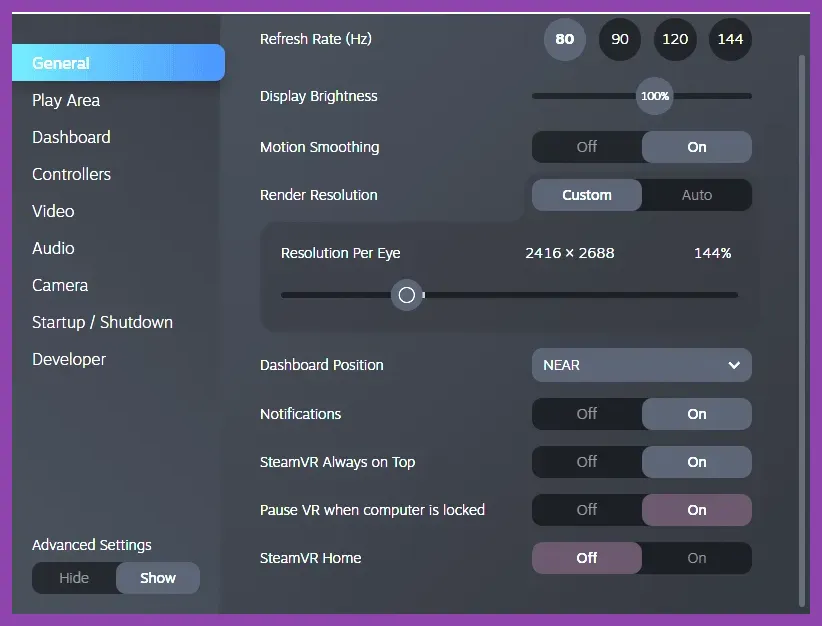
SteamVR often automatically sets your per-eye resolution far higher than your GPU can handle, leading to sudden fatal crashes, memory dumps, or complete headset freezes during intensive loading screens—especially when moving between sectors in City 17. Open your SteamVR settings dashboard, navigate to the Video tab, and switch from 'Auto' to a manual per-eye resolution scalar. If you are running an RTX 3070 or equivalent, scale your resolution back to 100% or lower.
Additionally, disable Motion Smoothing in the SteamVR developer settings. While intended to combat frame drops, motion smoothing frequently conflicts with OpenXR runtimes used by Valve titles, causing audio stuttering followed by an abrupt CTD (Crash to Desktop). If you want to compare your overall hardware capabilities against other demanding modern titles, check out our guide on Monster Hunter Wilds PC requirements for optimization parallels.
2. Optimize In-Game Fidelity and Performance Settings
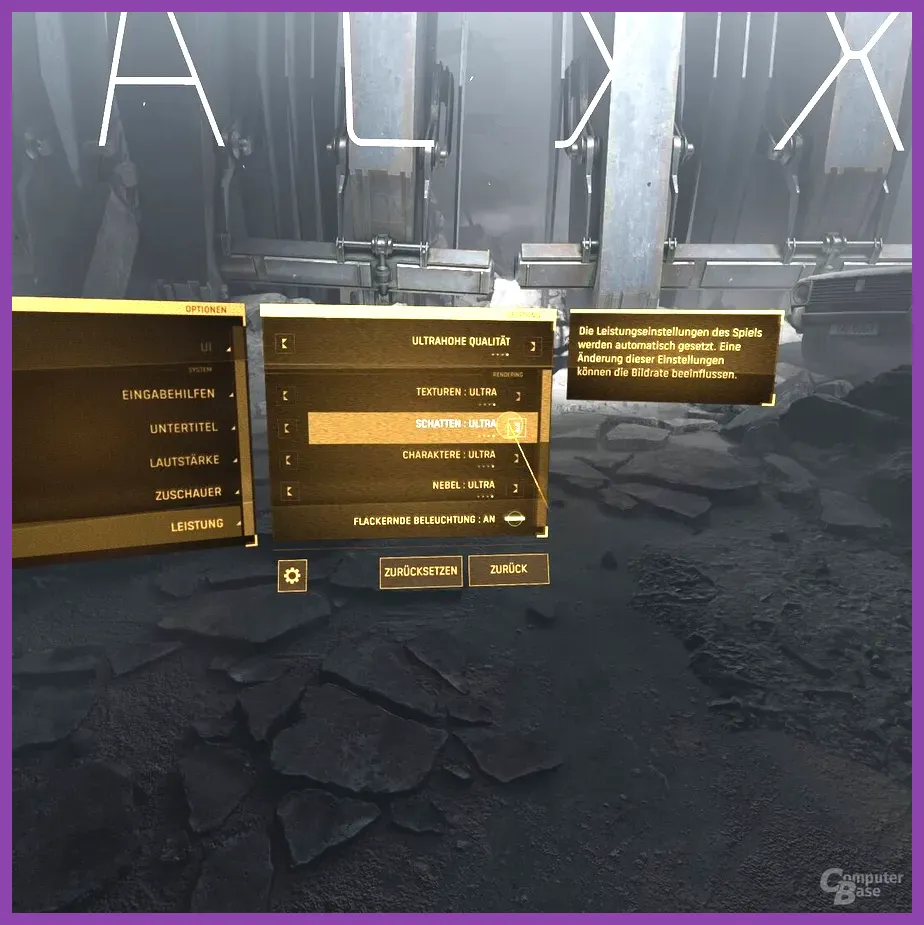
Inside Half-Life: Alyx, navigate to Settings > Performance and alter your graphical profile. The default FidelityFX Super Resolution and dynamic resolution scaling features can sometimes malfunction when tied to dynamic lighting inside dark corridors, such as the subterranean train tunnels.
- Texture Detail: Set to High or Medium (Avoid Ultra if you have less than 12GB of VRAM).
- Shadow Quality: Set to Medium. Dynamic shadow maps heavily tax CPU draw calls.
- Fog Quality: Set to Low or Medium. Volumetric fog rendering is a primary culprit for memory-related crashes in Chapter 3: Is Or Not.
- FidelityFX Auto-Resolution: Disable this to prevent abrupt resolution shifts that trigger driver resets.
Making sure your graphical profile is balanced is just as critical here as it is when tweaking performance in demanding handhelds, similar to the steps outlined in our Lenovo Legion Go optimization guide.
3. Verify Game Files and Clear OpenXR Cache
Corrupted pak files or outdated shader caches frequently cause crashes right as the Valve intro logo finishes playing. Right-click Half-Life: Alyx in your Steam library, select Properties, go to Installed Files, and click Verify integrity of game files. This process typically replaces two to four missing or corrupted texture manifests.
Next, clear your OpenXR runtime cache. Open your headset software (Oculus/Meta Link app, Virtual Desktop streamer, or Index settings) and ensure that SteamVR is designated as your active OpenXR runtime. Running conflicting OpenXR runtimes—such as having both the Oculus runtime and SteamVR active simultaneously—will cause instant access violations and crash the game engine upon loading your saved game.
4. Update GPU Drivers and Disable Overclocks
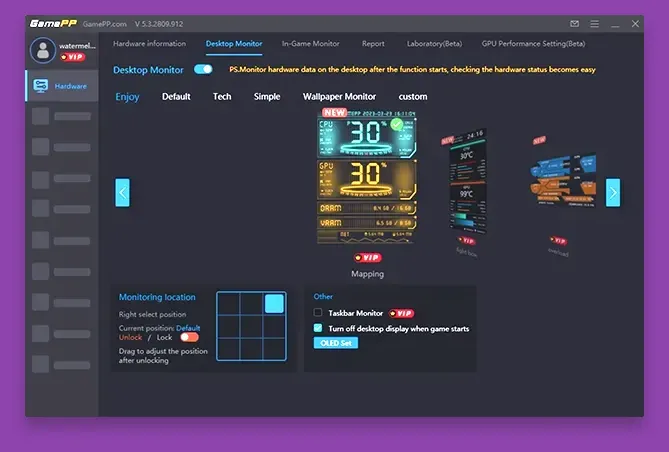
Valve designed Half-Life: Alyx to push modern graphics architecture to its absolute limits. Unstable factory overclocks or user-applied GPU/CPU overclocks using MSI Afterburner will inevitably cause DirectX and Vulkan crashes. Reset your core clock and memory clock offsets back to stock values.
Furthermore, ensure you are running the most stable graphics driver available. You can download the latest drivers directly from the NVIDIA official website or AMD's support portal. If you recently updated to a new driver version and noticed an immediate spike in VR stuttering or crashes, use Display Driver Uninstaller (DDU) in Safe Mode to completely scrub residual registry keys before reinstalling a stable legacy driver.
5. Address Memory Leaks and Background Processes
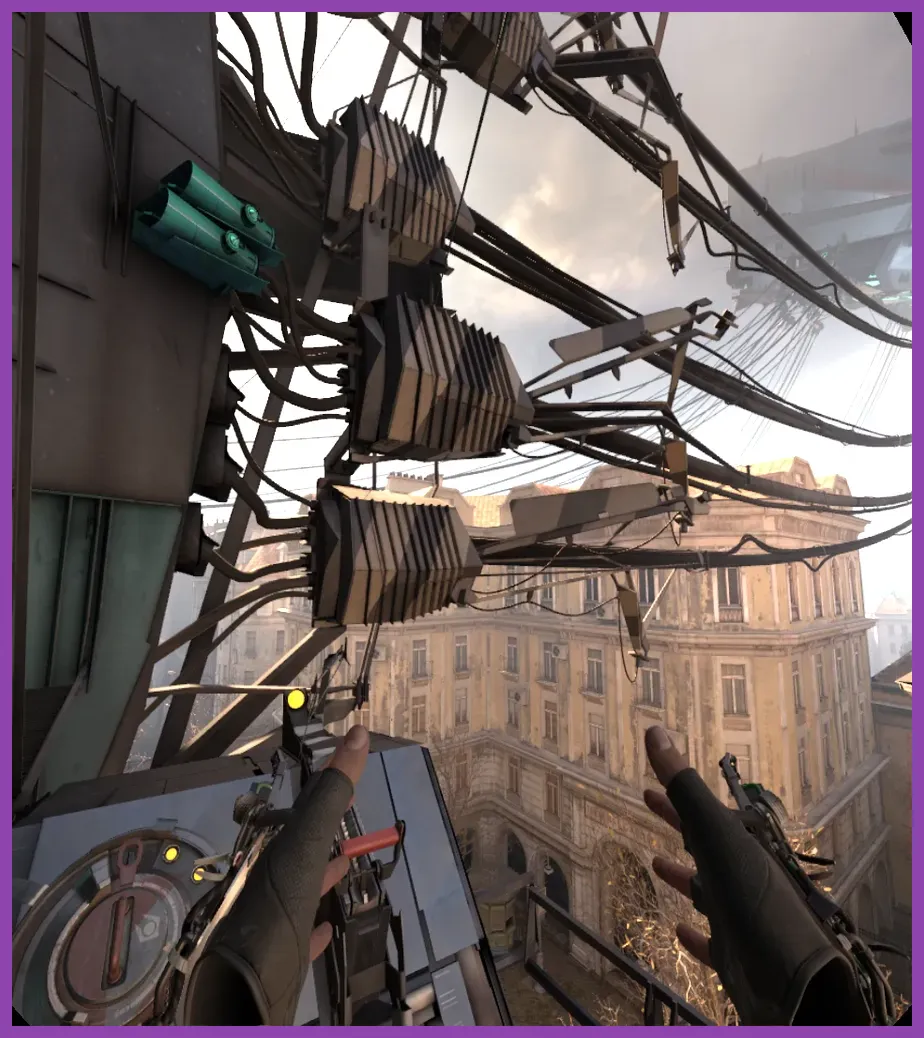
Half-Life: Alyx demands a minimum of 12GB of system RAM, but actual usage during complex physics interactions with gravity gloves, combine heavy units, and multiple dynamic light sources easily creeps past 14GB. Press Ctrl + Shift + Esc to open Task Manager and terminate memory-heavy background applications before launching SteamVR:
- Discord (disable hardware acceleration in Discord settings)
- Web browsers like Google Chrome or Firefox with multiple active tabs
- RGB management software like Razer Synapse, Corsair iCUE, or Armoury Crate
- Third-party antivirus real-time scanning services targeting Steam directory folders
If you experience progressive stuttering that worsens over a 30-minute play session before ultimately crashing, you are experiencing a severe memory leak. Increasing your Windows page file size (Virtual Memory) to a fixed minimum of 16000MB and maximum of 32000MB on your primary NVMe SSD will provide a reliable buffer when physical RAM gets exhausted during long sessions in the Quarantine Zone.
6. Launch Options and Command-Line Fixes
If the game continues to crash to desktop without generating a proper minidump error log, you can force specific launch parameters through Steam to stabilize the rendering pipeline. Right-click Half-Life: Alyx, go to Properties, and under the General tab, input the following launch arguments:
-novid -console -vulkan
Forcing the Vulkan API instead of DirectX (if applicable) often resolves mysterious memory allocation crashes on systems featuring AMD Ryzen processors paired with NVIDIA graphics cards. If Vulkan causes a launch failure, remove the -vulkan tag and test launching the game in safe mode by adding -safe to the parameters instead. Keep your system clean, monitor your core temperatures, and apply these step-by-step fixes to enjoy uninterrupted immersion in Valve's VR masterpiece.