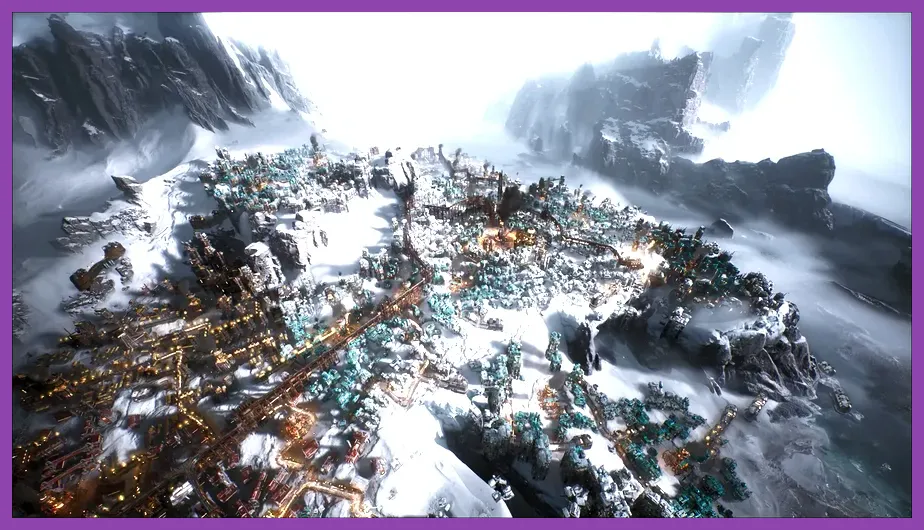
To immediately fix crashing on PC in Frostpunk 2, verify your game file integrity via Steam, disable aggressive third-party overlays like Discord or RivaTuner, and update your graphics card drivers to the latest Game Ready or Adrenalin release provided by NVIDIA and AMD. If you are experiencing unexpected fatal errors, persistent freezes during the intro cinematic, or sudden desktop crashes while managing your colony's heatstamps and frostland scouts during heavy whiteout sequences, comprehensive troubleshooting is required to stabilize the engine.
Verify Game File Integrity and Clear Steam Cache
Corrupted installation files account for a massive percentage of startup crashes and fatal execution errors when launching Frostpunk 2 on Steam. When major patches download, individual asset packages responsible for UI rendering or audio cues can mismatch, throwing exception codes immediately upon boot.
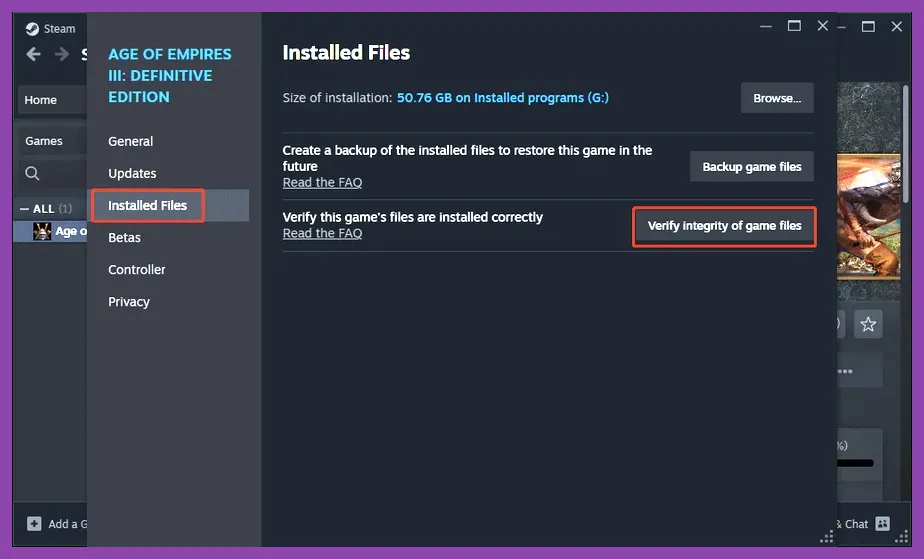
To resolve this, open your Steam Library, right-click on Frostpunk 2, and select Properties. Navigate to the Installed Files tab and click on Verify integrity of game files. Steam will automatically scan your directory, cross-reference hashes with the official 11 bit studios developer portal, and re-download any corrupted or missing files. Additionally, clearing your Steam download cache via settings can eliminate background handshake errors that disrupt cloud saves and session initiation.
For players tackling deep system optimization or hardware stress tests, you might also find value in reviewing setups like our PS5 Pro hardware performance setup guide or looking at how other demanding titles handle memory management through resources like the Mount and Blade 2 graphics optimization guide.
Optimize Graphics Settings for Stability
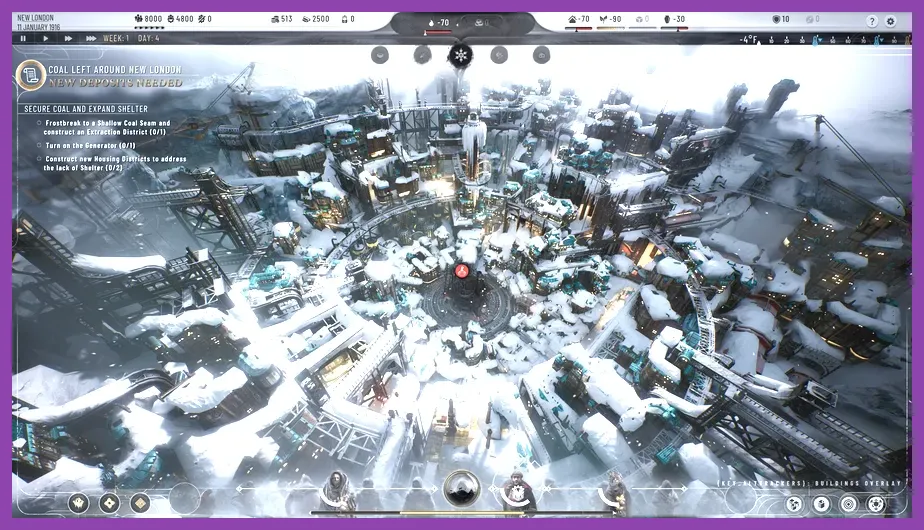
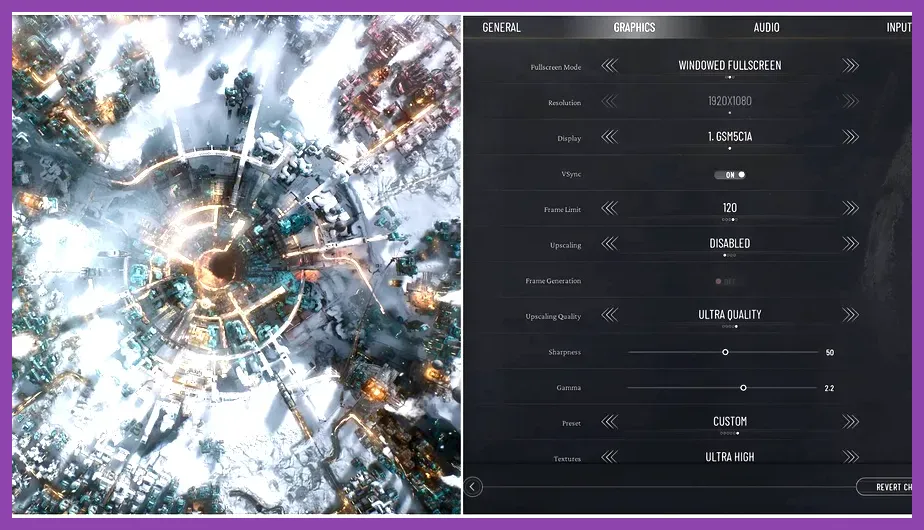
Frostpunk 2 pushes complex simulation logic, particle density, and dynamic lighting across vast urban districts. Pushing graphical presets beyond your VRAM capacity will result in catastrophic memory leaks and direct crashes to desktop. Dialing in a stable configuration is essential for uninterrupted gameplay.
Apply the following balanced PC graphics profile to maximize stability without sacrificing visual fidelity:
- Display Mode: Exclusive Fullscreen (Avoid Borderless Windowed if experiencing micro-stutters)
- Resolution: Native display resolution (e.g., 2560x1440 or 1920x1080)
- Vsync: Enabled (To prevent uncapped menu framerates from overheating your GPU)
- Texture Quality: High (Drop to Medium if your GPU has less than 8GB VRAM)
- Shadow Quality: Medium (High settings drastically spike CPU overhead during zoom transitions)
- Screen Space Reflections: Low or Off
- Volumetric Clouds & Fog: Medium (Crucial for reducing whiteout storm processing loads)
- Upscaling (DLSS / FSR / XeSS): Quality Mode (Enables massive frame pacing improvements)
- Max Framerate Cap: Limited to 60 or 120 FPS depending on your monitor's refresh rate
If you enjoy fine-tuning resource-heavy strategy titles or balancing complex survival stats similar to managing frostland heat networks, check out our tactical breakdowns including the Once Human early game build guide and the Phasmophobia investigation build guide.
Manage CPU Overclocks and Thermal Throttling
The core simulation engine in Frostpunk 2 places an immense load on your processor's single-core and multi-core scheduling. If you are running an unstable CPU overclock, an aggressive undervolt, or experiencing thermal throttling, the game will instantly crash or trigger a Blue Screen of Death (BSOD) when calculating large-scale population migrations or law enactments in the Council Hall.
Reset your BIOS settings to default or dial back any aggressive factory overclocks using software like Intel Extreme Tuning Utility (XTU) or AMD Ryzen Master. Ensure your CPU cooler pump and fans are spinning efficiently under load. Maintaining temperatures below 80°C prevents hardware safety protocols from cutting power to cores mid-session, abruptly terminating your game process.
Update GPU Drivers and Windows System Runtimes
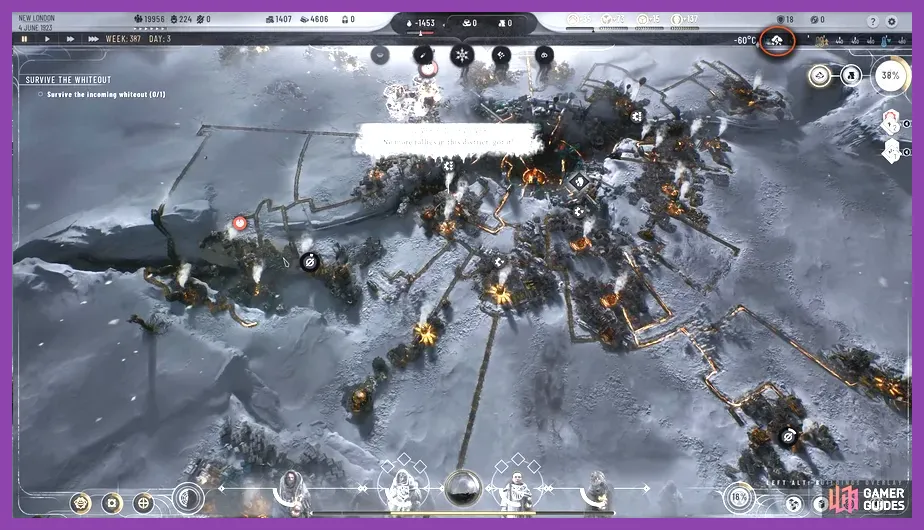
Outdated graphics drivers are notorious for causing DirectX 12 pipeline crashes, shader compilation errors, and black screen freezes in modern strategy releases. Developers work closely with hardware vendors to release day-one and post-launch hotfixes specifically tailored to prevent crashes in titles like Frostpunk 2.
Head directly to NVIDIA GeForce Experience, AMD Software: Adrenalin Edition, or Intel Graphics Command Center to perform a clean installation of your drivers. Furthermore, ensure your Windows operating system is fully up to date, and manually verify that your Microsoft Visual C++ Redistributables and DirectX runtime libraries are current. Missing system DLL files frequently cause silent crashes immediately upon launching the executive application.
Disable Background Overlays and Conflicting Software
Overlay hooks from third-party applications often conflict with Frostpunk 2's anti-cheat and rendering pipelines. Software injection into the DirectX 12 graphics loop is a primary trigger for random mid-game crashes during intense colony management phases.
Before launching the game, completely disable or close the following background utilities:
- Discord In-Game Overlay
- NVIDIA GeForce Experience In-Game Overlay
- Steam Overlay (Can be disabled globally via Steam Settings > In-Game)
- RivaTuner Statistics Server (RTSS) and MSI Afterburner monitoring tools
- Third-party antivirus real-time scanning hooks targeting the game installation directory
By stripping away unnecessary background hooks, you provide the game engine with dedicated RAM access and uninhibited CPU thread allocation. If you encounter general progression roadblocks or want to explore other tactical mechanics across different genres, take a look at our specialized guides such as the InZOI skills unlock guide, the Marvel Future Fight speedrun guide, and the comprehensive Nine Sols armor sets location guide to master your gaming library performance.
Perform a Clean Reinstallation as a Last Resort
If all troubleshooting steps fail and Frostpunk 2 continues to crash during startup or mid-game auto-saves, a complete clean reinstallation is necessary. Simply uninstalling the game through Steam often leaves behind corrupted configuration files, shader caches, and registry keys in your AppData directory.
After uninstalling the game via Steam, navigate to your C:\\Users\\YourUsername\\AppData\\Local\\Frostpunk2 folder and manually delete any remaining configuration files. Next, navigate to your Steam steamapps common directory and purge any residual folders left behind by the uninstaller. Once the directory is entirely clean, reinstall the game onto a high-speed NVMe solid-state drive (SSD). Running modern strategy games on mechanical HDDs results in catastrophic asset streaming delays and fatal crash-to-desktop errors.