To fix crashing on PC in Cyberpunk 2077 Phantom Liberty, you must address common memory leaks, unstable GPU overclocks, corrupted local cache files, and conflicting ray tracing or DLSS settings. Start by verifying your game files through the official Cyberpunk 2077 Steam page, disabling all third-party overlays, and setting crowd density to medium to relieve stress on your CPU during high-speed traversal through Dogtown.
Verify Game Files and Clear Cache
Corrupted data packs introduced during the Update 2.0 and Phantom Liberty patch deployment are the leading cause of sudden desktop crashes and fatal error logs pointing to basegame_duality.archive. Whether you own the game on Steam, GOG, or Epic Games, damaged installation sectors will cause immediate crashes when loading saves in CD Projekt Red's official website supported regions like Pacifica and the new Combat Zone.
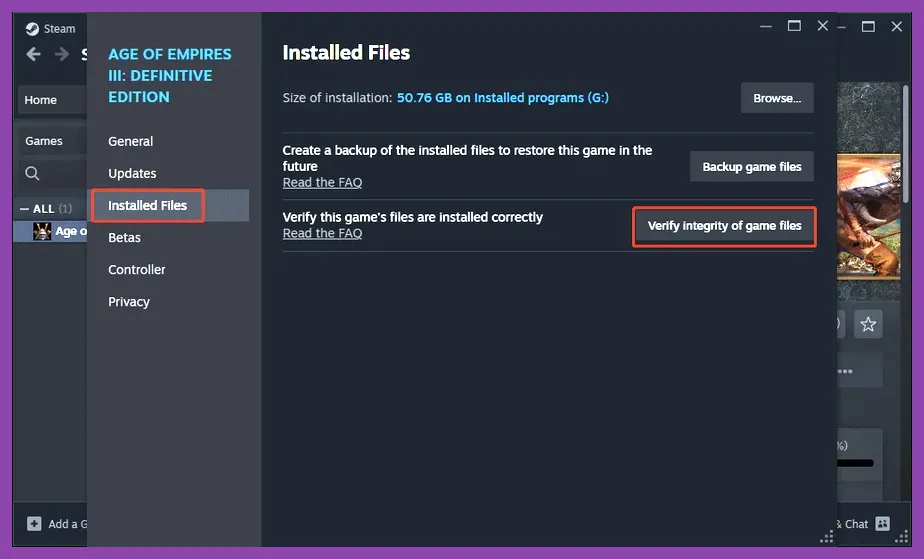
Head to your client library, right-click the game, navigate to properties, and select the option to verify the integrity of installed files. For manual cache clearing, navigate to %userprofile%\AppData\Local\CD Projekt Red\Cyberpunk 2077 and delete the cache folder. This forces the REDengine to rebuild essential shader caches upon your next launch, resolving memory access violations instantly.
Optimize Advanced Graphics and Ray Tracing Settings
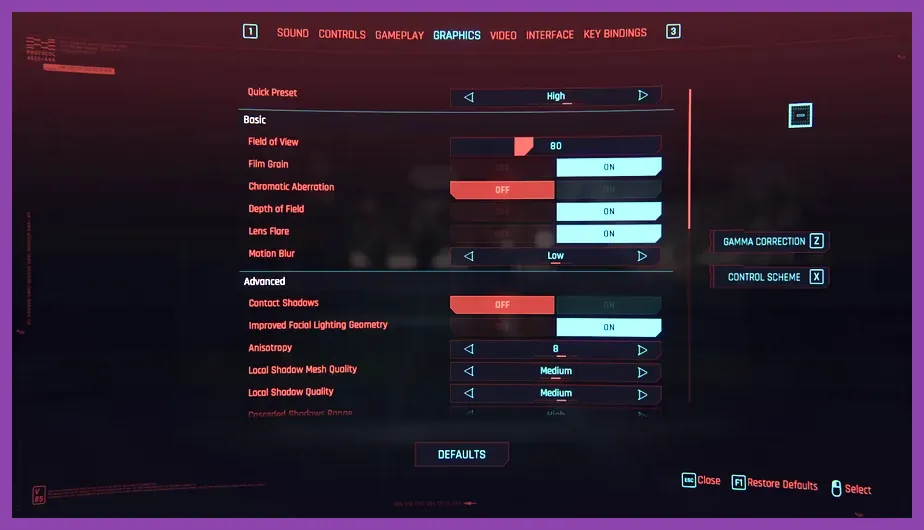
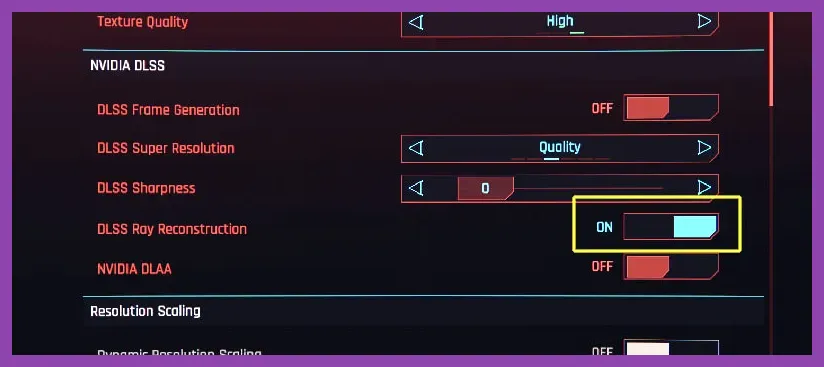
Phantom Liberty pushes modern hardware to its absolute limits, particularly regarding VRAM consumption and core scheduling. If your game crashes randomly during intense gunfights using the iconic Monowire or while hacking enemies with quickhacks like System Collapse, your GPU is likely running out of memory. Adjust your preset configuration to match these stable parameters:
- Crowd Density: Medium (crucial for CPU-heavy districts like the Grand Imperial Mall area).
- Ray Tracing: Off or Medium (Ray-Traced Overdrive severely destabilizes GPUs with under 16GB VRAM).
- DLSS / FSR Super Resolution: Quality or Balanced mode.
- DLSS Frame Generation: On (if using an RTX 40-series card to maintain fluid frame pacing).
- HDD Mode: Off (always install Cyberpunk on a dedicated NVMe SSD, mirroring principles found in Mount & Blade 2 Best Bannerlord Graphics Settings for High FPS).
Manage GPU Overclocks and Hardware Stability
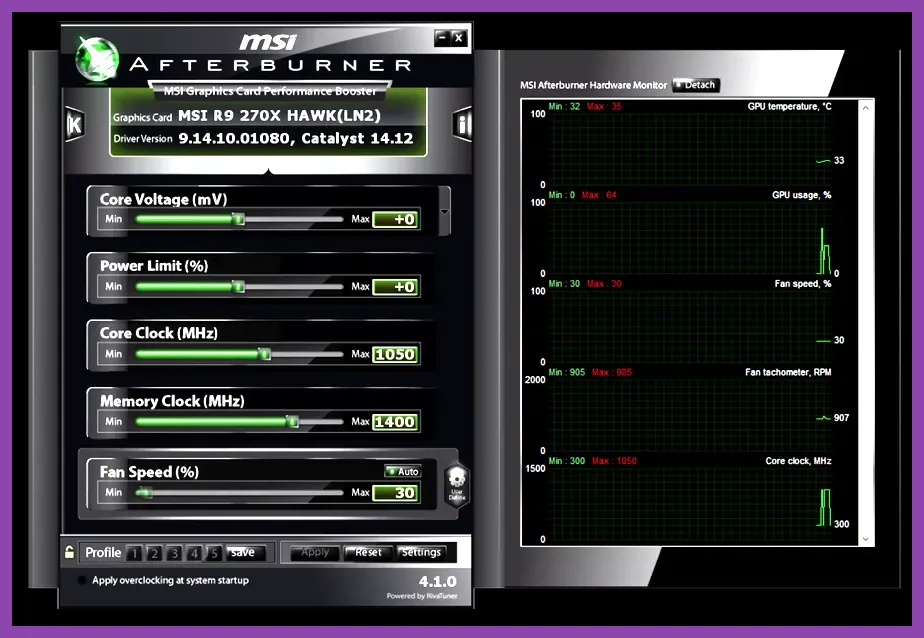
Cyberpunk 2077 is famously sensitive to unstable hardware clocks. Factory-overclocked graphics cards from vendors like ASUS, MSI, or Gigabyte frequently trigger GPU Crash for Unknown Reasons (DxgiErrorDeviceRemoved) errors. If you use utilities like MSI Afterburner or Rivatuner Statistics Server (RTSS), you need to scale back your hardware parameters.
Lower your GPU core clock offset by 50MHz and memory clock offset by 100MHz. Furthermore, disable background telemetry tools, Discord overlays, and third-party RGB software such as Corsair iCUE or Razer Synapse. These programs hook directly into the game's executable and frequently interfere with the Denuvo-free DRM or REDlauncher services, mimicking optimization challenges similar to those addressed in Left 4 Dead 2 Best Starting Build Guide.
Update Drivers and Clean Install Visual C++ Runtimes
Outdated graphics drivers are a primary catalyst for engine crashes during cinematic sequences, particularly during major story missions involving Reed, Songbird, or President Myers. Visit NVIDIA GeForce Experience or AMD Adrenalin to grab the latest Game Ready drivers optimized specifically for Phantom Liberty.
If driver updates fail to stop the crashing, your Microsoft Visual C++ redistributables might be corrupted. Download the latest combined x86 and x64 installer directly from Microsoft, run it as administrator, and restart your computer. Additionally, make sure your operating system's hardware-accelerated GPU scheduling (HAGS) is toggled on via Windows Graphics Settings, as this feature helps manage memory allocation between Windows and the Cyberpunk process.
Clean Up Outdated Mod Files
If you modded your game prior to the 2.0 update or Phantom Liberty launch, old script extenders and interface mods will cause immediate fatal CTDs (Crash to Desktop) upon loading into the main menu. The REDengine cannot process legacy .archive files or outdated versions of Cyber Engine Tweaks, RED4ext, and ArchiveXL.
To purge conflicting mods completely, do not just use an automated uninstaller. Navigate to your main installation directory (typically C:\Program Files (x86)\Steam\steamapps\common\Cyberpunk 2077\) and completely delete the bin, r6, and engine folders. Afterward, run a file verification scan through your launcher to restore clean, unmodded base game files before reinstalling only updated, compatible mods.
Adjust Virtual Memory and Page File Limits
Memory management issues can plague systems equipped with 16GB of physical RAM when running Phantom Liberty alongside background browser tabs or communication apps. Insufficient paging file allocation results in sudden memory exhaustion errors.
Press the Windows key, search for Advanced system settings, and navigate to the Advanced tab under Performance settings. Click Change under Virtual Memory, uncheck automatic management, and set a custom initial and maximum size equal to your total RAM multiplied by 1.5 (e.g., 24576 MB for a 16GB system). Applying this fix ensures your operating system has enough breathing room when the game streams massive density blocks in Dogtown's vertical slums.