To fix crashing on PC in Counter-Strike 2, you need to address memory leaks, verify corrupted game files through Steam, disable Fullscreen Optimizations, and apply optimal graphic profiles such as lowering Global Shadow Quality to Medium and disabling MSAA. Counter-Strike 2 runs on the advanced Source 2 engine, which demands strict stability from your hardware, operating system, and GPU drivers. If you are experiencing sudden desktop crashes, freezing during map loading screens on Inferno or Ancient, or fatal DirectX error pop-ups, this comprehensive troubleshooting guide provides the exact configuration adjustments and system fixes needed to restore absolute stability to your game.
Verify Integrity of Game Files

The most common culprit behind sudden runtime crashes in Counter-Strike 2 on Steam is missing or corrupted pak01_dir.vpk files or interrupted map asset downloads. Whenever Valve pushes a minor update or hotfix, files can occasionally fail to write correctly, resulting in crashes when the engine tries to load specific textures or sound cues.
To resolve this, open your Steam Library, right-click on Counter-Strike 2, and select Properties. Navigate to the Installed Files tab and click on Verify integrity of game files. Steam will automatically scan your installation directory, compare the local hashes with Valve's master servers, and re-download any corrupted or missing files. This process usually takes between 3 to 5 minutes depending on your storage drive speed. For related performance and optimization tips on similar competitive multiplayer titles, check out our guides on Team Fortress 2 and Terraria co-op builds.
Optimize Advanced Video Settings in CS2
Running CS2 with unoptimized graphic settings can overwhelm your VRAM and trigger engine crashes, especially during heavy smoke grenade scenarios or multi-player utility executions. To maximize stability while maintaining high frame rates, apply the following video profile inside the in-game settings menu:
- Boost Player Contrast: Enabled (helps visibility without crashing performance)
- Wait for Vertical Sync: Disabled (prevents input lag and frame pacing stutter)
- Multisampling Anti-Aliasing Mode: 4X MSAA (or None if running an entry-level GPU)
- Global Shadow Quality: Medium (High settings often overload older graphics cards during complex shadows on Nuke)
- Model / Texture Detail: Medium
- Texture Filtering Mode: Anisotropic 4X
- Shader Detail: Low
- Particle Detail: Low (critical for preventing frame drops and crashes during molly explosions)
- Ambient Occlusion: Disabled
- High Dynamic Range: Quality
- FidelityFX Super Resolution: Disabled (or Performance if struggling to maintain baseline FPS)
- NVIDIA Reflex Low Latency: Enabled + Boost
These settings balance visual clarity for spotting enemies holding angles with minimal strain on your GPU pipeline. If your system requires broader hardware tuning or you are managing system constraints, reviewing our system requirements guide can help you evaluate your rig's capabilities. Additionally, for players exploring portable hardware adjustments, our breakdown on Steam Deck optimization offers great insights into resource management.
Update and Clean Install GPU Drivers
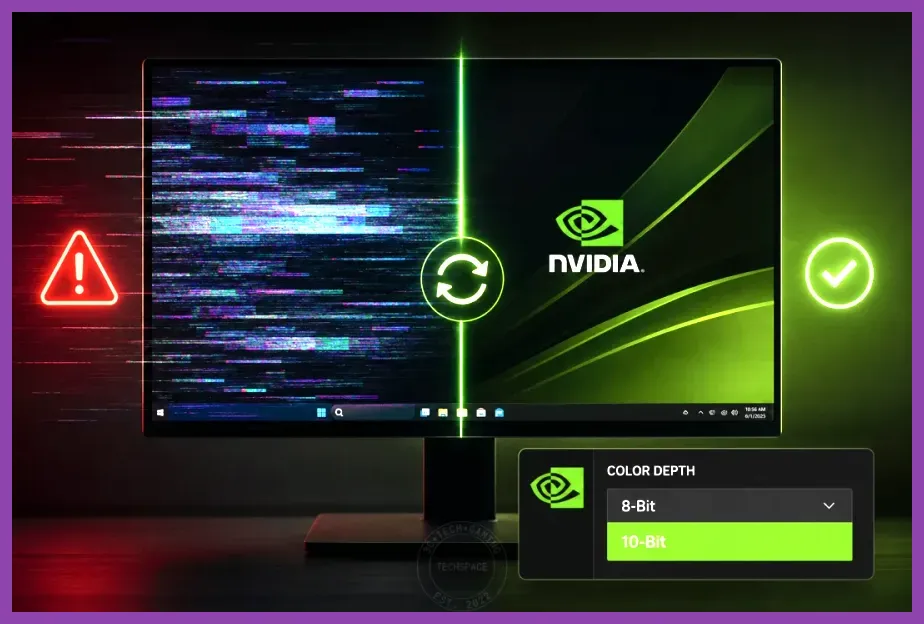
Outdated or corrupted graphics drivers are a primary source of fatal DirectX crashes (such as DXGI_ERROR_DEVICE_HUNG) in Counter-Strike 2. Whether you use an NVIDIA GeForce card, an AMD Radeon GPU, or integrated Intel Arc graphics, ensuring your driver version is current is mandatory.
For NVIDIA users, download the latest Game Ready Driver via the NVIDIA app or official NVIDIA Driver Downloads portal. Before installing, select Custom (Advanced) installation and check the box for Perform a clean installation. This wipes out legacy shader caches and conflicting registry entries left behind by previous driver iterations. AMD users should utilize the AMD Software: Adrenalin Edition clean-up utility to achieve the same result. If you encounter broader software conflicts or need emulator-specific optimizations for other platforms, refer to our guides on State of Survival emulator setups.
Disable Fullscreen Optimizations and Set High Priority
Windows operating systems feature built-in display scaling known as Fullscreen Optimizations, which frequently interfere with the Source 2 engine's rendering pipeline, causing random tab-outs, freezing, and crashes to desktop.
To disable this feature permanently for Counter-Strike 2:
- Open your Steam client and go to your Library.
- Right-click Counter-Strike 2, select Manage, and then click Browse local files.
- Navigate through the directories:
game \u00 bin \u00 win64. - Locate the main executable file named cs2.exe.
- Right-click cs2.exe and select Properties.
- Go to the Compatibility tab.
- Check the box labeled Disable fullscreen optimizations.
- Click Change high DPI settings, check Override high DPI scaling behavior, and set it to Application.
- Click Apply and then OK.
Furthermore, you can allocate higher CPU priority to CS2 via the Windows Task Manager. Launch the game, press Ctrl + Shift + Esc, navigate to the Details tab, right-click cs2.exe, select Set priority, and change it from Normal to High. For further assistance with character builds, progression mechanics, and optimization tips across various other games, you can browse our comprehensive index of guides including Stalker 2 skill respecs, The First Descendant weapons tier list, and Subnautica 2 solo player choices.
Clear DirectX Shader Cache and Inspect Hardware Overclocks
Over time, the DirectX shader cache on your local drive can become bloated or corrupted, leading to stuttering and abrupt game closures during high-intensity firefights in competitive matches. To clear your shader cache in Windows, open the Start Menu, type Disk Cleanup, select your primary installation drive (usually C:), and ensure that DirectX Shader Cache is checked before clicking OK.
Finally, if you are running an aggressive CPU or GPU overclock—such as pushing core clocks past stable limits or applying unstable XMP/EXPO memory profiles in your BIOS—Counter-Strike 2's sensitive memory error handling will frequently crash to desktop. Source 2 is notoriously unforgiving of unstable hardware memory timings. Reset your RAM speeds to standard manufacturer specifications or dial back core overclocks by 50MHz to test if hardware instability is the root cause of your crashes. By systematically working through file verification, driver cleanliness, and video setting optimization, you will achieve a rock-solid, crash-free CS2 experience.