
If your journey through ninth-century England in Assassin's Creed Valhalla on Steam feels more like a slideshow than a Viking saga, you can fix it right now with a few targeted tweaks. Valhalla runs exclusively on DirectX 12 via Ubisoft's AnvilNext 2.0 engine, which means it handles memory allocation, asynchronous compute, and display presentation completely differently from older titles. To stop micro-stutter immediately, switch your display mode to borderless, drop Volumetric Clouds from Ultra High to Medium, disable the Ubisoft Connect overlay, and wire your controller directly instead of relying on generic Bluetooth. If you are battling hard crashes straight to the desktop, the culprit is almost always virtual memory exhaustion or corrupt DirectX shader caches. Here is the definitive walkthrough to stabilizing your frametimes and locking down rock-solid performance.
Quick Fixes for Micro-Stutters: Controller Polling and Display Quirks
Micro-stuttering in Valhalla rarely stems from an underpowered graphics card alone. More often than not, it is caused by the engine's input polling thread choking or Windows Desktop Window Manager (DWM) clashing with the game's presentation model. If you notice a rhythmic, hitching stutter every three to five seconds while panning the camera or sprinting on horseback, your input hardware is the prime suspect.
Valhalla suffers from a well-documented bug where wireless Bluetooth controllers—especially modern Xbox Series X|S and PlayStation DualSense gamepads—flood the Windows XInput API. The engine pauses frame rendering momentarily to process erratic packet drops over generic Bluetooth receivers. You can instantly test this: disconnect your controller and move Eivor with a mouse and keyboard. If the hitching vanishes, your fix is simple. Either connect your controller via a direct USB-C cable or pick up the dedicated Xbox Wireless Adapter for Windows, which bypasses standard Bluetooth polling and delivers clean 2.4 GHz communication.
Next up is the presentation mode bug. While conventional wisdom dictates using Exclusive Fullscreen for maximum performance, Valhalla's native DirectX 12 implementation uses modern DXGI Flip Model presentation. On Windows 10 and 11, running the game in Borderless often yields significantly smoother frametimes than Fullscreen, because it avoids aggressive desktop mode switches that desync adaptive sync (G-Sync and FreeSync). If you have been struggling with persistent stuttering even in low-intensity scenes, our breakdown on resolving low FPS and desktop crashes outlines how display pipeline conflicts cause micro-delays across various modern PC titles.
Finally, shut off the Ubisoft Connect overlay. The overlay injects its own rendering hook into Valhalla's swapchain, causing noticeable frametime jitter whenever notifications ping or achievements sync in the background. Open the Ubisoft Connect desktop client, navigate to Settings > General, and uncheck Enable in-game overlay for supported games. If you use Discord, Steam, or GeForce Experience, disable their background recording and overlay hooks as well to give the rendering pipeline uninterrupted access to GPU queues.

🎮 Assassin's Creed Valhalla
Looking to experience this game? Grab your digital key directly on our store for $14.99.
View on Steammoz Store →Valhalla Graphics Settings Deep Dive: Maximize FPS Without Ruining England

The visual options menu in Valhalla is loaded with traps. Several settings demand massive GPU compute power while providing visual improvements that are practically invisible while raiding monasteries or hunting order members. By auditing these settings individually, you can claw back 25% to 40% higher average frame rates and massively boost your 1% low frame rates.
The biggest offender by a wide margin is Volumetric Clouds. Setting this to Ultra High forces the engine to run exhaustive ray-marching passes through cloud layers across the entire skybox, devouring up to 20% of your total GPU headroom. Dropping Volumetric Clouds to Medium preserves atmospheric lighting and realistic fog banks while handing you a massive framerate uplift. We have observed this exact render-budget drain in other modern engines; comparing these numbers to our Far Cry 6 settings for max FPS highlights just how much Ubisoft's internal engines penalize volumetric simulation passes.
Another silent performance killer is Clutter Density. Clutter governs the rendering distance and geometric complexity of grass, stones, and small debris. In dense regions like Mercia's woodlands or the marshlands of East Anglia, Ultra High floods your CPU with draw calls. Dropping this setting down to High or Medium removes micro-stutters during high-speed horse traversal without leaving the terrain feeling bare.
| Setting | Sweet Spot Recommendation | FPS Cost (Relative) | Visual & Stability Impact |
|---|---|---|---|
| Volumetric Clouds | Medium | Extreme (~18-22%) | Ultra High runs costly ray-marched passes; Medium keeps skies lush with zero stutter. |
| Clutter Density | High (or Medium for 4-core CPUs) | High (~8-12%) | Prevents draw-call bottlenecks on CPU threads during rapid countryside riding. |
| Shadow Quality | High | Moderate (~6-9%) | Very High introduces soft contact shadows that heavily tax rasterization pipelines. |
| World Details | High | Moderate (~5-7%) | Controls Level of Detail (LOD) pop-in. Ultra High causes hitching when loading assets. |
| Anti-Aliasing | Medium | Low-Moderate (~4-6%) | Medium softens temporal aliasing without causing severe TAA blur or render latency. |
| Depth of Field | Low / Off | Low (~3%) | Cuts out cinematic camera blur during dialogues and frees up post-processing compute. |
| Motion Blur | Off | Negligible (~1%) | Reduces post-processing overhead and immediately sharpens camera panning clarity. |
Pay close attention to the Resolution Scale slider. If you are playing at native 1440p or 4K, running at 100% can overwhelm mid-range cards during chaotic fortress assaults. Dropping this slider to 90% or 85% significantly lowers pixel shading overhead while Valhalla's built-in temporal upscaling keeps the image remarkably crisp. For lower-spec rigs trying to extract every ounce of compute juice, our look at tinkering with settings for higher FPS offers clean insight into how small scaling adjustments dramatically smooth out unstable frame times.
Fixing Desktop Crashes, Freezes, and DXGI Device Removed Errors
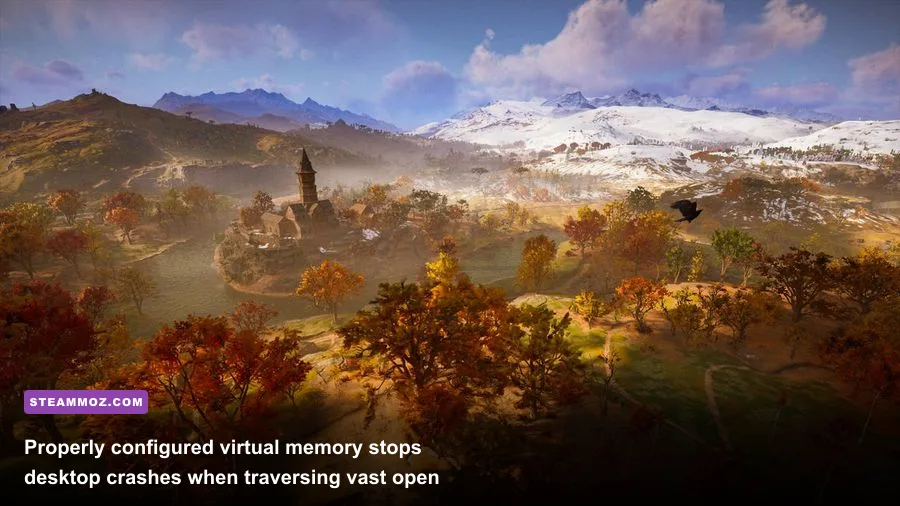
Few things ruin an immersion streak faster than conquering a massive Saxon fortress only for the game to freeze, turn grey, and crash straight to the desktop without an error log. In Valhalla, over 80% of spontaneous crashes to desktop (CTDs) are caused by two specific issues: virtual memory (paging file) exhaustion and corrupted DirectX 12 Pipeline State Object (PSO) caches.
Unlike DirectX 11 games that dynamically dump overflow textures into system RAM cleanly, Valhalla's engine allocates a strict VRAM footprint. When your GPU runs low on dedicated video memory—a frequent occurrence in packed settlements like Ravensthorpe, Lunden, and Jorvik—the engine requests page allocations from Windows virtual memory. If your Windows paging file is disabled, set to an HDD, or capped at an arbitrary low size by default, the game crashes instantly. Tackling crash loops in sprawling RPGs is a familiar pain; if you've wrestled with similar anomalies, our Elex PC crash fixes and FPS rescue guide details how open-world engines handle memory dumps under heavy stress.
Here is how to set a stable, permanent paging file size to eliminate crash-to-desktop errors:
- Press Windows Key + R, type
sysdm.cpl, and hit Enter to open System Properties. - Click on the Advanced tab, and under the Performance header, click Settings.
- Go to the Advanced tab inside Performance Options, then click Change under Virtual Memory.
- Uncheck "Automatically manage paging file size for all drives".
- Select your fastest NVMe or SATA SSD (the drive where Windows or Valhalla is installed).
- Select Custom size, and set both Initial size and Maximum size to 16384 MB (16 GB). Setting identical values prevents Windows from dynamically resizing the paging file mid-game, which causes frame drops. For full background on how Windows handles these allocations, refer to the official Microsoft Virtual Memory Documentation.
- Click Set, then OK, and reboot your PC.
If your crashes accompany a brief freeze followed by a driver reset warning (often logged in Windows Event Viewer as Event ID 4101: "Display driver nvlddmkm stopped responding and has successfully recovered"), your DirectX shader cache is corrupted. Close Valhalla and Ubisoft Connect completely. Navigate to %localappdata%\Ubisoft Game Launcher\spool and wipe any cached files inside. Next, open File Explorer and type %localappdata%\NVIDIA\DXCache (or the AMD equivalent at %localappdata%\AMD\DxCache) and delete the stored cache files. When you next launch Valhalla, the game will rebuild its shader caches cleanly, resolving crash hooks in dense architectural zones.
Under the Hood: Config Files, Memory Leaks, and Core Affinity
If surface-level graphic settings haven't fully solved your frametime consistency, it is time to open Valhalla's configuration files and tune the low-level engine parameters. Head to your local profile directory located at Documents\Assassin's Creed Valhalla. Inside, you will locate a file named ACValhalla.ini. Open it using Notepad or Notepad++.
Look for the [Startup] and [Graphics] blocks. Several parameters can be manually tuned past the in-game UI constraints:
- WindowMode=1: Forces true borderless presentation, ensuring seamless desktop composition without DWM frame drops.
- DepthOfField=0: Completely disables cinematic depth of field compute shaders during exploration and combat, saving valuable frametime ms on older GPU architectures.
- MotionBlur=0: Disables internal velocity-vector buffers, freeing up rendering pipeline queues.
Save the file and set it to Read-Only if you want to prevent the game from resetting your values during game updates. If you ever run into broader hardware bottlenecks, taking a step back to understand generational system baselines—like checking the Far Cry 2 PC specs to see how rendering loads have multiplied across engine generations—puts modern CPU thread usage into perspective.
| Hardware Tier | Target Resolution & Framerate | Engine Profile Tweaks | Benchmark 1% Low Target |
|---|---|---|---|
| Budget (GTX 1660 Super / RX 5600 XT, 6-Core CPU) | 1080p @ 60 FPS | Volumetrics: Medium, Clutter: Medium, Res Scale: 90%, Depth of Field: Off | 50 - 54 FPS |
| Mid-Range (RTX 3060 Ti / RX 6700 XT, 8-Core CPU) | 1440p @ 60-75 FPS | Volumetrics: Medium, Clutter: High, World: High, Shadows: High | 58 - 64 FPS |
| High-End (RTX 4070 / RX 7800 XT, Modern 8+ Core) | 1440p / 4K @ 90-120 FPS | Volumetrics: High, World: Very High, Textures: Ultra, AA: High | 82 - 95 FPS |
Another quirk of Valhalla is an engine memory leak that manifests after two or three continuous hours of play. As you fast travel across Norway, England, and Vinland, the Anvil engine does not aggressively flush cached audio tracks and regional textures from system RAM. You will know you are hit by this when your framerate gradually decays by 15-20 FPS over an extended session. Until Ubisoft deploys a low-level garbage collection patch, the cleanest workaround is simply restarting the game executable after completing major regional pledge arcs or long river raids.
Windows OS Optimization and Background Bottlenecks

Modern Windows features can make or break Valhalla's performance. Two specific OS-level settings have dramatic impacts on how the game delivers frames: Hardware-Accelerated GPU Scheduling (HAGS) and Variable Refresh Rate (VRR) settings.
To check HAGS, open Windows Settings, navigate to System > Display > Graphics > Default graphics settings, and locate Hardware-accelerated GPU scheduling. If you are running an NVIDIA GeForce RTX 30-series or 40-series GPU, keeping HAGS On lowers CPU overhead and slightly improves 0.1% low frametimes. However, if you are running an older RTX 20-series card, a GTX 10-series GPU, or older AMD Radeon RX 5000-series silicon, HAGS frequently introduces erratic frametime stuttering in Valhalla. Toggle it off, reboot, and evaluate your frametimes using the in-game benchmark tool.
Make sure your graphics drivers are clean. Dirty driver upgrades over multiple Windows updates often corrupt shader compiler hooks. Use Display Driver Uninstaller (DDU) in Windows Safe Mode to scrub previous display drivers before installing the latest WHQL release directly from the Nvidia GeForce Driver Repository or AMD's driver portal. When frametimes drop during particle-heavy raids, applying the core philosophies from our Everspace 2 framerate and crash fix walkthrough will help you isolate whether hardware driver timeouts are responsible for sudden frame stalls.
Lastly, double-check your Windows Power Plan. Ensure your PC is set to High Performance or AMD Ryzen Balanced rather than standard "Balanced" or "Power Saver". The standard Balanced plan frequently downclocks CPU core frequencies when transitioning between high-intensity combat and dialogue scenes, triggering an annoying stutter right as conversations end and control returns to your character. You can confirm any persisting engine bugs or platform updates directly through the Ubisoft Valhalla Support Portal.
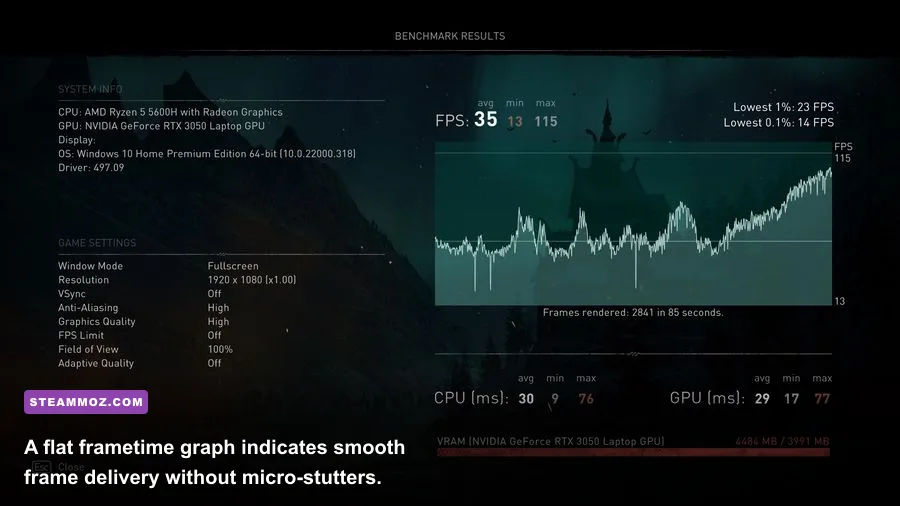
Run Valhalla's built-in benchmark tool once you have applied these adjustments. Look past the average framerate number and focus directly on the 1% Low and 0.1% Low metrics at the bottom of the summary screen. When your minimums climb within 15-20% of your average FPS, your frametime pacing is completely stabilized. With your shader caches wiped, controller polling stabilized, virtual memory pinned, and volumetric settings reigned in, you can finally experience Eivor's conquest across England with silky-smooth responsiveness.