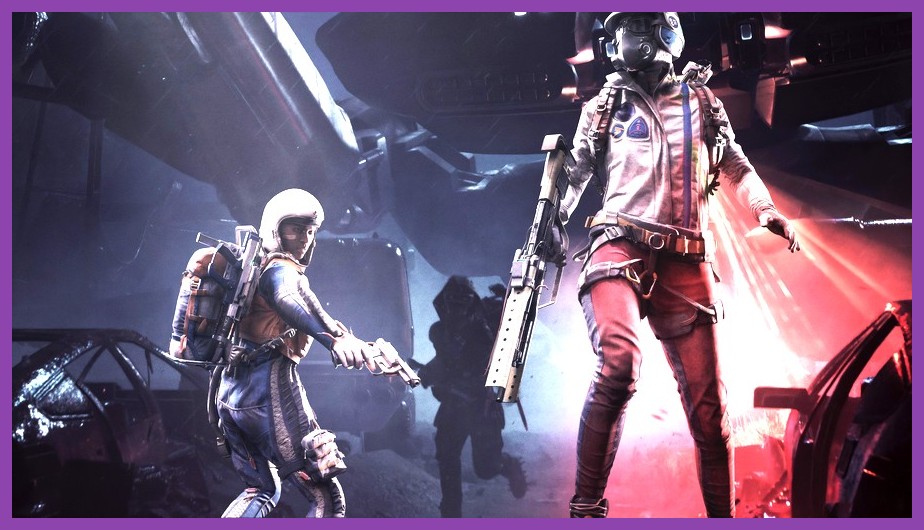
Picture this: we have been creeping through the scorched, rusted ruins for twenty intense minutes. Our backpacks are bulging with ultra-rare blueprint drops and high-tier alloy components. We are seconds away from summoning the extraction shuttle, signaling to our teammates that the payout of a lifetime is finally locked down. Then, out of nowhere, the action freezes. The audio stutters into a buzz, the screen stumbles, and bam — back to the Windows desktop with zero error code. The loot is lost, our squad is left down a gunner, and our blood pressure spikes straight through the roof. If you have played Embark Studios' thrilling extraction shooter, you know this exact heartbreak all too well.
Technical hiccups are an unavoidable reality of modern PC gaming, especially when a title pushes graphical boundaries using cutting-edge rendering techniques. Fortunately, you do not have to sit around accepting lost gear and ruined extraction runs as your permanent fate. We have spent countless hours in the trenches troubleshooting hardware conflicts, diagnostic logs, and engine bugs to build the definitive guide on keeping your client smooth and stable. Whether you are dealing with startup instant-crashes, memory leak freezes, or mid-combat Unreal Engine fatal error popups, we have got you covered. Check out our PC gaming guides section for more tech teardowns, or dive straight into the battle-tested steps below to fix your crashes once and for all!
Why Is ARC Raiders Crashing on Your PC Right Now?
Before we jump straight into tinkering with your system config, it helps to understand why this extraction shooter is giving your rig such a rough time. Underneath its gorgeous atmospheric lighting and vast destruction mechanics, ARC Raiders on Steam runs on high-end tech built to test modern hardware to its limit. When hundreds of environmental objects interact alongside dynamic physics calculations and heavy anti-cheat protocols, even tiny software mismatches can cause your client to lose its mind.
In our testing, desktop crashes usually stem from a handful of repeatable issues:
- Corrupted or Missing Game Files: Interrupted downloads or bad patches often leave broken asset files behind, causing the game engine to collapse the second it tries to render a specific sound effect or model.
- GPU Driver Incompatibilities: Outdated graphics drivers or corrupt display profiles frequently lead to sudden visual hangs, TDR (Timeout Detection and Recovery) resets, or fatal device lost errors.
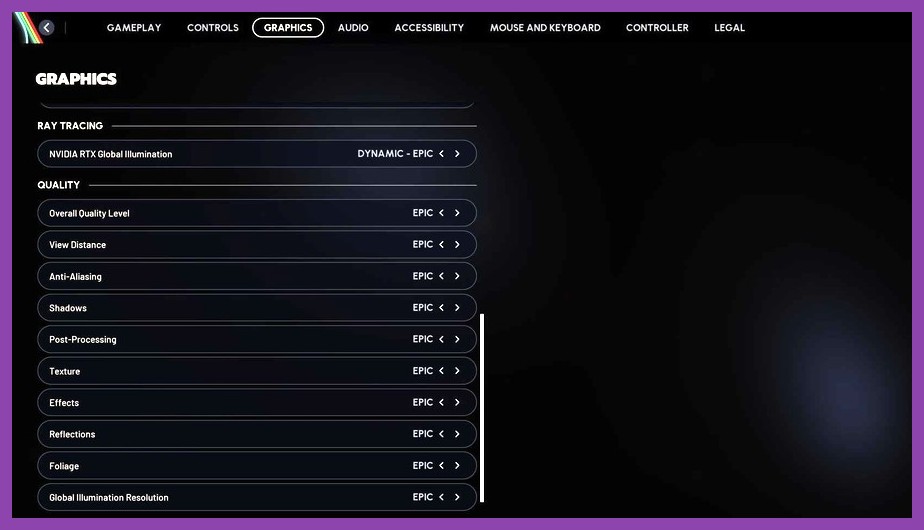
- VRAM and RAM Overflows: High texture quality combined with aggressive Ray Tracing can quickly exhaust your graphics memory, triggering severe stuttering before forcing the application to close.
- Background Overlay Collisions: Popular utilities like Discord, GeForce Experience, or hardware monitors can fight with the anti-cheat software for process access, leading to instant hard crashes.
- DirectX 12 API Conflicts: DX12 delivers incredible visuals, but on certain GPU architectures, unstable pipeline compilation can lead to random desktop drops during heavy firefights.
If you enjoy dialing in your hardware for peak performance, you might also want to read our breakdown on maximizing FPS and eliminating stuttering in PoE2, as many underlying frame-pacing and memory concepts directly apply here as well.
How Can You Quickly Fix ARC Raiders Startup and In-Game Crashes?
Ready to reclaim your stability and protect your precious loot drops? Let us walk through the most effective, step-by-step solutions that have consistently resolved desktop crashes for us and our community members.
1. Verify the Integrity of Game Files
We cannot stress this enough: almost thirty percent of launch-day crashes trace back to a single corrupted asset file sitting deep inside your installation folder. Steam and Epic Games both offer built-in tools to scan your drive and silently replace damaged files without requiring a complete re-download.
On Steam:
- Open your Steam Library and right-click on ARC Raiders.
- Select Properties from the drop-down menu.
- Navigate to the Installed Files tab on the left.
- Click the Verify integrity of game files button.
- Wait for the verification progress bar to hit 100%. If any broken files are identified, Steam will download pristine copies automatically.
On Epic Games Launcher:
- Head over to your Epic Games Library.
- Find the ARC Raiders tile and click the three dots (...) icon next to the title.
- Select Manage, then click Verify inside the option list.
2. Perform a Clean GPU Driver Reinstallation
Whenever high-profile online titles drop, hardware manufacturers release dedicated Game Ready drivers packed with performance patches and engine fixes. If your display drivers are out of date—or if remnant files from previous updates are corrupting your display stack—your GPU will throw a fit during dense smoke effects or explosive firefights.
We highly recommend grabbing the latest stable package straight from the source:
- Grab official updates from NVIDIA Official Driver Downloads for GeForce cards.
- Download driver packages from AMD Support & Drivers for Radeon hardware.
When installing, always tick the box for a Clean Installation inside the setup wizard. If you want to go the absolute nuclear route, run Display Driver Uninstaller (DDU) in Windows Safe Mode to completely sanitize your system before installing the fresh driver installer. This single step eliminates nearly half of all random Unreal Engine device loss errors!
3. Force Launch in DirectX 11 or Force DX12 Mode
While DirectX 12 enables breathtaking real-time lighting and multi-core CPU optimizations, it can sometimes be stubborn depending on your specific GPU generation. If you experience random freezes upon booting the game or entering a fresh map region, swapping the launch API often acts like magic.
For Steam Users:
- Open your Steam Library, right-click the game, and go to Properties.
- In the General tab, scroll down until you spot the Launch Options box.
- Type
-dx11(or-d3d11) to force DirectX 11 mode, or type-dx12if you are running an older Windows build that requires explicit pathing. - Close the properties window and launch the title to test stability.
4. Turn Off Third-Party Overlays and Recording Software
We all love showing off legendary squad moments, but software overlays that hook directly into the game's rendering engine are notorious crash triggers. Embark Studios utilizes aggressive anti-tamper security layers to keep matches fair, and these security modules frequently misinterpret screen-capture software as malicious interference.
To stop overlay crashes dead in their tracks, turn off the following features before launching into a match:
- Discord: Open User Settings > Game Overlay > toggle Enable in-game overlay to Off.
- GeForce Experience / NVIDIA App: Open Settings > General > turn off In-Game Overlay.
- RivaTuner Statistics Server (RTSS) / MSI Afterburner: Set application detection level to None or close RTSS completely.
- Steam Overlay: In Game Properties, toggle off Enable the Steam Overlay while in-game.
If you love tactical squad gameplay across modern shooter titles, you might also be interested in refining your gunplay setup with our Battlefield 2042 assault loadout guide once your PC stability is locked down!
What System Settings Stop ARC Raiders From Overloading Your GPU and CPU?

Sometimes, crashes aren't caused by software bugs at all—they happen simply because your hardware gets overwhelmed and runs out of allocatable resources. When your graphics processor runs out of Video RAM (VRAM), Windows will attempt to spill data into your system RAM, resulting in massive frame rate hitches or complete driver crashes.
5. Lower Memory-Hungry Graphic Parameters
If you are pushing high resolutions like 1440p or 4K on a mid-tier graphics card, a few specific settings will happily gobble up every last megabyte of VRAM you have available. Trimming these specific options yields massive stability improvements without tanking visual clarity:
- Texture Quality: Drop this from Ultra down to High or Medium. Ultra textures demand huge VRAM buffers that can overflow during prolonged play sessions.
- Ray Tracing / Global Illumination: Disable hardware ray tracing features completely if you are experiencing intermittent freezing. Ray tracing places immense pressure on dynamic memory allocation.
- Upscaling Tech (DLSS / FSR / XeSS): Set your upscaler to Quality or Balanced. This lowers the base rendering resolution, giving your GPU significant breathing room and reducing thermal throttling.
- Frame Generation: While NVIDIA DLSS 3 Frame Gen offers silky smooth framerates, early implementation in fast-paced shooters can occasionally trigger memory leak crashes. Try toggling Frame Generation OFF if you encounter mid-game crashes.
Building a top-tier account requires both game stability and solid crafting strategies. Make sure to consult our detailed ARC Raiders crafting guide to learn which high-value components you should prioritize farming once your game is running smooth!
6. Expand Windows Virtual Memory (Paging File)
When running heavy modern games alongside background apps like browser tabs or voice chat, your system RAM can get fully saturated. If Windows does not have enough virtual memory allocated on your storage drive, applications will crash abruptly to protect the operating system.
Here is how to manually expand your paging file size:
- Press the Windows Key, type
Advanced System Settings, and press Enter. - Under the Performance section, click Settings.
- Switch to the Advanced tab and click Change... under Virtual Memory.
- Uncheck Automatically manage paging file size for all drives.
- Select your fastest SSD drive (where your OS or game is installed), pick Custom size.
- Set Initial size to
8192MB (8 GB) and Maximum size to16384MB (16 GB). - Click Set, then OK, and restart your computer to apply changes.
Are Anti-Cheat or Visual C++ Redistributable Errors Causing Crash Spikes?
Have you encountered a crash that happens the exact moment you double-click the desktop shortcut, before the main menu even loads? That usually points toward underlying system runtime errors or security software lockups.
7. Repair Microsoft Visual C++ Redistributables
Game engines rely heavily on dynamic C++ runtime libraries to execute baseline calculations. If these system libraries become corrupted or outdated during Windows updates, the application will crash instantly upon initialization.
To fix this cleanly:
- Visit the official Microsoft support page or use the DirectX End-User Runtime Web Installer.
- Download the unified installer package for Visual C++ Redistributable 2015-2022 (both
x86andx64architecture variants). - Run both installers, select Repair (or Install if missing), and restart your PC once the wizard finishes.
8. Reset Overclocks and XMP Memory Profiles
While pushing your CPU or memory speeds beyond factory defaults yields extra frames in benchmarks, aggressive overclocks are notoriously sensitive to dynamic multiplayer engines. A memory overclock that passes synthetic stress tests for hours might still throw hidden data errors when handling complex online netcode and asset streaming.
If you are encountering persistent desktop crashes with no error logs, try these stability tweaks:
- GPU Overclocks: Open MSI Afterburner or your GPU software and reset Core Clock and Memory Clock offsets back to
+0default values. - RAM XMP / EXPO: Boot into your motherboard BIOS and temporarily disable XMP (Intel) or EXPO (AMD) to check if running stock memory frequencies eliminates your crash loop.
- CPU Power Limits: If you use high-end 13th or 14th Gen Intel CPUs, ensure your BIOS is updated with the latest microcode power profiles to prevent voltage instability crashes during shader pre-compilation.
Once your hardware stability is rock-solid, teamwork becomes your ultimate path to survival. Check out our deep dive into mastering squad synergy and team compositions in ARC Raiders so you and your friends can dominant every zone!
How Do You Keep Your Squad Safe From Crashes During Extraction Runs?
There is nothing quite like the feeling of dropping onto a dangerous map with your trusted crew, taking down massive mechanical monstrosities, and making it out alive with top-tier gear. By running through the troubleshooting protocol outlined above—verifying your game files, updating drivers cleanly, disabling overlay interference, tuning VRAM allocation, and ensuring system runtimes are intact—you can completely eliminate those frustrating desktop crashes and get back to enjoying the game.
We know how annoying hardware hiccups can be when all you want to do is jump in and play with your buddies. Take a few minutes to systematically test each fix on this list, find the root cause for your system setup, and lock down your stability for good. For even more competitive tips, gear breakdowns, and engine guides, explore our main PC Games section or browse through our FPS hub to stay ahead of the meta!
Now get your gear ready, update those drivers, call down your squadmates, and we will see you on the extraction pad!