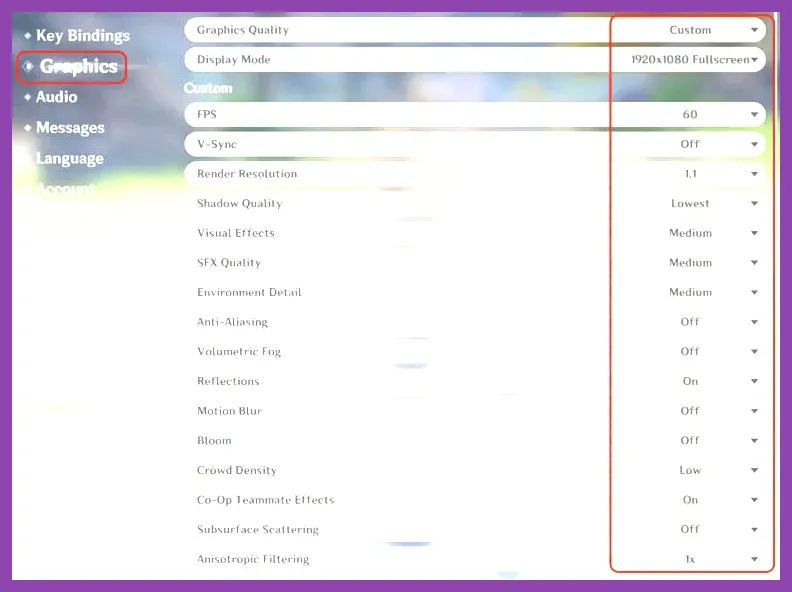
To achieve maximum and stable FPS in Genshin Impact on PC, you must disable V-Sync, lower volumetric shadows to Low, set render resolution to 1.0, and cap your frame rate externally if your monitor experiences screen tearing. While HoYoverse's action RPG runs on a wide variety of hardware, improper graphical configurations—especially heavy post-processing and shadow rendering options—will cause micro-stutters during intensive elemental combat encounters in domains and the spiral abyss.
Understanding the Genshin Impact Graphics Menu
Navigating the display and graphics tabs correctly is vital before you step out into the open world of Teyvat. Many default presets push unnecessary computational loads onto your graphics card and processor. For players exploring optimization strategies across various titles, you can also check out our guide on Mount & Blade 2 best Bannerlord graphics settings for high fps to fine-tune other demanding games in your library. For Genshin Impact, the primary bottleneck is often CPU single-core performance during complex physics and particle calculations, coupled with GPU strain from shadow mapping.
Before applying tweaks, ensure your game is running on an SSD, as asset streaming heavily dictates open-world loading times and stutter mitigation. You can read more about the game's updates and system requirements directly on the official Genshin Impact website or consult the community-driven Genshin Impact Wiki for deeper mechanical breakdowns.
The Ultimate High FPS Graphics Profile
Apply these exact in-game settings to maximize your frame rate while maintaining clean visual clarity for character animations and environment traversal:
- Display Mode: Exclusive Fullscreen (reduces input lag and prioritizes system resources to the game window).
- Resolution: Match your native monitor resolution (e.g., 1920x1080 or 2560x1440). Do not use scaling above 1.0 unless you are downsampling from a higher resolution on a high-end GPU.
- FPS: 60 (or unlock via third-party tools if your monitor supports high refresh rates, though keep in mind the engine physics are traditionally tied to frame rates).
- V-Sync: Off (enable G-Sync or FreeSync through your Nvidia or AMD control panel instead to avoid input latency).
- Render Resolution: 1.0 (Higher values introduce massive GPU overhead with minimal visual benefit).
- Shadow Quality: Low or Medium (This is the single most demanding setting. High shadows eat up valuable GPU cycles).
- Visual Effects: Low (Reduces clutter during complex elemental reactions involving characters like Raiden Shogun or Nahida).
- SFX Quality: Medium (Helps balance CPU overhead during multiplayer co-op sessions).
- Environment Detail: Medium (Maintains decent draw distances without choking lower-end processors).
- Crowd Density: Low (Crucial in cities like Fontaine or Sumeru where NPC pathfinding taxes the CPU).
- Subsurface Scattering: Off (Removes advanced skin lighting calculations to boost frame rates).
- Volumetric Fog: Off (Drastically clears up atmospheric haze and recovers significant FPS in areas like Dragonspine or the Chasm).
- Reflections: Off or Low (Saves GPU power, especially near water bodies in Fontaine).
- Bloom: Off (Eliminates excessive glare, improving visibility during fast-paced combat).
- Anti-Aliasing: TAA (Temporal Anti-Aliasing provides a smooth image without the massive performance penalty of supersampling).
- Volumetric Light Quality: Off (Another heavy post-processing filter that lowers frame rates).
- Dynamic Character Resolution: Off (Prevents sudden resolution scaling shifts during intense combat).
Optimizing Advanced System Parameters
Beyond the in-game menu, managing your operating system environment ensures your hardware performs at peak efficiency. If you are comparing performance metrics with mobile optimization or other handheld devices, review our hardware breakdowns such as the PS5 Pro endgame build guide and ultimate hardware performance setup. Ensuring your GPU drivers are up to date via Nvidia GeForce Experience or AMD Adrenalin is critical for preventing hitching.
Additionally, disable Windows Game Bar and background recording if you notice intermittent frame drops while triggering Elemental Bursts. For players managing complex resource loops or inventory management in other titles, checking guides like Roblox crafting guide for the best materials and how to farm them can give you a break from heavy optimization tasks, but keeping your PC clean of bloatware remains essential for competitive or smooth action RPG gameplay.
Balancing Visual Fidelity and Combat Responsiveness
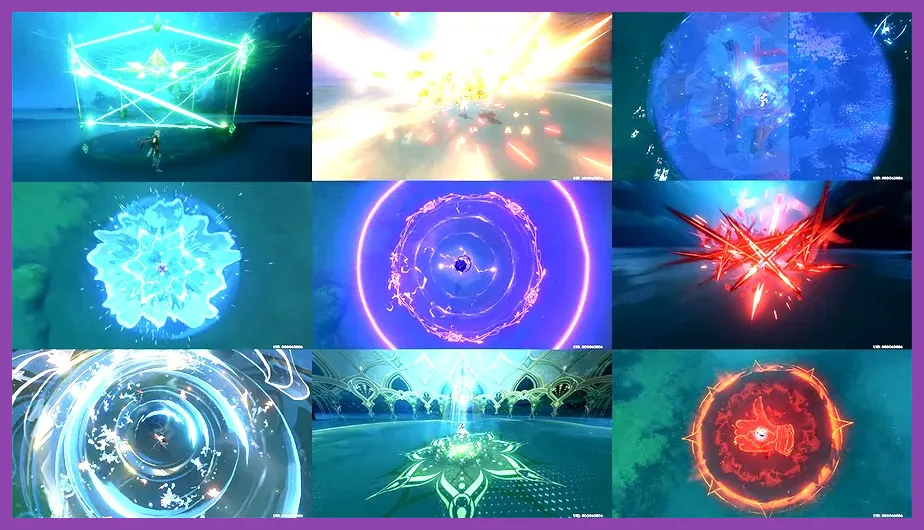
Maintaining a locked frame rate is significantly more important than running at ultra settings with fluctuating framerates. When you are timing dodges against challenging weekly bosses like Raiden Shogun, Scaramouche, or Arlecchino, input delay caused by low or unstable FPS will result in missed dodges and interrupted attack strings. Keeping your settings optimized ensures that your frame times remain flat and predictable.
If you encounter hardware limitations, prioritize lowering Volumetric Fog, Shadows, and Crowd Density first. These three options disproportionately degrade performance compared to asset textures and character detail. Once you achieve your target FPS, lock your frame rate using your GPU control panel to prevent thermal throttling during extended farming sessions in domains or spiral abyss runs.
Advanced Tweaks for Low-End Hardware
For players using older laptops or integrated graphics cards, you may need to drop your Render Resolution down to 0.8 combined with FSR or similar scaling if available through driver software. While this introduces a slightly softer image, it guarantees playable frame rates during cooperative domain farming and world boss encounters. Always monitor your temperatures using tools like MSI Afterburner to ensure thermal throttling isn't silently reducing your clock speeds during long gaming sessions.