If your web-swinging through Marvel’s Manhattan feels like a slideshow or your game abruptly dumps you straight to the desktop with a driver hang error, you are not alone. In Marvel’s Spider-Man Remastered on PC, roughly 90% of stuttering, micro-freezes, and crashes trace back to three distinct offenders: hyper-aggressive CPU bottlenecks caused by Ray-Traced Reflections, an undersized Windows pagefile triggering out-of-memory exceptions, and GPU driver timeouts tied to the DirectX 12 Agility SDK. To stabilize your frame times right now, set Ray-Traced Object Range to 6 or lower, toggle your Nvidia Shader Cache Size to 10GB, and verify that your system pagefile is set to at least 16GB on an NVMe SSD.
Port studio Nixxes delivered a technically ambitious PC conversion packed with unlocked frame rates, ultrawide monitor support, and advanced ray-traced reflections. However, the game engine places staggering demands on CPU draw calls and PCIe bandwidth whenever Peter Parker accelerates past skyscrapers at full velocity. Much like troubleshooting technical hitches in other open-world titles—such as our ELEX PC crash and FPS rescue guide—fixing Spider-Man requires a methodical approach that balances system-level stability with in-game graphical adjustments.
Pinpoint the Root Cause: Why Nixxes’ Port Chokes Your Hardware
To eliminate performance hitches, you need to understand how Marvel’s Spider-Man Remastered operates under the hood. Unlike traditional corridor action games, this title uses an asynchronous background streaming pipeline that dynamically pulls high-resolution building textures, pedestrian AI, and vehicle models from your storage directly into system RAM and VRAM. The moment you execute a point launch or dive off the Empire State Building, your traversal speed quadruples, forcing your CPU to process hundreds of thousands of draw calls every second.
This dynamic creates two distinct performance profiles:
- GPU-Bound Combat: Rooftop brawls against the Inner Demons or Fisk's heavies rely heavily on pixel fill-rate, volumetric lighting, and particle effects. If your frame rate tanks here, your GPU core or VRAM bandwidth is maxed out.
- CPU-Bound Traversal: High-speed swinging down Central Park West stresses single-core IPC and memory latency. Even if you pair a GeForce RTX 4080 with an older six-core processor, your GPU usage will drop from 99% down to 60%, triggering jarring micro-stutters and erratic 1% low frame times.
Furthermore, random desktop crashes that throw the dreaded DXGI_ERROR_DEVICE_REMOVED or DXGI_ERROR_DEVICE_HUNG errors occur when the graphics driver stops responding within Windows' default GPU timeout window (TDR). When ray tracing is enabled, building the Bounding Volume Hierarchy (BVH) structures during rapid camera turns can cause momentary GPU execution pauses that Windows misinterprets as a permanent hardware failure, terminating the game instantly.
Best Graphics Settings for Silky-Smooth Frames and Zero Drops

Blindly dropping every graphics slider to Low is a mistake; it often shifts more workload onto an already struggling CPU without yielding meaningful frame-rate improvements. Optimization requires targeted adjustments to heavy settings while leaving lightweight, visually impactful parameters at their maximum values. Similar to tuning modern shooters in our Far Cry 6 optimization guide, isolating the biggest performance culprits delivers the smoothest gameplay.
| Graphic Setting | Recommended Value | Performance Impact | Optimization Impact |
|---|---|---|---|
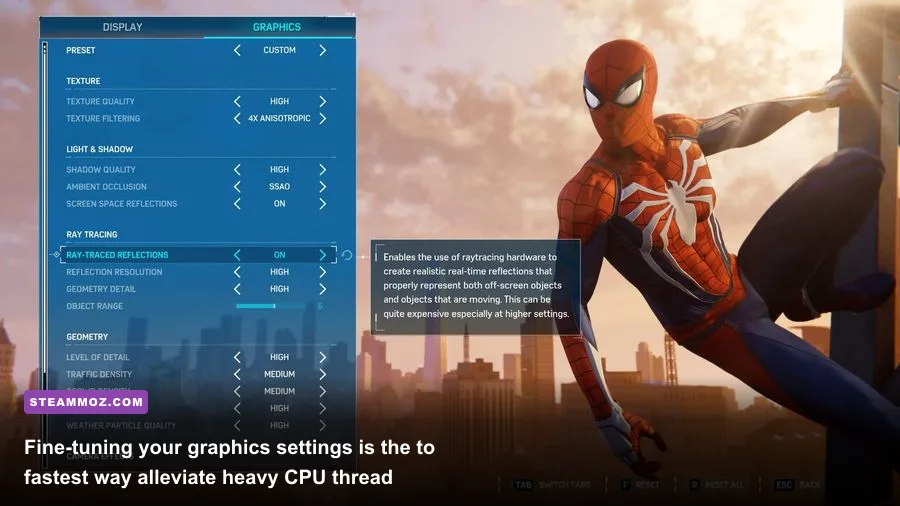
| Ray-Traced Reflections | Off (or High with DLSS) | Extremely High (-25% to -40%) | Massive CPU draw-call spike; primary cause of traversal stutter. |
| Ray-Traced Object Range | 6 (Max is 10) | High (-12% to -18%) | Limits reflection distance; saves enormous system RAM and CPU cycles. |
| Crowd Density | Medium | Medium to High (-8% to -14%) | Directly reduces CPU physics load on city streets during swings. |
| Traffic Density | Medium | Medium (-6% to -10%) | Cuts down vehicle AI pathfinding threads on modern multi-core chips. |
| Shadow Quality | High | Low to Medium (-4% to -7%) | Very High produces harsh shadow-map filtering overhead with minimal gain. |
| Weather Particle Quality | Medium | Medium (-5% to -9%) | Prevents severe frame drops during rainy missions and Electro fights. |
| Hair Quality | Medium | Low (-2% to -4%) | High strands drain GPU compute during tight close-up narrative cutscenes. |
| Texture Filtering | 16x Anisotropic | Negligible (< 1%) | Free visual clarity on modern GPUs; keep this maxed out. |
| Ambient Occlusion | SSAO | Low (-3%) | HBAO+ can create minor latency spikes on mid-tier GPUs. |
If you want to keep Ray Tracing active because Manhattan looks breathtaking with real-time glass and puddle reflections, you must dial back Ray-Traced Geometry Detail and Object Range. Keeping Object Range pinned at 10 instructs the engine to construct ray-traced BVH geometry for objects miles into the distance, completely overwhelming your CPU cache and PCIe lane bandwidth. Setting Object Range to 6 preserves 90% of the cinematic reflection fidelity while reclaiming up to 15 FPS in heavy traversal sections.
For upscaling, always leverage hardware-specific solutions. If you own an RTX card, enable DLSS Quality Mode with the Sharpness slider set between 0.30 and 0.45. AMD and Intel users should activate FSR 2.2 or XeSS on Quality mode. Avoid Dynamic Resolution Scaling (DRS) if you are running an uncapped frame rate, as DRS can cause subtle brightness flutter and inconsistent frame pacing when rapid swings confuse its internal resolution scaler.
Eradicate Traversal Stutters: Asset Streaming and Storage Tweaks
Traversal stuttering—where the game runs at a crisp 80 FPS before momentarily dropping to 35 FPS as you turn a street corner—is strictly an asset streaming bottleneck. Nixxes designed Spider-Man’s engine to run smoothly on the PlayStation 5's dedicated custom I/O controller. On a PC, your operating system and storage hardware must shoulder that decompression burden without dedicated hardware co-processors.
1. Relocate to an NVMe Solid-State Drive
Running Spider-Man Remastered off a mechanical spinning hard drive (HDD) or an aging SATA SSD will guarantee traversal hitches. The game cannot decompress 4K building meshes and high-res mipmaps quickly enough through SATA's 550 MB/s bandwidth ceiling. Move the installation folder through your Steam client directly onto a modern PCIe 3.0 or PCIe 4.0 NVMe SSD capable of at least 2,500 MB/s sequential read speeds.
2. Manually Configure the Windows Virtual Memory Pagefile
A widespread source of sudden stuttering and silent desktop crashes is Windows running out of committed memory address space. Even with 16GB or 32GB of physical DDR4/DDR5 RAM, the engine requests massive virtual address allocations during fast web-slinging. If Windows manages your pagefile automatically on a secondary mechanical drive, the system will pause briefly while resizing the swap file.
Follow these steps to lock your pagefile:
- Press Win + R, type
sysdm.cpl, and press Enter. - Navigate to the Advanced tab and click Settings under the Performance section.
- Select the Advanced tab in the new window, then click Change under Virtual Memory.
- Uncheck Automatically manage paging file size for all drives.
- Select your fastest NVMe SSD drive letter, choose Custom size, and set both Initial size and Maximum size to
16384MB (16 GB) or24576MB (24 GB) if you play at native 4K. - Click Set, apply the changes, and restart your computer.
Locking the minimum and maximum sizes to identical values stops Windows from dynamically expanding and fragmenting the swap file mid-swing, eliminating catastrophic 0.1% low frame dips.
Fixing Random Desktop Crashes and DXGI Driver Hangs
Experiencing a crash directly back to your Windows desktop mid-boss fight is infuriating. Overcoming these technical roadblocks requires the same rigorous troubleshooting you would apply to unstable VR titles or resource-intensive open-world games, like our fixes for EscapeVR crashing problems and the performance stabilization steps in Everspace 2 stability tweaks.
Expand Your GPU Shader Cache to 10GB
By default, both Windows and display drivers limit shader cache sizes to roughly 1GB or 4GB. Spider-Man compiles tens of thousands of complex DirectX 12 pipeline state objects (PSOs). Once your cache hits the ceiling, the driver begins evicting older shaders, forcing real-time compilation during gameplay which leads directly to frame drops and crashes.
- Open the NVIDIA Control Panel.
- Navigate to Manage 3D Settings > Global Settings.
- Scroll down to Shader Cache Size and change the value from Driver Default to 10 GB (or Unlimited if you have ample SSD space).
- Click Apply.
For AMD Radeon users, open the AMD Software Adrenalin Edition, navigate to Gaming > Graphics > Advanced, and click Reset Shader Cache to clear corrupt caches generated across previous driver versions. You can find the newest optimized patches directly via the official AMD Driver Support Portal and the Nvidia Driver Download Center.
Disable Steam Input Polling Overhead
One bizarre, community-verified source of traversal micro-stuttering and freezing involves controller polling conflicts within Steam. Marvel's Spider-Man Remastered features native DualSense and standard XInput support. When Steam Input translates button calls on top of the native engine code, it causes micro-interrupts on high-polling controllers.
- Right-click Marvel’s Spider-Man Remastered in your Steam Library and select Properties.
- Click on the Controller tab.
- In the dropdown next to Override for Marvel's Spider-Man Remastered, select Disable Steam Input.
- Connect your controller via USB-C for full haptic feedback support or utilize the game’s clean native XInput wrapper.
Adjust the Windows TdrDelay Registry Value
If your game crashes with the specific error code 0x887A0006: HUNG, your graphics card is taking slightly longer than Windows allows to finish drawing heavy ray-traced lighting frames. Extending the Timeout Detection and Recovery (TDR) window prevents Windows from prematurely killing the display driver.
- Press Win + R, type
regedit, and hit Enter. - Navigate to:
HKEY_LOCAL_MACHINE\SYSTEM\CurrentControlSet\Control\GraphicsDrivers. - Look for a key named TdrDelay. If it doesn't exist, right-click the right-hand pane, select New > DWORD (32-bit) Value, and name it
TdrDelay. - Double-click
TdrDelay, set the base to Decimal, and enter value 10 (extending the recovery window from 2 seconds to 10 seconds). - Create another DWORD named
TdrDdiDelay, set its decimal value to 10, and reboot your PC.
For an exhaustive breakdown of individual community fixes, monitor the comprehensive documentation on the PCGamingWiki Spider-Man Remastered Database.
Hardware Bottlenecks and Custom Resolution Configurations
Different system tiers require completely different optimization approaches. If you run a budget quad-core chip, your settings should prioritize offloading CPU threads. If you have an ultra-fast modern CPU paired with an 8GB VRAM GPU, your main enemy is texture memory overflow. You can see how hardware scaling behaves across different architecture generations in our breakdowns for Filament frame pacing tweaks and legacy platform benchmarking like our classic Far Cry 2 hardware specs analysis.
| Hardware Tier | Target Res & Frame Rate | Recommended Preset | Upscaler Setting | Ray Tracing Mode |
|---|---|---|---|---|
| Entry-Level (GTX 1660 / RX 5600 XT, 6-Core CPU) | 1080p @ 60 FPS | Medium Custom (Crowd Low) | FSR 2.2 Quality | Disabled |
| Mid-Range (RTX 3060 / RX 6700 XT, 8-Core CPU) | 1440p @ 60-75 FPS | High Custom (Shadows Med) | DLSS / FSR Quality | Disabled (or RT Reflections Medium) |
| High-End (RTX 3080 / RX 6800 XT, Modern 8-Core) | 1440p / 4K @ 80-100 FPS | Very High Custom | DLSS / FSR Quality | RT High, Range 6, Geometry High |
| Enthusiast (RTX 4080 / 4090, i7-13700K / 7800X3D) | Native 4K @ 100+ FPS | Max Settings Preset | DLAA or DLSS Quality + Frame Gen | RT Very High, Range 8-10 |
The 8GB VRAM Trap
One of the biggest issues facing PC gamers today is the 8GB VRAM ceiling at 1440p and 4K resolutions. With Texture Quality set to Very High and Ray Tracing turned on, Spider-Man Remastered immediately consumes over 9.2GB of video memory. Once your GPU runs out of dedicated onboard VRAM, it spills data into system RAM across the PCIe bus, causing your frame rate to plummet from 70 FPS straight down into the single digits.
If your graphics card features 8GB of VRAM or less:
- Lower Texture Quality from Very High to High. The visual variance at normal viewing distances is indistinguishable, but it reduces allocated VRAM by nearly 1.8GB.
- Turn off Ray Tracing entirely. Screen Space Reflections (SSR) in this port are exceptionally well-implemented, offering great environmental reflections on streets and glass facades without demanding massive VRAM pools for bounding trees.
- Set Shadow Quality to Medium, which compresses shadow map resolutions and saves another 500MB of critical video memory.
Enable Hardware-Accelerated GPU Scheduling (HAGS) and ReBAR
To squeeze maximum responsiveness out of your hardware, ensure that Hardware-Accelerated GPU Scheduling (HAGS) is enabled in Windows. Open Windows Settings, go to System > Display > Graphics > Change default graphics settings, and toggle Hardware-accelerated GPU scheduling to On. This feature delegates high-priority render scheduling tasks directly to your GPU's dedicated processor, trimming CPU overhead.
Additionally, check your motherboard BIOS to verify that Resizable BAR (or Smart Access Memory on AMD platforms) is enabled. Resizable BAR permits your CPU to negotiate dynamic transfers with the entirety of your GPU's frame buffer simultaneously, rather than processing transactions in small 256MB blocks. In fast-paced games like Spider-Man, ReBAR yields up to a 7% improvement in 1% low frame consistency during full-sprint city traversal.
Step-by-Step Stability Checklist Before Your Next Swing
Before leaping off your next Manhattan radio tower, run through this comprehensive pre-flight checklist to ensure every background variable is locked down for maximum stability:
- Clean Driver Installation: Use Display Driver Uninstaller (DDU) in Windows Safe Mode to scrub obsolete display driver files, then install the latest WHQL release.
- Deactivate Background Overlays: Turn off conflicting third-party hooks including Discord In-Game Overlay, RivaTuner Statistics Server (set Application Detection Level to None if running), and the GeForce Experience / ShadowPlay overlay.
- Verify Steam Integrity: Right-click the game in your library, open Installed Files, and select Verify integrity of game files to repair any corrupted assets or missing shader cache bundles.
- Cap Your Refresh Ceiling: Instead of leaving your frame rate unlocked to swing wildly between 60 and 110 FPS, use Nvidia Control Panel or AMD Software to set a global Max Frame Rate cap 3 FPS below your monitor’s native refresh rate (e.g., 141 FPS on a 144Hz panel) with G-Sync or FreeSync active. This delivers perfect frame pacing with minimal input lag.
- Launch with Exclusive Settings: In the game launcher popup, choose Exclusive Fullscreen over Windowed or Borderless to prevent the Windows Desktop Window Manager (DWM) from hijacking composition cycles and introducing display latency.
By tailoring your settings to respect your CPU’s draw-call capacity, moving the game files to high-speed NVMe storage, and dialing in your virtual memory allocations, you can permanently eliminate the frustrating micro-stutters and crashes holding Peter Parker back. Manhattan is meant to be experienced at blazing speeds with butter-smooth frame pacing—and with these optimizations applied, your PC will deliver precisely that.