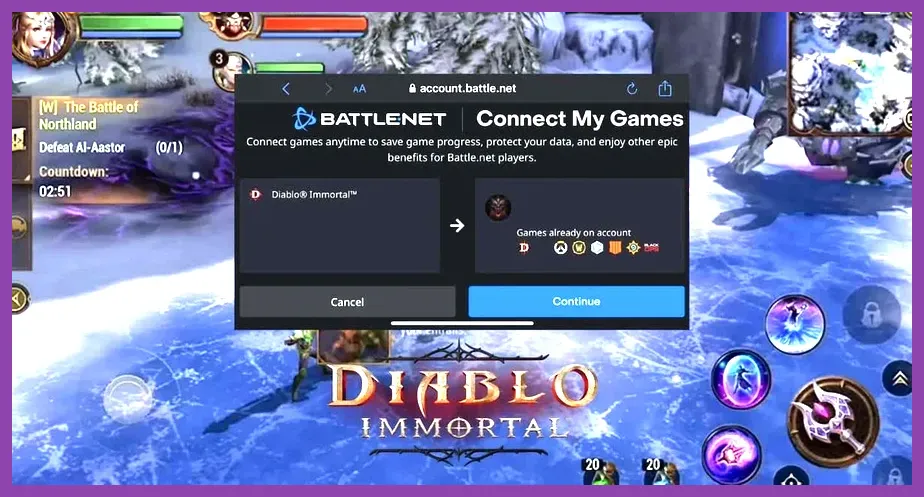
Diablo Immortal features native cross-progression and cross-play synchronization between iOS, Android, and Windows PC, managed entirely through Blizzard’s Battle.net ecosystem. Linking a single Battle.net account synchronizes your character levels, Paragon paragon points, Legendary Crests, gear stats, and cosmetics instantly across all devices. However, cross-progression relies on strict server matching, proper account conversion protocols to prevent overwriting guest saves, and specific platform-level rules regarding premium currencies. This guide breaks down the exact steps to link your accounts, how cross-currency functions, and how to avoid account loss glitches.
How Battle.net Account Linking Enables Cross-Progression
Cross-progression in Diablo Immortal operates through a cloud save architecture tied to a unique Battle.net Account ID. When active, every action taken on your smartphone—such as socketing a 5-star Blood-Soaked Jade Legendary Gem or completing a Challenge Rift floor—is saved to Blizzard servers. Returning home and launching the PC client immediately pulls that exact server state into your desktop session without manual uploads or manual cloud synchronization.
Because Diablo Immortal relies on the same shared backend services powering other Blizzard titles, establishing this connection integrates your profile into the broader ecosystem. If you have experienced troubleshooting setup steps on Blizzard platforms—such as managing logins while resolving Overwatch 2 crashing on PC or managing Battle.net installations when learning how to fix Diablo 4 Vessel of Hatred crashing on PC—the account verification process follows an identical standard.
Without a connected Battle.net account, Diablo Immortal generates a temporary local profile known as a Guest Account. Guest Accounts store character save data exclusively on the local flash storage of your iOS or Android phone. If you uninstall the app, wipe your device, or download the game on PC without binding your Guest Account first, your local character progress becomes inaccessible on other platforms.
Step-by-Step: Linking Mobile and PC Accounts
To ensure zero loss of character data, follow these exact step-by-step account binding procedures depending on where you started your journey:
Starting on Mobile (iOS or Android) First
- Launch Diablo Immortal on your smartphone or tablet.
- On the title screen before pressing tap-to-play, look at the top-left corner of the screen. Tap the button marked Guest or Account.
- Alternatively, if you are already inside the game world of Westmarch, open the main menu (top-right hamburger icon), tap Settings (gear icon), select the Account tab, and tap Account Account Connection.
- Select Log In under the Battle.net prompt.
- A web browser window will open. Enter your official Battle.net credentials (email address and password), complete any active Authenticator 2FA prompts, and grant permissions.
- Confirm the prompt asking to bind your local guest progress to your Battle.net account. The top-left corner of your title screen will now display your Battle.net Battletag (e.g., Player#12345).
Starting on PC First
- Download and launch the official Diablo Immortal client through the desktop Battle.net launcher.
- Log into the desktop application using your primary Battle.net credentials prior to clicking Play.
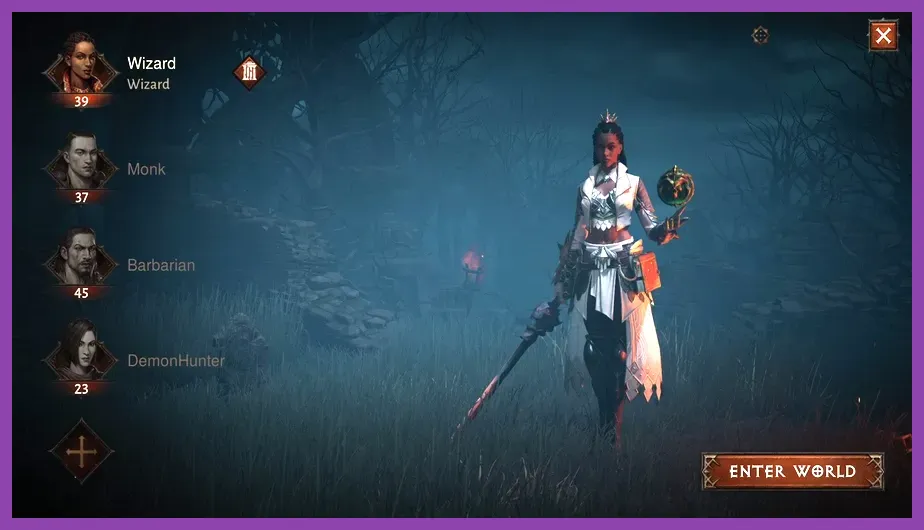
- Create your character (e.g., Blood Knight, Necromancer, or Crusader). Your character is automatically linked to your active Battle.net profile from minute one.
- To play that character on mobile, simply open the mobile app, tap the top-left account button on the main title screen, and sign into the identical Battle.net account before choosing your server.
Crucial Server Selection Rules for Shared Characters
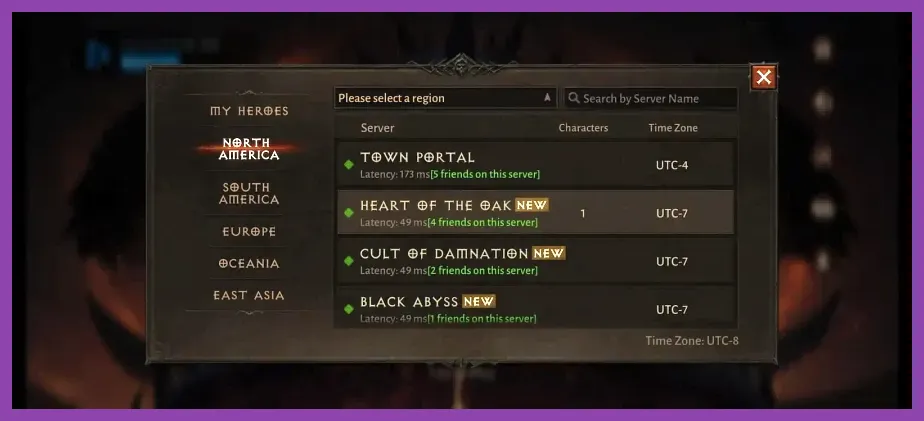
The most common issue players encounter when setting up cross-progression is logging into PC or mobile and finding an empty character creation screen. This does not mean your character was deleted. Diablo Immortal characters are bound strictly to the specific server name on which they were originally created.
For example, if you created a Level 60 Paragon 150 Barbarian on the Hadriel (NA East) server on your phone, you must manually click the server selection box on your PC client and pick Hadriel under the NA East category. If your PC client defaults to Townaby or The Countess, your character list will display zero heroes. Server lists do not automatically filter to your active character's location across different platform installations, making server verification vital when swapping devices.
If you play mobile games featuring multi-server architectures like Honkai Star Rail team builds or regional server selection in Epic Seven team compositions, you will recognize this regional server structure. Ensure both your PC client and mobile apps reflect identical regional server nodes.
Currency, Microtransactions, and Inventory Cross-Restrictions
While equipment, level progress, and quest chains transfer 1:1 across platforms, store microtransactions and virtual currencies follow strict platform rules set by Apple, Google, and Blizzard.
| Asset / Item Type | Cross-Progression Status | Platform Transfer Rules |
|---|---|---|
| Gold & Scrap Materials | Fully Shared | Earned and spent seamlessly across PC and Mobile. |
| Platinum | Fully Shared | Shared wallet balance across PC, iOS, and Android. |
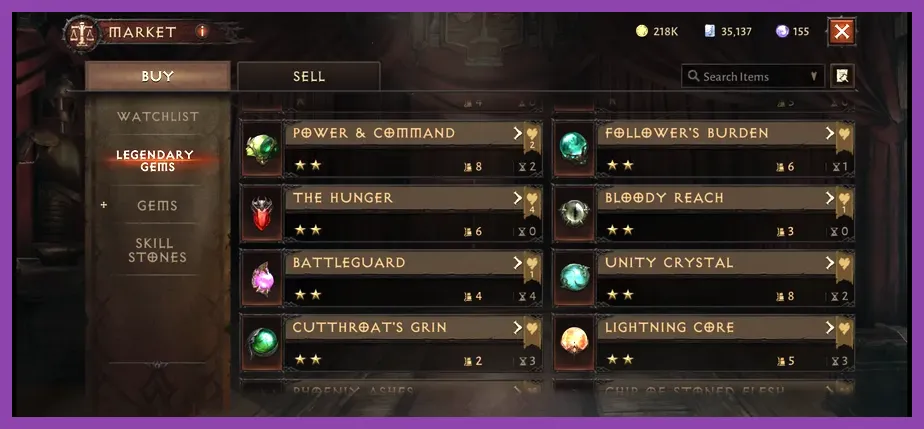
| Legendary Crests & Gems | Fully Shared | All socketed or stored gems are identical on all clients. |
| Battle Pass / Empowered Pass | Fully Shared | Purchasing on one platform unlocks tiers on all platforms. |
| Cosmetics & Skins | Fully Shared | Account-wide armor cosmetics unlock across all platforms. |
| Eternal Orbs | Restricted Purchase Wallet | Bound to the store platform where real money was spent. |
As detailed above, Eternal Orbs—the primary premium currency used to purchase Legendary Crests directly—are subject to app store digital rights agreements. If you purchase 1,000 Eternal Orbs via the Apple App Store on an iPhone, those 1,000 Orbs will only appear in your UI wallet when playing on iOS. If you switch to the PC Battle.net client, your Eternal Orb balance will read 0. However, any Legendary Crests, Resonating Luster, or Platinum you buy using those Orbs on mobile will immediately sync over to your PC inventory seamlessly. For more specific policy details, review the Blizzard Support cross-purchase terms.
Avoiding Guest Account Data Loss and Overwrite Bugs
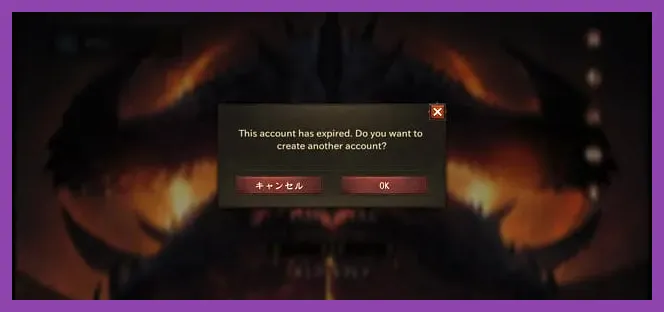
A major trap for new players is creating a high-level character on mobile using a Guest Account, downloading Diablo Immortal on PC, creating a fresh level 1 character on Battle.net, and then attempting to merge the two. When you link a Guest Account on mobile to a Battle.net profile that already contains Diablo Immortal progress, the server forces you to choose which profile to keep. Choosing incorrectly permanently overwrites and deletes the other save.
The Safe Account Conversion Sequence:
- Do not create a PC character first if you already have progress on a mobile Guest Account.
- Open your mobile game where your main character lives.
- Bind that mobile Guest Account to your target Battle.net profile inside the mobile app settings.
- Once the app confirms "Account Successfully Linked," close the app.
- Open the desktop Battle.net launcher on PC, sign into that same Battle.net profile, and launch Diablo Immortal.
- Select your original server name. Your main character will load directly onto your PC screen. Close any active game instances on your phone before booting the game on PC. Diablo Immortal enforces single-session concurrent limits; logging into PC while actively roaming in Westmarch on your phone will force disconnect your mobile session instantly.
Cross-Play Setup and Platform Controls
Cross-progression in Diablo Immortal is tied directly to real-time cross-play. Players on PC, iOS, and Android interact in the exact same world hubs, join identical Warbands, run the Shadow War, enter the Elder Rifts together, and fight in the Rite of Exile regardless of input device. For game performance updates and server maintenance schedules, check the official Diablo Immortal news feed.
The PC client natively supports custom keyboard keybindings, WASD character movement, mouse-aimed skill placement, and gamepad inputs (Xbox Series X/S, DualSense, and Logitech controllers). Mobile versions support touch UI controls along with Bluetooth controller mapping. Gear builds, combat loadouts, and socketed gems function identically across both platforms. Much like optimizing end-game setups in titles like Enshrouded best armor sets, managing your character’s attributes and paragon trees on a large PC monitor provides superior inventory management clarity before jumping back onto mobile for quick daily bounty runs on the go.