
Gaming laptops are marvels of portable engineering, but if you treat them like miniature desktop towers straight out of the box, you'll slam into thermal throttling, screaming cooling fans, and frame rates that collapse by 40% after thirty minutes. Cramming a high-wattage graphics card and an aggressive multi-core processor into a 20-millimeter chassis means thermodynamics, power delivery profiles, and OEM software dictate your actual in-game performance far more than the raw specs printed on the retail box. Getting stable, triple-digit frame rates without melting your battery or burning your fingers comes down to mastering mobile-specific hardware quirks: bypassing hybrid GPU bottlenecks, optimizing thermal dissipation, and dialing in graphic settings suited for high-density mobile screens.
The Wall Plug Fallacy: Power Profiles, TGP, and the Battery Myth
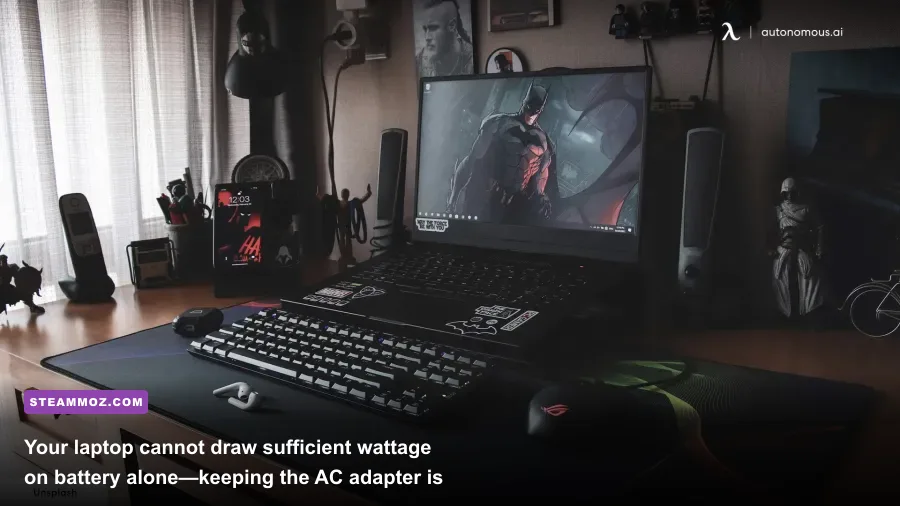
The single most common mistake newcomers make is attempting to run demanding titles on battery power and wondering why their sleek rig runs like a budget office machine. A standard internal lithium-ion laptop battery is legally capped at 99.9 watt-hours for airline travel and physically cannot discharge more than 60 to 90 watts continuously without risking catastrophic failure or chemical degradation. Meanwhile, a modern mobile processor paired with an RTX 40-series mobile GPU demands anywhere from 140 to 240 watts under load. The moment you disconnect your AC adapter, your BIOS forces your dedicated graphics card to slash core clocks down to crawl speeds (often pinned between 210 MHz and 400 MHz), cuts your display refresh rate, and clamps CPU power limits to avoid drawing excess current.
Beyond keeping the charger plugged into the wall, you need to understand Total Graphics Power (TGP). Unlike desktop GPUs where an RTX 4070 delivers largely uniform performance across manufacturers, laptop GPUs are sold under dynamic wattage brackets. A budget machine running an RTX 4060 limited to 45W will get thoroughly crushed by an optimized machine running the exact same RTX 4060 uncapped at 140W. Checking your OEM control software—whether that is ASUS Armoury Crate, Lenovo Legion Vantage, or Acer NitroSense—is crucial to verify your power profile. If you leave the laptop in "Quiet" or "Eco" mode, the system deliberately starve-feeds wattage to the heatsink. Switching to "Performance" or "Turbo" provides the voltage your silicon requires, ensuring you hit targeted frame times in modern titles just as you would when optimizing Far Cry 6 GOTY settings for max FPS.
Thermals and Thermal Throttling: How Heat Chokes Your Silicon
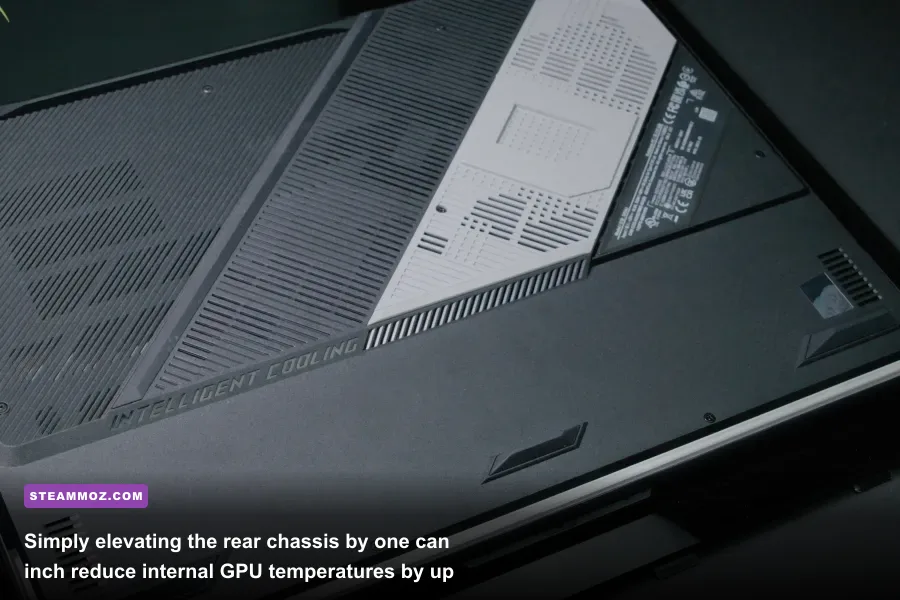
Desktop processors sit under giant aluminum fin stacks or liquid coolers that absorb thermal spikes with ease. In contrast, laptop silicon shares compact copper heat pipes, vapor chambers, and tight blower fans packed into cramped quarters. Modern Intel chips target a maximum thermal junction limit (Tjunction) of 100°C, while AMD mobile processors often run up to 105°C. For the dedicated GPU, Nvidia enforces an aggressive thermal throttle threshold around 86°C to 87°C. When your chips hit these thermal boundaries, internal safety mechanisms automatically dial back boost clocks, causing sudden, violent micro-stutters and frame drops.
The biggest enemy of laptop cooling isn't necessarily the internal heatsink design; it's suffocating the underside air intakes. Placing a gaming laptop flat on a desk leaves less than two millimeters of clearance between the intake grilles and the hard surface, creating a vacuum that starves the blower fans. Simply elevating the rear feet of the laptop by an inch using a stand, rubber pucks, or even a book spine can drop your operating temperatures by 4°C to 7°C without spending a dime. Telemetry tools like HWiNFO64 sensor telemetry allow you to monitor core temperatures in real time to diagnose whether frame hitching stems from thermal ceilings or game engine instability, a crucial distinction when troubleshooting problems like Everspace 2 Wrath of the Ancients crashing fixes.
| Cooling Strategy | Average Temp Drop | Acoustic Impact | Cost & Effort |
|---|---|---|---|
| Rear Chassis Elevation (1-inch lift) | 3°C – 6°C | Zero additional noise; fans spin smoother | Free / Minimal effort |
| Sealed-Foam Vacuum Cooler (e.g., IETS GT500) | 8°C – 14°C | Very loud at max RPM; acts like a white-noise turbine | Moderate cost / Plug-and-play |
| Honeywell PTM7950 Repaste | 5°C – 10°C | Lower fan curves achievable at equilibrium | Moderate cost / Requires disassembly |
| Standard Passive Aluminum Flat Stand | 1°C – 3°C | None | Low cost / Very simple |
Avoid cheap, traditional cooling pads that blow weak ambient air against solid plastic backplates. If you invest in active external cooling, look for high-pressure sealed chambers that seal against the chassis with foam gaskets to force cool air through the fin arrays. For older laptops suffering from dried-out factory thermal paste pump-out, swapping out crusty thermal paste for Honeywell PTM7950 phase-change material provides long-term thermal endurance that resists the microscopic warping common to mobile heat pipes.
The MUX Switch and Advanced Optimus: Bypassing the iGPU Bottleneck
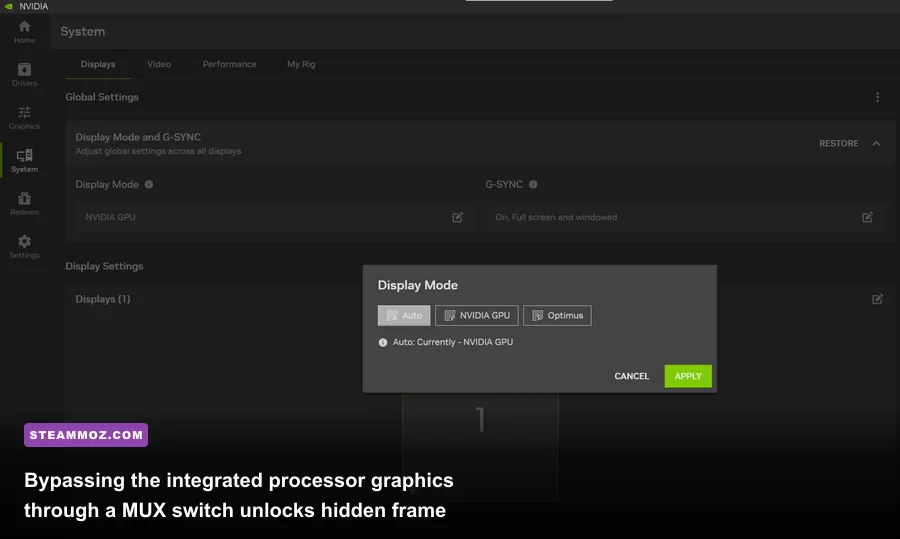
For years, gaming laptops shipped with a software architecture known as Nvidia Optimus (or hybrid graphics mode). To conserve battery when doing desktop tasks, the laptop's display is physically wired directly to the CPU's integrated graphics (iGPU). When you launch a game, the dedicated GPU (dGPU) renders each frame, sends it over the internal PCIe bus to the integrated processor graphics buffer, and the iGPU outputs the image to the screen. While efficient for battery endurance, this routing pipeline creates a nasty bandwidth bottleneck that inflates system latency and can rob your system of 10% to 20% of its potential frame rate, especially in high-refresh esports titles like Counter-Strike 2, Valorant, or Rainbow Six Siege.
To eliminate this bottleneck, modern high-end gaming laptops incorporate a hardware MUX (multiplexer) switch or Nvidia Advanced Optimus. A physical MUX switch allows you to toggle a BIOS setting that severs the connection to the iGPU, directly linking the dedicated GPU to the internal display panel. Advanced Optimus performs this switch dynamically on the fly through the Nvidia Control Panel without requiring a full system reboot. Disabling the hybrid setup immediately delivers sharper 1% low frame times and eliminates the micro-stuttering that frequently ruins fast-paced action. Understanding your platform's display pipeline is just as vital as reviewing system hardware thresholds like the Fatal Fury City of the Wolves PC specs or running retro powerhouses governed by legacy engines seen in Far Cry 2 PC specs.
Mobile Display Realities: Graphic Presets That Actually Matter
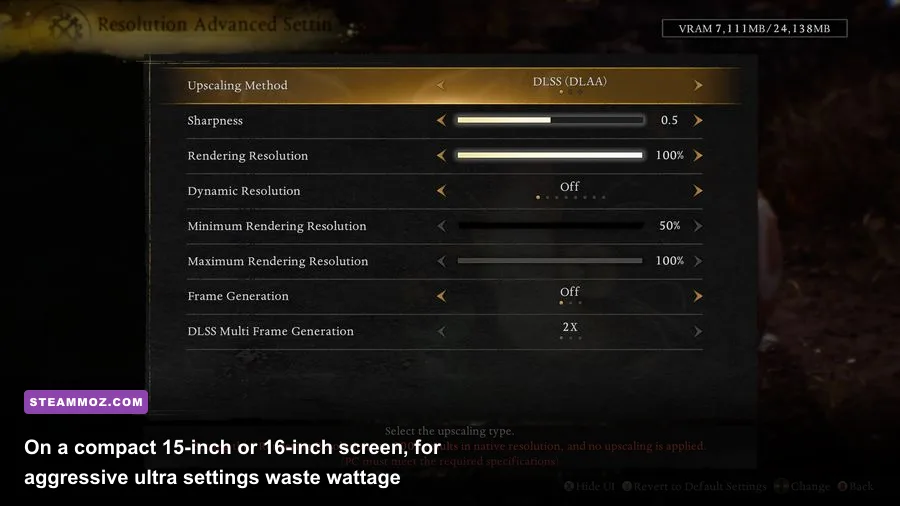
Blindly clicking the "Ultra" preset on a laptop is the fastest way to cook your chassis for virtually zero discernible graphic improvement. On a standard 15.6-inch or 16-inch 1440p (QHD) laptop display, the pixel density sits around 188 pixels per inch (PPI). In comparison, a desktop 27-inch 1440p monitor sits at roughly 108 PPI. Because pixels are packed so tightly on a notebook display, high-overhead effects like ultra-high shadow resolution, complex volumetric fog, and intensive screen-space ambient occlusion provide heavily diminishing visual returns while burning immense amounts of silicon wattage.
By dropping power-hungry settings from Ultra to High or Medium, you can trim 20 to 40 watts off your total system consumption, keeping your temperatures safely out of the throttle zone while maintaining pristine image clarity. Furthermore, modern temporal upscalers like Nvidia DLSS, AMD FSR, and Intel XeSS are essential tools on mobile platforms rather than mere crutches. Running DLSS on "Quality" mode at 1440p renders internally at 1080p and uses neural networks to rebuild the image; on a small, high-density screen, this reconstruction looks virtually indistinguishable from native resolution while providing massive FPS uplifts and lower heat output, an optimization tactic explored in guides like Filament Marmalade Edition settings for higher FPS.
| Graphic Setting | Performance / Thermal Penalty | Recommended Mobile Value | Visual Impact on Small Panels |
|---|---|---|---|
| Shadow Quality / Resolution | High (12% – 18% FPS hit) | Medium or High | Negligible difference above Medium at 188 PPI |
| Volumetric Fog / Smoke | Very High (15% – 22% FPS hit) | Medium | Subtle ambient softening; massive GPU load relief |
| Screen Space Reflections (SSR) | Moderate (8% – 12% FPS hit) | Medium / High | Slightly cleaner puddle edges; low performance drag |
| Texture Quality | Zero performance hit (VRAM dependent) | Ultra / Maximum (Within VRAM limits) | Noticeable surface detail sharpness |
| Temporal Upscaling (DLSS / XeSS) | Huge Positive (+25% to +45% FPS) | Quality Mode | Sharp rendering with significantly reduced heat |
Texture quality is the one setting you should almost always max out, provided your mobile GPU has sufficient VRAM (Video RAM). Textures sit in dedicated memory and do not tax the compute cores; an 8GB mobile GPU can run Ultra textures without shedding a single frame, provided the game doesn't exceed the memory budget. If you run out of VRAM, the engine overflows into system RAM, triggering catastrophic frame hitches like those resolved in our ELEX PC fixes to stop crashes.
Undervolting and Frame Capping: Eliminating Microstutters
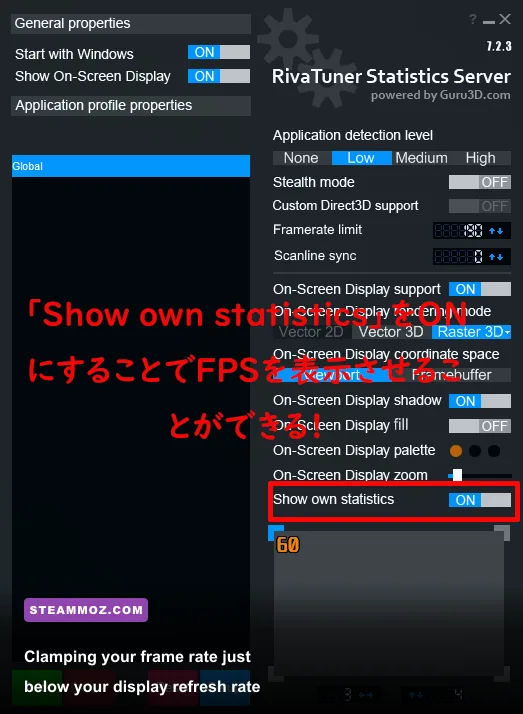
Leaving your frame rate completely uncapped inside modern games is an invitation for thermal instability. When you sit on a game's main menu, inventory screen, or loading screen without an FPS ceiling, your GPU and CPU will furiously render hundreds of unnecessary frames, pushing internal temperatures past 90°C before your character even loads into the game world. Even in gameplay, letting your frame rate bounce wildly between 85 FPS and 140 FPS creates uneven frame pacing and erratic thermal spikes that ruin immersion.
The solution is disciplined frame capping. Using the RivaTuner Statistics Server or your GPU driver's control panel, lock your maximum frame rate precisely to your display's native refresh rate—or cap it 2 to 3 FPS below the maximum threshold if you are utilizing Nvidia G-Sync or AMD FreeSync panels (for instance, capping at 141 FPS on a 144Hz panel). This lock prevents the display pipeline from falling outside the variable refresh rate window while simultaneously capping silicon power draw, keeping heat generation strictly bounded during frantic firefights.
Pair this frame cap with processor undervolting if your laptop BIOS permits it. Modern mobile processors are tuned by manufacturers with overly generous factory voltage curves to ensure broad silicon stability. By using utilities like ThrottleStop on Intel systems or AMD Curve Optimizer via modern BIOS revisions, you can apply a slight negative voltage offset (typically between -30mV and -80mV) to the core voltage. This reduces the heat generated per clock cycle, allowing your processor to sustain higher boost frequencies for longer stretches without triggering the emergency thermal ceiling.
Maintenance and Longevity: Dust Blankets, Bloatware, and Ergonomics
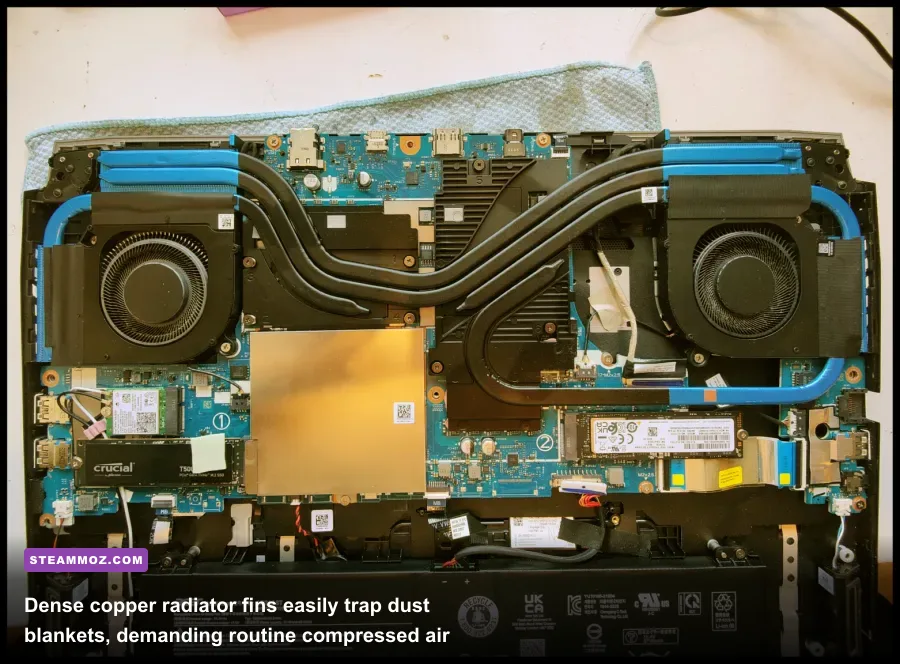
Even the most fine-tuned gaming laptop will eventually transform into an overheating turbine if you neglect basic physical and software hygiene. Because laptop cooling fans operate at high RPMs (often exceeding 5,000 RPM under load), they suck in massive amounts of ambient dust, pet hair, and airborne fibers. These particles don't just coat the fan blades; they form a dense, felt-like blanket across the paper-thin copper heatsink exhaust fins hidden directly behind the blowers. Every four to six months, grab a can of compressed air, immobilize the fan blades with a toothpick to prevent bearing damage from overspinning, and blast the dust outwards through the intake grilles.
Equally crucial is stripping away the mountain of pre-installed background bloatware bundled with your notebook. Brand-specific utility suites continuously ping background services, chew through CPU cycles, and install intrusive telemetry hubs that induce game stuttering. For ASUS users, switching to lightweight open-source alternatives like G-Helper completely replaces bloated background suites, slashing idle RAM usage and granting fine-grained control over fan profiles and wattage sliders. Keep your core client lean using official platforms like the Steam client rather than cluttering your Windows autostart queue with third-party performance boosters that do more harm than good.
Finally, consider how you interact with the machine. During long gaming sessions, the center and upper deck of an aluminum laptop chassis frequently reach surface temperatures above 45°C. Resting your sweaty left hand over hot keyboard keys for hours is uncomfortable and slowly breaks down the keycap coatings and switches. Whenever you are gaming at home, prop the notebook up on an elevated stand, plug in an external mechanical keyboard and a dedicated gaming mouse, and let the laptop do what it does best: serve as an ultra-compact, high-refresh display engine that keeps your fingers cool and your frame rates rock-solid.