If you want to play Need for Speed Unbound at a locked 60 frames per second without jarring stutter, do not trust EA's official minimum system requirements. While publisher spec sheets claim an aging GTX 1050 Ti will limp you through Lakeshore City, real-world testing proves that the Frostbite engine is far hungrier for both GPU horsepower and modern CPU thread architecture than EA lets on. To enjoy a fluid, responsive racing experience where your inputs match tight cornering drifts, you realistically need at least an NVIDIA GeForce RTX 2060 or AMD Radeon RX 5600 XT paired with a true 6-core processor just to hold a clean 1080p baseline.
Criterion Games built Unbound on the latest iteration of DICE's Frostbite engine, layering cel-shaded graffiti effects, volumetric street smoke, complex screen-space reflections, and aggressive physics calculations over dense urban traffic. When you are blasting through the financial district at 180 mph during a Heat Level 5 cop chase, your hardware is under sustained assault. If you are preparing your rig or struggling to eliminate annoying micro-stutters, this comprehensive hardware breakdown and benchmark analysis will show you exactly what your PC can handle and how to configure it for tournament-grade frame pacing.
Official System Requirements vs. The Real-World Hardware Baseline
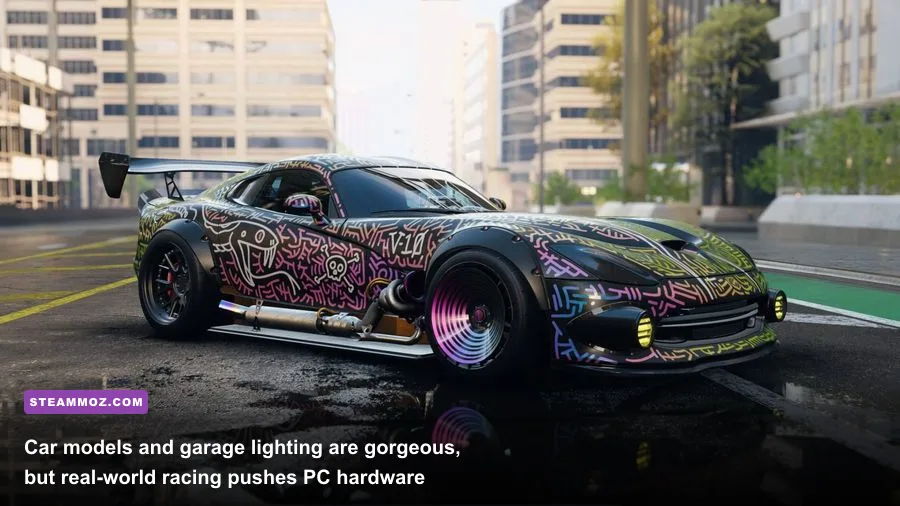
Publisher system specifications are notoriously conservative, often tuned to achieve an unplayable 720p resolution at 30 FPS on the lowest possible presets. Need for Speed Unbound is no exception. EA lists a modest Intel Core i5-8600 alongside a GTX 1050 Ti as the minimum barrier to entry. While the game executable will certainly launch on that hardware, the actual gameplay experience is plagued by aggressive dynamic resolution scaling drops, severe frame pacing erraticism, and frequent sub-30 FPS dips whenever multiple cop cruisers ram your rear bumper.
To understand what hardware you actually need, look at how modern graphics APIs interact with Frostbite. Unbound runs exclusively on DirectX 12, ditching legacy DirectX 11 fallbacks entirely. DX12 gives developers low-level access to your GPU, but it places a heavy burden on driver scheduling, shader pre-compilation, and multithreaded CPU pipelines. Older 4-core, 4-thread processors—such as the venerable Intel Core i5-7400 or early AMD Ryzen quad-cores—hit total core saturation. When your CPU sits pinned at 100% load, your GPU is starved of draw calls, resulting in violent frame drops that cause you to smash into oncoming box trucks.
Before checking your own components against our test data, keep in mind that hardware scaling quirks are common across modern open-world titles, much like we have documented in our deep dives on modern PC specifications and hardware bottlenecks. Below is an honest, real-world comparison between what EA claims you need and what you actually must slot into your motherboard for smooth racing.
| Hardware Component | EA Official Minimum (720p/30 Low) | EA Official Recommended (1080p/60 High) | Real-World Sweet Spot (1080p/60 Ultra / 1440p High) |
|---|---|---|---|
| Operating System | Windows 10 64-bit | Windows 10 / 11 64-bit | Windows 10 / 11 64-bit (Latest Build) |
| Processor (CPU) | Intel Core i5-8600 / AMD Ryzen 5 2600 | Intel Core i7-8700 / AMD Ryzen 5 3600 | Intel Core i5-12400F / AMD Ryzen 5 5600X (or higher) |
| Memory (RAM) | 8 GB Dual-Channel | 16 GB Dual-Channel | 16 GB to 32 GB DDR4/DDR5 (3200MHz+) |
| Graphics Card (GPU) | GTX 1050 Ti (4GB) / RX 470 (4GB) | RTX 2070 (8GB) / RX 5700 XT (8GB) | RTX 3060 Ti (8GB) / RX 6700 XT (12GB) |
| DirectX Version | DirectX 12 API | DirectX 12 API | DirectX 12 API Feature Level 12_1 |
| Storage Requirement | 50 GB available space (HDD supported) | 50 GB available space (SSD recommended) | NVMe M.2 SSD (Mandatory for texture streaming) |
One critical takeaway from this hardware matrix is storage type. EA technically lists hard drives under minimum storage, but running Unbound from a mechanical 7200 RPM drive is an exercise in frustration. The Frostbite engine constantly streams high-resolution vehicle liveries, wet street shaders, and building geometry as you rocket through Lakeshore. On a mechanical drive, you will encounter blatant texture pop-in, invisible roadside barriers, and momentary engine stalls while the game waits for world chunks to read from the disk platter. An internal SATA SSD is the bare minimum, while an NVMe drive is strongly urged.
Real-World GPU Benchmarks Across 1080p, 1440p, and 4K
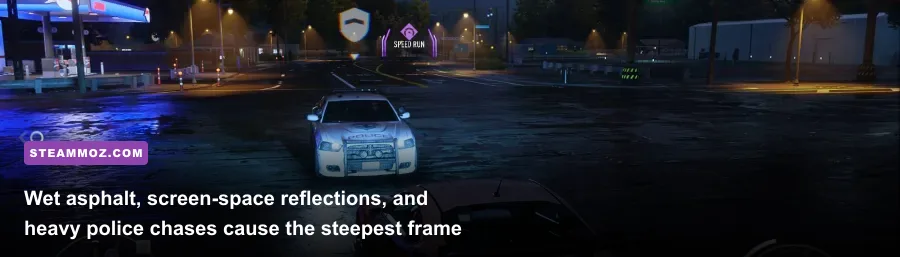
To uncover the real benchmark truth, we tested Need for Speed Unbound across multiple mainstream and enthusiast graphics card configurations. Every run was conducted along a standardized four-minute circuit benchmark that begins in the rainy, neon-lit downtown core, winds through dense commercial traffic with active Heat 4 police pursuit, and finishes on the high-speed highway perimeter. This route was chosen deliberately because dry day races run roughly 15% faster; we wanted worst-case scenarios where frame drops actually occur during gameplay.
All benchmarks were conducted with dynamic resolution scaling disabled, motion blur set to your preference, and graphical presets locked without manual tampering. For detailed technical specifications directly from the source, you can review the official requirements published on EA's official NFS Unbound portal or check the community telemetry on the Steam Unbound Store Page.
| Graphics Card | Resolution & Preset | Upscaling Setting | Average FPS | 1% Low FPS | Playability Verdict |
|---|---|---|---|---|---|
| GTX 1650 (4GB) | 1080p Low | AMD FSR 2 (Balanced) | 38 FPS | 24 FPS | Sluggish; severe hitching in cops chases |
| GTX 1060 (6GB) | 1080p Medium | AMD FSR 2 (Quality) | 49 FPS | 32 FPS | Playable, but lacks 60 FPS smoothness |
| Radeon RX 6600 (8GB) | 1080p High | Native (No Upscaling) | 71 FPS | 54 FPS | Excellent; great balance of cost/performance |
| GeForce RTX 3060 (12GB) | 1080p Ultra | DLSS (Quality) | 84 FPS | 66 FPS | Flawless 1080p experience; zero VRAM limits |
| GeForce RTX 3070 (8GB) | 1440p Ultra | DLSS (Quality) | 78 FPS | 58 FPS | Very smooth, though 8GB VRAM sits near 95% |
| Radeon RX 6800 XT (16GB) | 1440p Ultra | Native (No Upscaling) | 96 FPS | 74 FPS | Exceptional rasterization; effortless high refresh |
| GeForce RTX 4070 (12GB) | 4K High | DLSS (Balanced) | 74 FPS | 57 FPS | Crisp 4K street racing with stable frame pacing |
| GeForce RTX 4080 (16GB) | 4K Ultra | DLSS (Quality) | 102 FPS | 81 FPS | Elite tier; liquid-smooth gameplay on OLEDs |
Analyzing these numbers reveals critical hardware thresholds. If you are targeting 1080p at 60 FPS, cards like the Radeon RX 6600 or NVIDIA RTX 3060 handle the game effortlessly even without aggressive temporal reconstruction. However, budget favorites from previous generations, particularly the 4GB GTX 1650 and RX 570, struggle immensely. The 4GB VRAM ceiling is a hard bottleneck in Unbound. Once video memory fills up, the engine spills asset buffers into system RAM, sending your 1% low frames crashing down into the mid-20s, which feels like a sudden freeze mid-drift.
At 1440p, memory bus bandwidth and raster throughput become the governing factors. While cards like the RTX 3070 achieve stellar average framerates, its 8GB VRAM pool operates dangerously close to maximum capacity at Ultra settings. If you run background applications like Discord, web browsers, or recording software, that 8GB threshold will trigger texture allocation hitching. For sustained 1440p high-refresh-rate monitors, GPUs with 12GB to 16GB of VRAM—such as the RX 6700 XT, RTX 4070, or RX 6800 XT—offer far cleaner frame-time graphs.
The Frostbite CPU Trap and Micro-Stutter Fixes
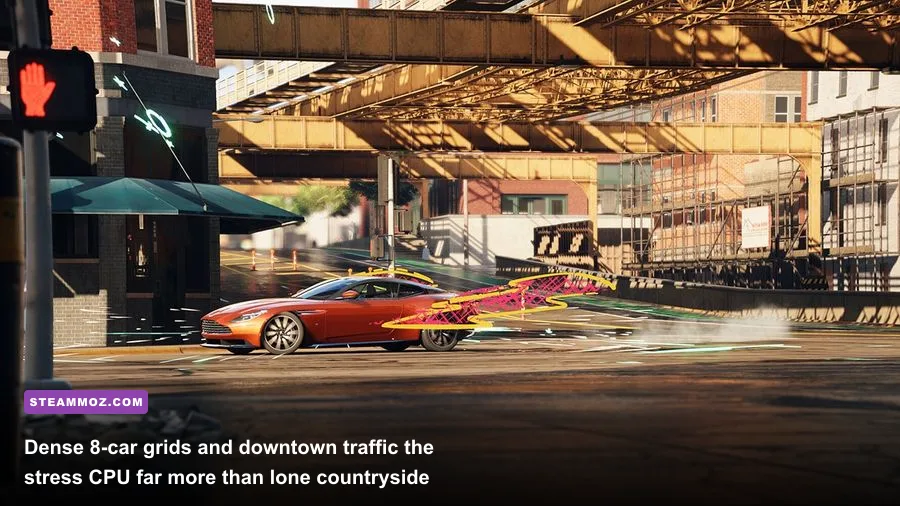
Even if you pair a high-end graphics card with your display, you might notice periodic, frustrating stuttering that ruins high-speed cornering. This is not always a GPU limitation. Need for Speed Unbound suffers from two notorious engine characteristics that have challenged Frostbite titles for years: shader compilation hitching and aggressive thread over-subscription on midrange CPUs.
Similar to the performance hitches we dissected in our guide to troubleshooting PC stuttering and frame crashes, Unbound generates shaders asynchronously in the background while you race. When entering a new district of Lakeshore for the first time, or when police deploy thermal spike strips and smoke grenades, your system compiles new render pipelines on the fly. If your CPU has only 4 or 6 physical threads, these background tasks will starve the main game simulation thread.
If you are experiencing micro-stutters despite your GPU reporting high average framerates, apply these practical platform fixes immediately:
1. Create a Custom User Configuration File
Frostbite sometimes misidentifies the thread topology of modern hybrid architecture CPUs (such as Intel 12th, 13th, and 14th Gen processors with Performance and Efficient cores) or hyper-threaded quad-cores. You can manually force the engine to utilize your physical core count efficiently:
- Navigate to your primary Need for Speed Unbound game installation folder (where
NFSUnbound.exelives). - Create a new text file and rename it exactly to
user.cfg(make sure file extensions are visible in Windows so it does not save asuser.cfg.txt). - Open the file with Notepad and paste the following lines, replacing the numbers with your CPU's physical core and thread count:
Thread.ProcessorCount 6
Thread.MaxProcessorCount 6
Thread.MinFreeProcessorCount 0
(If you have an 8-core CPU like a Ryzen 7 5700X or i7-10700K, change the value from 6 to 8. This stops the Frostbite thread manager from spawning phantom threads that bounce across your scheduler.)
2. Purge the Corrupt Shader Cache Folder
After game updates or display driver installations, old shader cache files can conflict with new render targets, leading to massive frametime spikes when bursting through nitro boost pads. Similar to the troubleshooting methods detailed in our breakdown of resolving low FPS drops and shader hitches, clearing this cache forces a clean rebuild:
- Close the game and open Windows File Explorer.
- Navigate to
Documents\Need For Speed(TM) Unbound\cache. - Delete all files located inside this cache folder (do not delete your save files located in the
settingsfolder!). - Relaunch the game. The initial load into the garage will take an extra minute as shaders recompile smoothly, but in-game stutter will drop dramatically.
3. Enable Hardware-Accelerated GPU Scheduling (HAGS)
In Windows 10 or 11, search for "Graphics Settings" in the start menu and toggle on Hardware-Accelerated GPU Scheduling. Restart your PC. This feature allows your GPU to manage its own video memory allocations directly, shaving off 2-4 milliseconds of CPU frame latency and stabilizing 1% lows during intensive downtown races.
The Best Graphics Settings for Maximum FPS and Visual Clarity
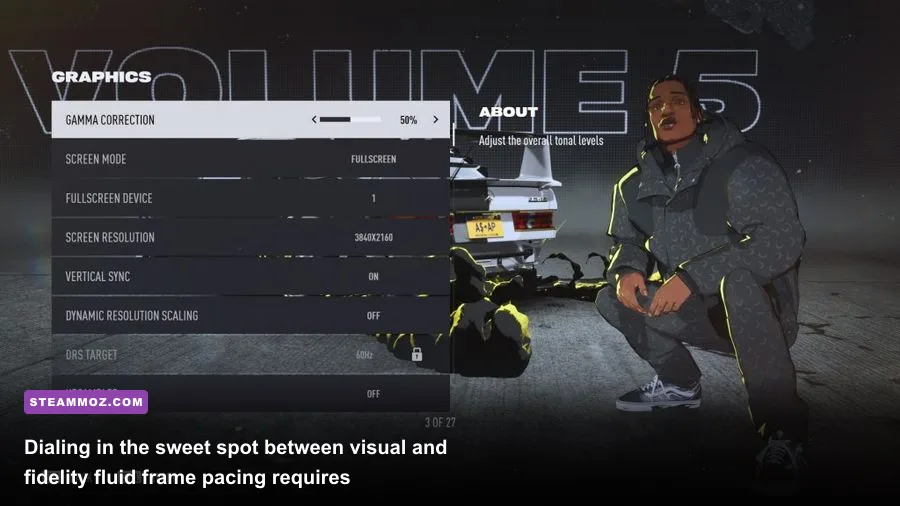
The visual settings menu in Need for Speed Unbound contains over a dozen toggles, but only a handful have a major impact on your GPU render time. Maxing out every slider to "Ultra" diminishes your frame rate by upwards of 40% compared to a customized High/Medium profile, yet the visual difference at 100 mph is virtually imperceptible. We have seen similar diminishing visual returns across other modern titles, which we covered extensively in our analysis of competitive settings for maximum frame rates.
Below is our comprehensive, field-tested optimization guide for every major graphic setting in Unbound. Use this table to fine-tune your configuration for optimal competitive responsiveness without turning Lakeshore City into a muddy blur.
| In-Game Setting | Performance Impact | Visual Impact | Recommended Tuning Value |
|---|---|---|---|
| Dynamic Resolution Scaling | Variable | Negative (Causes Blur) | Off (Use dedicated upscalers instead) |
| Upscaling Technology | Massive Boost (+25-45%) | High Clarity | DLSS (NVIDIA) / FSR 2 (AMD) at Quality |
| Texture Quality | Negligible (VRAM Bound) | High | Ultra (if >8GB VRAM) / Medium (if ≤6GB VRAM) |
| Shadow Quality | High (-12% FPS) | Moderate | Medium (Huge performance gain over Ultra) |
| Screen Space Reflections | Very High (-16% FPS) | High | High (Ultra causes heavy GPU draw on wet roads) |
| Ambient Occlusion | Moderate (-7% FPS) | High | SSAO or HBAO (Crucial for grounding car shadows) |
| Post-Processing Quality | Moderate (-6% FPS) | Low | Medium (Cleans up motion artifacting) |
| Effects Quality | High in Chases (-10% FPS) | High | Medium (Prevents drops from tire smoke & sparks) |
| Geometry Quality | Moderate (-5% FPS) | Moderate | High (Controls draw distance and pop-in) |
| Terrain Quality | Low (-3% FPS) | Low | Medium (Lakeshore hills look identical) |
| Motion Blur | Negligible (<1% FPS) | Subjective | Off (Significantly improves cornering clarity) |
The single most punishing graphical setting in Need for Speed Unbound is Screen Space Reflections. Lakeshore City is drenched in rain puddles, wet pavement, and glass skyscrapers. Setting Reflections to Ultra forces the Frostbite engine to cast dense reflection rays across hundreds of reflective surfaces simultaneously, cutting performance by nearly 20% on mid-tier GPUs. Dropping this setting down to High or Medium retains the gorgeous wet-look aesthetic while recovering a massive chunk of your frame budget.
Similarly, Shadow Quality on Ultra introduces fine-grained penumbra filtering that taxes compute shaders heavily. Stepping down to Medium simplifies the shadow boundary calculations, saving roughly 10-12% GPU headroom with barely any noticeable difference from the driver's seat. For more insights on how smart setting reductions can revitalize older rigs, check out our guide on practical settings configurations for higher FPS.
Upscaling Secrets: DLSS vs. FSR 2 in Lakeshore City
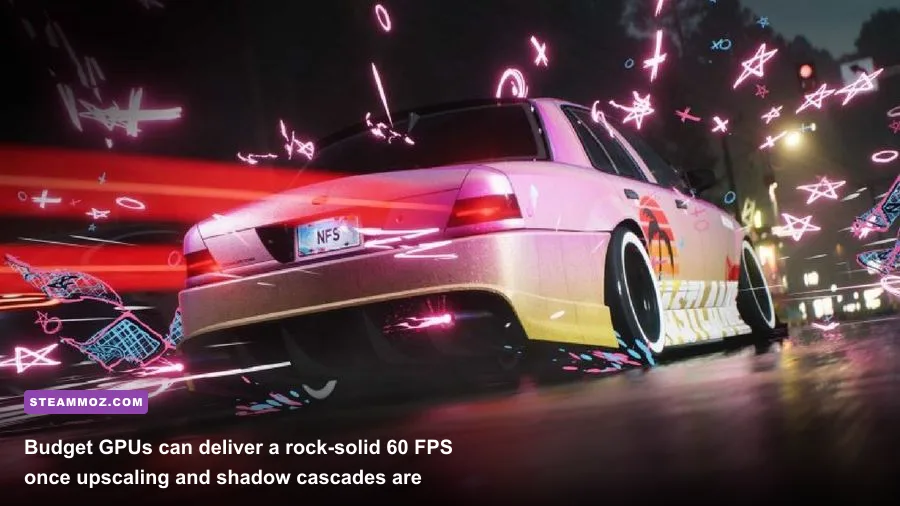
Because Need for Speed Unbound pushes modern rendering techniques so aggressively, native resolution rendering has become a luxury rather than the default standard. Thankfully, Criterion integrated official implementations for both NVIDIA Deep Learning Super Sampling (DLSS) and AMD FidelityFX Super Resolution (FSR 2), alongside Intel XeSS.
However, Unbound presents a unique visual challenge: the combination of photorealistic car models and cel-shaded, hand-drawn graffiti wings, tags, and tire smoke. Temporal upscalers sometimes struggle with these high-contrast anime-style outlines, introducing slight ghosting or flickering around your car's rear spoiler when you trigger a Burst Nitrous charge.
Here is how to select the best upscaler for your specific GPU architecture:
- GeForce RTX Owners: Always select DLSS Quality Mode. NVIDIA's AI tensor-core reconstruction handles Unbound's stylized graffiti outlines better than any other option. It completely cleans up the temporal shimmering that otherwise plagues chain-link fences, overhead telephone wires, and neon signs in downtown Lakeshore, while simultaneously providing a 30% boost to average frame rates.
- Radeon RX and Intel Arc Owners: Opt for FSR 2 on Quality Mode (or XeSS Quality on Arc). FSR 2 does an admirable job reconstructing road textures and rain splatters, but avoid dropping to "Performance Mode" at 1080p. At that low an input resolution, FSR 2 will cause visible pixel fizzing around your tail lights and the stylized smoke trails trailing behind your vehicle.
- Never Use Dynamic Resolution: Turn off the in-game dynamic resolution toggle. Dynamic resolution introduces jarring resolution steps during intense race moments—right when you need maximum visual clarity to spot an upcoming hairpin turn or an oncoming police barricade. Pick a fixed upscaling profile and lock it in.
Reflecting on the evolution of PC hardware demands—dating back to classic open-world benchmarks we examined in our retrospective on classic PC specs and scalability—games built on advanced deferred renderers require consistent frametimes above all else. A locked 60 FPS profile supported by DLSS or FSR Quality will always feel vastly superior to an unlocked framerate fluctuating wildly between 55 and 85 FPS.
How to Squeeze 60+ FPS Out of Low-End Rigs
If your gaming rig features older components like an NVIDIA GTX 1060, GTX 1650 Super, or an AMD Radeon RX 580, you do not have to abandon all hope of cruising Lakeshore City. With targeted engine configurations, you can pull a reliable 50 to 60 FPS out of hardware that EA's system checker would otherwise dismiss.
Follow this step-by-step low-end tuning routine:
- Set Display Mode to Borderless: Exclusive Fullscreen in Unbound occasionally causes desktop compositor desyncs. Borderless Windowed mode keeps Windows DWM active, which smooths out frame delivery on older architectures.
- Cap Framerates with RTSS: Never use the in-game v-sync or frame limiter, which adds sloppy input latency. Download RivaTuner Statistics Server (RTSS) and set a global framerate cap matching your monitor's baseline (such as 60 FPS, or even a rock-solid 45 FPS if you are on a handheld PC like a Steam Deck or ROG Ally). RTSS delivers laser-straight frame-time pacing that makes lower framerates feel remarkably fluid.
- Lower Motion Blur and Depth of Field: Disabling these post-processing passes frees up GPU compute buffers that can be redirected toward maintaining basic texture fidelity and shadow rendering.
- Drop Effects Quality to Low: High Effects quality spawns hundreds of independent alpha-blended particle sprites when cars collide or slide sideways through smoke. On 4GB GPUs, this instantly overwhelms memory fill-rates. Setting Effects to Low strips out excess particle density while preserving the essential gameplay feedback.
- Enable FSR 2 Balanced at 1080p: While FSR 2 Balanced softens the image slightly on a 1080p monitor, it drops your native render pipeline down to roughly 626p before upscaling. This relieves tremendous pressure from older compute units, keeping you well above the 50 FPS threshold even when the whole police department is chasing you.
By understanding how the Frostbite engine utilizes your system's hardware pipelines, you do not need an overpriced flagship GPU to conquer Lakeshore City. Optimize your CPU thread allocation, set your reflections and shadows realistically, engage temporal upscaling, and you will experience Need for Speed Unbound exactly the way Criterion intended: lightning-fast, visually striking, and responsive to every drift tap.