If by “Good Pc” you mean whether your computer is good enough for modern PC gaming, the honest answer is simple: a six-core CPU, 16GB of dual-channel RAM, an SSD, and a graphics card around the RTX 3060 or Radeon RX 6600 XT class is the practical starting point for smooth 1080p play. Integrated graphics and 8GB systems can still handle older or competitive games, but they are no longer a safe recommendation for demanding releases. The benchmark truth is that your target resolution, graphics preset, and desired frame rate matter more than the word “gaming” on a product listing.
There is no universally recognized PC game or hardware product officially titled Good Pc, so this guide treats the keyword as the question most players are really asking: “Can my PC run games well?” Rather than inventing a fake minimum specification, we’ll break down realistic performance tiers, explain what each component actually does, and show you how to test your own system without trusting a single average-FPS number.
What Makes a PC “Good” for Gaming?
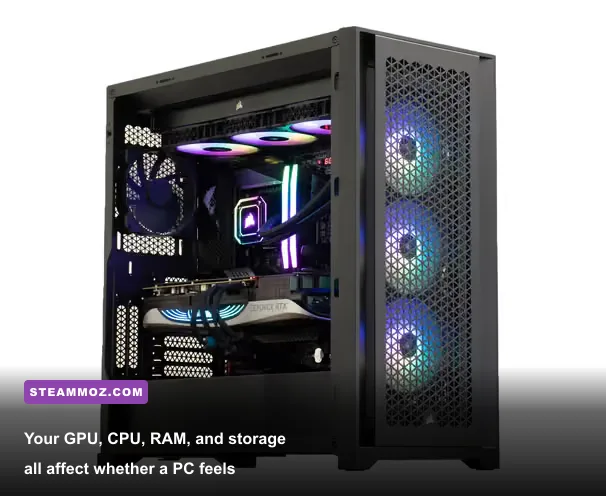
A good gaming PC is balanced. A powerful GPU paired with an old dual-core processor can produce impressive benchmark averages and miserable gameplay. The reverse is also true: a modern Ryzen 7 with weak integrated graphics may feel snappy in Windows but struggle badly once a game asks it to render a detailed city, volumetric fog, or ray-traced reflections.
For 1080p gaming, the graphics card remains the biggest factor in visual quality and raw frame rate. The CPU becomes more important when you target 120Hz or 144Hz, play simulation-heavy games, or run large multiplayer matches. RAM affects hitching and asset streaming, while storage determines how quickly games load and how smoothly some engines can pull in world data.
| Component | Playable Minimum | Recommended Target | Why It Matters |
|---|---|---|---|
| CPU | Intel Core i5-8400 or Ryzen 5 2600 | Core i5-12400F or Ryzen 5 5600 | Controls simulation, draw calls, minimum FPS, and high-refresh performance |
| GPU | GTX 1650 or RX 570 | RTX 3060, RTX 4060, RX 6600 XT, or RX 7600 | Determines resolution, texture quality, effects, and most frame-rate gains |
| Memory | 16GB dual-channel | 32GB dual-channel | Prevents background apps and modern open worlds from exhausting available RAM |
| Storage | SATA SSD | NVMe PCIe 3.0 or faster SSD | Reduces loading and helps streaming-heavy games avoid asset delays |
| Operating System | Windows 10 64-bit | Updated Windows 11 64-bit | Provides current drivers, DirectX features, and game compatibility |
Those are useful classes, not promises. An RTX 3060 laptop can perform far below a desktop RTX 3060 because of power limits and cooling. A Ryzen 5 5600 running single-channel memory can also produce lower minimums than the same processor with two matched DIMMs. Check your exact model before comparing results with a friend.
For official compatibility information, compare your Windows version against Microsoft’s Windows 11 specifications and use the Steam Hardware Survey as a broad snapshot of what players actually own. Neither replaces a game-specific benchmark, but both help establish a sensible baseline.

🎮 oO
Looking to experience this game? Grab your digital key directly on our store for $0.99.
View on Steammoz Store →Realistic FPS Expectations by Hardware Tier
Here’s where “Can your PC run it?” becomes useful. The figures below are realistic target ranges for modern rasterized games at sensible settings, not guaranteed results for every new release. They assume current drivers, a desktop system with adequate cooling, and no background video encoding. Ray tracing can cut these numbers dramatically, while upscaling can raise them.
| Hardware Tier | 1080p Competitive | 1080p High | 1440p High |
|---|---|---|---|
| GTX 1650 / RX 570, Core i5-8400 | 60–120 FPS | 35–60 FPS | Usually not recommended |
| RTX 2060 / RX 5600 XT, Ryzen 5 3600 | 100–180 FPS | 55–85 FPS | 40–65 FPS |
| RTX 3060 / RX 6600 XT, Ryzen 5 5600 | 140–240 FPS | 75–120 FPS | 55–85 FPS |
| RTX 4060 / RX 7600, Core i5-12400F | 160–280 FPS | 85–140 FPS | 60–100 FPS |
| RTX 4070 Super / RX 7800 XT, Ryzen 7 7700 | 200 FPS or higher | 120–180 FPS | 90–150 FPS |
Competitive numbers are often much higher because games such as Counter-Strike 2, Valorant, Overwatch 2, and Rainbow Six Siege allow reduced effects and simpler scenes. A dense open-world game can run at half the frame rate even when the menu reports the same resolution. That’s why a single “your PC gets 100 FPS” claim is nearly meaningless without the game, preset, resolution, and test scene.
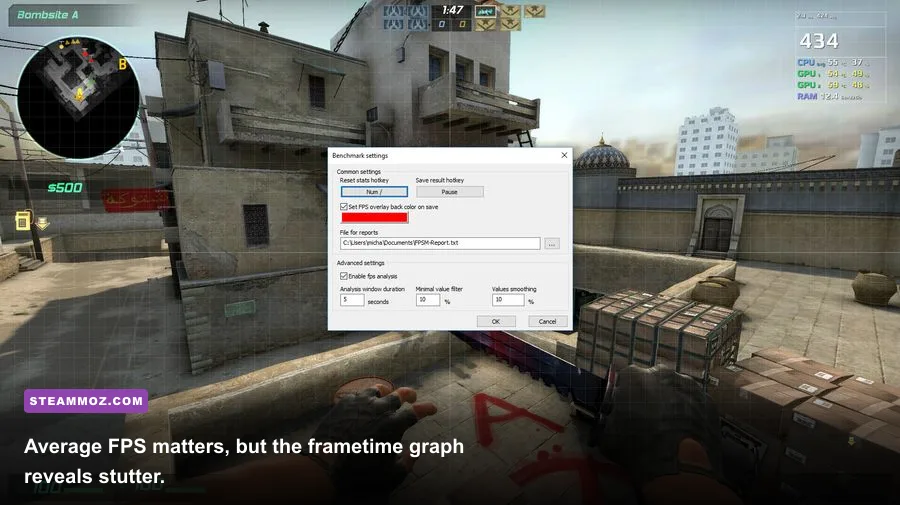
Minimum FPS deserves special attention. If your benchmark averages 90 FPS but drops to 28 FPS whenever you enter a busy city, the experience won’t feel like a stable 90. Track the 1% low: it represents the slower frame times during the worst one percent of samples. It isn’t a perfect measure of stutter, but it’s far more revealing than average FPS alone.
For perspective, the older Far Cry 2 PC requirements breakdown shows how forgiving older engines can be. That same hardware may run a 2008 shooter beautifully while failing to maintain 60 FPS in a modern game with streamed geometry, global illumination, and heavy CPU-side simulation.
Graphics Settings That Actually Change Performance
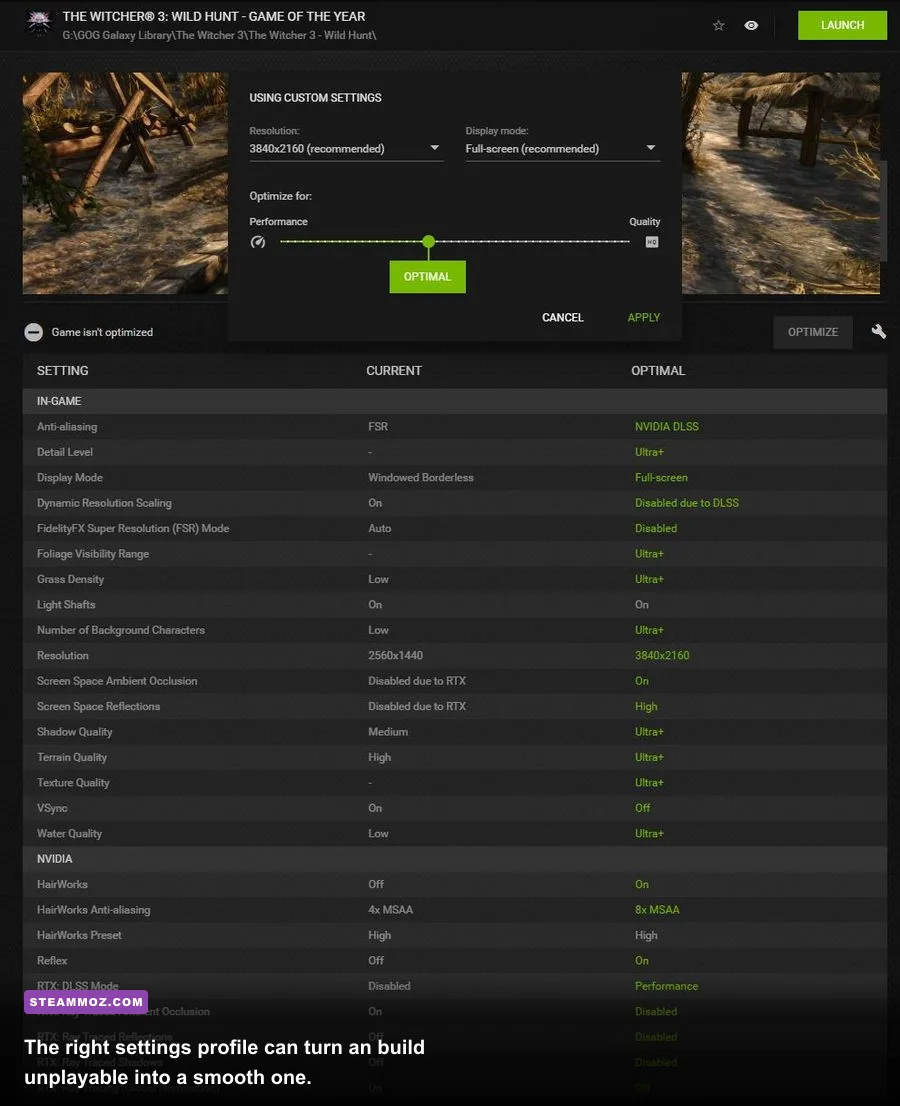
Not every option deserves to be lowered. Texture quality mostly consumes VRAM, so dropping it won’t rescue a GPU that is already compute-limited unless the card is running out of memory. Shadow quality, volumetric effects, reflections, crowd density, and ray tracing are usually the expensive switches. Start there before turning the entire game into a blurry low-preset mess.
| Setting | Recommended Value | Typical FPS Impact | Visual Trade-Off |
|---|---|---|---|
| Resolution | Native monitor resolution | Very high | Lowering it increases FPS but creates softness |
| Upscaling | DLSS or FSR Quality | High positive impact | Usually a strong quality-to-performance compromise |
| Ray Tracing | Off or Low on mid-range GPUs | 20–50% loss | Better reflections and lighting, often poor value at 1080p |
| Shadows | Medium or High | 5–15% gain when reduced | Lower settings flatten contact shadows |
| Volumetrics | Medium | 5–20% gain when reduced | Fog, smoke, and light shafts look less rich |
| Textures | High if VRAM allows | Minimal until VRAM limit | Lower settings visibly reduce surface detail |
| Crowd Density | Medium in CPU-limited games | 5–25% gain | Fewer pedestrians, cars, and background animations |
Upscaling deserves a careful note. DLSS uses Nvidia’s motion-vector reconstruction, while FSR works across a broader range of hardware. Quality mode typically renders below native resolution and reconstructs the final image. It can be excellent at 1440p, but at 1080p the lower internal image may look unstable around thin wires, foliage, and text. If the game offers a sharpening slider, use it lightly; aggressive sharpening creates crawling edges rather than real detail.
Frame generation is different from ordinary upscaling. It inserts generated frames between rendered ones, improving displayed smoothness but not reducing the underlying control latency. It works best when the base frame rate is already around 60 FPS. Enabling it at 30 FPS can produce a higher counter while movement still feels sluggish. That distinction is one of the most common sources of misleading benchmark screenshots.
Our Filament settings guide follows the same principle: reduce the settings that cost the most, preserve the options that deliver visible detail, and judge performance using repeatable scenes rather than a quick look at the opening menu.
How to Benchmark Your Own PC Properly
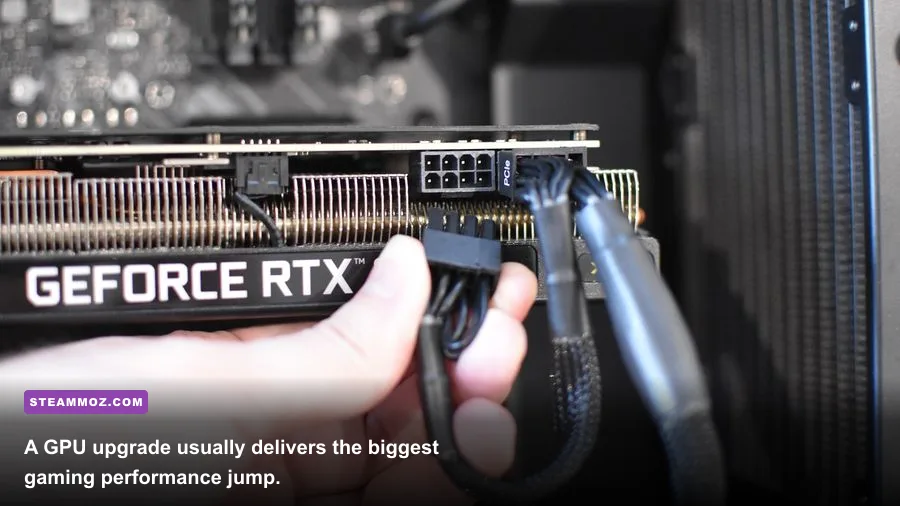
Before deciding that your PC cannot run a game, test it consistently. Install the latest GPU driver, reboot, close browsers and launchers you don’t need, and set Windows to the correct power mode. On a desktop, confirm the monitor cable is plugged into the graphics card rather than the motherboard. That one mistake can force a system to use integrated graphics.
Step 1: Record the hardware
Use Windows Task Manager, Device Manager, or a tool such as GPU-Z to note the exact CPU, GPU, VRAM, system RAM, and drive type. Record laptop GPU wattage if applicable. Two cards with the same name can perform very differently when one runs at 80 watts and the other at 140 watts.
Step 2: Choose a repeatable scene
Use the game’s built-in benchmark when available, then repeat a demanding gameplay route for 60 to 120 seconds. A crowded hub, heavy weather sequence, or large combat encounter is more useful than an empty corridor. Run the test three times and use the median result so a background task or shader compilation spike doesn’t distort the conclusion.
Step 3: Log more than average FPS
MSI Afterburner with RivaTuner Statistics Server can display GPU load, CPU load, VRAM use, RAM use, frame time, average FPS, and 1% lows. A GPU pinned near 98–99% usually means you’re graphics-limited. If GPU usage falls to 60% while one or two CPU threads are maxed, lowering resolution probably won’t help; reduce simulation-heavy settings or cap the frame rate.
Watch temperatures too. A GPU around 70–82°C under sustained load is generally normal, depending on the model. CPU temperature varies more by chip, cooler, and motherboard limits, but sudden clock-speed drops are the real warning sign. If performance starts high and collapses after ten minutes, you’re looking at thermal throttling, a laptop power limit, or an airflow problem—not a missing graphics setting.
For games that crash rather than merely run slowly, our ELEX PC fixes and EscapeVR troubleshooting guide cover practical checks such as file verification, driver cleanup, overlays, and configuration resets. These steps won’t turn a weak GPU into a fast one, but they can eliminate avoidable instability.
What to Upgrade First When Your PC Struggles

Upgrade based on the bottleneck, not on the part with the most impressive marketing. If GPU usage sits at 99% and VRAM is full, buy a faster graphics card with more memory. If the GPU sits below 80% and the CPU’s busiest cores are saturated, a processor upgrade will improve minimums. If the game freezes while assets load and memory usage reaches 15–16GB, move to 32GB.
| Observed Problem | Likely Bottleneck | Best First Fix | What Not to Expect |
|---|---|---|---|
| Low FPS at every resolution | GPU compute limit | Lower ray tracing or upgrade the GPU | A faster SSD won’t raise rendering performance |
| Good average FPS, severe dips in cities | CPU or streaming limit | Reduce crowds, update BIOS, check CPU clocks | Lowering textures alone won’t fix simulation stalls |
| Stutter when entering new areas | RAM, VRAM, shader compilation, or storage | Use an SSD, close background apps, allow shader caching | More average FPS may not remove traversal stutter |
| Textures suddenly look blurry | VRAM shortage or texture streaming limit | Lower texture quality or use a GPU with more VRAM | System RAM is not a direct replacement for VRAM |
| Performance falls after several minutes | Thermal throttling or laptop power limit | Improve airflow, clean fans, use performance mode | Overclocking can make the problem worse |
For a budget 1080p build, a used Ryzen 5 5600, 16GB of DDR4-3200 memory, and an RX 6600 remain a sensible combination when priced correctly. For a new mid-range system, 32GB of RAM and an RTX 4060 or RX 7600-class GPU offer a more comfortable starting point. At 1440p, the RTX 4070 Super or RX 7800 XT tier makes more sense, especially if you want high settings without leaning heavily on upscaling.
Don’t ignore the power supply. A low-quality 450-watt unit can create crashes under GPU load, even when its headline wattage appears sufficient. Choose a reputable model with the correct PCIe connectors and enough headroom for transient power spikes. Also check case clearance and airflow before ordering a large triple-slot card.
That upgrade logic is also visible in our Far Cry 6 performance settings and Everspace 2 FPS troubleshooting: stable frame times, sensible effects settings, and clean drivers often matter more than blindly selecting Ultra.
The Bottom Line on “Can Your PC Run Good Pc?”
If your machine has a modern six-core CPU, 16GB of dual-channel RAM, an SSD, and an RTX 3060, RX 6600 XT, or better, you have a genuinely capable 1080p gaming PC. Expect roughly 60–120 FPS in many demanding games with a tuned High preset, though ray tracing and poorly optimized releases can push that lower. A GTX 1650 or RX 570 system is still useful for esports, older AAA games, and reduced settings, but it isn’t a dependable Ultra machine.
The real test is not a vague compatibility checker. Record your exact hardware, select a repeatable demanding scene, monitor 1% lows and frame times, and identify whether the GPU, CPU, memory, or thermals are limiting you. Keep textures high when VRAM allows, reduce shadows and volumetrics before destroying image quality, and treat frame generation as a smoothness feature rather than a substitute for native performance.
For official graphics API and driver guidance, check NVIDIA’s GeForce driver page, AMD’s Radeon support page, and the official DirectX resource. Those sources won’t tell you exactly how many FPS every game will deliver, but they help ensure your baseline test isn’t being sabotaged by outdated software.
So, can your PC run “Good Pc”? If your components land near the recommended tier above, yes—you’re in good shape. If they don’t, the benchmark will still tell you exactly what needs attention, and that’s far more useful than a one-word “minimum” or “recommended” label.