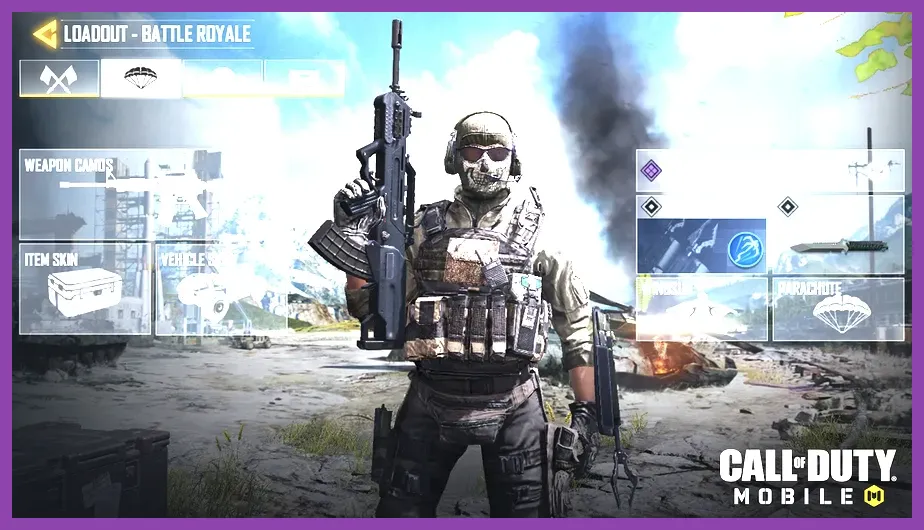
To achieve maximum frames per second and eliminate stuttering in Call of Duty Mobile, you must set your Graphic Quality to Low, your Frame Rate to Ultra or Max depending on device support, and disable power-hungry options like Real-Time Shadows, Ragdoll, and Bloom. Competitive mobile gaming demands absolute fluidity, and prioritizing raw performance over visual fidelity ensures your input latency drops to the absolute minimum during intense gunfights.
Understanding the CODM Graphic and Frame Rate Interplay
Many players mistakenly assume that maxing out visual settings makes it easier to spot enemies, but in Call of Duty: Mobile, higher visual presets lock your maximum achievable framerate. To consistently hit 60, 90, or 120 FPS, your mobile processor needs to dedicate its thermal headroom to rendering frames rather than calculating dynamic lighting effects.
If you enjoy optimizing competitive shooters for absolute performance, you might also want to check out our guide on Valorant best settings for max fps for desktop optimization, or explore demanding survival titles optimized for low-end hardware via top free survival games on low-end PC. For massive scale performance balancing, take a look at Total War Warhammer 3 best graphics settings for performance.
The Ultimate Competitive Graphics Preset
Navigate to your in-game Settings menu, tap on Audio and Graphics, and configure your basic visual parameters with these exact values:
- Graphic Quality: Low (This disables unnecessary rendering overhead, reduces thermal throttling, and keeps your GPU cool).
- Frame Rate: Ultra or Max (Always set this to the highest tier your device officially supports to unlock 90Hz or 120Hz display refresh rates).
- Depth of Field: Off (Removes background blur when aiming down sights, ensuring maximum peripheral clarity).
- Brightness: 60% to 70% (Balanced to easily spot enemy models hiding in dark corners without washing out color contrast).
- Graphics Style: Realistic or Standard (Avoid dynamic cinematic filters that lower contrast and obscure visibility).
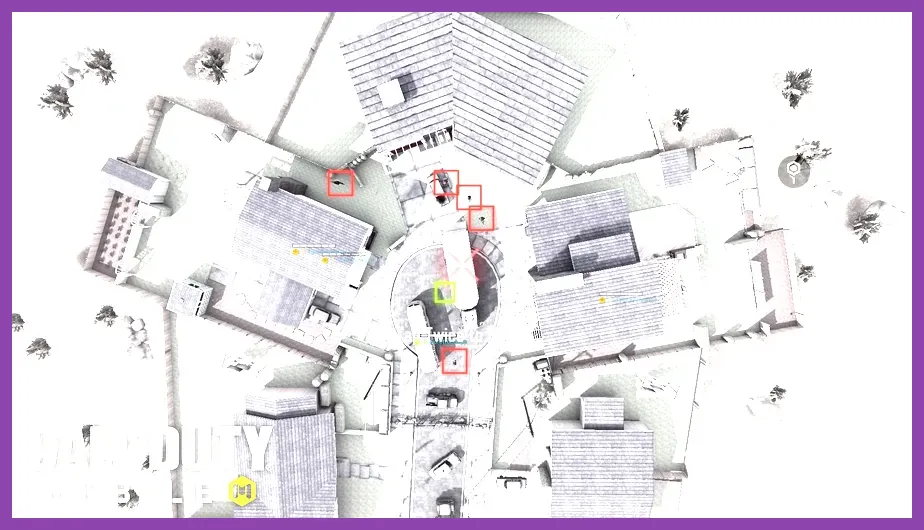
By keeping your Graphic Quality at Low, you prevent sudden frame drops during crowded multiplayer lobbies or chaotic battle royale end-games on the Isolated and Alcatraz maps.
Advanced Graphical Tweaks to Disable
Scroll down past the basic settings to the advanced toggles. These features look great on marketing materials, but they introduce micro-stutters and input delay that will cost you gunfights against elite players running custom claw layouts.
- Real-Time Shadows: Disabled. Dynamic shadows constantly recalculate light sources, draining battery and heating up your phone's SoC.
- Ragdoll: Disabled. Eliminating complex physics calculations for defeated enemies keeps CPU utilization stable.
- Anti-Aliasing: Disabled. While it smooths jagged edges, it consumes valuable GPU cycles. On high-resolution mobile screens, jagged lines are barely noticeable during movement.
- Bullet Marks: Disabled or Low. Minimizes screen clutter and particle rendering during sustained firefights.
- Water Reflection: Disabled. Rarely useful in standard multiplayer and heavily taxes graphical processing units near rivers or shorelines in Battle Royale mode.
If you love mobile gaming optimization and are looking for other handheld experiences, check out our curated lists of top free anime games on android and top free farming games on android. For broader mobile ecosystem recommendations, explore top free open world games on ios.
Audio and Sound Optimization for High-FPS Play

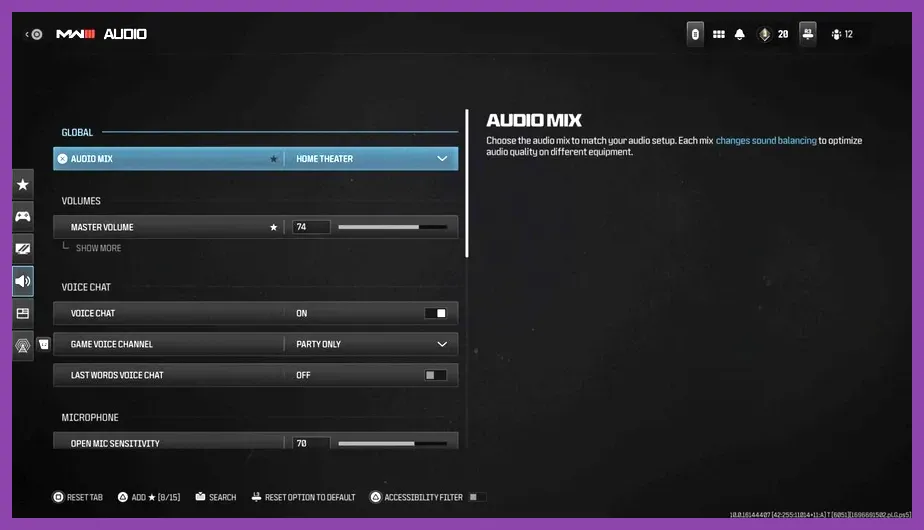
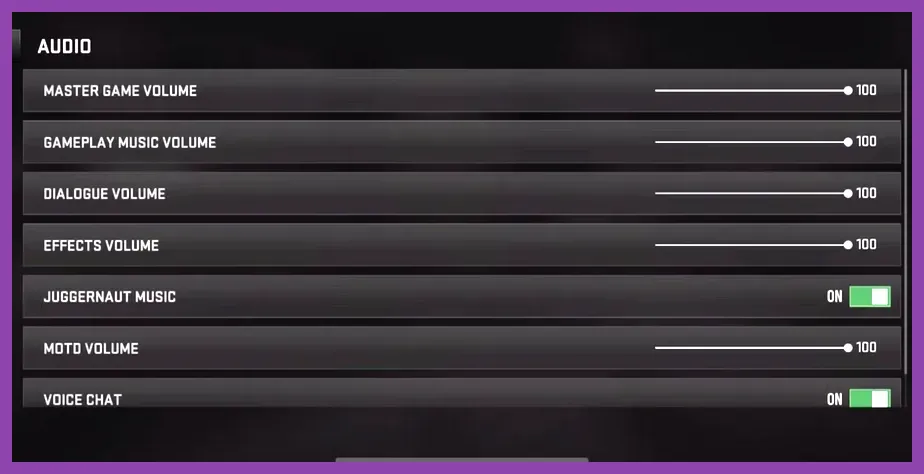
High FPS means nothing if your audio cues are delayed or muffled. Sound positioning is your secondary radar in Call of Duty Mobile. Go to the Audio tab and configure your sliders for maximum competitive awareness.
- Master Volume: 100%
- UI Volume: 30% (Lower menu and button noises so they never mask critical footstep audio).
- Effects Volume: 100% (Crucial for hearing reloads, sliding, and operator footsteps through walls).
- Ambient Volume: 10% (Reduces background environment noise like wind and birds on outdoor maps).
Using wired headphones or low-latency Bluetooth earbuds combined with these audio settings lets you pinpoint enemy movements long before they round a corner.
Hardware Management and Third-Party Boosters
Even with optimal in-game settings, your operating system can background-process apps that trigger thermal throttling. Before launching CODM, clear your recent apps cache, turn off auto-brightness, and enable your device's native gaming mode (such as Samsung Game Booster or Xiaomi Game Turbo).
Keep your screen refresh rate locked to its maximum capability in your phone's display settings. Avoid playing while charging your device, as charging generates excessive heat that forces your mobile chipset to automatically downclock its CPU and GPU cores, instantly ruining your stable max FPS experience.