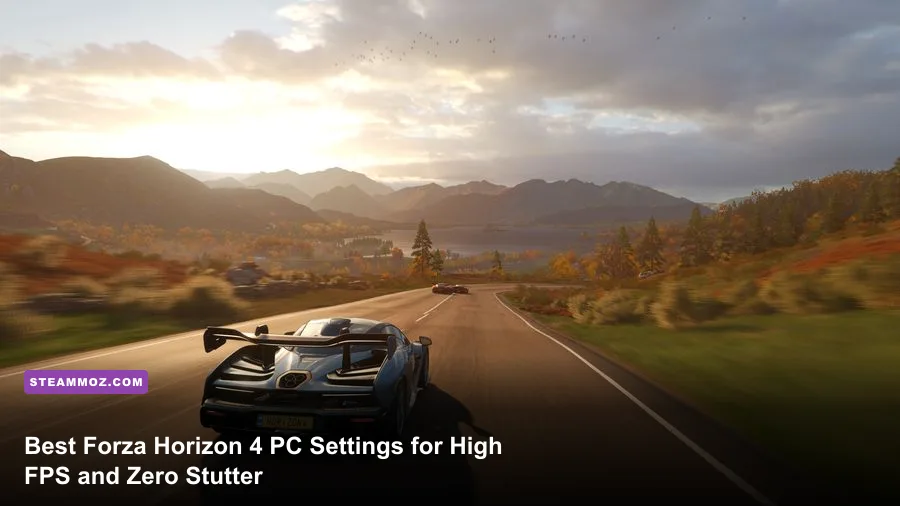
To unlock maximum frame rates and butter-smooth frametimes in Forza Horizon 4 on PC, disable Dynamic Optimization immediately, lock Shadow Quality to High, restrict MSAA to 2x or 4x, and dial back Night Light Quality and Screen Space Ambient Occlusion (SSAO) by one notch. Playground Games built an astonishingly scalable engine in the proprietary ForzaTech framework, but cranking every single toggle to "Extreme" will tank your 1% low frame rates by roughly 35% without giving you any perceptible visual upgrade while tearing across rural Britain at 200 MPH. By dialing in the calibrated settings detailed below, you can comfortably eliminate micro-stutters and cruise past 120 to 144 FPS on mid-range hardware.
The Real Hardware Demands of the ForzaTech Engine
Forza Horizon 4 handles rendering differently than most open-world sandbox games. Built natively on Microsoft's DirectX 12 API, the game spreads simulation calls, asset streaming, and rendering threads across multiple CPU cores with razor-sharp efficiency. However, because you are constantly streaming landscape geometry, volumetric lighting, and high-resolution textures at hypercar speeds, the engine is notoriously vulnerable to memory bandwidth bottlenecks and VRAM thrashing.
When you blast down the M68 highway in a Koenigsegg Agera RS, the engine dynamically flushes and reloads roadside assets, deformable terrain data, and LOD (Level of Detail) meshes inside milliseconds. If your system runs low on available video memory, Horizon 4 won't just drop average frames; it will introduce sharp, jarring micro-hitches that ruin your drift angle or send you headfirst into a drystone wall. Much like diagnosing systemic framerate issues in other titles—such as dealing with Elex PC performance fixes—stabilizing your frame pacing starts with identifying which settings eat GPU rasterization compute versus which ones clog memory bandwidth.
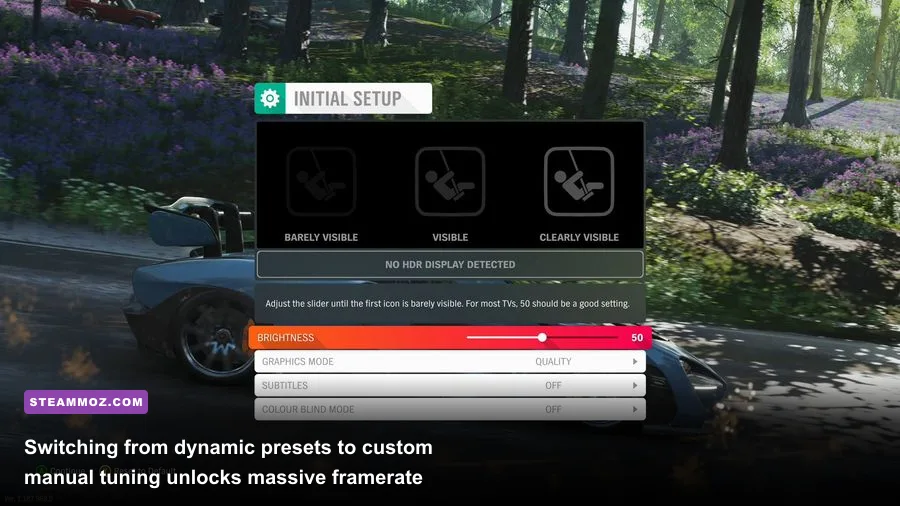
Before touching granular settings, always visit the Basic Video menu and turn Dynamic Optimization OFF. Dynamic Optimization continuously shifts your internal render resolution and graphical quality on the fly to meet a target framerate. While this works well for console parity, on a dedicated PC monitor it creates noticeable resolution shifting, erratic motion blur behavior, and unpredictable input latency. You want fixed, predictable fidelity and uncompromising frame times.

🎮 FORM
Looking to experience this game? Grab your digital key directly on our store for $14.99.
View on Steammoz Store →Exhaustive In-Game Graphics Settings Breakdown
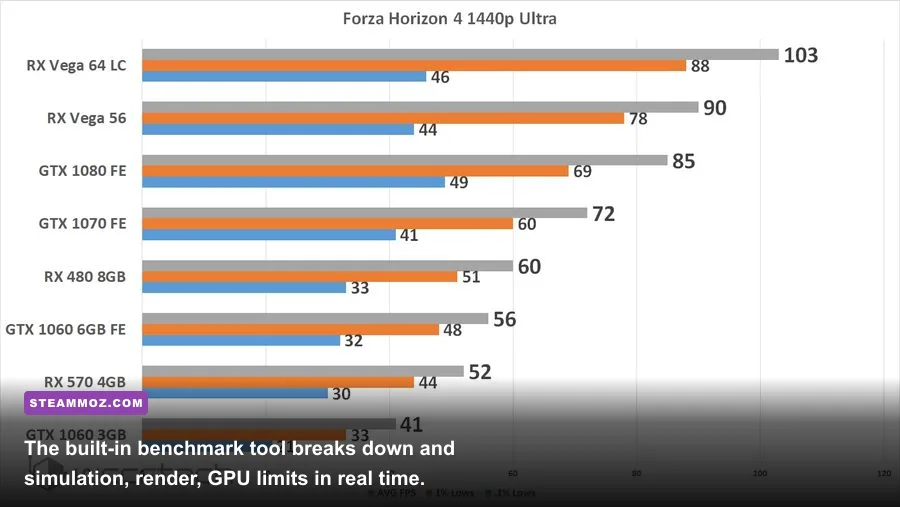
Navigating the Advanced Graphics menu can feel overwhelming with its sheer volume of sliders. Every individual visual toggle carries a distinct performance signature. Below is the full breakdown of how each setting impacts your rendering budget according to internal testing on modern and mid-range PC hardware.
Anisotropic Filtering (Recommended: 16x): Anisotropic filtering sharpens road textures and terrain receding into the distance. Modern GPUs handle 16x texture filtering via dedicated hardware blocks with negligible overhead (under 1% FPS cost). Dropping this below 16x muddies the tarmac right in front of your bumper for practically zero framerate rescue.
Shadow Quality (Recommended: High): This is one of the single biggest performance drains in the game. Setting this to "Extreme" forces high-resolution cascaded shadow maps and enables expensive self-shadowing across every leaf and tree branch in Britain’s dense forests. Dropping Shadow Quality from Extreme to High clawbacks an instant 9% to 14% boost in average framerates while completely stabilizing your 1% low metrics during woodland sprints.
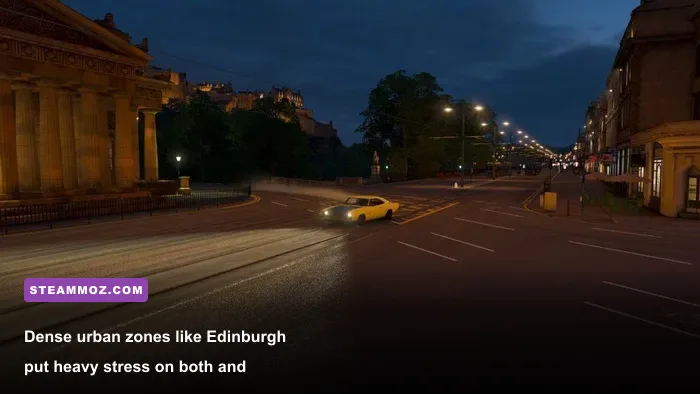
Night Light Quality (Recommended: High): Dictates how many dynamic light sources (such as street lamps, car headlights, and festival floodlights) cast complex active shadows after dark. In Edinburgh or around the Horizon Festival hub, "Extreme" can cripple your framerate during night races. Setting this to High maintains crisp light sources while slashing the compute workload by around 7%.
Motion Blur Quality (Recommended: Short or Off): Purists often disable motion blur entirely to maximize visual sharpness, which is ideal if you are targeting 120Hz or higher. If you prefer the cinematic sensation of velocity, keep it on "Short." Running Motion Blur on "Ultra" applies full-sample radial distortion that consumes GPU power for a smeared image that obscures cornering apexes.
Environment Geometry Quality (Recommended: High): This setting governs the density and render distance of static 3D models like fences, foliage, and distant buildings. "Extreme" pushes LOD render distances to excessive ranges, heavily taxing CPU draw call generation. "High" preserves pristine environmental depth without overloading your CPU threads in dense villages.
Environment Texture Quality (Recommended: Ultra for 8GB+ VRAM, High for 4GB-6GB VRAM): This determines the raw texture resolution applied to Britain's roads, cliff faces, and soil. It has virtually no impact on GPU rendering speed as long as your VRAM buffer isn't breached. If your VRAM is saturated, "Extreme" triggers massive stutter spikes. Match this setting strictly to your physical hardware buffer.
MSAA (Recommended: 2x or 4x): Horizon 4’s implementation of Multi-Sample Anti-Aliasing is undeniably clean, but 8x MSAA is an absolute rendering death trap. Jumping from 4x to 8x can cost up to 22% of your total frame throughput for an imperceptible smoothing of razor edges. For maximum competitive smoothness at 1080p or 1440p, 2x MSAA paired with FXAA enabled provides crisp edge coverage at a tiny compute cost.
Screen Space Ambient Occlusion - SSAO (Recommended: High): SSAO adds depth-shading contact shadows under car chassis, behind guardrails, and between vegetation folds. "Ultra" calculates a dense ambient occlusion grid with negligible visual differences over "High," but costs around 5% more GPU headroom. Stick to High for optimal contrast without the penalty.
Screen Space Reflections (Recommended: High): Manages real-time reflections on wet asphalt, standing puddles, and glass surfaces. Extreme looks fantastic in photo mode, but during rainy circuit races with twelve cars on screen, it heavily burdens the raster engine. High provides glossy, realistic water pooling with a manageable 3-4% footprint.
| Graphic Setting | Recommended Value | FPS Cost (%) | Hardware & Visual Impact |
|---|---|---|---|
| Anisotropic Filtering | 16x | < 1% | Free clarity on road surfaces; keep maxed on all modern GPUs. |
| Shadow Quality | High | 10% - 14% | High cuts heavy foliage draw calls; Extreme causes major frame drops in forests. |
| Night Light Quality | High | 6% - 8% | Limits dynamic shadow-casting lights in Edinburgh and Horizon Festival sites. |
| Motion Blur Quality | Off / Short | 3% - 4% | Disabling increases pixel clarity; Short adds speed sensation at 60 FPS. |
| Environment Geometry | High | 7% - 10% | Ultra/Extreme heavily taxes CPU draw calls; High prevents urban hitching. |
| Environment Textures | Ultra (8GB) / High (6GB) | 0% (VRAM bound) | Safe VRAM headroom prevents catastrophic micro-stuttering during tile streaming. |
| Static Geometry Quality | High | 3% - 5% | Maintains high-polygon terrain meshes without wasting GPU raster cycles. |
| Dynamic Geometry Quality | High | 4% - 6% | Controls breakable assets (stone walls, fences); High prevents physics frame drops. |
| MSAA | 2x or 4x | 8% - 22% | Never use 8x. 2x with FXAA is the competitive sweet spot for frame rate. |
| FXAA | On | < 1% | Cheap post-process edge smoothing that pairs smoothly with 2x MSAA. |
| SSAO Quality | High | 4% - 6% | Delivers realistic shadow depth beneath vehicles; Ultra wastes compute. |
| Screen Space Reflections | High | 5% - 8% | High gives gorgeous wet tarmac puddles without tanking rainstorm frame rates. |
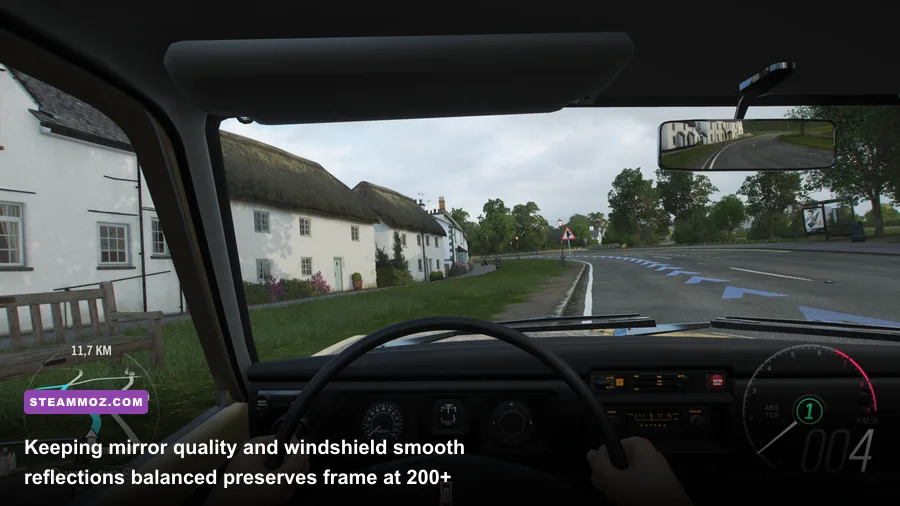
| Windshield Quality | High | 2% - 3% | Governs reflections inside cockpit cam; negligible benefit above High. |
| Mirror Quality | High | 4% - 6% | Renders rear view mirror scene; Extreme doubles mirror draw calls needlessly. |
| World Car LOD | High | 3% - 5% | Keeps rival racers detailed without bogging down crowded grid starts. |
| Deformable Snow | High | 2% - 4% | Maintains tire tracks in winter blizzards with clean performance stability. |
Tested Optimization Profiles: High-Refresh, Balanced, and 4K Immersion
Hardware configurations vary wildly, so dialing in one blanket preset won't serve everyone. Whether you are aiming for high-framerate esports clarity on a 240Hz display, balancing modern mid-range GPUs, or seeking steady 4K high-fidelity cruising, use these three battle-tested profiles. Much like balancing visual fidelity against heavy weapon effects in games like Far Cry 6 max FPS graphic settings, these profiles hit distinct performance targets cleanly.
1. The High-FPS Esports Profile (Target: 144Hz - 240Hz at 1080p): Designed for absolute input responsiveness, high-refresh panels, and total frame consistency during competitive Online Adventure races. Motion blur is disabled, shadows and geometries sit comfortably at High, and MSAA is locked to 2x with FXAA enabled to wipe out shimmering without incurring a geometric raster hit.
2. The Balanced Sweet Spot (Target: 100 - 120 FPS at 1440p): Perfect for popular modern graphics cards like the Nvidia RTX 3060/4060 or AMD Radeon RX 6600 XT/7600. It boosts texture quality to Ultra, sets MSAA to 4x for clean lines on high-resolution displays, and pushes SSAO and reflections to High. This gives you 95% of the visual splendor of max settings while delivering smooth, triple-digit performance.
3. The 4K Visual Showcase (Target: Stable 60 - 90 FPS at 4K): At native 3840x2160, pixel density is high enough that you can completely disable MSAA or leave it at 2x, freeing up colossal GPU bandwidth. Environment textures stay on Extreme (if you have 10GB+ VRAM), while SSAO, Reflections, and Shadows run on High to sustain effortless 60+ FPS cruising without thermal throttling.
| Tuning Parameter | High-FPS Esports (1080p) | Balanced Sweet Spot (1440p) | 4K Visual Showcase (2160p) |
|---|---|---|---|
| Target Hardware | GTX 1660 / RTX 2060 / RX 5600 | RTX 3060 / 4060 / RX 6700 XT | RTX 3080 / 4070 / RX 7800 XT |
| Dynamic Optimization | Off (Custom) | Off (Custom) | Off (Custom) |
| Anti-Aliasing | 2x MSAA + FXAA On | 4x MSAA (FXAA Off) | 2x MSAA or FXAA Only |
| Shadow Quality | Medium / High | High | High |
| Night Light Quality | Medium | High | High |
| Environment Textures | High (4GB-6GB) | Ultra (8GB) | Ultra / Extreme (10GB+) |
| Environment Geometry | Medium / High | High | Ultra |
| SSR (Reflections) | Medium | High | High |
| SSAO Quality | Medium | High | High |
| Motion Blur | Off | Short | Short / Off |
| World Car LOD | High | High | Ultra |
Eradicating Micro-Stutters and Frame Pacing Flaws
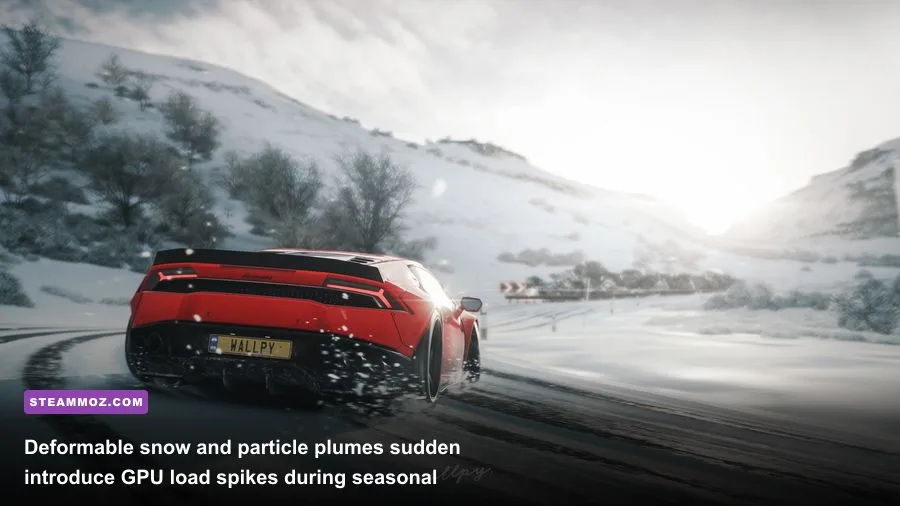
A high average framerate means nothing if your 0.1% lows plummet every time you drift past the Edinburgh tram lines. Micro-stuttering in Forza Horizon 4 is almost never caused by insufficient GPU raw power; instead, it stems from irregular frame pacing, background process collisions, or audio driver buffering quirks. Players dealing with erratic stutter in other demanding PC titles—similar to the hitches explored in our guide on EscapeVR basement low FPS fixes—will find that fine-tuning background sync delivers an immediate transformation.
To eliminate pacing drift, avoid the in-game framerate limiter if you are experiencing stutter. The built-in limiter can sometimes introduce uneven frame times depending on your monitor's native refresh cycle. Instead, leave the in-game limiter set to Unlocked and employ an external limiter like RivaTuner Statistics Server (RTSS) or the Nvidia Control Panel's Max Frame Rate setting. Setting your lock exactly 3 FPS below your display’s native refresh rate (e.g., 141 FPS for a 144Hz panel, or 237 FPS for a 240Hz monitor) keeps G-Sync or FreeSync active 100% of the time without tripping traditional VSync input lag.
Another overlooked cause of catastrophic hitching is VRAM buffer overflow. Horizon 4 will not warn you when your texture cache spills into system RAM. When system RAM takes over, transfer latencies spike across the PCIe bus, producing massive half-second freezes. If your graphics card has 6GB or 8GB of VRAM, never run Environment Textures on "Extreme." Keeping it on "Ultra" preserves a critical 1.5GB buffer for explosive particle effects and weather transitions like sudden winter blizzard storms.
Driver Tweaks, System-Level Fixes, and Benchmark Verification
Once your in-game toggles are set, you can extract another 5% to 10% in frame consistency right at the driver and operating system level. Ensuring your PC matches baseline hardware demands, as highlighted when checking Fatal Fury City of the Wolves PC specs or reviewing legacy baselines like the Far Cry 2 PC specs, is the starting line. But optimizing execution threads turns that hardware into pure performance.
Head into the Nvidia Control Panel or AMD Software: Adrenalin Edition and apply the following tweaks tailored specifically for the Forza Horizon 4 on Steam or Microsoft Store releases:
- Power Management Mode: Set to Prefer Maximum Performance. This prevents your GPU clock speeds from downclocking during easy-to-render cutscenes or straightaway sprints.
- Low Latency Mode / AMD Radeon Anti-Lag: Set to On (or Ultra if your GPU usage consistently sits at 99%). This curtails the render queue to keep steering wheel, controller, or keyboard inputs instantaneous.
- Threaded Optimization: Set to Auto or On. Ensures the ForzaTech engine leverages your CPU's hyper-threading across physical and logical cores.
- Resizable BAR (ReBAR) / Smart Access Memory (SAM): Ensure this is enabled in your motherboard BIOS. Horizon 4 streams thousands of tiny texture and mesh packets every minute; ReBAR enables the CPU to access the entire GPU frame buffer simultaneously, drastically smoothing out 1% low frame times.
Inside Windows 10 or Windows 11, open your Graphics Settings menu and verify that Hardware-Accelerated GPU Scheduling (HAGS) is toggled on. HAGS offloads high-frequency scheduling tasks to a dedicated GPU processor, reducing CPU scheduling latency during high-speed races. Furthermore, if you ever experience persistent game crashes on launch, check the Official Forza Motorsport Support database, as third-party overlays (like Discord or Nahimic Audio suites) are known to hook into DirectX 12 render threads and trigger immediate desktop crashes.
To verify that your configuration is completely stable, take advantage of the brilliant built-in benchmark located in Horizon 4's video options. Run the benchmark through the stormy Edinburgh circuit and examine the final telemetry screen. Look specifically at your CPU Render and CPU Simulation values versus your GPU Frame Times. If your CPU Render frame times are consistently higher than your GPU frame times, drop Environment Geometry Quality and Dynamic Geometry Quality by one step. If your GPU frame time is the limiting factor, lower Shadow Quality or step down your MSAA level. When your CPU and GPU metrics balance out with zero "Stutter Count" registered on the benchmark card, you have achieved the holy grail of Forza optimization: a rock-solid, tear-free driving experience engineered directly by Playground Games to feel as fast as it looks.
Applying these refined profiles keeps your visual fidelity stunning while letting your PC stretch its legs at maximum speed. For more optimization walkthroughs across various game engines, check out our guides on Filament Marmalade Edition settings for higher FPS to fine-tune every corner of your gaming library.