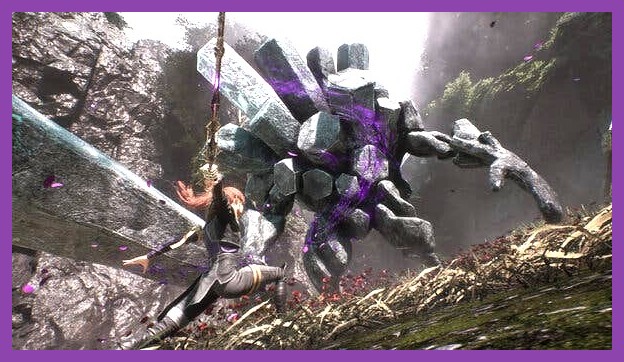
When Sandfall Interactive unveiled Clair Obscur: Expedition 33, turn-based RPG fans immediately fell in love with its gorgeous, painterly Unreal Engine 5 visuals and hyper-reactive combat system. However, breathtaking aesthetics come at a cost. In a game where timing perfect parries, dodges, and quick-time combat commands dictates whether your party survives or wipes, frame drops and uneven frametimes can ruin an otherwise legendary journey. If your screen stutters right as you try to parry a boss, visual style won't save you.
Getting smooth performance out of modern Unreal Engine 5 titles can feel like an uphill battle. Thankfully, with a few crucial tweaks to your display configuration, upscaling settings, and underlying system preferences, you can dramatically boost your frame rate without sacrificing the game's iconic visual flair. In this guide, we break down the best Clair Obscur Expedition 33 settings for max FPS so you can conquer every encounter at locked, buttery-smooth frame rates.
Understanding System Requirements and Performance Targets
Before tweaking individual sliders, it helps to understand what hardware baseline Sandfall Interactive targets for their ambitious project. Because the game heavily utilizes advance rendering features inherent to Unreal Engine 5, both CPU thread throughput and GPU VRAM play massive roles in keeping frametimes consistent.
If you are pushing hardware near the minimum specifications, hitting a locked 60 FPS natively at 1080p will be tough without relying on modern spatial or temporal upscalers. On mid-range hardware (like an RTX 3060 or RX 6700 XT), fine-tuning graphical settings typically nets a 35% to 55% jump in overall frame rates while preserving almost all the perceived image fidelity. If you are struggling on an older machine, you might also want to check our guide to best Steam games for low-end PCs for alternative performance-friendly titles.
Target Performance Windows
- 1080p 60 FPS Baseline: Requires Mid-tier 6-core CPU, 16GB RAM, RTX 2060 / RX 5700 XT (with Upscaling).
- 1440p 60-120 FPS Target: Requires Modern 8-core CPU, 16GB-32GB RAM, RTX 3070 / RX 6800.
- 4K Max Performance: Requires High-end CPU, 32GB RAM, RTX 4070 Ti Super / RX 7900 XT (with Frame Generation enabled).
Best Graphics Settings Breakdown for Max FPS
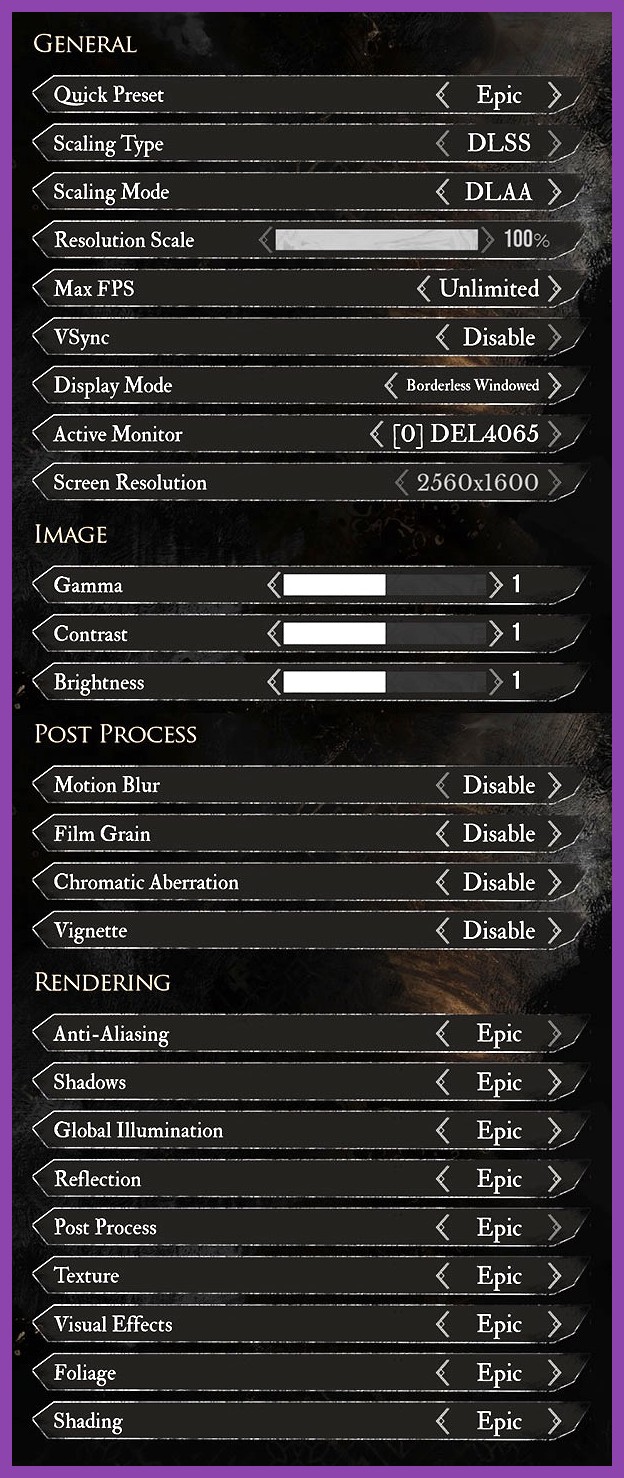
To find the absolute best balance between crisp visual output and high frametimes, we tested each visual toggle extensively across dense environments, boss fights, and particle-heavy ability sequences. Here is the ultimate graphics settings preset for Clair Obscur: Expedition 33 on PC.
Display & Display Mode Settings
- Display Mode: Exclusive Fullscreen (Reduces desktop composition latency and prevents unexpected background window rendering).
- Resolution: Native Display Resolution (Use upscaling below to render at a lower resolution instead of dropping monitor resolution).
- Vertical Sync (V-Sync): Off (Turn this off in-game and utilize G-Sync/FreeSync alongside Nvidia Control Panel frame rate limiters for lower input lag).
- Framerate Limit: Uncapped (or set to 3 FPS below your display refresh rate if using VRR).
- Field of View (FOV): 90° - 95° (Increasing FOV renders more geometry on screen, dropping FPS by 3-5%. Stick to standard values if CPU-bound).
Detailed Graphical Presets & Quality Toggles
- Global Graphics Quality: Custom
- Shadow Quality: Medium
Impact: High. Real-time dynamic shadows consume substantial GPU resources in Unreal Engine 5. Dropping from High to Medium yields up to a 14% performance boost with minimal loss in scene atmosphere. - Global Illumination / Indirect Lighting: Medium (or Low for weaker GPUs)
Impact: High. High settings activate heavy bounce lighting computations. Medium retains realistic environment shading while saving significant rendering headroom. - Reflections: Low or Medium
Impact: Medium-High. Screen-space reflections look great on wet cobblestones and metallic gear, but setting reflections to Ultra tank performance near water bodies. Medium strikes a great compromise. - Volumetric Effects & Fog: Low
Impact: High. Volumetric fog adds moody atmosphere, but it eats away at frame rate stability. Setting this to Low reclaims around 10-12% FPS in exterior zones. - Texture Quality: High (or Match VRAM)
Impact: Low (provided you have enough VRAM). If your GPU has 8GB VRAM or more, keep this on High or Ultra. Dropping textures doesn't improve FPS unless your VRAM buffer is maxed out. If you have 6GB or less, lower this to Medium to prevent texture swapping micro-stutters. - Post-Processing: Medium
Impact: Medium. Controls bloom, depth of field, and camera lens effects. Medium cleans up screen clarity while providing a mild frame rate bump. - Foliage & Grass Density: Medium
Impact: Medium. In open natural zones, rendering high-density grass stresses both CPU draw calls and GPU shaders. Medium offers plenty of density without taxing your hardware. - View Distance / Geometry Detail: High
Impact: Medium. Keep this at High so distant enemies and pop-in items remain visible. Dropping to Medium only yields a minor 3% gain. - Motion Blur: Off
Impact: Minimal performance, high visual benefit. Turning off Motion Blur sharpens fast movements, making reactive parry cues much easier to spot during combat encounters. - Depth of Field: Off or Preference
Impact: Negligible. Disabling depth of field keeps distant targets crisp and uncluttered.
Once you've dialed in these baseline graphics options, you can jump into battle with your optimized build. If you're starting a fresh run with these high-FPS settings, make sure to read our Clair Obscur Expedition 33 starting build guide to hit the ground running!
Upscaling & Frame Generation Settings: DLSS, FSR, and XeSS
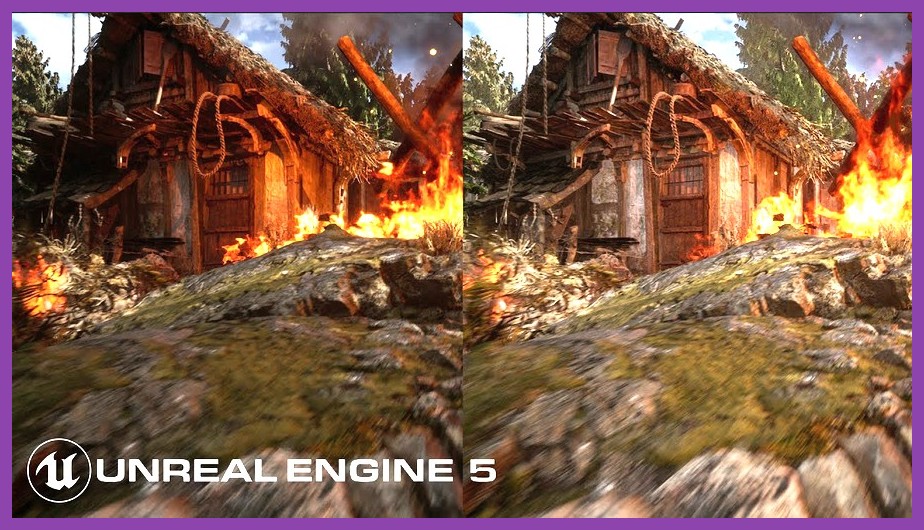
If lowering graphical options doesn't quite push you past your monitor's refresh rate target, hardware upscaling is your best friend. Modern temporal upscalers render the game internally at a lower resolution and use temporal vectors (or AI hardware cores) to reconstruct a crisp native-looking image.
NVIDIA DLSS (Deep Learning Super Sampling)
If you own an NVIDIA RTX GPU, DLSS is by far the cleanest upscaling solution available in the game:
- DLSS Super Resolution: Quality (at 1440p / 4K) or Balanced (at 1080p). Avoid "Performance" mode on 1080p monitors as it can introduce temporal shimmer on fine details like hair or distant foliage.
- DLSS Frame Generation (RTX 40 Series Only): On. Frame Gen introduces interpolated frames, virtually doubling your output frame rate. Because combat timing relies on low latency, ensure NVIDIA Reflex Low Latency is set to On + Boost to offset frame generation latency.
AMD FSR (FidelityFX Super Resolution)
For AMD Radeon gamers and GTX card owners, FSR provides a strong alternative:
- FSR Upscaling Mode: Quality.
- FSR Sharpness: Set to 0.3 - 0.5. Over-sharpening can create unpleasant halos around character models during fast camera turns.
- FSR Frame Generation: Enable if your base frame rate is already consistently above 50-60 FPS. Enabling Frame Gen below a 50 FPS baseline can introduce slight input latency during fast parry prompts.
Intel XeSS
If you are running an Intel Arc GPU or an older non-RTX card, Intel XeSS often delivers superior visual clarity compared to FSR 2.x by eliminating sub-pixel noise on fine geometry. Set XeSS to Quality for optimal performance-to-clarity ratios.
Windows & GPU Driver Optimizations for Peak Frametimes

Even perfect in-game settings can be dragged down by background OS clutter or misconfigured GPU driver panels. Taking five minutes to tune your PC environment ensures your hardware dedicates every cycle to rendering Clair Obscur: Expedition 33.
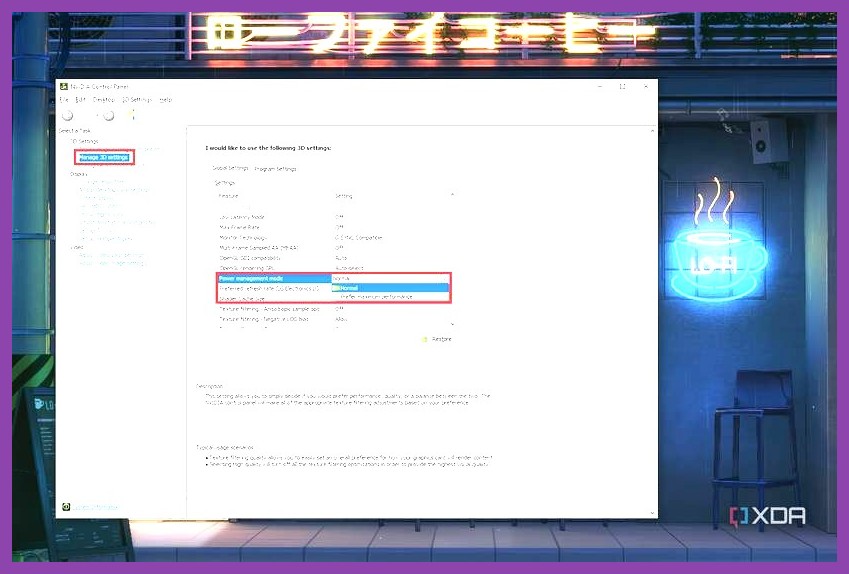
1. Configure NVIDIA Control Panel / AMD Software Settings
Open your GPU control panel and apply these essential global or program-specific tweaks:
- Power Management Mode: Prefer Maximum Performance (prevents your GPU downclocking mid-game).
- Low Latency Mode (NVIDIA) / Anti-Lag (AMD): On or Ultra.
- Max Frame Rate: Set this to 3 FPS under your monitor refresh rate if using G-Sync or FreeSync (e.g., 141 FPS on a 1444Hz display).
- Texture Filtering - Quality: High Performance.
- Shader Cache Size: Set to 10 GB or Unlimited. UE5 titles compile massive shader banks; expanding your cache prevents shader compilation stutters when entering new zones.
2. Enable Hardware-Accelerated GPU Scheduling (HAGS)
In Windows 11 / Windows 10, go to Settings > System > Display > Graphics Settings and toggle Hardware-Accelerated GPU Scheduling to On. This reduces CPU overhead and is a strict prerequisite for enabling DLSS Frame Generation.
3. Turn On Windows Game Mode
Ensure Windows Game Mode is enabled. It stops background tasks like Windows Update or malware scans from stealing CPU threads while you are in the middle of a tactical boss battle. For a deeper dive into optimizing your launcher environment, take a look at our complete guide on how to optimize Steam performance for max FPS.
Best Settings for Handhelds: Steam Deck & ROG Ally
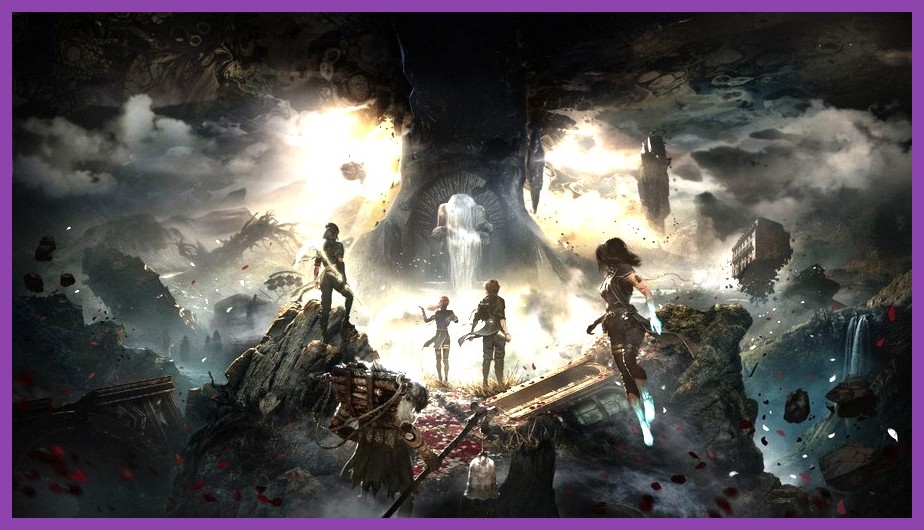
Playing an immersive tactical RPG on the couch or on the go is an absolute dream. However, demanding UE5 titles push handheld APUs right to their thermal limits. To get stable gameplay on handheld devices, adjust your targets toward consistency rather than raw visual quality.
Steam Deck Optimized Settings (Target: 30–40 FPS)
- Resolution: 1280x800
- In-Game Graphics Preset: Low with Medium Textures
- Upscaling: FSR 2 / 3 set to Balanced
- Frame Rate Cap (SteamOS Quick Access Menu): Lock display to 40Hz / 40 FPS (or 30Hz / 30 FPS for max battery life)
- TDP Limit: 12W - 14W (helps balance battery heat and fan noise)
If you're looking to squeeze every last drop of battery life and performance out of your portable setup, check out our collection of essential Steam Deck tips and tricks for handheld power users.
ROG Ally / Lenovo Legion Go Settings (Target: 45–60 FPS)
- Operating Mode: Turbo (15W - 25W plugged in)
- Resolution: 900p or 1080p (Use RSR / FSR Quality)
- Graphics Quality: Medium Shadows, Low Volumetrics, High Textures
- AMD Fluid Motion Frames (AFMF): Optional; best enabled if baseline FPS is consistently over 40.
Fixing Stuttering and Frame Drops in Clair Obscur: Expedition 33
Even high-end PCs running RTX 4080s can suffer from sudden hitching if background processes or memory bottlenecks interfere with Unreal Engine 5's asset streaming system. If you experience erratic micro-stutters, work through these quick troubleshooting fixes:
1. Clear and Rebuild Your Shader Cache
When updating GPU drivers or game patches, old shader caches can corrupt or collide. Navigate to your NVIDIA/AMD cache folders in %LocalAppData% and clear out temporary driver cache files. Re-launching the game forces a fresh, clean compilation pass on the main menu.
2. Move the Game to a Fast NVMe SSD
UE5 relies heavily on direct asset streaming from storage. Running Clair Obscur: Expedition 33 off an old mechanical Hard Drive (HDD) or slow SATA SSD will cause severe stuttering whenever your party enters a new region or triggers complex particle-heavy abilities. Move the installation to a high-speed Gen3 or Gen4 NVMe M.2 SSD.
3. Close Heavy Overlay Apps
Discord overlay, RivaTuner Statistics Server (RTSS), GeForce Experience In-Game Overlay, and third-party recording software can hook into the game process and trigger frame pacing issues. Disable non-essential overlays to ensure clean frame rendering.
Dominating Combat with High Framerates
With your graphics options fully dialed in, your game will deliver butter-smooth performance, low input lag, and sharp picture quality. In a combat system built around fast reflexes, precision timing, and turn-based tactical strategy, every single frame matters. Now that your framerate is locked, you can focus purely on mastering skill combos and taking down the toughest challenges the game throws at you.
Ready to put your high-performance setup to the test against the absolute hardest content in the game? Be sure to consult our endgame resources, including our comprehensive Clair Obscur Expedition 33 endgame build guide and our step-by-step tutorial on how to beat the hardest bosses in Clair Obscur Expedition 33. You can also explore more PC optimization breakdowns and gameplay strategies across our guides category on Steamoz!