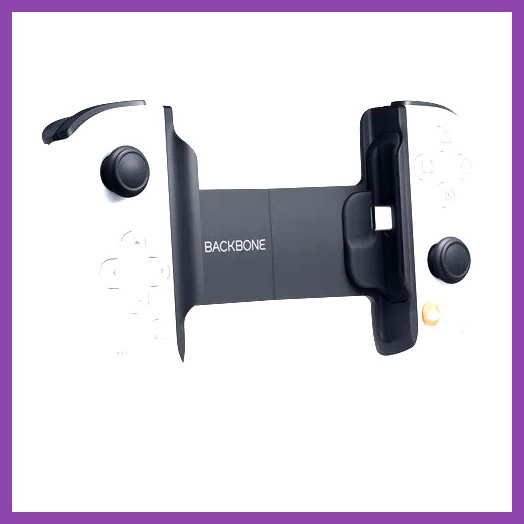
Imagine turning your iPhone or Android smartphone into a sleek, portable PlayStation handheld that streams your PS5 games anywhere in your house—or even across town. That is the core promise of the Backbone One controller. With mobile gaming advancing at an unprecedented pace, hardware manufacturers have raced to build snaps, clamps, and clips that turn glass screens into tactile gaming rigs. But when Sony officially licensed the Backbone One PlayStation Edition, it set off a wave of questions among console gamers: How good is the Backbone PlayStation compatibility? Do you need the special white model to play PS5 games, or does the standard black version work just as well? What about button prompts, iOS versus Android support, and input lag?
If you have been eyeing up a mobile setup to squeeze in extra hours on your favorite RPGs or shooters without hogging the main living room TV, you are in the right place. In this exhaustive guide, we are breaking down everything you need to know about Backbone PlayStation compatibility, including setting up PS Remote Play, hardware differences across USB-C and Lightning models, native game performance, and troubleshooting tips to keep your stream running buttery smooth.
Understanding Backbone PlayStation Compatibility: Standard vs. PlayStation Edition
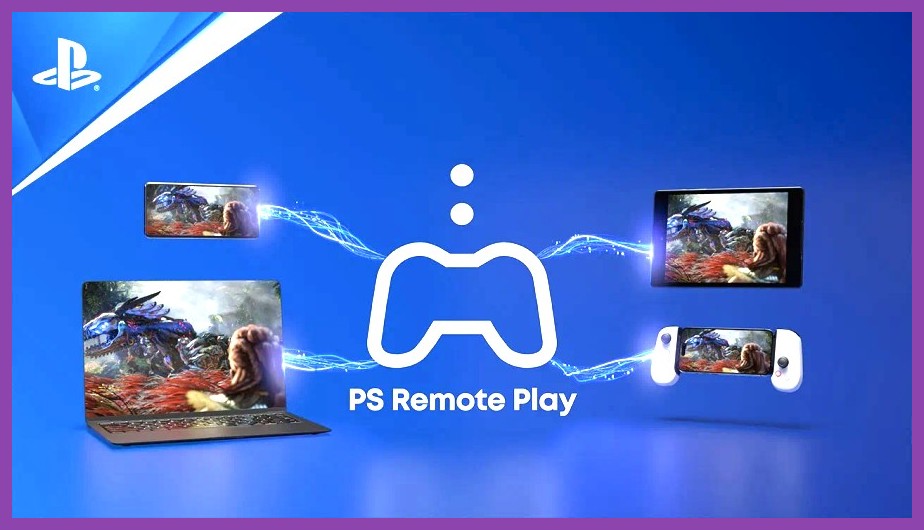
When browsing for a mobile controller, you will quickly notice two main aesthetic lines for the Backbone One: the standard black model and the crisp white PlayStation Edition. The single biggest misconception among gamers is that you must purchase the PlayStation Edition to play PS5 or PS4 games via Remote Play. Let us clear that up right away: both the standard Backbone One and the PlayStation Edition are 100% compatible with PlayStation Remote Play.
Underneath the outer shell, both variants share identical internal hardware, thumbsticks, microswitch face buttons, analog triggers, and pass-through charging ports. The differences between them are strictly cosmetic and brand-focused, though those details make a big difference for visual immersion:
- Aesthetics & Materials: The PlayStation Edition features the signature two-tone white and black design inspired directly by the PlayStation 5 DualSense wireless controller.
- Face Button Markings: The PS Edition utilizes the classic PlayStation face button symbols (Triangle, Circle, Cross, Square) rather than the standard Xbox-style ABXY lettering found on the black model.
- Backbone App Integration: When you connect a PlayStation Edition controller to your smartphone, the companion Backbone app automatically transforms its interface to match the aesthetic of PlayStation UI, featuring customized sound effects and curated game hub recommendations.
If you spend most of your handheld time streaming your console through the official PlayStation Remote Play app, buying the white PlayStation Edition makes absolute sense. Having the physical Triangle, Circle, Cross, and Square buttons eliminates the mental conversion you have to do when a quick-time event pops up on screen. However, if you already own the standard black Backbone or catch it on a massive discount, rest assured that PS Remote Play will detect it without any issues.
How Backbone Plays with PS Remote Play on PS5 & PS4
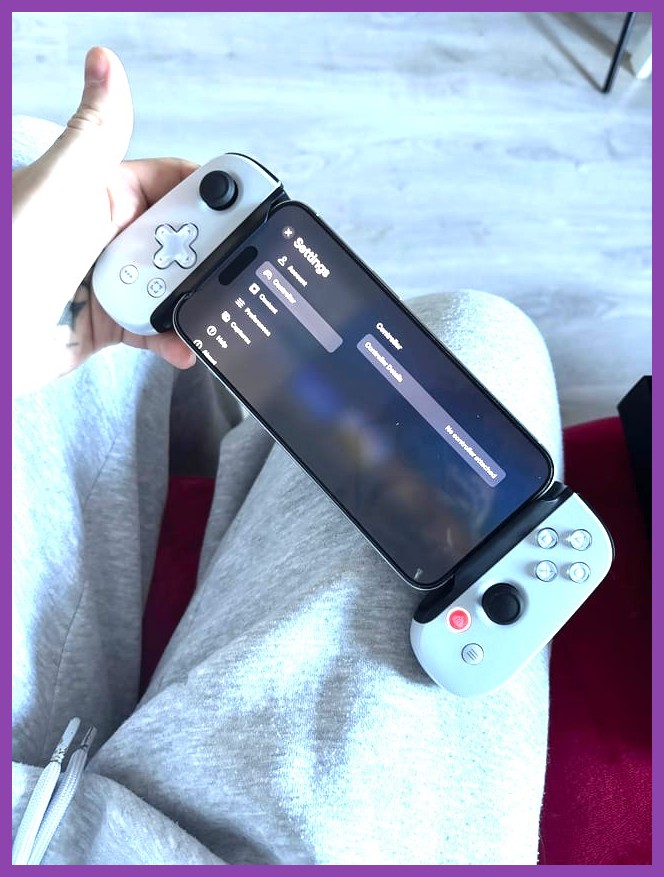
The secret sauce behind the Backbone's PlayStation capabilities lies in the official PS Remote Play app developed by Sony. Thanks to direct software partnerships, the PS Remote Play app natively recognizes the Backbone One as a valid input device without requiring awkward touch-screen button mapping overlay hacks.
Setting up your console stream takes roughly five minutes. Before you start playing, check out our comprehensive gaming guides section for more tech optimizations, and follow these simple steps to pair your console with your phone:
Step 1: Prep Your PS5 or PS4 Console
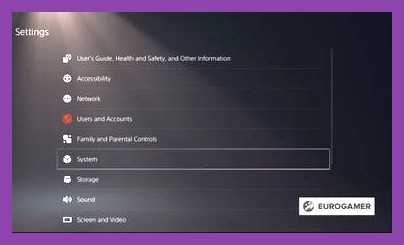
- Navigate to Settings > System > Remote Play on your console menu and toggle Enable Remote Play to ON.
- Go to Settings > System > Power Saving > Features Available in Rest Mode. Ensure that Stay Connected to the Internet and Enable Turning On PS5 from Network are both checked. This allows you to launch your console remotely even when it is sleeping.
Step 2: Install and Configure the App
- Download the official PS Remote Play app from the Apple App Store or Google Play Store.
- Log into the app using the exact same PlayStation Network (PSN) account logged into your console.
- Snap your smartphone into the Backbone One controller.
- Launch the PS Remote Play app and select your PS5 or PS4 console. The app will search your local network and connect automatically.
Once connected, your phone screen mirrors your console interface in real-time. The physical thumbsticks handle movement and camera control, the analog triggers handle aiming and firing, and pressing the Backbone button opens up the dedicated launcher. You can jump straight into intense open-world adventures like the ones found in our top iPhone open-world games roundup without missing a beat.
USB-C vs. Lightning: Choosing the Right Backbone for Your Phone
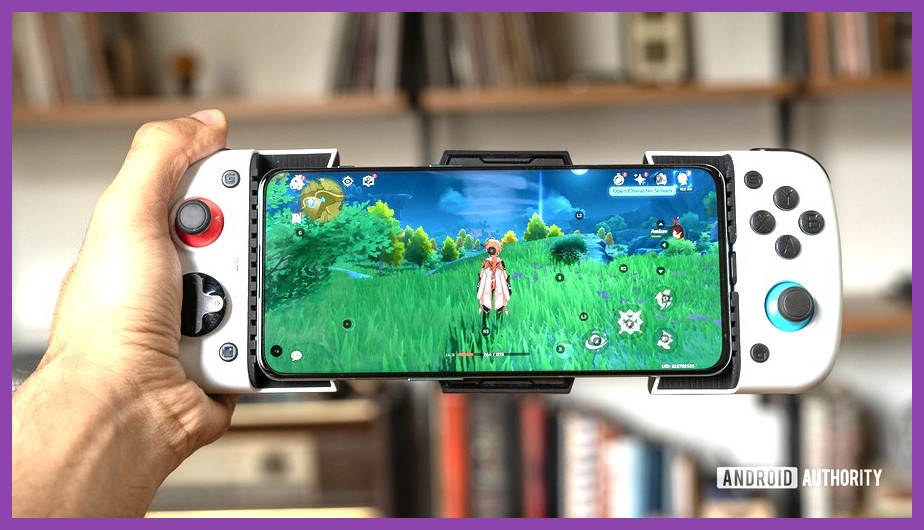
Backbone produces its controllers in two physical hardware generations: Lightning (for older iPhones) and USB-C (for modern Android phones, iPhone 15 series, iPhone 16 series, and modern iPads via cable). Getting the right connector model is vital for maintaining flawless low-latency performance.
Unlike standard wireless Bluetooth gamepads that suffer from noticeable signal delay and battery drain, the Backbone plugs directly into your phone’s port. This zero-latency hardware connection is paramount when streaming high-frame-rate games over a network. If you are shopping around or upgrading your handheld setup, keep these device compatibility rules in mind:
| Backbone Model | Connector Type | Supported Phone Models | PlayStation Remote Play Support |
|---|---|---|---|
The newer Gen 2 USB-C models come equipped with magnetic adapter inserts, making them flexible enough to fit phones with medium-sized protective cases attached. This is a massive quality-of-life upgrade over Gen 1 hardware, which frequently required taking your phone case off before every single session.
If you primarily play on Android devices, standardizing on a USB-C controller gives you immense versatility. Feel free to read our comparison guide on the best native controller games for mobile hardware to see how the competition stacks up against the Backbone architecture.
Native Mobile Games & Cloud Services Supported by Backbone
While seamless PS Remote Play integration is the headlining feature of the Backbone PlayStation Edition, you are not limited to streaming from your living room console. The Backbone functions as a standard universal HID gamepad when playing native mobile games available on iOS and Android.
Whether you love competitive FPS titles, sprawling action games, or relaxing simulations, physical inputs make a world of difference. You can jump straight from a remote session of Elden Ring on your console to native mobile games, cloud platforms, or emulators without changing controllers.
Top Categories Compatible with the Backbone PlayStation Controller:
- Native Mobile Action & RPGs: Titles like Genshin Impact, Honkai: Star Rail, and Call of Duty: Mobile feature native gamepad support. If you enjoy deep mobile systems, explore our Tower of Fantasy team building guide to see how physical controls upgrade combat fluidity.
- Alternative Cloud Services: Beyond PlayStation streaming, the Backbone works straight out of the box with Xbox Cloud Gaming (xCloud), NVIDIA GeForce NOW, and Amazon Luna.
- Cozy & Farming Games: Prefer a slower pace? Touch controls can get clunky during farming loops. Physical thumbsticks transform casual mobile experiences into pure relaxation—check out our recommendations for the top cozy iOS farming games to play with a controller.
- Solo Survival Experiences: Hardcore craft-and-survive titles demand precise inventory management and navigation. Check our picks for the best solo survival games that play great on portable screens.
For gamers running older hardware or mid-range devices, pair your controller with lightweight titles optimized for mobile chipsets. Peruse our breakdown of smooth-running games for 3GB RAM devices to get high frame rates without overheating your device.
Fix Common Backbone PlayStation Remote Play Issues (Latency & Connectivity)
Nothing ruins a gaming session faster than dynamic resolution drops, frame drops, or audio delays. Because remote play streams video over your local or home internet network, lag is rarely caused by the physical Backbone controller itself—it almost always boils down to home network setup.
If you encounter stuttering or input delay while using your Backbone for PlayStation streaming, walk through these critical optimization tweaks:
1. Hardwire Your PS5 with an Ethernet Cable
Wi-Fi is convenient, but Wi-Fi to Wi-Fi transmission doubles wireless latency. Connecting your PS5 directly to your home router via a CAT6 or CAT7 Ethernet cable reduces baseline streaming latency by up to 50 milliseconds. This single tweak fixes the majority of remote play lag complaints.
2. Connect Your Phone to a 5GHz or Wi-Fi 6 Network
Legacy 2.4GHz Wi-Fi frequency bands are easily overcrowded by microwave ovens, Bluetooth devices, and neighboring networks. Always connect your smartphone to the 5GHz or 6GHz band on your home router. If your router combines frequencies under a single name, go into your router settings and split them into separate SSIDs (e.g., "HomeNetwork_5G").
3. Adjust Video Streaming Resolution
If your local network struggles with bandwidth, lower the streaming resolution inside the PS Remote Play app settings:
- Launch the PS Remote Play app (before starting a stream).
- Tap the Settings (Gear Icon) in the top right corner.
- Select Video Quality for Remote Play.
- Set the Resolution to 720p or 1080p depending on your local network speed, and toggle Frame Rate to High.
4. Consider Alternative Remote Play Apps (PSPlay / MirrorPlay)
While the official Sony PS Remote Play app works great, third-party apps like PSPlay (Android) or MirrorPlay (iOS) offer advanced customization settings. They allow users to tweak bitrate limits, enable custom touch haptics, adjust rendering engines, and unlock hardware decoding features that significantly improve performance on congested home networks.
Interested in learning how heavy console games perform on PC versus cloud setups? Check out our Elden Ring system requirements and optimization breakdown to see hardware bottlenecks in action.
Is the Backbone One PlayStation Edition Worth It for PS5 Gamers?
The modern handheld market offers more options than ever before. Between dedicated remote play hardware like the Sony PlayStation Portal, full handheld PCs like the Steam Deck, and mobile clip-on controllers, deciding where to spend your money can feel overwhelming.
When evaluating Backbone PlayStation compatibility against competing solutions, the Backbone One stands out as the most practical, portable, and cost-effective middle ground. Here is how it compares to the alternatives:
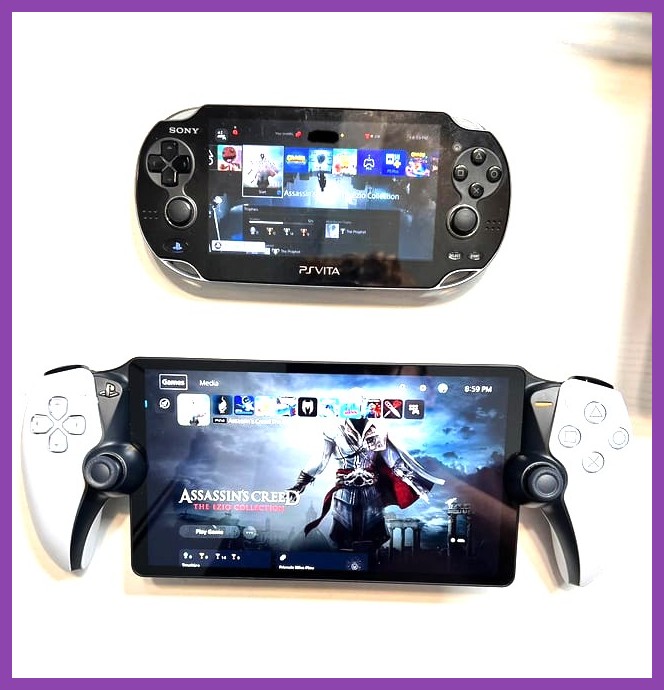
- Backbone One vs. Sony PlayStation Portal: The PlayStation Portal costs double the price of a Backbone, features a fixed screen, and can only stream a PS5 console via Wi-Fi. It cannot run native offline mobile games, play media apps, or stream Xbox games. The Backbone transforms the vibrant OLED display already inside your pocket into a portable console while retaining full offline smartphone capabilities.
- Backbone One vs. Bluetooth Clips: Mounting a full-sized DualSense controller onto a plastic phone clip makes your phone feel top-heavy, straining your wrists during long play sessions. The Backbone's side-clamping telescopic bridge centers the smartphone weight between your palms, delivering superior ergonomic balance.
For gamers who already own a modern smartphone, the Backbone One PlayStation Edition unlocks incredible convenience. You get full access to your PS5 library from the bedroom, back patio, or hotel room, wrapped up in a sleek controller that fits inside a coat pocket.
Whether you want to hunt down trophy lists on your main console, dive into mobile gaming classics, or stream PC games on the go, the Backbone One remains one of the best investments a modern gamer can make. Grab your controller, log into PS Remote Play, and take your gaming library everywhere you go!