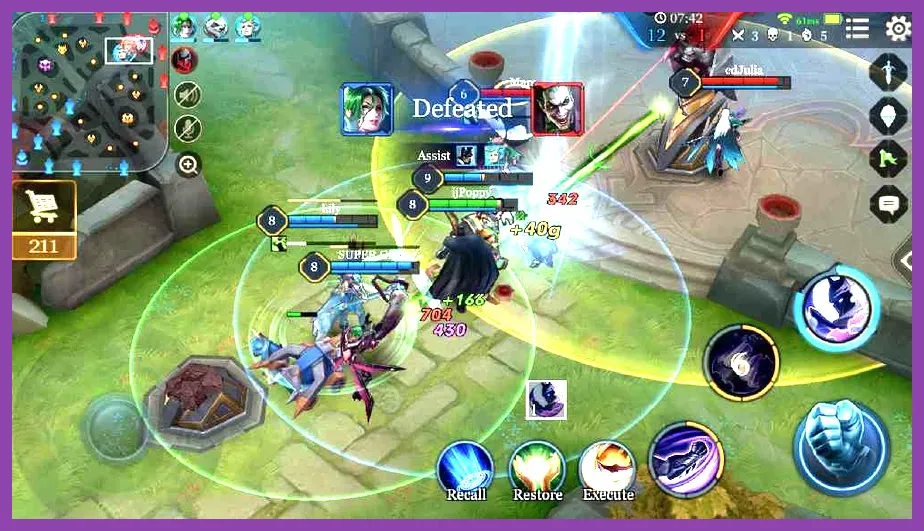
Arena of Valor does not feature native, out-of-the-box controller support for physical gamepads like the Xbox Wireless Controller or PlayStation DualSense on iOS and Android. Because Tencent designed the title strictly for touchscreens, players seeking physical button inputs must rely on third-party mapping software such as Mantis Gamepad Pro, Octopus, or manufacturer-specific companion apps like Gamesome or Flydigi Game Center to bind physical joystick movements and button presses to onscreen touch coordinates.
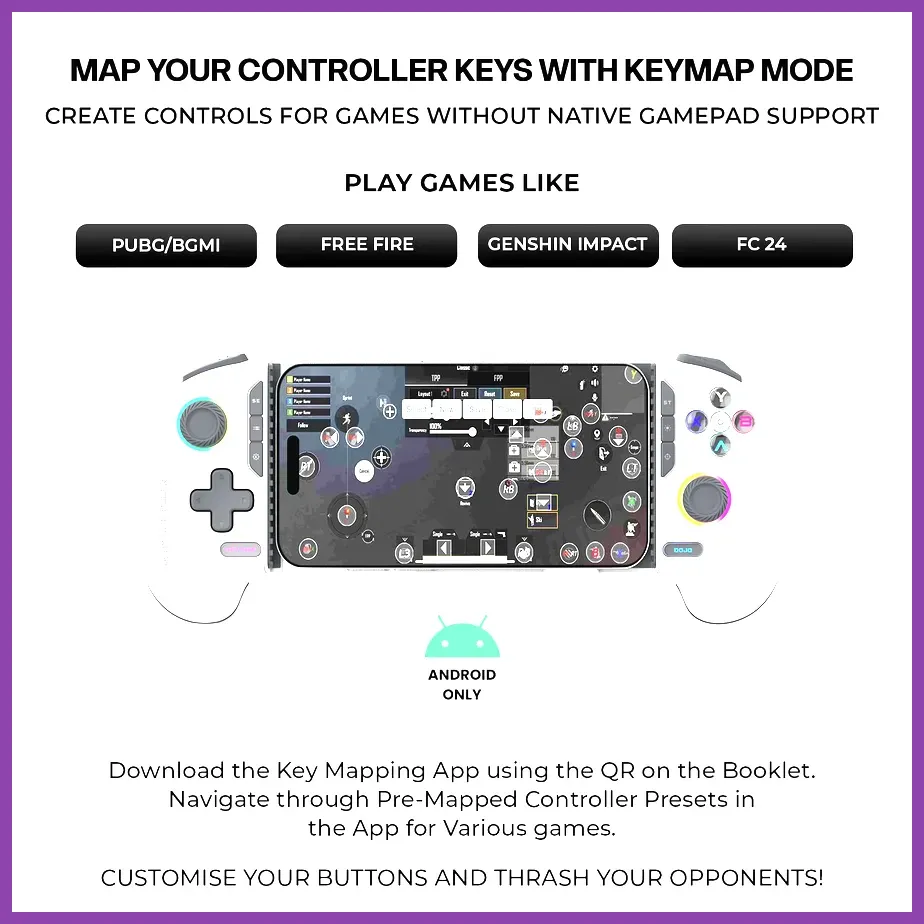
Understanding Native Limitations and Workarounds
Many MOBA enthusiasts migrating from titles like League of Legends or PC strategy games often expect direct plug-and-play controller functionality. Unfortunately, Tencent and Level Infinite have omitted official gamepad support from Arena of Valor to maintain competitive fairness and prevent input exploitation. Trying to plug a controller directly into your USB-C or Lightning port will yield no response in the client lobby or during matches. To circumvent this, you must use overlay mapping applications that simulate touch inputs via Bluetooth peripheral pairing.
Configuring Third-Party Mapping Software
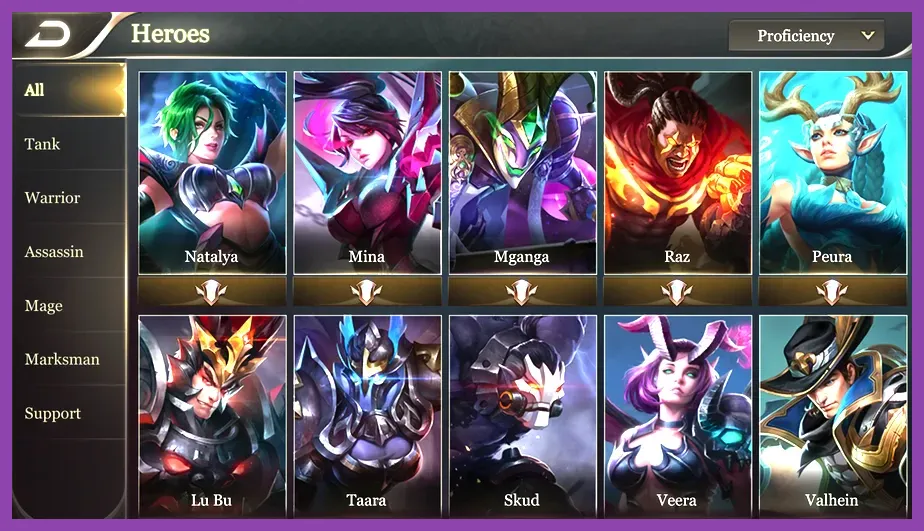
To establish a functional layout for heroes like Valhein, Violet, or Tel'Annas, you need to configure a reliable mapper. Applications like Mantis Gamepad Pro allow you to overlay floating virtual buttons onto your device screen without requiring root access on Android, though you may need a PC or wireless debugging activation step. Follow these precise setup steps to map your controller effectively:
- Download and install an overlay mapping utility from your device app store.
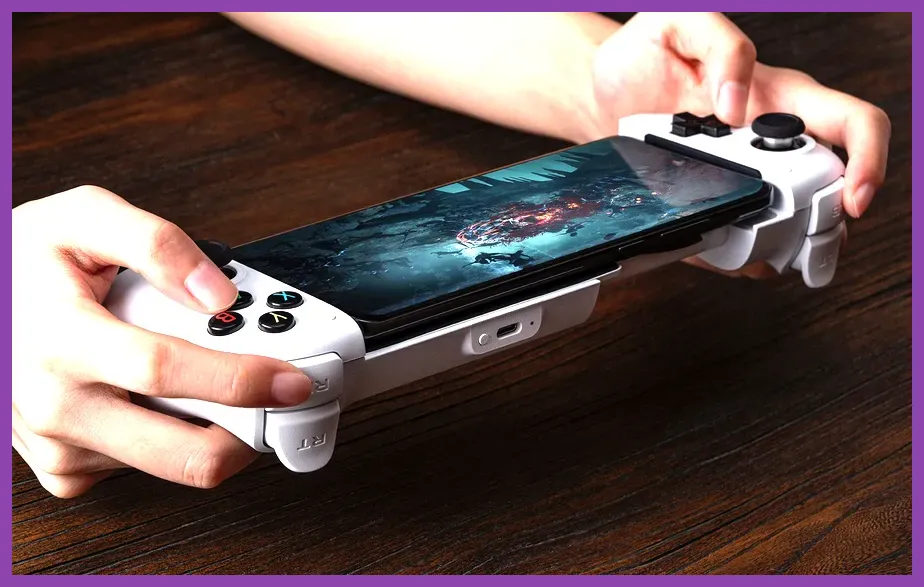
- Connect your Bluetooth controller (such as a Razer Kishi, Backbone One, or standard Xbox controller) to your phone or tablet.
- Launch Arena of Valor through the mapper's application launcher to ensure overlay permissions hook into the game process.
- Enter a training mode match with a hero like Butterfly or Arthur to access the HUD layout editor.
- Drag floating mapping nodes onto their respective touchscreen locations: left analog stick for movement, face buttons for abilities (Skill 1, Skill 2, Ultimate), and shoulder bumpers for summoner spells or item active effects.
Optimizing Stick Sensitivity for Skill-Shots
Playing characters that rely heavily on precise directional aiming—such as Liliana, Lauriel, or Nakroth—requires careful tuning of your analog stick deadzones and sensitivity curves within your mapping software. If your deadzone is set too wide, quick-fire skill shots like Tulen's Lightning Strike will lag behind fast-moving targets like Murad or Zill. Reduce your left stick deadzone to roughly 8% to 12% to ensure immediate movement response when jinking enemy skill shots in the mid lane.
Furthermore, you should configure the right analog stick as a mouse-emulation or swipe-to-pan tool if you want to inspect the fog of war. However, many competitive players prefer keeping the right stick unbound and relying on manual screen drags for camera panning, as thumbsticks can often introduce latency when attempting pixel-perfect ability drags across the minimap.
Managing Inventory and Shop Taps
One of the greatest challenges of using a gamepad setup in Arena of Valor is managing the in-game shop, pinging the minimap, and buying Tier 3 items like Claves Sancti, Fenrir's Tooth, or Holy of Holies during intense team fights. Because mapping apps simulate single-touch coordinates, you must assign a dedicated hotkey (such as clicking the right analog stick or pressing the Select/View button) to toggle mouse mode or temporarily bring up the cursor overlay.
For more mobile gaming insights, check out our guide on how to get legendary items in Call of Duty Mobile or browse our breakdowns on Mobile Legends worst mistakes to avoid to sharpen your overarching MOBA fundamentals.
Potential Risks and Account Safety
Before committing to a physical controller setup, players must consider the anti-cheat policies enforced by Tencent. While simple key-mappers that only simulate screen touches rarely trigger automated bans compared to memory-injection hacks or script executors, game publishers frequently update their security detection routines. Review the official Level Infinite support portal for current terms of service regarding auxiliary hardware input tools.
If you experience input stutter, ghost touches, or frame drops while running overlay software alongside Arena of Valor's high-graphics preset, drop your in-game particle quality to Medium and disable high-frame-rate mode temporarily. Ensuring stable hardware performance prevents input lag, keeping your chained combos smooth and reliable across every ranked match.