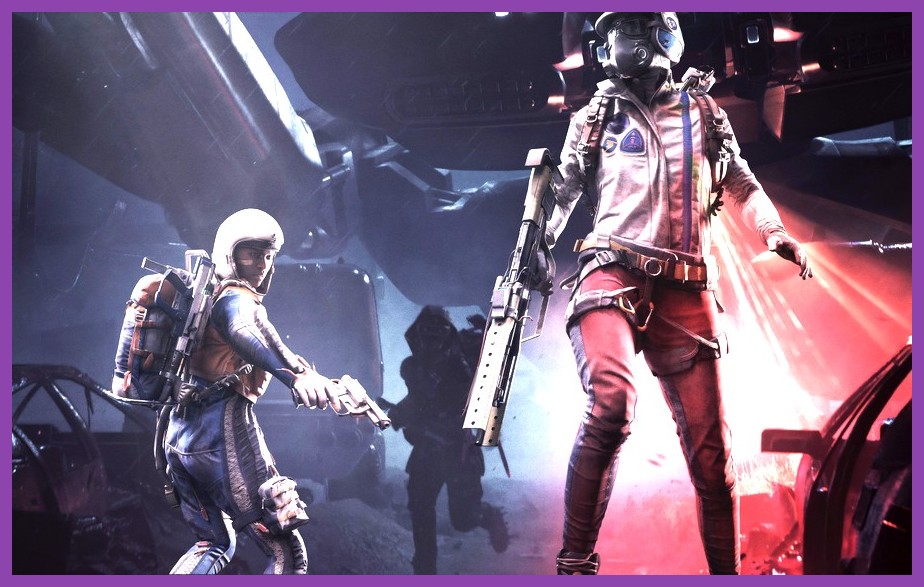
ARC Raiders drops you straight into a high-stakes, post-apocalyptic Earth where deadly drone swarms and giant mechanical ARC machines threaten to incinerate your squad on sight. Developed by Embark Studios, this third-person extraction shooter demands quick reflexes, sharp aim, and crystal-clear visual awareness. If your frame rate tanks down to 40 FPS during a heavy firefight or a massive ARC drop ship bombards your position, you are basically dead meat. Low frames result in terrible input lag, choppy motion, and a quick ticket straight back to the spectator screen.
To dominate the battlefield and extract with your loot intact, you need a high-framerate setup that gives you every competitive edge possible. Pushing your frame rate beyond 120 FPS or 144 FPS eliminates input lag and keeps motion buttery smooth. In this comprehensive optimization guide, we will break down the absolute best ARC Raiders graphics settings, hidden Windows tweaks, driver adjustments, and hardware fixes to boost your FPS to the moon.
Why High Frame Rates Matter in ARC Raiders
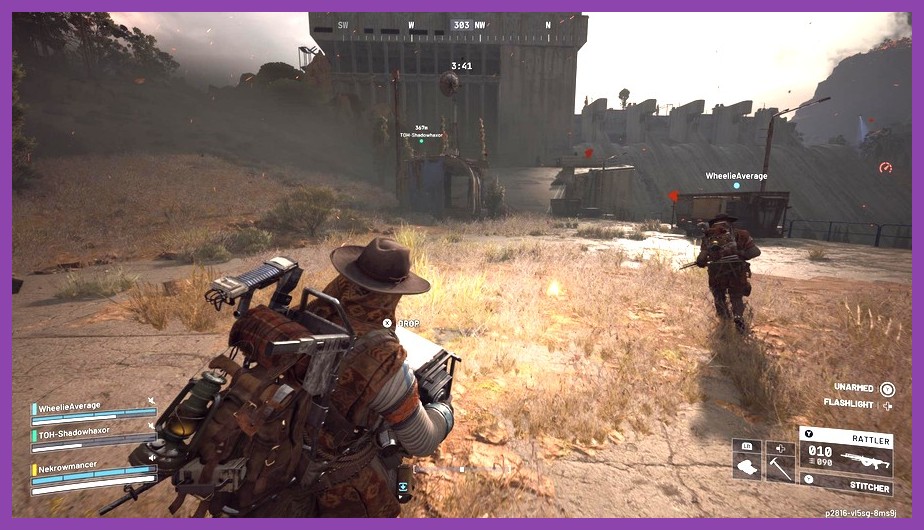
In high-intensity extraction shooters, raw visual performance directly translates to survival. ARC Raiders features expansive outdoor zones combined with dense industrial complexes. When multiple player squads push your extraction zone while massive killer robots fire laser artillery, your hardware gets pushed to its absolute breaking limit. Running the game at a locked 60 FPS might feel passable for single-player RPGs, but fast-paced FPS games require maximum responsiveness.
Maximizing your frames per second drastically lowers system latency, allowing your mouse inputs to register on screen faster. This means tracking fast-moving aerial drones, snapping to enemy headshots, and dodging mortar strikes becomes second nature. If you spend time shredding through lobbies in other fast-paced competitive titles like our Battlefield 2042 loadout guide or tuning aggressive weapons in our Modern Warfare 2 weapon builds, you know how fatal micro-stutters can be. Let's dig into the exact graphics settings to maximize your system's output.
ARC Raiders Graphics Settings: The Ultimate FPS Breakdown
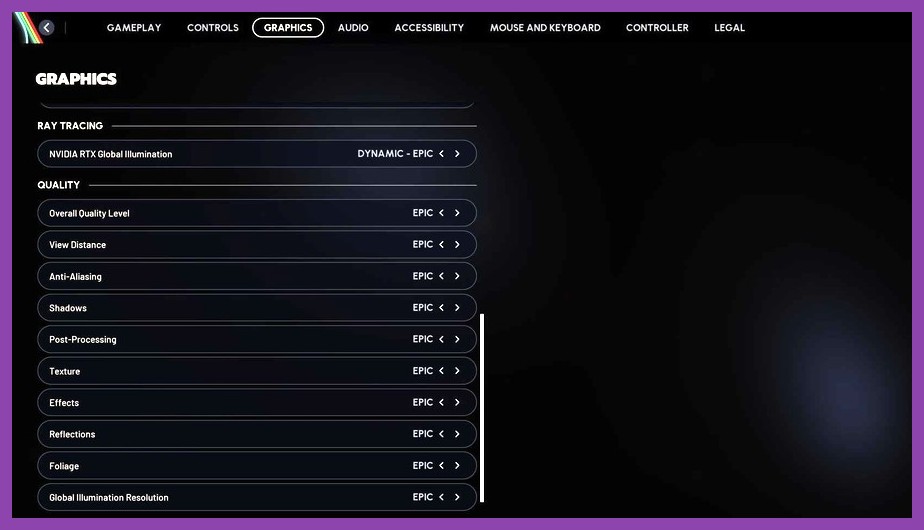
Embark Studios designed ARC Raiders on cutting-edge Unreal Engine tech. While the game looks breathtaking at native 4K with Max settings, many of those visual bell-and-whistle presets serve only to chew up your GPU headroom. Tuning individual parameters is the best way to maintain visual clarity while unlocking massive performance headroom.
Display & Resolution Upscaling
- Display Mode: Fullscreen (Exclusive Fullscreen minimizes background Windows overhead and reduces overall latency).
- Resolution: Match your native monitor resolution (1080p, 1440p, or 4K). Never lower native resolution directly; use upscalers instead.
- NVIDIA DLSS / AMD FSR / Intel XeSS: Set to Quality or Balanced. Upscaling is the single largest performance booster in modern Unreal Engine titles. DLSS and FSR deliver a massive frame rate bump with almost zero noticeable loss in image sharpness.
- NVIDIA Frame Generation / FSR 3 Frame Gen: Turn ON if you are running a high-refresh monitor and target 100+ base FPS. Avoid Frame Gen if your native frames are below 60, as it adds slight input latency.
- V-Sync: OFF. Always disable V-Sync in-game to avoid severe input lag penalties. Use Reflex or G-Sync instead.
Graphics Quality Presets & Shadow Tuning
- Shadow Quality: LOW. Dynamic shadows are the single heaviest GPU burden in the game. Lowering shadows reclaims up to 20% of your total FPS while making enemies hiding in dark corners far easier to spot.
- Global Illumination / Indirect Lighting: LOW or MEDIUM. Ray-traced ambient lighting consumes tons of shader power. Medium keeps lighting natural without punishing your frame rate.
- Reflections: LOW. Dynamic puddle and metal reflections look impressive, but they drain crucial VRAM reserves during intense encounters.
Textures, Post-Processing, and Foliage
- Texture Quality: HIGH (if 8GB+ VRAM) or MEDIUM (if 6GB VRAM). High textures keep environments crisp without dropping FPS, as long as your GPU has sufficient video memory.
- Effects Quality: LOW. Sci-fi particle explosions, plasma beams, and thruster plumes cause massive frame drops on higher settings. Set this to Low to stabilize your framerate during heavy firefights.
- Post-Processing: LOW. Turning this down removes aggressive depth of field, bloom artifacts, and visual clutter around your crosshair.
- View Distance: HIGH. Essential for competitive gameplay. High view distance renders enemy raiders and distant ARC patrols early so you never get ambushed.
- Foliage / Vegetation: LOW. Reduces dense grass bushes that obscure prone players hiding in open fields.
Just like fine-tuning graphics in our Path of Exile 2 optimization guide, removing unwanted visual effects grants both higher FPS and superior visual clarity.
Windows & GPU Driver Tweaks for Maximum Frames
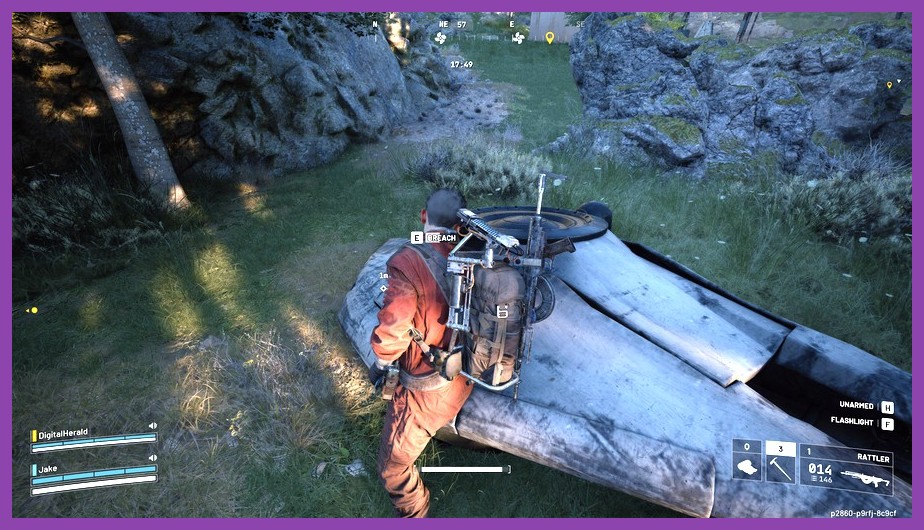
Tweaking your in-game options is only half the battle. If your operating system and graphics drivers are misconfigured, your GPU will suffer performance bottlenecks before you even launch the game. Always make sure you install the freshest game-ready drivers straight from the official NVIDIA driver downloads or AMD support page.
NVIDIA Control Panel Settings
Open the NVIDIA Control Panel, navigate to Manage 3D Settings, select ARC Raiders, and configure these options:
- Power Management Mode: Prefer Maximum Performance
- Low Latency Mode: Ultra
- Texture Filtering - Quality: High Performance
- Max Frame Rate: Set 3 FPS below your monitor's maximum refresh rate (e.g., 141 FPS for a 144Hz screen) to keep G-Sync active without triggering V-Sync latency.
AMD Radeon Software Tweaks
In AMD Adrenalin, enable Radeon Anti-Lag, toggle Texture Filtering Quality to Performance, and disable Radeon Image Sharpening if you already run in-game upscaling like FSR 3.
Windows System Tweaks
Enable Windows Game Mode in your OS settings to prioritize CPU and GPU scheduling for the active game while suppressing background tasks. Also, search for Graphics Settings in Windows 10/11 and enable Hardware-Accelerated GPU Scheduling (HAGS). For broader system tweaks across top hardware, check out our dedicated PC gaming section.
Eliminating Micro-Stutters & Lowering Input Lag
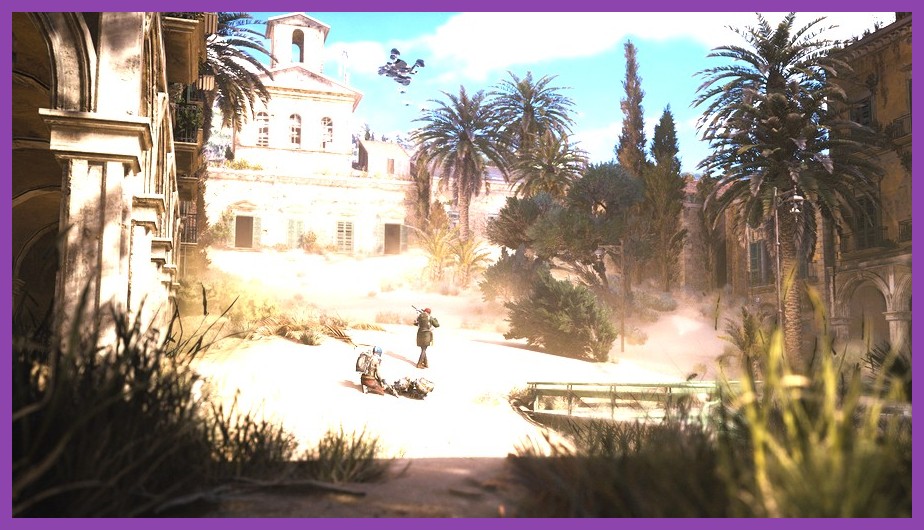
Micro-stuttering is the ultimate mood killer when lining up crucial shots. In ARC Raiders, seamless streaming of open-world map sections demands rapid data transfers across your storage drive and system memory.
Here are three immediate fixes to eliminate frametime spikes:
- Install on an NVMe SSD: ARC Raiders continuously streams dense game assets. Running this game off a mechanical HDD guarantees severe stuttering, long load screens, and texture pop-in.
- Upgrade Your System Memory: Modern titles demand fast multi-channel memory. Running 8GB of RAM causes frequent system thrashing during heavy firefights. Upgrading to 16GB or 32GB of fast DDR4/DDR5 RAM eliminates frametime spikes. Read our RAM upgrade guide to learn how fast memory boosts frame stability.
- Enable Reflex Low Latency: Set NVIDIA Reflex to On + Boost inside the game settings menu. This forces your GPU to maintain high clock rates and synchronizes CPU frame queues, reducing mouse click-to-display delay.
Recommended Settings Summary & Competitive Preset
To help you jump straight into the surface with zero hassle, here is the ultimate competitive preset summary for ARC Raiders:
- Upscaler: DLSS Quality or FSR 3 Quality
- Shadows: Low
- Reflections: Low
- Effects: Low
- Post-Processing: Low
- View Distance: High
- Textures: High (if VRAM allows)
- NVIDIA Reflex: On + Boost
Applying these tweaks delivers maximum frame rates, reduces latency, and keeps enemies completely visible across long engagement distances. Bookmark our Steamoz guide hub for future game patches, and head over to the official ARC Raiders Steam Page to stay updated on upcoming playtests. Gear up, lock in your settings, and go crush those mechanical monsters with buttery-smooth frames!