If you want rock-solid framerates in Age of Empires without turning your screen into a smeared mess, set Geometry Detail to Medium, drop Shadow Quality to Low, lock Animation Quality to High, and keep Image Quality at 100%. Most players lose 35% to 50% of their frames because they treat an RTS like an open-world action title, cranking volumetric lighting and heavy physics simulations that do next to nothing for tactical readability. When 4v4 multiplayer matches transition into the Imperial Age and 1,600 units flood the map, excessive shadow passes and destruction debris choke your GPU and induce brutal micro-stutters.
The Quick-Start Competitive Preset for Flawless Frame Times
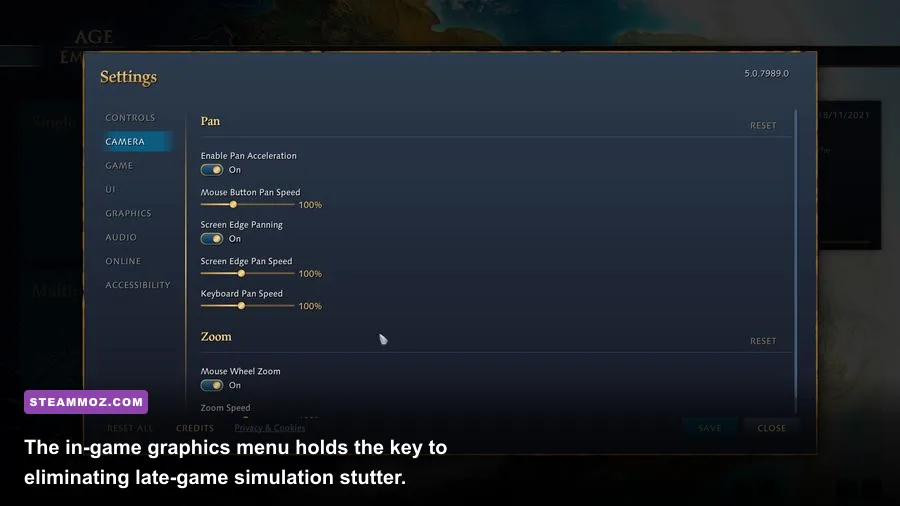
Real-time strategy engines handle rendering radically differently than first-person shooters. In games like Age of Empires IV—powered by Relic's modern Essence Engine 5.0—your system renders hundreds of independent unit skeletons, distinct projectile trajectories, real-time terrain deformities, and dynamic construction meshes simultaneously. Dialing in optimal performance means striking a balance where your GPU isn't choking on unneeded shadow cascades while your CPU handles intense pathfinding algorithms.
Just like fine-tuning graphics in modern shooters where visual clutter costs you match wins, tuning your RTS settings requires prioritizing mechanical clarity. If you've spent time tweaking Far Cry 6 PC settings for max FPS, you already know that high-overhead graphical presets rarely offer competitive benefits. In Age of Empires, ultra-high shadows and dynamic physics don't just reduce your baseline FPS; they introduce inconsistent frame pacing that causes unit clicks to drop or hitch during chaotic engagements.
Before touching granular settings, always establish your display foundation. Run the game in Exclusive Fullscreen whenever possible. Borderless windowed modes introduce desktop window manager (DWM) composition buffers that inject roughly 8ms to 15ms of input latency. For competitive play where micro-managing split-second cavalry flanks matters, raw responsiveness is everything. Turn off in-game V-Sync, and cap your maximum framerate either via your GPU driver or third-party tools like RivaTuner Statistics Server to match your monitor's refresh rate.

🎮 FORM
Looking to experience this game? Grab your digital key directly on our store for $14.99.
View on Steammoz Store →Deep-Dive Graphics Setting Breakdown and FPS Benchmarks
Understanding which settings destroy your framerate lets you claw back massive performance without sacrificing visual clarity. The graphics menu in modern Age of Empires releases contains several deceptive toggles. Some look gorgeous with zero performance cost, while others drain 20% of your rendering budget for differences you won't even spot from the default isometric camera height.
| Graphic Setting | Recommended Value | Performance Cost | Competitive & Visual Impact |
|---|---|---|---|
| Image Quality | 100% (Native) | High (Scaling) | Keep at 100%. Dropping below native introduces severe unit edge blur. |
| Geometry Detail | Medium / High | Moderate (8-12%) | Controls Level of Detail (LOD) distance for buildings and tree canopies. |
| Animation Quality | High | Low to Moderate (4-7%) | Prevents distant marching units from dropping to choppy 15 FPS animations. |
| Shadow Quality | Low | Very High (18-24%) | Drastically reduces dynamic shadow maps; massively frees up GPU compute. |
| Texture Detail | High (Matches VRAM) | Negligible (VRAM Bound) | Requires 6GB+ VRAM for High, 8GB+ for Ultra. Zero FPS drop if under memory limit. |
| Physics & Destruction | Low | High in Battles (15-22%) | Tones down crumbling wall debris, reducing sudden frame time spikes. |
| Anti-Aliasing | Low TAA or FXAA | Low (3-5%) | Smooths sharp geometry edges on palisade walls without muddying infantry textures. |
Shadow Quality is without question the single biggest graphical performance thief in the engine. When set to High or Ultra, the game attempts to cast sharp, multi-layered directional shadows from every villager's hoe, every pikeman's weapon, and every leaf on dense forest lines. Shifting this to Low preserves clean ambient shading beneath buildings while giving your GPU up to a 24% boost in dense scenarios. Best of all, low shadows actually improve competitive readability by clearing visual noise around clumped military squads.
Animation Quality is a setting you shouldn't drop too low, even if you're chasing every scrap of performance. When dropped to Low, the engine caps the animation tick rate of any unit more than a screen length away from your primary camera center to save CPU cycles. The result looks awful: enemy cavalry raiding your lumber camp will move at full mechanical speed while their walking animations stutter along like a stop-motion film. Setting this to High keeps unit locomotion fluid across the entire screen with only a minor performance penalty.
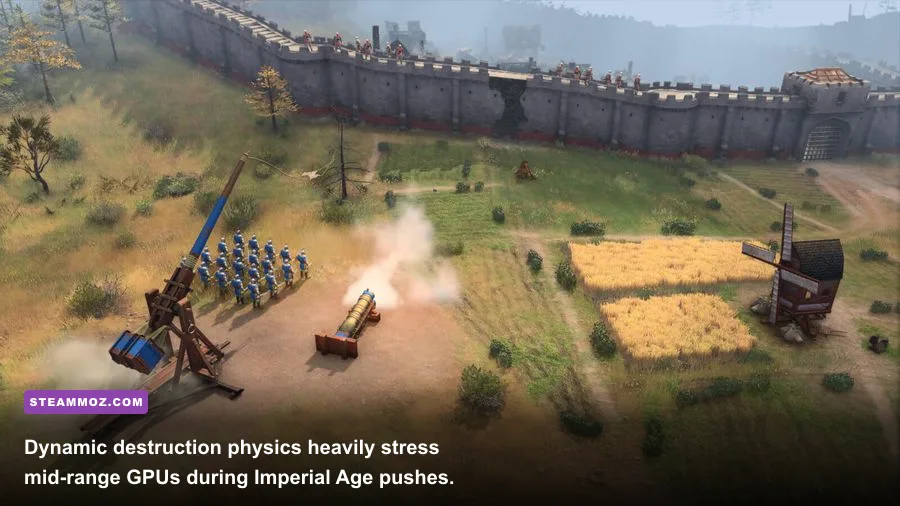
For Physics and Destruction, turn it straight down to Low. When trebuchets hammer a keep or bombard cannons breach a stone gatehouse, High physics calculates physical collision boxes for dozens of tumbling stone blocks. That sudden spike in calculations hits precisely when you need max responsiveness to issue defensive commands. Dropping this setting lets the destruction play out through optimized pre-baked particle meshes that look crisp without tanking your frames.
Taming the Engine: CPU Bottlenecks and Late-Game Skirmish Drops
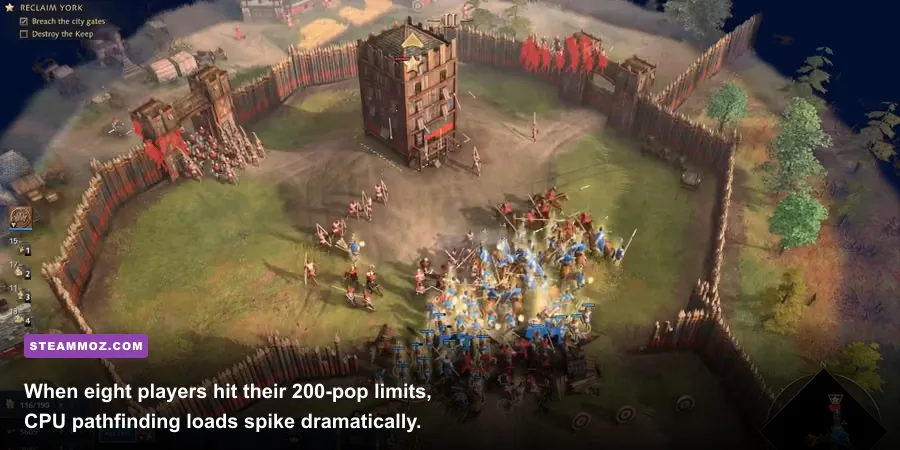
Have you ever noticed your buttery-smooth 140 FPS during the Dark Age plummeting down into the 50s once everyone hits the Imperial Age? That isn't a GPU problem—it's an aggressive CPU bottleneck. Strategy engines perform endless simulation calculations: unit collisions, sight-line updates, formation adjustments, trade cart pathing, and individual projectile ballistics. When eight separate players engage their armies across multiple fronts, the simulation thread maxes out primary CPU core execution pipelines.
Diagnosing underlying engine stutters follows the same troubleshooting logic as fixing technical issues in other demanding PC titles; resolving bottlenecks often parallels the methods detailed in our guide to Elex PC fixes that stop crashes and rescue FPS. When an engine stumbles under heavy asset loads, hardware starvation is usually the culprit.
To pull your system out of a CPU bottleneck in Age of Empires, make the following configuration adjustments:
- Lower Audio Channels: Head into sound options and drop voice/effect channels from High/Ultra to Medium. Real-time audio software spatialization for hundreds of fighting swordsmen consumes measurable CPU cycles that should be reserved for pathfinding threads.
- Tune Down Geometry Detail: Geometry Detail directly dictates draw calls issued by the CPU to the GPU. Dropping this from Ultra to Medium limits the complexity of distant static objects, slicing system draw calls by nearly 30%.
- Disable Windows Game Bar & Background Recording: Windows background video captures thrash system memory buses while the CPU tries to orchestrate large-scale unit logic. Kill background capture in the Windows Gaming settings pane entirely.
For technical hardware inquiries and official engine performance patches, keep tabs on the World's Edge Official Support documentation, where patch performance metrics and engine revisions are posted after major seasonal tournaments.
Age of Empires II: Definitive Edition Tweaks You Shouldn't Overlook

While Age of Empires IV relies on modern 3D pipeline shaders, Age of Empires II: Definitive Edition runs on an upgraded legacy sprite rendering engine that presents completely distinct hardware challenges. If you're running AOE2: DE, your primary enemy isn't GPU horsepower—it's RAM throughput and video memory paging.
The notorious culprit behind hitching in AOE2: DE is the Enhanced Graphics Pack (UHD). This DLC replaces unit and building sprites with ultra-high-resolution 4K asset sheets. While gorgeous on high-tier hardware, it demands massive pools of system memory and video memory. If your graphics card features less than 8GB of VRAM, or if your PC has 16GB or less of system RAM, enabling the UHD pack forces your operating system to constantly page textures back and forth from your SSD. This causes sudden, jarring half-second freezes whenever you pan your camera across an imperial city.
| Hardware Tier | Target Resolution | AOE IV Preset | AOE II: DE Recommendation |
|---|---|---|---|
| Budget Rig (GTX 1650 / RX 580) | 1080p Native | Low-Medium Hybrid (100% Scale, Low Shadows) | Standard Graphics (UHD Disabled, Bloom Off) |
| Mid-Range (RTX 3060 / RX 6700 XT) | 1080p / 1440p | Competitive Tuned (High Textures, Med Geometry) | UHD Enabled (16GB+ System RAM Required) |
| Enthusiast (RTX 4070 / RX 7800 XT+) | 1440p / 4K Ultrawide | Max Visuals (Shadows High, Physics Low) | UHD Enabled, 60+ FPS V-Sync Unlocked |
Tuning settings across varied engine architectures mirrors the approach needed for indie puzzle games or fast-paced brawlers; whether you're adjusting Filament Marmalade Edition settings for higher FPS or balancing core demands like those detailed in our Fatal Fury City of the Wolves PC specs breakdown, matching your rendering overhead to internal engine architecture prevents erratic performance drops.
In AOE2: DE, immediately toggle off Bloom, Depth of Field, and Fog of War Sharpening. These visual filters inject noticeable GPU post-processing lag while reducing the crisp visual delineation of unit silhouettes. Leaving Animated Water on is fine, but disable Particles if you regularly play chaotic 500-pop deathmatches on giant Black Forest maps.
Windows and Driver Tweaks for Rock-Solid RTS Responsiveness
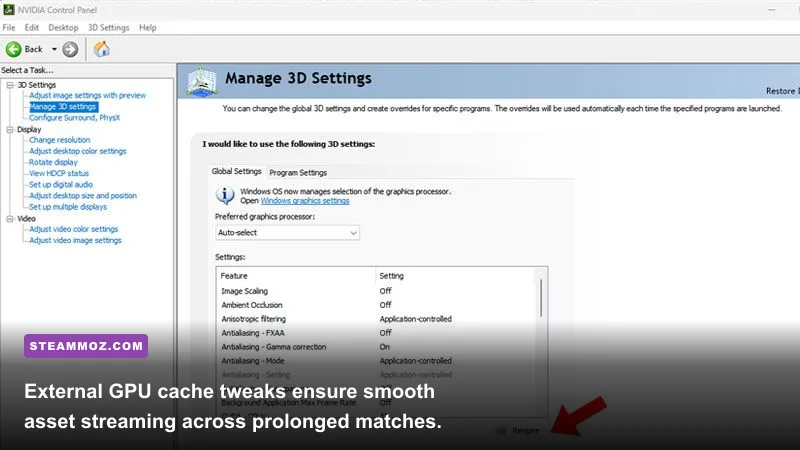
Achieving competitive performance isn't just about what you click inside the game's settings menu. Several fundamental Windows and GPU driver configurations will stabilize your frametimes and wipe out lingering frame pacing irregularities once and for all.
Start by configuring your graphics driver's Shader Cache size. Both NVIDIA and AMD drivers maintain internal caches of compiled shaders so your machine doesn't have to rebuild shader scripts mid-game. Modern RTS games compile hundreds of environment, building, and lighting shaders across matches. Open the NVIDIA Control Panel (or AMD Software: Adrenalin Edition), navigate to Manage 3D Settings, locate Shader Cache Size, and change it from the default driver-managed size to 10 GB. This prevents the driver from clearing older cached assets, ending that annoying micro-stutter when a civilization enters a new age or triggers novel visual effects.
Next, adjust Windows memory handling and thread management:
- Enable Hardware-Accelerated GPU Scheduling (HAGS): Head into Windows Settings > System > Display > Graphics Settings. Toggle HAGS to On. This passes frame buffer scheduling from the CPU directly over to the GPU's onboard scheduler, cutting CPU render queue latency across busy military skirmishes.
- Disable Fullscreen Optimizations: Right-click the game executable (found in your Steam directory for Age of Empires IV on Steam), select Properties, jump to the Compatibility tab, and check Disable fullscreen optimizations. This bypasses legacy Windows composition overlays that interfere with genuine hardware fullscreen modes.
- Lock Power Management Mode: In your GPU control panel, assign the game's executable to Prefer Maximum Performance. This stops your graphics card from downclocking during slow macro-management moments, ensuring instant clock speed readiness when a giant ambush begins.
Unexpected low-FPS traps and sudden crashing issues aren't unique to historical RTS titles. Players tackling sudden drops in other genres often employ identical baseline driver hygiene, such as the tricks highlighted in our EscapeVR basement low FPS fixes walkthrough. Managing resource contention becomes even more vital in games tracking hundreds of entity counts, a dynamic familiar to anyone grinding insect swarms in Empires of the Undergrowth.
For more patch history, upcoming civilization balance announcements, and seasonal updates, check out the Official Age of Empires Portal. Taking ten minutes to dial in your graphics baseline turns chaotic match-deciding clashes from a stuttering headache into a slick, tactical showcase. Lock these settings in, eliminate your frame time spikes, and put all your focus where it actually belongs: on your build orders, eco balance, and army micro.