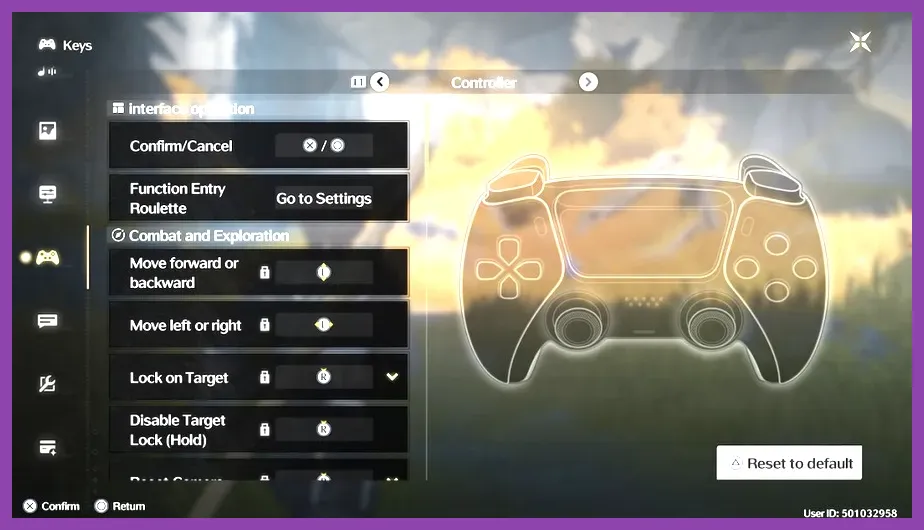
Wuthering Waves features native controller support for PC players right out of the box, allowing you to seamlessly connect an Xbox, PlayStation, or generic XInput gamepad to execute high-speed combos with Rover, Jiyan, Calcharo, and Yinlin. While PC users enjoy immediate plug-and-play functionality, mobile users on iOS and Android face platform-specific limitations that require third-party mapping solutions or awaiting official regional rollout expansions. To get your controller up and running instantly, navigate to the main settings menu, select the Controls tab, and switch your input device from Keyboard and Mouse to your connected gamepad.
PC Native Controller Setup and Configuration
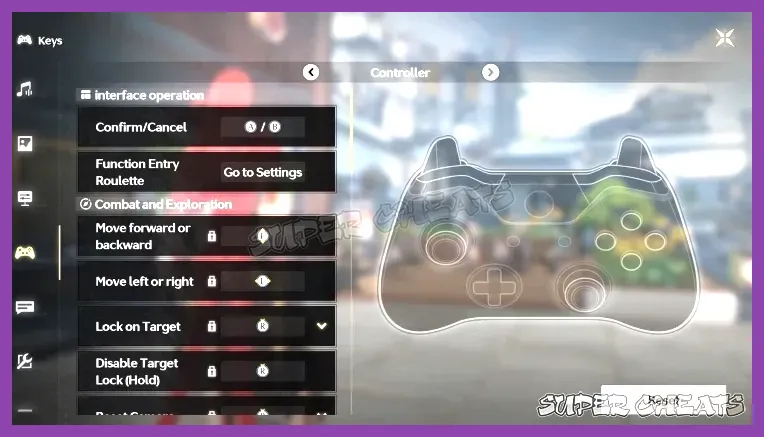
Getting your controller calibrated on PC is straightforward, but optimizing your layout ensures you can weave basic attacks, Resonance Skills, Resonance Liberation, and Intro/Outro skills without fumbling your fingers during frantic boss battles against Impermanence Heron or Mourning Aix. Kuro Games has built robust mapping tools directly into the game client, letting you customize dead zones, camera sensitivity, and vibration feedback.
When connecting an Xbox Series X|S or Xbox One controller via USB cable or Bluetooth, Windows recognizes the input device automatically. For PlayStation 5 DualSense or PlayStation 4 DualShock controllers, you may need to utilize Steam's Big Picture mode or third-party wrappers like DS4Windows if the game client fails to register native DirectInput signals. Make sure to check out related game optimization guides on Steamoz for fine-tuning your high-end gaming hardware setup.
Once connected, verify your button layout in the options menu. The default mapping assigns basic attacks to the right face buttons, dodging and sprinting to the shoulder triggers, and character switching to the D-pad. If you are transitioning from other action RPGs, you might find inspiration in our Tekken 8 team synergy guide for handling fast-paced reaction timing.
Resolving Common PC Controller Detection Issues
Despite native support, players frequently encounter bugs where Wuthering Waves fails to recognize a connected controller, resulting in frozen menus or unresponsive character movement. The most common culprit is background software interference, such as Steam running concurrent controller hooks while you are launching the game through the standalone Kuro Games launcher.
To fix detection failures, completely close Steam, Discord, and any overlapping overlay software from the Windows system tray. Unplug your gamepad, restart the Wuthering Waves client as an administrator, and reconnect your controller only after the title screen has fully loaded. If you are using a wireless Bluetooth connection, toggle your PC's Bluetooth adapter off and on again to clear stuck input caches.
For advanced troubleshooting, consult official development updates and community bug trackers directly on the official Wuthering Waves website to ensure your client is running the latest hotfix patch. Gamers looking for alternative action titles can also browse our breakdown of top free FPS games on iOS for more portable gaming options.
Mobile Controller Support Status on iOS and Android
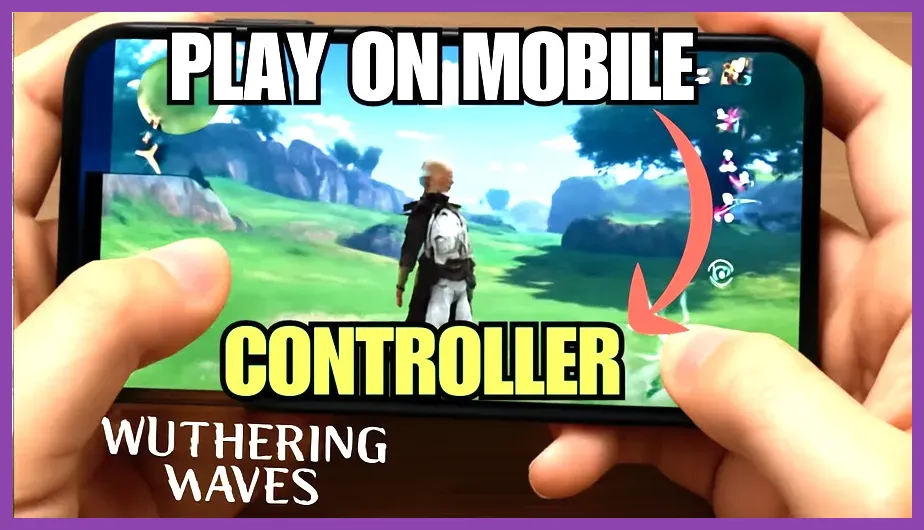
The state of controller support on mobile devices running iOS and Android is more complex. While Genshin Impact eventually rolled out native mobile controller support, Wuthering Waves has experienced a staggered rollout regarding official gamepad integration on mobile platforms. iPads and iPhones running iOS 16 or later can successfully pair MFi-certified controllers, Xbox wireless controllers, and PlayStation DualSense gamepads via Bluetooth, but the game client itself may not consistently map the inputs without workaround tools.
Android users face similar fragmentation due to varying hardware manufacturers and chipset architectures. Many players rely on screen-mapping applications like Mantis Gamepad Pro or Octopus to map physical controller buttons to virtual on-screen touch controls. However, exercise caution when using third-party overlay apps, as anti-cheat systems implemented by developers can occasionally flag external overlays.
Keep your mobile client updated by downloading the latest version directly from the Steam platform ecosystem or official app stores. For strategy and team-building advice applicable to squad-based action games, check out our insights on The First Descendant team composition synergy.
Optimizing Combat Sensitivity and Keybind Layouts
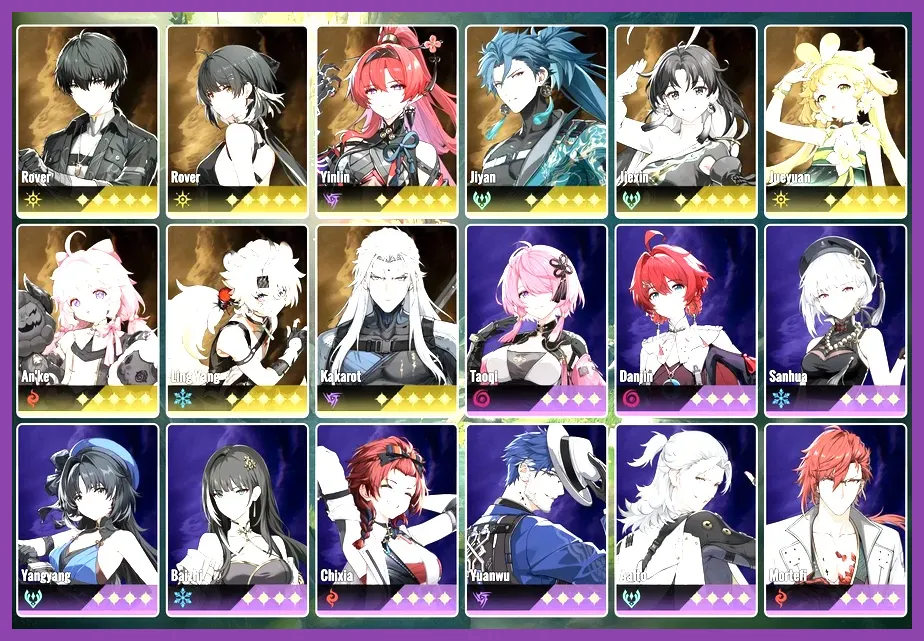
Mastering Wuthering Waves' combat system requires lightning-fast dodge counters, concerto energy management, and precise aerial attacks. The default camera sensitivity on controllers is often too sluggish for fast-paced encounters against high-tier bosses like Scar or Crownless. Navigate to your camera settings and increase the horizontal and vertical controller look sensitivity to at least 1.5x or higher.
Additionally, adjust your camera smoothing and target-lock behaviors. Dynamic target-locking can occasionally disorient your camera angle when dealing with multiple mob spawns in tactical holograms or Tower of Adversity floors. Setting your target-lock to manual mode ensures your character remains focused on the primary elite target while allowing you to sweep peripheral enemies with AOE Resonance Skills.
For players diving into deep character progression and gear grinding, our comprehensive review of The Witcher 3 character tier list provides great perspective on deep RPG mechanics. Furthermore, you can compare resource management strategies with our guide on Tekken 8 crafting materials.
Advanced Combat Techniques with a Gamepad
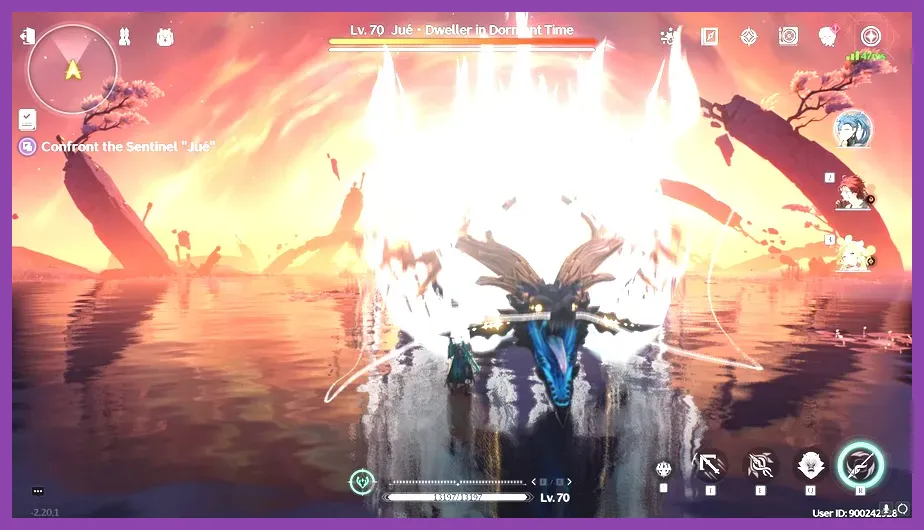
Executing advanced tech such as animation cancels, heavy attack buffering, and instantaneous Echo skill activations becomes significantly smoother once you adapt to a customized controller layout. Many veteran players remap their shoulder buttons and triggers to place dodge (R1/RB) and jump (L1/LB) in positions that eliminate the need to take your right thumb off the camera control stick.
When playing characters that rely on heavy attack meters—such as Jiyan during his Emerald Storm state—holding down the attack button while simultaneously managing your dodge cadence is much more ergonomic on an Xbox Elite or DualSense Edge controller featuring rear paddle inputs. You can program these rear paddles to duplicate face buttons, ensuring you never miss a beat when swapping characters to trigger coordinated Intro and Outro skill buffs.
For broader gaming recommendations and upcoming titles, explore our detailed coverage on Subnautica 2 early skills and check out community discussions hosted on the Wuthering Waves Reddit community for peer-tested control profiles.