If you want to gain 35 to 55 extra frames per second in Call of Duty: Warzone without turning Urzikstan or Rebirth Island into a smeary, unreadable watercolor painting, you need to strip away engine bloat that taxes your raster pipeline while protecting visual clarity. Slashing heavy volumetric effects, disabling ambient occlusion, locking your VRAM Target Scale to 70-80%, and pairing native rendering with FidelityFX CAS (or DLSS Quality at 1440p) provides immediate frame stability, eliminates micro-stutters, and gives you the exact competitive edge you need to track targets through smoke and chaotic air strikes.
Display and Video Foundations: Eliminate Input Lag First

Before you even touch a texture slider, your display pipeline needs to be rock solid. Running Warzone in anything other than Exclusive Fullscreen introduces noticeable desktop compositing latency and opens the door for random background Windows processes to steal render priority. Just like tuning competitive profiles in our Far Cry 6 PC settings guide, your baseline display options determine how cleanly frames translate from the GPU buffer to your eyes.
Head to the Display tab and lock down these baseline settings:
- Display Mode: Fullscreen Exclusive. (Borderless windowed might make alt-tabbing convenient, but it costs 3-7% in 1% low frame consistency).
- Display Monitor: Your primary high-refresh gaming monitor.
- Display Adapter: Your dedicated graphics card (never leave this on Auto if you run an integrated CPU GPU).
- Screen Refresh Rate: Match your panel's native peak (144Hz, 240Hz, or 360Hz). Double-check Windows display settings if this isn't showing your monitor's true ceiling.
- Display Resolution: 100% of your monitor's native pixel count (1920x1080, 2560x1440, etc.). Never lower this below 100% manually—use an intelligent upscaler instead.
- Dynamic Resolution: Off. Dynamic scaling causes erratic frame timing shifts and sudden visual blurring in firefights.
- V-Sync (Gameplay & Menus): Off. V-Sync introduces awful mouse latency. If you suffer from screen tearing, cap your framerate via the driver level or keep G-Sync/FreeSync engaged with an external cap 3 FPS below your refresh rate.
- Custom Frame Rate Limit: Set Gameplay to your monitor refresh rate (or uncapped if testing headroom), Menu to 60, and Out of Focus to 30 to keep GPU temperatures cool while tabbed out.
- NVIDIA Reflex Low Latency: On + Boost. This drops render queue latency down to virtually zero, ensuring your mouse clicks register during heavy frame-rate drops when the GPU hits 99% usage.
🎮 FORM
Looking to experience this game? Grab your digital key directly on our store for $14.99.
View on Steammoz Store →Mastering Detail and Texture Settings: Maximizing Spotting Distance
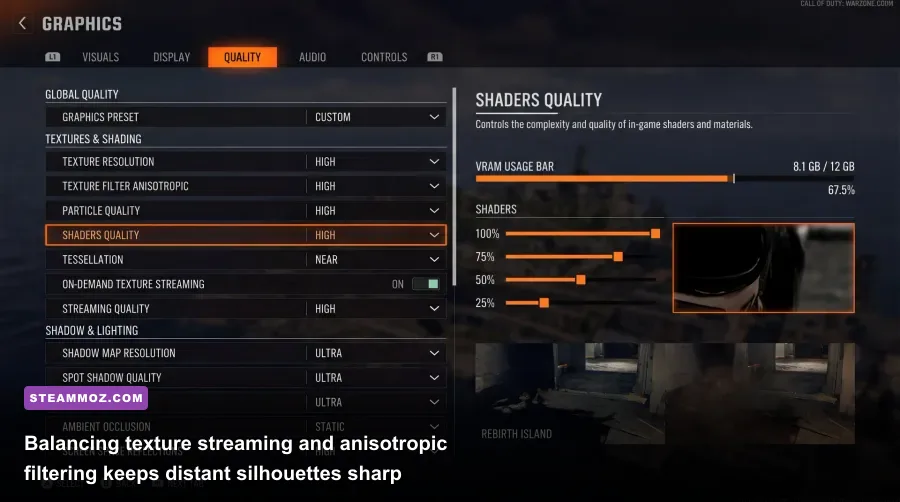
Warzone is an information game. You need to identify an enemy operator's head poking over a concrete barricade 150 meters away before their sniper round cracks your armor plates. Many players make the mistake of setting every single texture slider to Low, which actually degrades environmental contrast and makes spotting camouflaged skins next to impossible. Similar to tweaking balance in our Filament higher FPS breakdown, you want strategic quality where it counts and aggressive cuts where it doesn't.
Texture Resolution should be set to Normal if your GPU has 8GB of VRAM or more. The performance delta between Low and Normal is practically negligible on modern architectures (often less than 1-2 FPS), but Normal keeps signposts, wall textures, and window frames crisp. If you are gaming on a 6GB or 4GB card, drop this to Low to prevent your VRAM buffer from overflowing into system RAM.
Keep Texture Filter Anisotropic set to High. Anisotropic filtering has had near-zero performance cost on dedicated graphics cards for over a decade. Setting it to High ensures surfaces angled away from your camera stay clear rather than turning into blurry mush, making it far easier to spot enemies prone on sloped rooftops or terrain. Turn Depth of Field completely Off—there is zero tactical reason to have the edges of your screen blur while aiming down sights.
For secondary details, drop Level of Detail (LOD) Quality to Low and Particle Resolution to Very Low. Massive thermite explosions and cluster strikes will absolutely tank your frame rate if particle density is cranked. Keep Bullet Impacts set to On; knowing where stray rounds are hitting cover provides vital situational awareness with a practically nonexistent performance impact. Finally, turn Persistent Damage Layers to Off to save precious draw calls across long matches.
Shadows, Lighting, and Environment: Crushing the Frame Killers

Shadows and dynamic volumetric lighting are the biggest frame thieves in the IW 9.0 engine. They devour compute shader passes and provide almost zero competitive value. In fact, high ambient occlusion and dynamic soft shadows actually make it easier for enemy squads to blend into shadowy interior rooms of buildings across Urzikstan.
Dropping your shadow parameters down will yield an immediate 20-30% leap in baseline frame rates. Turn Screen Space Shadows, Ambient Occlusion, and Screen Space Reflections completely Off. In a battle royale, you do not need wet puddle reflections or soft contact shadows under cardboard boxes; you need flat, high-visibility lighting that makes character models pop out against dark backgrounds. Much like addressing stutter bugs in our Elex PC crash and FPS guide, eliminating these lighting passes prevents the GPU from choking during high-action firefights.
| Graphics Setting | Optimal Value | FPS Cost | Competitive & Visual Impact |
|---|---|---|---|
| Texture Resolution | Normal (8GB+ VRAM) / Low (<6GB) | Low (1-2%) | Maintains visual sharpness of world geometry without overloading memory. |
| Texture Filter Anisotropic | High | Near Zero (<1%) | Keeps angled ground and wall textures crisp at zero practical cost. |
| Shadow Map Resolution | Very Low / Low | High (8-12%) | Drastically reduces GPU compute load; brightens dark interior corners. |
| Screen Space Shadows | Off | Moderate (4-6%) | Removes realistic contact shadows that obscure prone enemies. |
| Ambient Occlusion (GTAO) | Off | High (7-10%) | Stops dark ambient shading around objects; massively boosts visibility. |
| Screen Space Reflections | Off | Moderate (5-8%) | Eliminates noisy reflections on glossy surfaces and puddles. |
| Volumetric Quality | Low | Very High (10-15%) | Huge performance saver during gas shifts, smoke grenades, and air strikes. |
| Weather Grid Volumes | Off | Low (2-4%) | Removes environmental atmospheric fog layers that hurt distance spotting. |
| Water Quality | Default / Wave Wetness Off | Moderate (3-5%) | Stops water simulation calculations from causing frame drops near rivers. |
Pay special attention to Volumetric Quality. When the gas circle begins closing or an enemy drops a precision airstrike near your position, high volumetric lighting calculations will immediately tank your 1% low frames. Dropping Volumetrics to Low locks down your frame pacing and guarantees you can track targets while rotating out of the gas edge.
Upscaling, Anti-Aliasing, and Visual Clarity for Battle Royale
Choosing the right upscaler can make or break your competitive experience. While Warzone supports nearly every modern upscaling technique on the market, each handles motion clarity and distant anti-aliasing differently. For comprehensive official updates on supported technologies, consult the official Call of Duty: Warzone portal.
Here is how to pick your upscaling profile:
- FidelityFX CAS (Best for Raw Clarity): If your graphics card already pushes your monitor's target refresh rate natively (e.g., an RTX 4070 or RX 7800 XT at 1080p), select FidelityFX CAS and set the strength between 65% and 80%. This runs the game at native 100% render resolution while applying an intelligent sharpening pass that makes enemy silhouettes distinct at extreme ranges.
- NVIDIA DLSS (Best for High Resolution/GPU Bottlenecks): If you are playing at 1440p or 4K and your GPU is struggling to reach 140+ FPS, select DLSS set to Quality. Avoid Balanced or Performance modes unless you are on a weak handheld or entry-level GPU, as they can cause pixel fizzle around chain-link fences and foliage.
- AMD FSR 3 / Intel XeSS: If you are running an older GTX card or AMD Radeon GPU at 1440p, Intel XeSS (Ultra Quality) or AMD FSR (Quality) are solid fallbacks, though XeSS generally provides superior temporal stability on thin powerlines and fences.
Never leave post-processing blur effects enabled. Set World Motion Blur and Weapon Motion Blur strictly to Off. Blur effects might look cinematic in campaign trailers, but in Warzone, they smear your screen during fast flicks and make tracking target transitions impossible. Drop Film Grain down to 0.00 to avoid unnecessary digital noise in dark scenes.
Under the View tab, adjust your Field of View (FOV) to between 105 and 120. A wider FOV improves peripheral vision and significantly reduces visual recoil sensation. Set ADS Field of View to Affected so your camera does not wildly zoom in every time you aim down sights with low-magnification optics, preserving your situational awareness. For maximum screen clearance, configure Weapon FOV to Wide.
Advanced Config Tweaks: Renderer Worker Count and VRAM Management
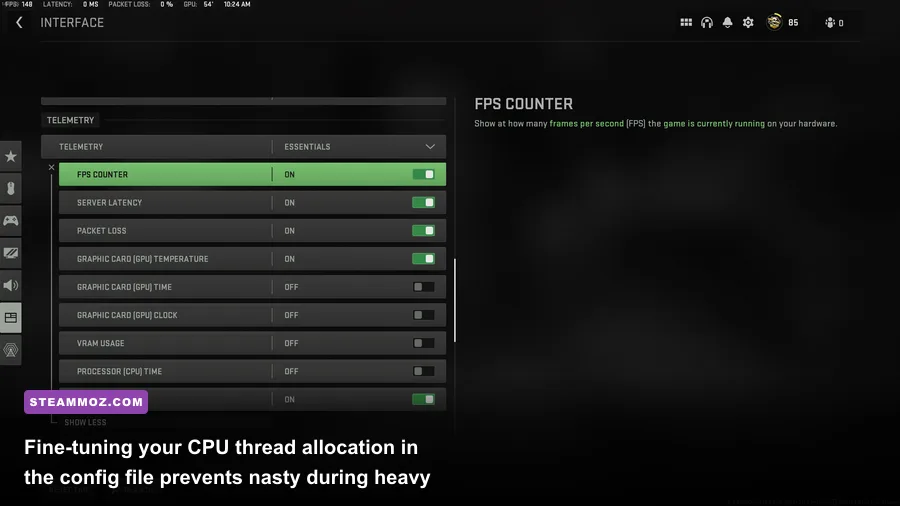
Even with optimal graphics settings, thousands of PC players experience mysterious hitching, micro-stutters, and random crashes in Warzone. Most of these issues stem from two culprits: an unoptimized CPU core allocation in the configuration file, and an overzealous VRAM Target Scale. If you have dealt with engine freezes in games like EscapeVR: The Basement crashing fixes or frame-time anomalies in our Everspace 2 FPS optimization guide, this config fix will look familiar.
By default, Warzone often guesses your CPU's core distribution incorrectly, assigning too many or too few worker threads to the game engine. To fix this manually:
- Completely close Warzone and the Battle.net/Steam client.
- Navigate to your PC's
Documents\Call of Duty\playersfolder. - Open the file named
options.3.cod23.cst(or similar CST file depending on the current season) using Notepad. - Press
Ctrl + Fand search forRendererWorkerCount. - Change the value inside the quotes to match the exact number of your CPU's physical performance cores (not hyperthreads/logical processors). For instance, an AMD Ryzen 7 7800X3D has 8 physical cores, so set this to
8. An Intel Core i7-13700K has 8 P-Cores, so set this to8instead of the default 16. - Save the file and exit.
Next, adjust your in-game VRAM Scale Target. The game defaults this slider to 80% or 90%. However, Windows background processes, Discord hardware acceleration, and web browsers constantly draw from your GPU's VRAM. If Warzone demands 90% and exceeds total capacity, Windows will instantly flush memory into system RAM, causing a violent 1-second freeze during gameplay. Drop this setting down to 70% or 75%. This leaves plenty of headroom for your OS, stabilizes 1% lows, and prevents memory leakage crashes logged on Activision Support forums.
| Hardware Tier / Profile | Target Resolution | Expected FPS Range | Recommended Upscaler / Config |
|---|---|---|---|
| Competitive Esports (RTX 3060 / RX 6600 XT) | 1080p | 120 - 150 FPS | FidelityFX CAS (75% Strength), Textures Low, VRAM Target 70% |
| Balanced High-Refresh (RTX 4070 / RX 7800 XT) | 1440p | 165 - 200 FPS | DLSS Quality or FidelityFX CAS (70%), Textures Normal, VRAM Target 75% |
| Ultra Enthusiast (RTX 4080 / 4090 / RX 7900 XTX) | 1440p / 4K | 220+ FPS (1440p) / 140+ FPS (4K) | DLSS Quality, Textures High, Anisotropic High, Volumetrics Low |
Before launching into your next drop, ensure you are running the latest GPU drivers from NVIDIA GeForce Drivers or AMD Adrenalin. Allow the game to complete 100% of its in-game Shader Pre-Caching process on the main menu before queueing into matchmaking. Jumping straight into a lobby with half-compiled shaders will cause massive stuttering during initial drop sequences. With your worker threads aligned, lighting bloat stripped, and upscaling dialled in, your matches will feel silky smooth, letting you land shots with pinpoint consistency across every firefight.