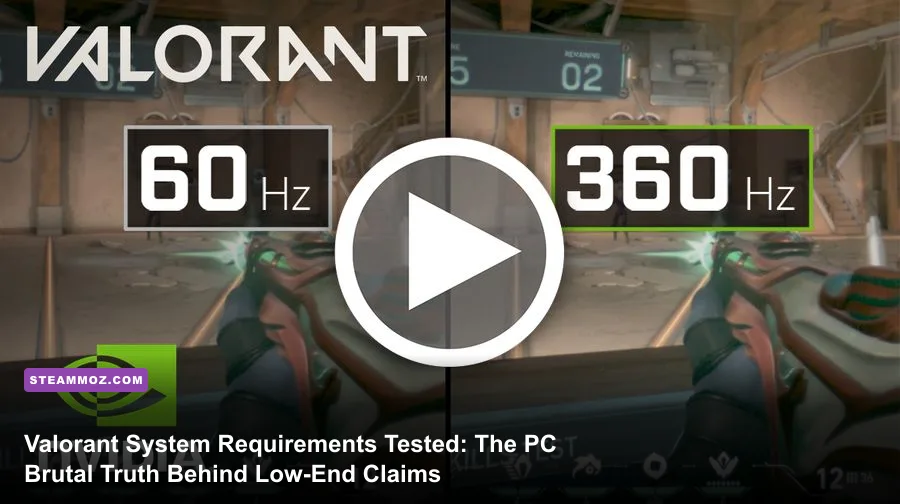
If you're asking whether your PC can run Valorant, the straightforward answer is yes—virtually any desktop or laptop assembled in the last twelve years will technically launch the game. Riot Games famously engineered their tactical shooter on a custom-stripped Unreal Engine 4 pipeline designed to boot on potato hardware dating back to the Intel Core 2 Duo era. But here is the brutal truth competitive players won't sugarcoat: merely booting Valorant at 30 frames per second is a fast-track ticket to Iron rank misery. In a game governed by strict 128-tick servers, sub-millisecond peeker's advantage, and chaotic site executes filled with Brimstone smokes, Viper toxic screens, and Sova darts, dropping below 144 FPS actively sabotages your aim, crosshair placement, and reaction time.
The Official Riot Specs vs. Real Competitive Reality
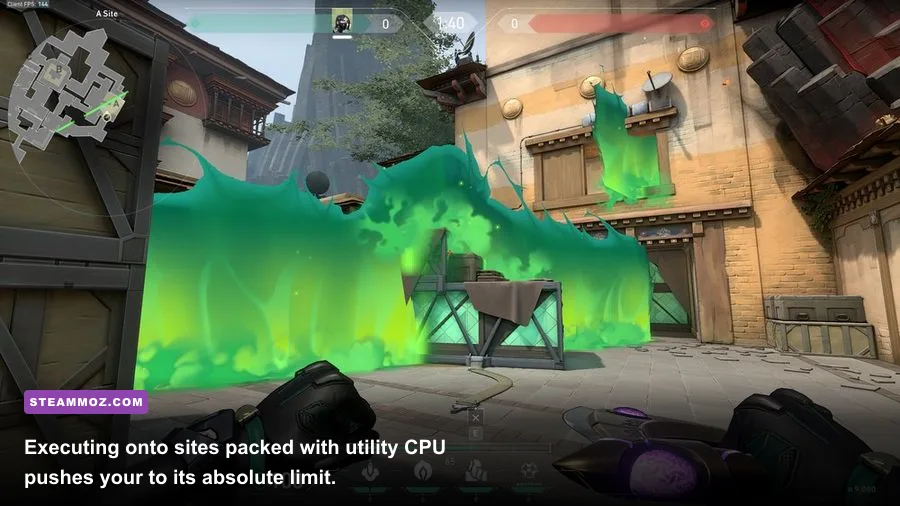
Riot Games publishes three performance tiers for Valorant: Minimum (30 FPS), Recommended (60 FPS), and High-End (144+ FPS). While these baselines look incredibly accessible on paper, they are wildly misleading if you plan to play ranked. The official baseline accounts for empty custom lobbies or calm 1v1 gunfights. When a five-man rush drops onto Haven's A-site with multiple ultimate abilities firing simultaneously, low-tier hardware crumples under the draw-call stampede.
Just like evaluating older hardware targets in our Far Cry 2 PC specs breakdown, context determines viability. A system scraping by on ancient dual-core silicon will suffer frame drops that turn crucial duels into slideshows. If you want to climb from Gold to Immortal, you need rock-solid frametime consistency, not just a high average FPS counter floating in an empty hallway.
| Hardware Tier | Target Performance | CPU Requirement | GPU Requirement | RAM & Storage |
|---|---|---|---|---|
| Minimum (Playable Trap) | 30 FPS @ 720p | Intel Core 2 Duo E8400 / AMD Athlon 200GE | Intel HD 4000 / AMD Radeon R5 200 | 4 GB RAM | 30+ GB SSD/HDD |
| Recommended (Casual Stable) | 60 FPS @ 1080p | Intel Core i3-4150 / AMD Ryzen 3 1200 | NVIDIA GeForce GT 730 / AMD Radeon R7 240 | 8 GB RAM | 30+ GB SSD |
| High-End (Ranked Standard) | 144+ FPS @ 1080p | Intel Core i5-9400F / AMD Ryzen 5 3600 | NVIDIA GeForce GTX 1050 Ti / AMD Radeon RX 570 | 16 GB Dual-Channel | NVMe SSD |
| Esports Pro (Zero Latency) | 240–400+ FPS @ 1080p | Intel Core i5-13600K / AMD Ryzen 7 7800X3D | NVIDIA GeForce RTX 3060 / AMD Radeon RX 6600 XT | 16/32 GB High-Speed DDR4/DDR5 | NVMe SSD |
According to the official Riot Games Support specifications, you can fire up the client on legacy components that belong in a museum. However, 30 FPS introduces a brutal 33.3ms frame delay before factoring in your mouse polling rate, monitor refresh latency, and network ping. On a 144Hz setup, that frame window drops down to 6.94ms, letting you track Jett dashing across your screen with pin-point clarity.
The CPU Bottleneck: Why Your Graphics Card Barely Matters
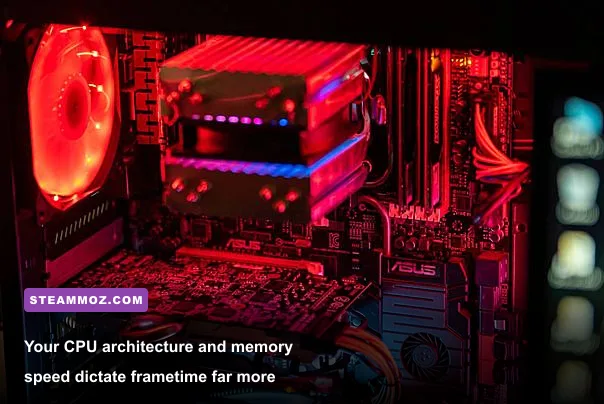
Here is the biggest misconception rookie PC builders make: thinking a beastly graphics card will fix their Valorant stuttering. Valorant is ruthlessly, unapologetically CPU-bound. Riot's technical engineers stripped the rendering pipeline of heavy geometric tessellation, volumetric clouds, and aggressive dynamic lighting precisely so GPUs wouldn't break a sweat. Even at 1080p on maxed-out settings, an aging NVIDIA GTX 1060 rarely hits 60% utilization in a competitive match.
Instead, the game leans heavily on single-thread processor performance and memory subsystem latency. Every moving projectile, player positional tick, hit-registration calculation, and sound occlusion raycast runs straight through your CPU's main thread. If your CPU has weak instructions-per-clock (IPC) or a starved L3 cache, you will suffer devastating frametime spikes. It mirrors the hardware demands we explored when checking whether modern rigs can handle heavy processing in our Fatal Fury: City of the Wolves PC specs guide.
If you're upgrading specifically for tactical shooters, allocate your cash toward a processor with monstrous single-core grunt. AMD's 3D V-Cache chips, such as the Ryzen 7 5700X3D or 7800X3D, dominate this game. The massive 96MB L3 cache retains match assets locally, eliminating cache misses when an enemy team pops three ultimate abilities within half a second. You will see your 1% low frames jump from a choppy 90 FPS straight into an unflinching 280 FPS lock.
Real Benchmark Truth: Testing Real-World Hardware Configurations
To give you an honest appraisal rather than corporate marketing numbers, we examined benchmark passes conducted during chaotic 5v5 unrated matches on Lotus and Bind, monitoring both average frame rates and the crucial 1% low figures. The 1% low metrics show how bad your micro-stutters get during full-blown gunfights.
| Test Rig Configuration | Resolution / Settings | Average FPS | 1% Low FPS | Real Competitive Verdict |
|---|---|---|---|---|
| Intel Core i3-10100 + UHD 630 iGPU | 720p / All Low | 54 FPS | 28 FPS | Unplayable competitively. Micro-stutters ruin flick shots. |
| AMD Ryzen 5 3600 + GTX 1650 Super | 1080p / Low Competitive | 188 FPS | 112 FPS | Great budget entry. Solid match for 144Hz displays. |
| Intel Core i5-12400F + RTX 3060 | 1080p / High Settings | 295 FPS | 184 FPS | Flawless 144Hz/240Hz lock. Zero perceptible stutter. |
| AMD Ryzen 7 7800X3D + RTX 4070 | 1080p / Low Competitive | 620 FPS | 410 FPS | Esports perfection. Maxes out cutting-edge 360Hz/540Hz panels. |
| Older Laptop (Core i7-7700HQ + GTX 1050) | 1080p / All Low | 105 FPS | 42 FPS | Thermal throttles quickly; utility drops tank your aim. |
Look at the budget integrated graphics setup: while 54 FPS sounds tolerable for a casual title, the 1% low sinks directly down to 28 FPS. That dip occurs right when an enemy bursts around a corner spraying a Phantom. You see them, your frame skips, and you wake up spectating your teammate. If your system encounters severe frame drops and crashes similar to issues detailed in our guide on PC fixes that rescue your FPS, resolving background bottlenecks should be your top priority.
Notice also the performance profile on older gaming laptops. A mobile Core i7 chip paired with a GTX 1050 can boast decent numbers during the buy phase, but once laptop thermals climb after twenty minutes of play, CPU throttling causes frame pacing to collapse. If you are gaming on a notebook, elevation pads and clean cooling vents are non-negotiable.
The Vanguard Factor: Hidden Hardware and Security Roadblocks
Running Valorant isn't just about raw compute power; you must also satisfy Riot Vanguard, the game's strict kernel-level anti-cheat driver. Unlike most anti-cheat suites that boot up alongside the game client, Vanguard initializes at the deepest ring-0 tier during your Windows boot sequence. This introduces software-hardware constraints that catch budget buyers completely off guard.
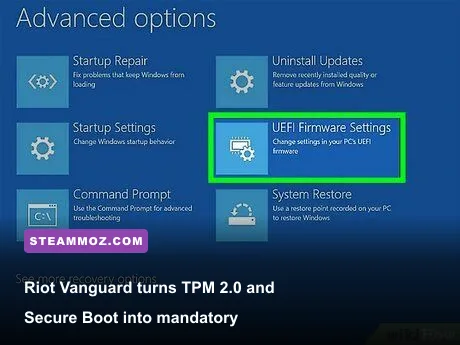
If you're running Windows 11, the Riot Vanguard troubleshooting documentation states unequivocally that your motherboard must have TPM 2.0 (Trusted Platform Module) enabled and Secure Boot activated in your UEFI BIOS. If you run a custom rig or an older system upgraded to Windows 11 via bypass scripts, Valorant simply refuses to launch, throwing errors like VAN9001 or VAN9003. You can verify your platform readiness directly on the official Valorant portal before spending hours downloading installation files.
RAM layout is another critical factor. Running a single 8GB or 16GB memory stick in single-channel mode severely throttles memory bandwidth, choking the CPU's memory controller. Dropping two identical sticks into dual-channel mode instantly improves your 1% low frametimes by 15% to 30%, even without touching in-game graphical toggles. Enabling XMP (Intel Extreme Memory Profile) or EXPO (AMD Extended Profiles for Overclocking) ensures your memory operates at its advertised clock frequency and timings, providing the steady stream of data your CPU needs during frantic matches.
Competitive Settings Guide: Stripping Visual Noise for Maximum Frametime Consistency
Competitive shooters require clarity over eye candy. Pro players running $4,000 rigs packed with flagship GPUs still dial their visual settings down to Low. This isn't just about milking out hundreds of extra frames—it removes distracting visual clutter, bloom blinding, and barrel distortion that cloud target acquisition. Much like the performance optimizations covered in our Far Cry 6 max FPS optimization guide and tuning strategies from our breakdown of settings for higher FPS, configuring each graphical option intentionally yields massive competitive gains.
| In-Game Graphic Setting | Recommended Pro Value | FPS & Latency Impact | Why You Should Use It |
|---|---|---|---|
| Display Mode | Fullscreen | High Latency Reduction | Bypasses Windows Desktop Window Manager compositor for lowest input lag. |
| Multithreaded Rendering | On | Massive FPS Boost (30–60%+) | Mandatory for multi-core CPUs. Offloads game logic across multiple threads. |
| Material / Detail / UI Quality | Low / Low / Low | Mild FPS Boost (3–5%) | Cleans up texture noise and eliminates unnecessary map clutter. |
| Vignette | Off | Negligible | Prevents screen edges from darkening, preserving peripheral vision. |
| V-Sync | Off | Massive Input Latency Hazard | Eliminates the brutal input lag buffer created by vertical synchronization. |
| Anti-Aliasing | None or MSAA 2x/4x | Low to Medium (GPU-dependent) | MSAA provides sharp edges without the blurry smear of FXAA. |
| Anisotropic Filtering | 1x or 4x | Negligible (Less than 1%) | Keeps ground textures crisp at oblique viewing angles. |
| Improve Clarity / Sharpening | Off | Low FPS Hit (2–4%) | Adds post-processing overhead; often creates jagged distraction artifacts. |
| Bloom / Distortion / First Person Shadows | Off | Moderate (5–8%) | Eliminates blinding flash reflections and useless weapon model self-shadowing. |
| NVIDIA Reflex Low Latency | On + Boost | System Latency Drop (Up to 30%) | Dynamically manages CPU/GPU queue buffers to prevent render backlog. |
The Raw Input Buffer Setting
Hidden inside Valorant's General Mouse settings tab is an option called RawInputBuffer. If you are using a modern esports gaming mouse with an 8,000Hz (8K) or 4,000Hz (4K) polling rate, turning this setting ON is mandatory. By default, Windows struggles to process more than 1,000 mouse packets per second through standard OS APIs, choking your CPU whenever you make sudden sweeping flick shots. RawInputBuffer hooks directly into the mouse driver hardware pipeline, allowing the game engine to ingest ultra-high-frequency sensor updates without a single frame stutter.
NVIDIA Reflex and Framerate Limiting Strategy
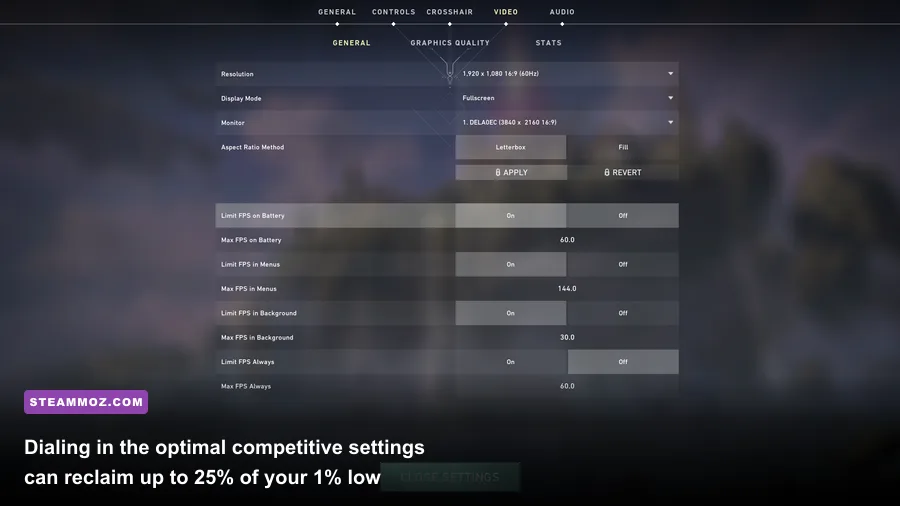
Should you cap your frame rate in Valorant? If you are gaming on a variable refresh rate monitor (G-Sync or FreeSync), running completely uncapped can push your frame rate past your monitor's dynamic refresh ceiling. When you exceed your panel's maximum refresh rate—say, 165Hz on a 165Hz display—G-Sync deactivates, instantly introducing tearing and fluctuating display latency.
The optimal setup is straightforward: keep NVIDIA Reflex set to On + Boost. Reflex automatically manages the render queue to keep GPU utilization just below 95%, eliminating the render buffer where input lag breeds. If you run a fixed-refresh display without adaptive sync, leaving your framerate uncapped provides the freshest possible frame when your screen draws, giving you the fastest physical response time humanly possible.
Ultimately, determining whether your PC can handle Valorant comes down to your personal goals. If you just want to hang out in Swiftplay with friends, almost any machine from the past decade with a working CPU and an SSD will get you into a match. But if you want to climb the ranked ladder and compete on equal footing, prioritize a modern multi-core processor, dual-channel RAM, and a high-refresh monitor. That hardware foundation guarantees your skill—not a sudden frame drop—decides every duel.