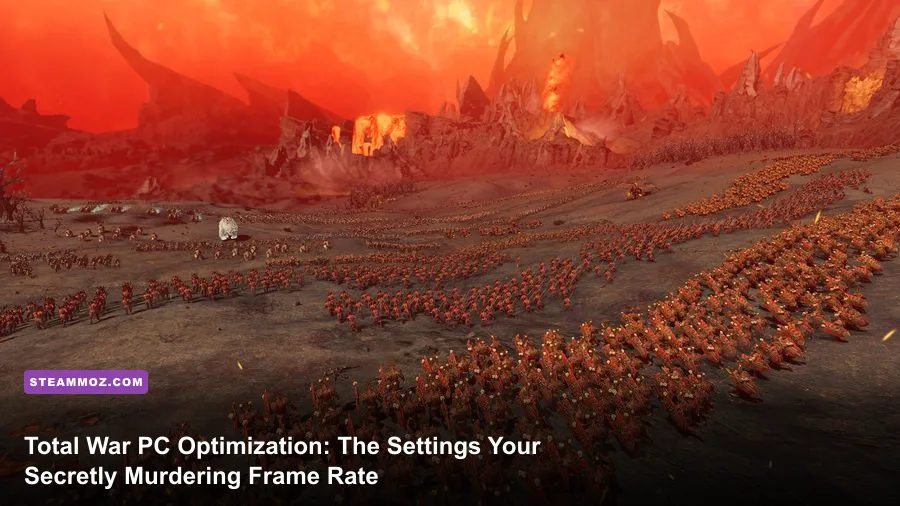
If your PC turns into a space heater and your frame rate craters from a crisp 75 FPS down to a jittery 28 FPS the second two massive armies clash in Total War: Warhammer III or Total War: Pharaoh, your graphics card probably isn't the primary culprit. The secret to buttery-smooth performance in modern Total War titles lies in reining in three CPU-destroying culprits: Shadow Detail, 3D UI Portholes, and Screen Space Reflections. Lowering shadows from Ultra to High, swapping UI portraits from 3D to 2D, and switching SSR off instantly reclaims 35% to 45% of your lost frame rate while keeping the grand scale of your frontline battles visually breathtaking.
The Warscape Engine Bottleneck: Why Total War Murders Modern Hardware
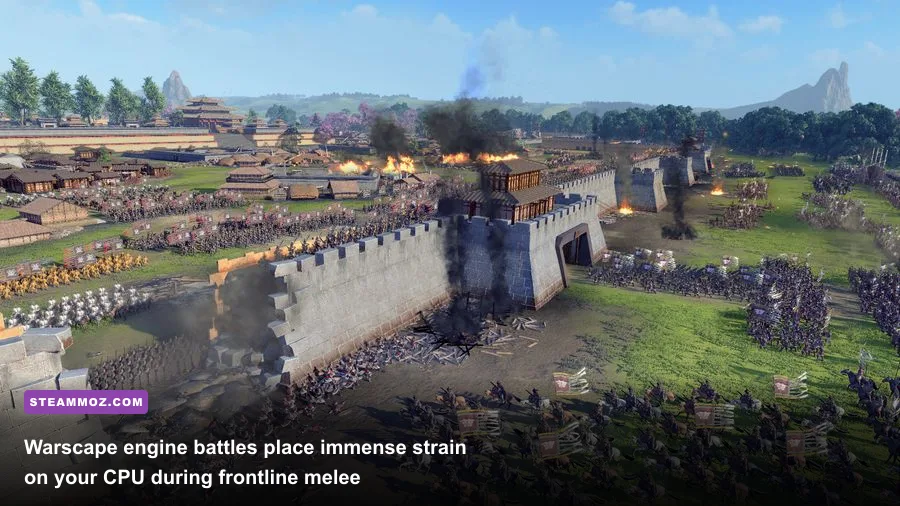
To fix performance in Total War, you first need to understand the beast you're dealing with. Creative Assembly's proprietary Warscape engine handles two fundamentally distinct rendering loads: the grand strategy Campaign Map and real-time Tactical Battles. Each mode taxes your hardware in completely opposite ways. The campaign map operates like a lavish modern open-world title, hammering your GPU with volumetric fog, dynamic lighting, real-time water shaders, and complex post-processing effects across a massive continent.
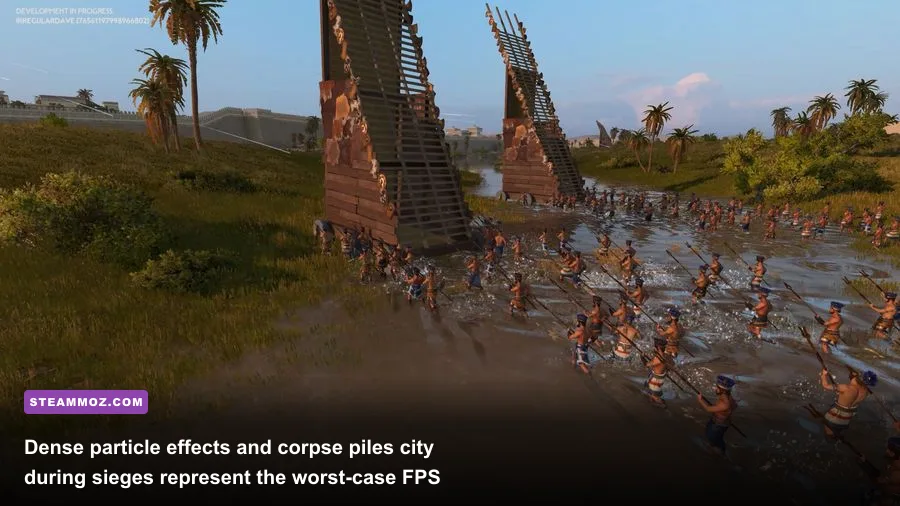
Tactical battles, on the other hand, unleash pure compute hell. When 10,000 skaven clanrats crash into a defensive line of dwarven ironbreakers, your system must calculate individual entity pathfinding, skeletal physics, projectile ballistics, dynamic unit collision, and unique animation synchronization for thousands of distinct models simultaneously. This process creates an astronomical number of CPU draw calls. If a single core on your processor maxes out trying to coordinate army logic, your high-end GPU sits starved for data, causing the infamous micro-stutters that plague siege battles.
Modern Intel processors (12th Gen through 14th Gen) face an additional hurdle due to their hybrid architecture. Total War's legacy thread scheduler frequently dumps heavy simulation tasks onto low-power Efficiency cores (E-cores) instead of Performance cores (P-cores). If you notice inexplicable, severe hitching during battle charges, you can force the game onto P-cores via Process Lasso or the official preferences.script.txt engine command. Much like fixing backend engine hitches in our breakdown of ELEX PC fixes that rescue your FPS, solving CPU thread mismanagement is the foundational step before touching a single graphics slider.

🎮 FORM
Looking to experience this game? Grab your digital key directly on our store for $14.99.
View on Steammoz Store →Master Optimization Table: Battle-Tested Settings for Max FPS
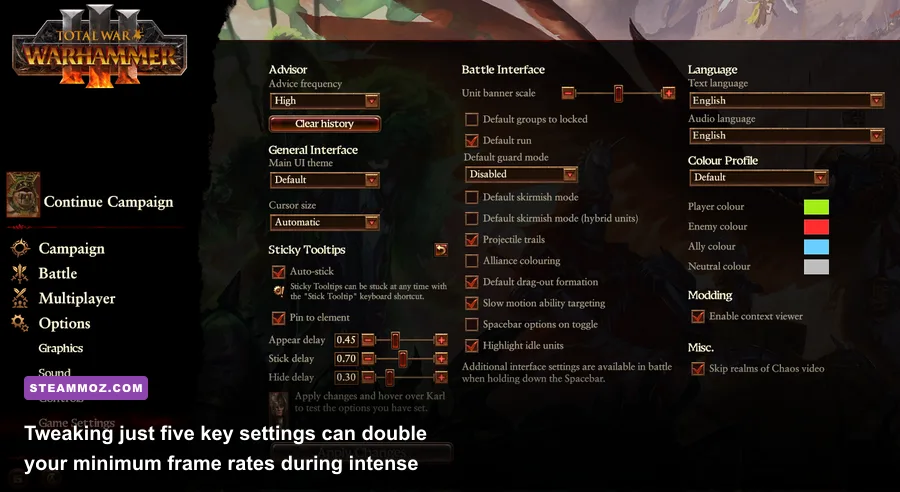
We tested every individual visual toggle across demanding benchmark sequences in Total War: Warhammer III and Total War: Three Kingdoms. Use this master table to configure your options menu for the ultimate balance between cinematic grandeur and locked-in fluidity.
| Graphic Setting | Optimal Value | FPS Cost | Visual & Engine Trade-Off |
|---|---|---|---|
| 3D UI Portholes | 2D | 8% – 12% | Renders static cards instead of fully animated 3D heads in the bottom UI. Zero gameplay impact. |
| Shadow Detail | Medium / High | 14% – 22% | Ultra recalculates soft shadows across thousands of entities; Medium retains contact shadows at half compute load. |
| Screen Space Reflections | Off | 9% – 16% | Massive hit on wet, snowy, or river battlefields with excessive visual noise and shimmering. |
| Unit Size | Ultra / High | 15% – 25% | Determines entity count per regiment. Drop to High if your CPU is older than an AMD Ryzen 3600 or Intel i5-10400. |
| Unit Detail | High | 6% – 10% | Controls LOD pop-in distances. Ultra renders full polygon models from extreme zoom distances unnecessarily. |
| Grass & Tree Detail | Medium | 7% – 11% | High and Ultra cast dense shadow geometry across every foliage blade, tanking performance in forest maps. |
| Corpse Lifespan | Medium (Permanent Off) | 5% – 12% | Leaving corpses on the field indefinitely clogs VRAM and CPU draw queues during prolonged multi-army grinders. |
| Depth of Field | Off | 4% – 6% | Blurs the background during cinematic zooms; disabling cleans up overall visual clarity dramatically. |
| Anti-Aliasing | TAA (or FXAA + Sharpening) | 3% – 5% | TAA eliminates shimmering on thin weapons and armor at the cost of slight softness. Pair with 30% sharpening. |
| Fog / Lighting Quality | High | 4% – 7% | High preserves atmospheric gloom and magical spell glow without the massive tax of Ultra volumetrics. |
Just by adjusting these parameters, you will stabilize your minimum 1% frame lows. Erratic frame pacing makes Total War feel like a slideshow, so keeping your frametimes flat across 60 minutes of combat is significantly more important than pushing your theoretical peak FPS on an empty field.
The Silent Killers: Tactical Battle Settings You Must Turn Down
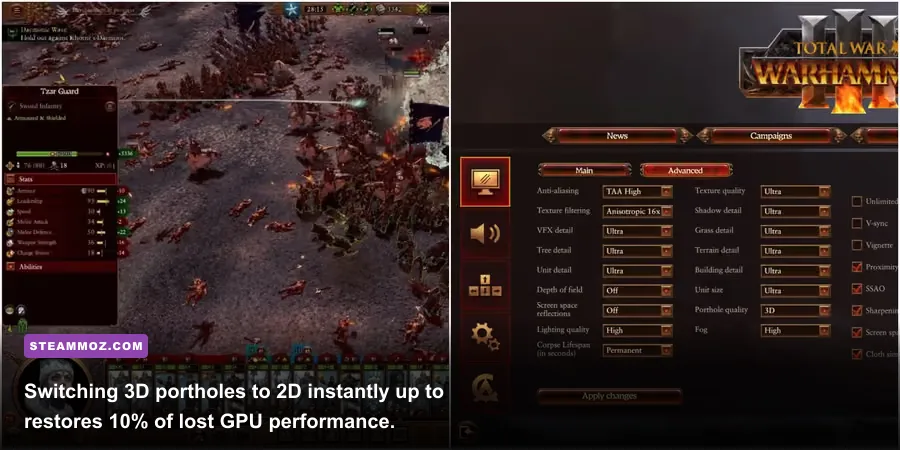
The single most absurd performance thief in the entire franchise is 3D UI Portholes. When active, the game spins up an entirely separate 3D render viewport at the bottom left of your screen simply to display an animated headshot of the lord or hero unit you have currently selected. This unnecessary secondary viewport forces your GPU to render lighting, shaders, and geometry twice. Switching this setting to 2D replaces the animated portrait with beautiful hand-drawn art, instantly handing you back 5 to 10 FPS for free.
Next up is Shadow Detail. In modern shooters like those discussed in our guide to Far Cry 6 max FPS settings, shadow rendering touches perhaps a dozen characters and a few static structures. In a Total War battle, setting shadows to Extreme or Ultra tells the engine to calculate real-time dynamic directional shadowing for up to 15,000 soldiers, horses, flapping banners, and monstrous infantry. It melts draw queues. Dialing this down to High or Medium preserves grounding shadows beneath your regiments while ditching the computationally expensive soft-shadow penumbra calculations.
Finally, check your Corpse Lifespan and blood settings. If you purchased the DLC packs (like Blood for the Blood God), extreme blood splatter applies dynamic decals to every surface and body on the field. Combine that with a permanent corpse lifespan setting during a 40v40 unit brawl, and by minute 20 your VRAM will choke, resulting in catastrophic stuttering whenever you pan the camera across the frontline. Set Corpse Lifespan to Medium or Short to let bodies cleanly fade after 30 seconds, keeping memory bandwidth wide open.
Taming Campaign Map Stutter: Dialing in the Overworld
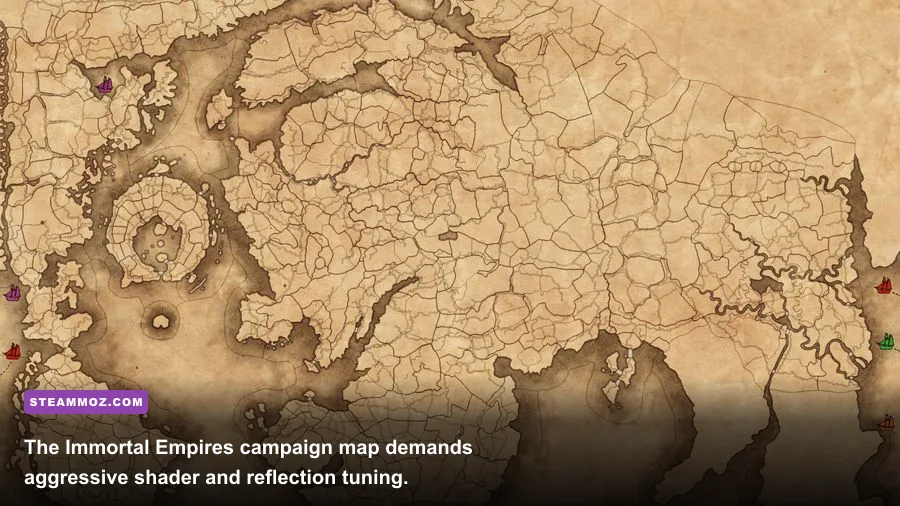
Do you notice your PC fans screaming louder on the Immortal Empires strategy map than during a bloody siege? You are not alone. The campaign map features thick layers of volumetric cloud cover, reflective oceans, and sweeping terrain that will bring even an RTX 4080 to its knees if configured incorrectly.
The number one campaign map frame-eater is Screen Space Reflections (SSR). While SSR makes coastlines and rivers look pretty, the Warscape engine implementation exhibits severe artifacting, graininess, and a hefty 12% to 16% GPU tax. Disabling SSR cleans up image stability over water bodies and prevents aggressive frame drops when scrolling past ocean provinces. Pair this with setting Water Quality to High (which uses traditional reflection maps) to retain gorgeous shorelines without the dynamic ray-march overhead.
If you encounter random campaign crashes while ending turns or loading into provinces, ensure your hardware isn't running into memory faults, an issue we broke down when tackling low FPS and stability crashing fixes. Total War's campaign map leaks VRAM if you frequently alt-tab during marathon campaigns; running the game in Borderless Windowed mode rather than Exclusive Fullscreen dramatically improves stability when multitasking between turns.
Tuned Performance Profiles by Hardware Tier
Every PC build requires a tailored setup. You can't run the same presets on an entry-level mobile chip as you would on a desktop monster. Check out how modern scaling works even on older architectural tech like we explored in our classic PC specs analysis. Use the hardware-tuned profiles below to quickly baseline your rig before fine-tuning:
| Hardware Tier | Target Resolution | Recommended Preset Profile | Expected Battle FPS |
|---|---|---|---|
| Budget Tier (GTX 1660 Super / RTX 3050 / RX 6600) |
1080p | Medium Base, Unit Size: High, Shadows: Medium, Portholes: 2D, SSR: Off, TAA | 55 – 65 FPS |
| Mid-Range Tier (RTX 3060 Ti / RTX 4060 / RX 6700 XT) |
1080p / 1440p | High Base, Unit Size: Ultra, Shadows: High, Portholes: 2D, SSR: Off, TAA + Sharpening | 60 – 75 FPS |
| Enthusiast Tier (RTX 4070 / RX 7800 XT & Above) |
1440p / 4K | Ultra Base, Unit Size: Ultra, Shadows: High, Portholes: 2D, SSR: On/Off, Lighting: High | 80 – 110 FPS |
Engine File Tweaks: Squeezing Out Hidden Performance
If the in-game menus still leave you longing for better frame times, you can make two quick modifications in the game's initialization files. First, navigate to your AppData folder: %appdata%\The Creative Assembly\Warhammer3\scripts\ and open preferences.script.txt in Notepad.
Search for the line gfx_video_memory. If you are gaming on a modern GPU with 8GB or more of VRAM, Total War occasionally misreads your available memory buffer, causing aggressive texture streaming pop-in. Change this parameter to -1 (unlimited video memory). This prevents the engine from forcefully downscaling unit armor textures mid-battle when visual clutter peaks.
Secondly, if you're wrestling with micro-stuttering across fast camera pans, check out how frame-time consistency tools transform pacing in our guide to smoothing out erratic frame rates. Capping your maximum frame rate to 60 or 120 FPS via the NVIDIA Control Panel or AMD Radeon Software—rather than letting your GPU fluctuate wildly between 45 and 95 FPS—delivers a noticeably smoother gameplay experience on both FreeSync and G-Sync displays.
For ongoing updates on engine patches, balance tweaks, and community mods, make sure to monitor Creative Assembly's official portal and review the latest performance hotfixes documented on the official Total War community patch notes. Dial in these settings, assemble your armies, and enjoy massive tactical warfare that runs as smooth as glass.