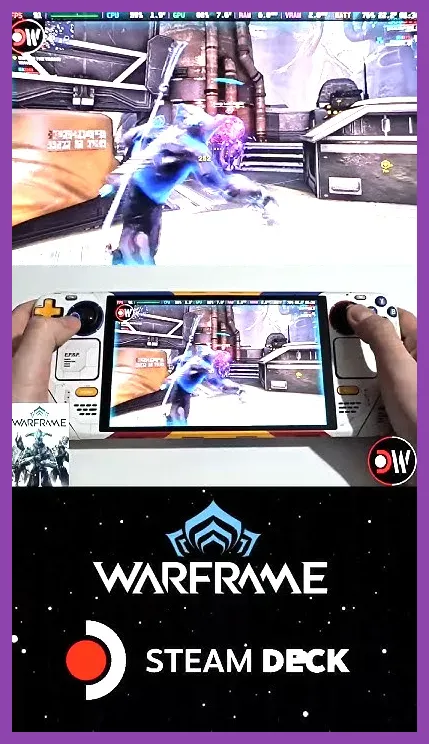
If you’re hunting for the best free cooperative experiences that run smoothly on Valve’s Steam Deck, look no further than Warframe, Destiny 2, Path of Exile, Apex Legends, Rocket League, and The Finals—each offering deep co-op mechanics, regular updates, and settings tuned for the Deck’s 720p screen and AMD APU.
Warframe: Best Free Co-op on Steam Deck</p>

Why Warframe Excels in Co-op</p>
Warframe’s free-to-play model has evolved into one of the most robust co-op looter‑shooters on PC, and its performance on the Steam Deck is surprisingly solid. The game’s fast‑paced parkour movement, extensive arsenal of Warframes, and endless stream of updates mean you can dive into a mission with friends in seconds. On the Deck, the default 1280×800 resolution matches the native screen, and the game’s scalability lets you keep a stable 30 FPS even in crowded open‑world zones like the Plains of Eidolon.
Recommended Frames and Weapons for Deck Play</p>
For a balanced co‑op loadout that works well on the Deck’s modest hardware, try Excalibur Umbra with a Nikana Prime melee and a Kuva Bramma bow. Excalibur Umbra’s Exalted Blade provides strong melee damage while the Nikana Prime delivers high critical chance (≈34 %) and status chance (≈28 %). The Kuva Bramma adds explosive arrow damage that clears groups efficiently. If you prefer a tankier frame, Rhino with Iron Skin and a Tigris Prime shotgun offers massive burst damage (≈1 200 impact per shot) and survivability. Trinity’s Blessing and Energy Vampire keep the team topped up, making her a superb support choice.
Graphic Settings for Steam Deck</p>
Start with these Deck‑friendly presets: Resolution 1280×800, Texture Quality Medium, Shadow Quality Low, Anti‑Aliasing FXAA, Ambient Occlusion Off, VSync Off, and Frame Rate capped at 30 FPS. Turn off Motion Blur and Depth of Field to reduce GPU load. With these settings, Warframe typically hovers between 28‑32 FPS in most missions, rising to 40 FPS in less dense indoor tiles. Adjust the Field of View to 90 for a wider view without sacrificing performance.
Co‑op Activities to Try</p>
Take on the Orokin Derelict survival mode for endless enemy waves, or tackle the Orb Vallis bounties with a squad of four. The Railjack space combat mode also works well on the Deck when you lower the ship detail to Medium. For a quick session, join a public fissure mission—these are short, reward‑rich, and perfect for testing different Warframe builds.
For more co‑op strategy guides, check out our Palworld co‑op builds article: Palworld Best Co‑op Multiplayer Builds Guide. Official Warframe info: Warframe on Steam.
Destiny 2: Free-to-Play Co-op Fireteam Guide</p>
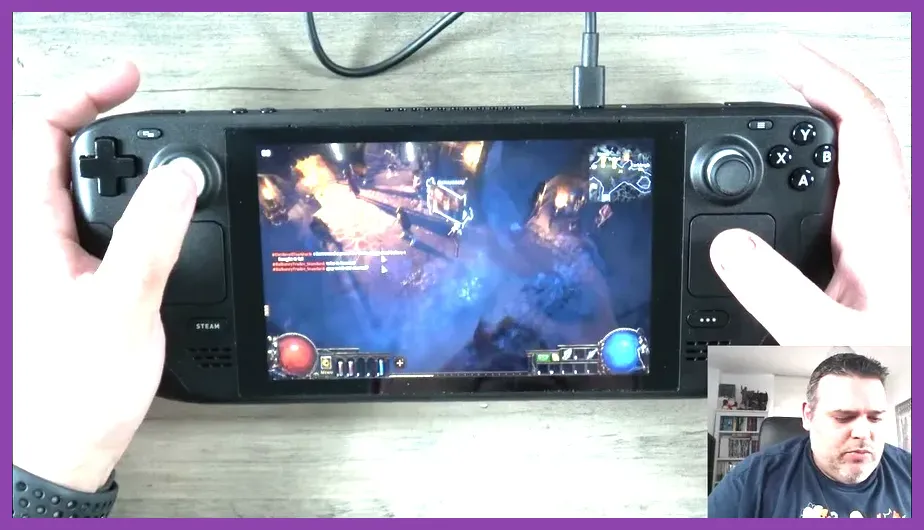
Why Destiny 2 Works on the Deck</p>
Destiny 2 shifted to a free‑to‑play model in 2019, and its core activities—Strikes, Nightfalls, and seasonal events—are all accessible without spending a dime. The game’s gunplay feels tight, and the Deck’s controls map naturally to the dual‑stick aim and ability buttons. With the recent “Lightfall” expansion, the seasonal artifact system adds even more build variety, making each fireteam feel unique.
Recommended Subclasses and Weapons for Co-op</p>
For a versatile fireteam, run a Hunter Gunslinger with the Ace of Spades hand cannon (impact 140, range 60, stability 55), a Warlock Voidwalker using Stormtrance (burst damage, chain lightning), and a Titan Sentinel with Ward of Dawn (shield bubble) and a Sunbreaker hammer for melee. In the weapon slot, equip a Fatebringer (impact 140, range 62, stability 58) for mid‑range precision, and a Recluse SMG (impact 100, rate of fire 850) for close‑quarter clears. These rolls give you high damage output while staying within the Deck’s 30 FPS envelope.
Graphic Settings for Steam Deck</p>
Set Resolution to 1280×800, Texture Quality Medium, Shadow Quality Low, Shader Detail Low, Ambient Occlusion Off, and VSync Off. Cap the frame rate at 30 FPS and turn off Motion Blur. With these settings, Destiny 2 maintains a steady 28‑32 FPS in most Strikes, rising to 35 FPS in less crowded areas. The game’s dynamic resolution scaling helps keep performance smooth during intense boss phases.
Co‑op Activities to Try</p>
Run a Nightfall: The Ordeal with a fireteam of three for powerful loot, or dive into a seasonal event like the “Festival of the Lost” for unique cosmetics. The free‑to‑play “New Light” campaign also offers a solid co‑op experience for newcomers. For end‑game content, attempt a Legend or Master difficulty Nightfall—these scale enemy health and damage, providing a satisfying challenge.
For tips on fixing performance issues, see our Avowed lag guide: How to Fix Lag and Low FPS in Avowed. Official Destiny 2 page: Destiny 2 on Steam.
Path of Exile: Free ARPG Co-op on Steam Deck</p>

Why Path of Exile Shines in Co-op</p>
Path of Exile’s free‑to‑play model offers endless character customization, and its league mechanics keep the meta fresh. The game’s isometric view and relatively low polygon counts make it a great fit for the Steam Deck’s screen and APU. Playing with a party lets you clear maps faster, share currency drops, and tackle challenging bosses like the Shaper or Elder together.
Recommended Builds for Deck Co-op</p>
Try an Elemental Hit Ranger with a Bow (e.g., Deathstroke) and the Elemental Hit skill gem linked to Added Lightning Damage and Increased Critical Strikes. This build delivers high single‑target damage (≈1 200 lightning DPS) and good clear speed. For a melee option, run a Cyclone Chieftain with a two‑handed axe (e.g., Starforge) and the Cyclone skill gem linked to Melee Physical Damage and Area of Effect. Cyclone provides consistent AoE damage (≈800 physical DPS) and excellent survivability when paired with a high life pool (≈6 000 HP). A third option is a Necromancer with Bone Armor and Summon Skeletons, focusing on minion‑based damage that scales well with gear.
Graphic Settings for Steam Deck</p>
Use Resolution 1280×800, Texture Quality Medium, Shadow Quality Low, Particle Quality Low, and VSync Off. Turn off Ambient Occlusion and Motion Blur. With these settings, Path of Exile typically runs at 30‑35 FPS in most maps, dropping to 25‑30 FPS in highly detailed areas like the Azurite Mine. The game’s dynamic resolution scaling helps maintain smoothness during intense monster packs.
Co‑op Activities to Try</p>
Run a Tier 14‑16 map with a party of four to maximize experience and loot drops. Participate in a league mechanic like the “Expedition” or “Ritual” for unique rewards. For a challenging end‑game experience, take on the Uber Elder with a coordinated team—communication and proper flask usage are key to survival.
For leveling tips, see our Dragons Dogma 2 guide: How to Level Up Fast in Dragons Dogma 2. Official Path of Exile wiki: Path of Exile Wiki.
Apex Legends: Free Battle Royale Co-op on Steam Deck</p>
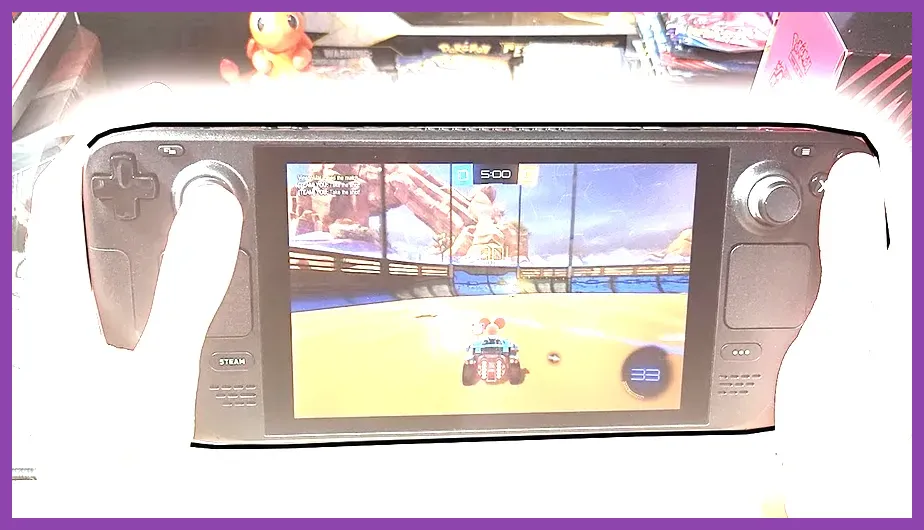
Why Apex Legends Works on the Deck</p>
Apex Legends’ free‑to‑play battle royale offers fast‑paced, squad‑based combat that translates well to the Deck’s controls. The game’s ping system reduces the need for voice chat, making it easy to play with friends even if you’re not on a headset. The Deck’s gyroscopic aiming can be enabled for finer control, though most players stick to the analog sticks.
Recommended Legends and Loadouts for Co-op</p>
Pick Gibraltar for his Dome Shield (absorbs up to 150 damage) and defensive playstyle, Lifeline for her Combat Revive (faster revive speed) and D.O.C. Heal Drone, and Wattson for her Perimeter Security (electric fences) and Interception Pylon. For weapons, equip an R‑301 Carbine (damage 14‑18 per shot, fire rate 680 rpm) as your primary, a Peacekeeper shotgun (damage 110 per shot, fire rate 60 rpm) for close‑range, and a Mastiff shotgun (damage 90 per shot, fire rate 45 rpm) as a secondary option. These loadouts give you solid versatility across ranges while keeping the Deck’s GPU load manageable.
Graphic Settings for Steam Deck</p>
Set Resolution to 1280×800, Texture Quality Medium, Shadow Quality Low, Model Detail Low, Effect Detail Low, and VSync Off. Turn off Motion Blur and Ambient Occlusion. With these settings, Apex Legends maintains a steady 28‑32 FPS in most matches, rising to 35 FPS in less populated areas. The game’s dynamic resolution scaling helps keep performance smooth during hot drops.
Co‑op Activities to Try</p>
Drop into ranked trios with a coordinated squad to climb the leaderboard, or enjoy casual matches for relaxed fun. The game’s rotating limited‑time modes (e.g., “Control”, “Arena”) offer fresh co‑op experiences. For a challenge, try the “Ranked League” playlist with a full squad of three—communication and legend synergy are crucial for victory.
For tips on acquiring mounts quickly, see our Satisfactory guide: How to Get Mounts Fast in Satisfactory. Official Apex Legends page: Apex Legends Official Site.
Rocket League: Free-to-Play Sports Co-op on Steam Deck</p>
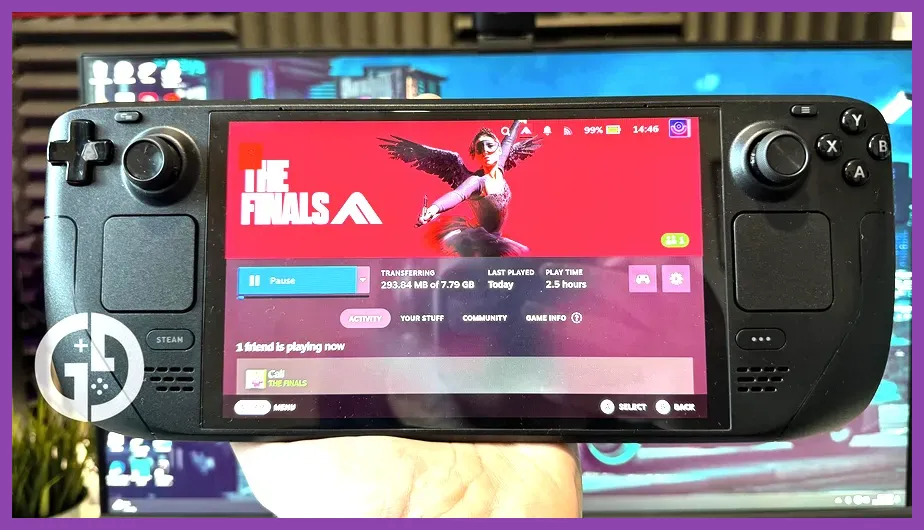
Why Rocket League Is Perfect for the Deck</p>
Rocket League’s simple yet deep car‑soccer mechanics make it ideal for short, pick‑up‑and‑play sessions on the Steam Deck. The game runs at a locked 60 FPS on most PCs, and on the Deck you can achieve a stable 30‑40 FPS with lowered settings, which is more than enough for enjoyable gameplay. The cross‑platform party system lets you team up with friends on PC, console, or mobile.
Recommended Cars and Settings for Co-op</p>
The Octane hitbox remains the most popular choice due to its balanced turning radius (≈3.5 m) and hitbox size. If you prefer a longer nose for better dribbling, try the Dominus (hitbox length ≈4.0 m). For defensive play, the Breakout offers a flatter hitbox that aids in clearing balls. Equip your car with a boost amount of 100 (full) and use the “Boost Strength” setting at 100 % for maximum acceleration. In terms of cosmetic items, choose a paint finish that stands out against the arena lighting for better visibility.
Graphic Settings for Steam Deck</p>
Use Resolution 1280×800, Texture Quality Medium, Shadow Quality Low, Effect Intensity Low, and VSync Off. Turn off Motion Blur and Depth of Field. With these settings, Rocket League typically runs at 30‑35 FPS in most matches, spiking to 45 FPS during low‑action moments. The game’s dynamic resolution scaling helps maintain smoothness during intense goalmouth scrambles.
Co‑op Activities to Try</p>
Jump into 2v2 or 3v3 casual matches for quick fun, or enter ranked play to test your skills against similarly skilled opponents. The game’s frequent limited‑time modes (e.g., “Snow Day”, “Rocket Pass”) offer fresh variations on the core formula. For a social experience, create a private lobby with friends and enable cross‑platform play to include anyone, regardless of device.
For gold‑farming tips in another title, see our Dragons Dogma 2 guide: How to Farm Gold Fast in Dragons Dogma 2. Official Rocket League site: Rocket League Official Site.
The Finals: Free-to-Play Team-Based FPS Co-op on Steam Deck</p>
Why The Finals Works on the Deck</p>
The Finals entered early access as a free‑to‑play, team‑based FPS that emphasizes destructible environments and objective‑based gameplay. Its relatively modest art style and scalable graphics make it a solid fit for the Steam Deck. Playing with a squad lets you combine class abilities to control the map, breach objectives, and defend against enemy pushes.
Recommended Classes, Gadgets, and Weapons for Co-op</p>
Run a Light class with the Cloak Device (temporary invisibility) and Stun Gun (disables enemies for 2 seconds) for flanking and recon. Pair it with a Medium class carrying a Defibrillator (revives teammates) and a Grenade Launcher (high‑explosive AoE). Finally, field a Heavy class equipped with an RPG (rocket‑propelled grenade, damage ≈600) and a Deployable Turret (auto‑targeting, 150 damage per second). For weapons, the AKM (damage 36 per shot, fire rate 600 rpm) works well at medium range, while the M4A1 (damage 34 per shot, fire rate 750 rpm) offers higher fire rate for close‑quarters. These combinations give you balanced offense, defense, and utility.
Graphic Settings for Steam Deck</p>
Set Resolution to 1280×800, Texture Quality Medium, Shadow Quality Low, Effect Quality Low, and VSync Off. Turn off Motion Blur and Ambient Occlusion. With these settings, The Finals maintains a steady 28‑32 FPS in most matches, rising to 35 FPS during less intense moments. The game’s dynamic resolution scaling helps keep performance smooth during large‑scale destruction events.
Co‑op Activities to Try</p>
Jump into the “Tournament” mode with a squad of three to compete for cash prizes and cosmetic rewards. The “Quick Play” playlist offers rotating maps and objectives for varied gameplay. For a challenge, attempt the “Ranked” playlist with a full squad—communication and proper use of destructible cover are essential for victory.
For troubleshooting crashes, see our Dragons Dogma 2 guide: How to Fix Dragons Dogma 2 Crashing on PC. Official The Finals site: The Finals Official Site.