The best Windows Game Pass setup comes down to five moves: install the Xbox app and Gaming Services cleanly, put large games on an SSD, configure downloads around your playtime, use Xbox cloud saves correctly, and tune each game for a stable frame rate instead of maxing every slider. Do that once and PC Game Pass stops feeling like a cluttered launcher and starts working like a proper library.
This guide focuses on the Windows PC experience, including PC Game Pass and the PC catalogue included with Ultimate. Menus can shift between Xbox app updates, Windows 10, and Windows 11, but the underlying tricks remain useful across all three. Before changing anything, check the official PC Game Pass page for the current catalogue and plan details.
Fix the Xbox app before installing anything
Most Game Pass frustration starts before the first game launches. The Xbox app relies on the Microsoft Store and Gaming Services, so a damaged Store component can cause symptoms that look like a game problem: downloads stuck at 0 percent, installation errors, missing Play buttons, or a game that launches and immediately closes.
Start with Windows Update, then open the Microsoft Store and update the Xbox app, Gaming Services, and Xbox Identity Provider if they appear in your library. In Windows 11, go to Settings > Apps > Installed apps, select Xbox, choose Advanced options, and use Repair first. Repair preserves local data. Use Reset only when Repair fails, because Reset signs the app out and clears its local configuration.
Next, open the Xbox app and check Profile > Settings > General. Pick a default installation drive with plenty of free space, then turn on the option that lets you choose an installation location when available. Keep Windows itself and Gaming Services on the system drive, but place demanding games on a fast secondary NVMe SSD if you have one. HDD storage still works for older 2D games, but modern open-world titles can turn texture streaming into a stutter generator.
Don't casually move a Game Pass folder through File Explorer. Use the Xbox app's Manage > Files > Change drive option when it is offered. WindowsApps permissions are deliberately restrictive, and manually dragging folders can break ownership, updates, or uninstall records. If a title refuses to uninstall, Microsoft's official Windows gaming troubleshooting guidance is safer than deleting protected folders by hand.
| Problem | First fix | Why it works | Escalation |
|---|---|---|---|
| Download stuck at 0% | Update Store and Gaming Services | Game Pass delivery depends on both components | Repair or reset Xbox app |
| Game missing from library | Sign into the correct Microsoft account | Entitlement and saves are account-based | Reinstall Xbox app components |
| Launch closes instantly | Update GPU driver and verify Windows updates | New builds often require current drivers | Repair game from Manage |
| Not enough space | Change the installation drive | Large installs need room for updates too | Uninstall unused language packs |
Make downloads faster without wrecking your evening
Game Pass downloads are only as fast as the slowest link between Microsoft's servers, your connection, your router, and your storage drive. A wired Ethernet connection is the simplest win, but you can still improve Wi-Fi by using the 5GHz or 6GHz band, moving the PC closer to the router, and pausing other launchers while the Xbox app is working.
Watch the download graph rather than trusting a single Mbps number. A 100 Mbps connection tops out near 12.5 MB/s in ideal conditions, while 1 Gbps is roughly 125 MB/s before protocol overhead. If the speed repeatedly falls to zero while disk usage spikes, the bottleneck may be decompression or drive writing, not your internet. That's common with large games containing thousands of compressed files.
Schedule huge downloads around Windows' active hours. In the Xbox app, use the download queue to pause a title before starting a competitive game or video call. If you need bandwidth for work, Windows' Settings > Windows Update > Advanced options > Delivery Optimization lets you limit background update traffic. It doesn't directly control every Xbox download, but it prevents Windows updates from quietly fighting for the same connection.
Leave more free space than the installer appears to need. A 120GB game may require additional temporary space while unpacking and later need room for a 20GB update. Keeping at least 15 percent of an SSD free is a sensible performance target, especially on QLC drives that slow down sharply when nearly full. For a huge install, pause cloud sync tools and close browsers with active downloads.
| Connection | Ideal download ceiling | Best use | Common limiting factor |
|---|---|---|---|
| Wi-Fi 5, 100 Mbps | About 12.5 MB/s | Indie games and regular updates | Signal congestion |
| Wi-Fi 6 or 6E, 500 Mbps | About 62.5 MB/s | Most mid-sized installs | Router distance or disk writes |
| Gigabit Ethernet | About 125 MB/s | Large 100GB-plus downloads | SSD write speed or server load |
| HDD over any connection | Highly variable | Older or smaller games | Random-write performance |
Use cloud saves, achievements, and play-anywhere properly
Cloud saves are one of Game Pass's best features, but they aren't a replacement for understanding how a game saves. Most supported PC titles sync through Xbox services when you exit normally and remain online. If you kill the process during a save, lose connection, or launch the same game on another PC before synchronization finishes, you can create a conflict between local and cloud data.
When the Xbox app displays a save conflict, stop and read the timestamps. Choose the newer file only if you know it contains your latest progress. Don't repeatedly launch the game hoping the conflict disappears; that can overwrite the state you wanted to keep. For games with their own launchers, such as some EA Play or Ubisoft Connect releases, check whether the publisher account and launcher also manage saves.
Before uninstalling a long RPG, launch it once while online, wait for the sync indicator to finish, and then quit through the in-game menu. This matters for games with multiple profiles and manual save slots. A title such as Starfield can have several autosaves and quicksaves, while another game may keep only a single rolling checkpoint. Cloud sync protects the files the game exposes; it can't reconstruct a deleted save slot.
Achievements are another reason to use the Xbox app rather than launching an executable directly. Starting a game from its install folder may work, but Xbox services, playtime tracking, overlays, or achievement delivery can fail if the required services aren't running. For a clean account experience, launch from the Xbox app at least until the first sign-in and synchronization complete.
Game Pass also rewards a deliberate rotation. Keep two or three active games installed, not twenty. Use the Xbox app's filters for Installed, PC, Touch, or genre, and remove games you haven't opened in a month. This keeps the queue readable and reduces the chance that a background update consumes your SSD or bandwidth at the worst possible moment.
Tune every Game Pass title for stable FPS
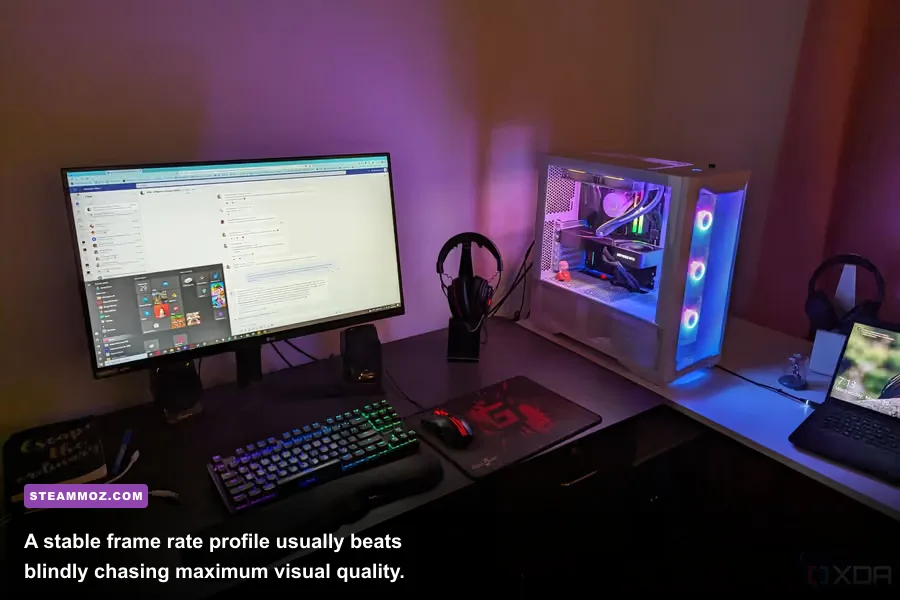
There isn't one universal “best” setting for PC Game Pass because the catalogue ranges from pixel-art indies to ray-traced shooters. The useful target is consistency: 60 FPS at 1080p for most action games, 90 or 120 FPS when your monitor and hardware can sustain it, and a locked 30 FPS when a demanding cinematic game cannot hold 60. A stable 45 FPS can also feel excellent on a 90Hz display with the right sync settings.
Start by selecting the correct display mode. Exclusive fullscreen can reduce background interference in older games, while borderless windowed mode makes Alt-Tab and Game Bar more reliable. Set the game's resolution to your monitor's native resolution, then reduce the expensive options first: ray tracing, volumetric fog, screen-space reflections, shadows, and crowd density. Texture quality mostly depends on VRAM, so don't automatically lower it if your GPU has headroom.
Use Windows Game Bar with Win+G to pin the Performance widget. Watch FPS, GPU utilization, CPU utilization, VRAM, and system RAM during a busy scene rather than an empty corridor. If GPU use sits around 95–99 percent, lower resolution scale or GPU-heavy effects. If one CPU core is saturated while the GPU sits below 80 percent, reducing shadows and crowd density may help, but a CPU upgrade or frame cap could be the real solution.
| Setting | Recommended starting value | Typical FPS impact | Visual trade-off |
|---|---|---|---|
| Ray tracing | Off, then test reflections | Very high | Less accurate lighting and reflections |
| Volumetric fog | Medium | Medium to high | Less detailed smoke and atmosphere |
| Shadows | Medium or High | Medium | Shorter shadow distance and softer detail |
| Textures | High if VRAM allows | Low until VRAM is full | Lower surface detail when reduced |
| Upscaling | Quality mode | Medium to high gain | Slight softness or reconstruction artifacts |
| Motion blur | Off for competitive play | Almost none | Clearer camera movement |
| Frame cap | Refresh rate minus 2 or 3 FPS | May reduce peaks | Smoother frame pacing and less tearing |
For Nvidia GPUs, DLSS Quality is usually the first upscale mode worth testing at 1440p; for AMD and Intel cards, FSR 2 or XeSS can deliver similar performance depending on the game. Don't stack multiple frame-generation features without checking latency. Extra generated frames can make a counter look impressive while controls still feel closer to the underlying 45 or 60 FPS. For an excellent frame-rate troubleshooting workflow, compare your results with Steamoz's Far Cry 6 settings guide and Filament FPS settings breakdown.
Get more value from the catalogue
The biggest Game Pass mistake is treating the service like a checklist. The catalogue is designed for sampling, so use the first hour as a test rather than a commitment. Install a game, check its controller support, graphics options, subtitle size, and save behavior, then decide whether it earns permanent SSD space. A 30-minute benchmark through the game's busiest area tells you more than a quiet opening tutorial.
Keep a small notes file with four details: where the game stores local settings, whether it supports cross-save, which launcher it requires, and what performance profile works on your PC. That tiny record saves time when a game leaves the service or you reinstall Windows. It also helps you avoid repeating fixes for games that share the same engine or launcher.
Mods need extra care. Many PC Game Pass installations use protected folders, and some games expose a dedicated Enable mods option in the Xbox app's Manage screen. If that option is absent, don't force files into WindowsApps. Look for official mod support, a developer-approved mod folder, or a community tool that explicitly supports the Microsoft Store version. A Steam mod guide may not apply because file paths, executable access, and version checks differ.
For older games, community fixes can be valuable, but verify that the fix supports the Game Pass build. Steamoz has separate troubleshooting coverage for ELEX crashes and FPS problems, EscapeVR performance issues, and Far Cry 2 PC requirements. Use those as examples of the right approach: identify the executable, confirm the platform version, then change one variable at a time.
Finally, remember that Game Pass value is measured in finished experiences, not installed gigabytes. A strong monthly routine is simple: install one short game, one long game, and one multiplayer option; finish or abandon them honestly; then rotate. Turn off automatic updates for games you aren't playing if the Xbox app offers that control, and keep your active titles on the fastest drive. Check the official Xbox PC support hub when an app menu differs from this guide.
With the launcher repaired, storage organized, saves synced, and performance measured properly, Windows Game Pass becomes far less fiddly. You spend less time fighting installation errors and more time discovering the next great game—which is exactly what the subscription is supposed to deliver.
For broader PC troubleshooting, Microsoft's Windows gaming support resources are worth bookmarking, especially after a major Windows or GPU-driver update.