The fastest route to smoother PC gaming is usually a targeted settings pass, not blindly switching everything to Low. Lower volumetric effects, shadows, screen-space reflections, crowd density, and ray tracing first, then use DLSS, FSR, or XeSS in Quality or Balanced mode. Keep textures high if your graphics card has enough VRAM, cap your frame rate below your monitor’s refresh rate, and test one change at a time. That approach protects image quality while cutting the settings that genuinely punish frame rate.
This matters because two options set to Ultra can have wildly different costs. Texture quality may add almost no GPU work but consume several extra gigabytes of VRAM, while volumetric fog can hammer a mid-range card every time smoke fills the screen. The guide below is built around repeatable PC performance tuning for demanding games such as Cyberpunk 2077, Starfield, Hogwarts Legacy, Helldivers 2, and Alan Wake 2.
Use the right baseline before changing anything
Before touching a slider, establish a useful baseline. Pick a repeatable scene instead of staring at an empty hallway. In Cyberpunk 2077, the market around Kabuki and the drive toward Corpo Plaza are excellent tests because crowds, reflections, traffic, and lighting all stress different parts of the system. In Hogwarts Legacy, Hogsmeade exposes traversal stutter and streaming problems that a quiet classroom will hide.
Enable an overlay showing average FPS, 1% lows, GPU utilization, VRAM use, CPU utilization, and frame time. MSI Afterburner with RivaTuner is a popular option, while NVIDIA owners can use the NVIDIA app overlay. The average FPS tells you how fast the game runs; the 1% low tells you how often it feels rough. A stable 72 FPS with 1% lows around 58 can feel better than 100 FPS that repeatedly collapses to 35.
Run the same route for at least 60 seconds after each major change. If GPU usage sits at 98 to 100 percent, graphics settings are your main lever. If the GPU sits near 60 percent while one CPU core is maxed out, reducing resolution may do almost nothing. Open-world games often become CPU-limited because of simulation, NPCs, traffic, and asset streaming. In that situation, lower crowd density, view distance, and background simulation settings before sacrificing image sharpness.
| Baseline Check | What It Reveals | Target | Best First Move |
|---|---|---|---|
| GPU usage | Whether the graphics card is the bottleneck | 95–100% when GPU-limited | Lower resolution, effects, or upscaling |
| VRAM usage | Whether texture streaming is overflowing memory | Stay 10–15% below capacity | Lower textures or texture streaming |
| 1% low FPS | Stutter and frame-time consistency | Within 20–25% of average FPS | Reduce crowds, shadows, and streaming load |
| CPU thread load | Simulation or draw-call limitation | No single thread constantly maxed | Lower crowd density and view distance |
Also update the game and graphics driver, but don't assume a new driver fixes every hitch. Shader compilation stutter, asset streaming, and shader cache rebuilding can happen after an update. Let the game finish its shader compilation pass when available. For broader troubleshooting, our ELEX PC crash and FPS fixes and EscapeVR low-FPS guide cover the less glamorous problems that settings alone cannot solve.

🎮 FORM
Looking to experience this game? Grab your digital key directly on our store for $14.99.
View on Steammoz Store →These settings deliver the biggest FPS gains
Start with the expensive effects, not texture quality. Ray-traced lighting, reflections, and shadows are usually the largest performance sinks. In Cyberpunk 2077, RT Overdrive can turn a playable 70 FPS scene into a 25 FPS slideshow on hardware that handles the rasterized Ultra preset comfortably. Alan Wake 2 is similarly demanding because its lighting model and dense geometry punish both raster and ray-tracing pipelines.
Volumetric fog and clouds are next. These effects calculate depth, light scattering, and atmospheric density across large portions of the screen. Dropping volumetrics from Ultra to High often produces a visible gain with minimal image-quality loss; Medium can be worthwhile in Starfield or Red Dead Redemption 2, where haze and clouds cover large areas.
Shadows have a more complicated impact. Their quality determines resolution and filtering, while shadow distance decides how many objects cast shadows far from the camera. Keep local shadow quality on High if possible, but reduce shadow distance or cascaded shadow range when exploring busy outdoor spaces. Screen-space reflections are also expensive and unreliable around water, glass, and polished floors. High-to-Medium is usually a sensible compromise.
| Setting | Recommended Value | Typical FPS Impact | Visual Trade-Off |
|---|---|---|---|
| Ray tracing | Off or selective RT | Very high: 20–50% | Less accurate lighting and reflections |
| Volumetric fog/clouds | High or Medium | High: 8–20% | Less detailed haze and god rays |
| Shadow quality | High | Medium: 5–12% | Softer or lower-resolution shadows |
| Shadow distance | Medium | Medium: 4–10% | Fewer distant shadows |
| Screen-space reflections | Medium | Medium: 4–10% | More missing reflections at screen edges |
| Crowd density | Medium | CPU-dependent: 5–20% | Fewer NPCs, vehicles, and background activity |
| Motion blur | Off | Small: 0–3% | Sharper movement and clearer combat |
Don't waste time disabling anisotropic filtering first. At 8x or 16x, it makes roads, floors, and distant surfaces look dramatically cleaner for a tiny performance cost. Ambient occlusion is also worth keeping on High unless you're desperate. It adds contact shadowing under objects and helps scenes avoid the flat, floating look caused by aggressive optimization.
Choose the right resolution and upscaler mode

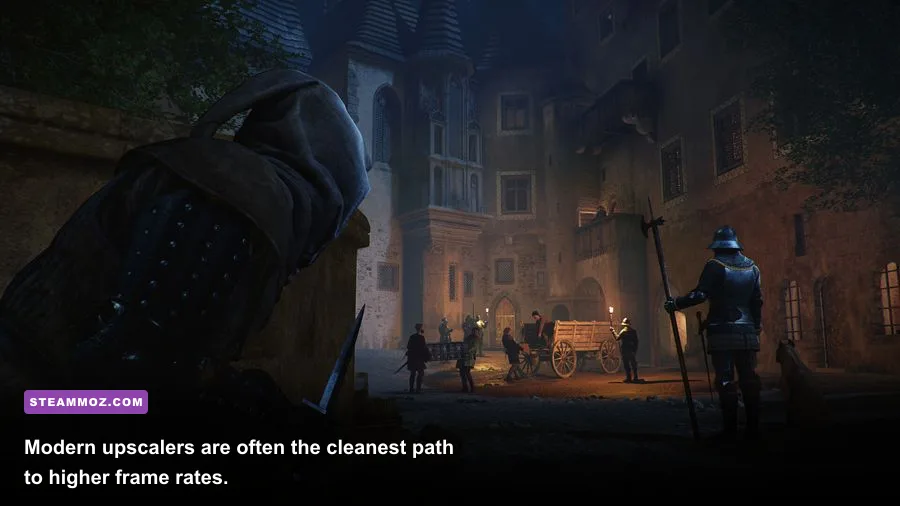
Upscaling is the modern performance cheat code, but the mode matters. DLSS works on NVIDIA RTX cards, FSR works across a wider range of GPUs, and XeSS can be especially attractive on Intel Arc hardware. Check the official NVIDIA DLSS documentation, AMD FSR information, and the game's own patch notes because implementation quality varies from title to title.
At 1440p, start with Quality mode, which typically renders internally near 67 percent of the output resolution. Balanced mode drops closer to 58 percent and can add another 10 to 20 FPS, but fine foliage, hair, and distant wires may shimmer. At 4K, Quality remains a strong choice because the larger output image gives the reconstruction algorithm more information. At 1080p, aggressive upscaling can look soft, so try native resolution with reduced effects or use a modest 90 percent resolution scale.
Frame generation is different from upscaling. DLSS 3 Frame Generation and AMD Fluid Motion Frames create intermediate frames, raising the displayed FPS without rendering every frame traditionally. It can make a 55 FPS game look closer to 90 FPS, but it doesn't reduce the underlying input latency as much as true rendered frames. Use it after achieving a real baseline of roughly 55 to 60 FPS, not as a bandage for 25 FPS. Enable NVIDIA Reflex or the game's low-latency option when supported.
| Output Resolution | Best Starting Mode | When to Use Balanced | Expected Result |
|---|---|---|---|
| 1080p | Native or 90% scale | GPU is below 60 FPS | Sharper image, smaller performance gain |
| 1440p | DLSS/FSR Quality | Ray tracing or heavy effects remain enabled | Strong clarity with meaningful FPS gain |
| 4K | DLSS/FSR Quality | GPU cannot hold 60 FPS | Excellent reconstruction at reduced render cost |
| Ultrawide | Quality mode | GPU usage stays at 99–100% | Useful compromise for the wider pixel count |
Sharpening is not a universal fix. A little sharpening can restore crispness after upscaling, but too much creates bright halos around text and foliage. Set it low, then inspect thin cables, fences, and tree branches while moving. If they shimmer, reduce sharpening before dropping the entire upscaler to a worse mode.
Keep textures high, but respect your VRAM limit
Texture quality is frequently blamed for low FPS when the real issue is VRAM overflow. Textures are stored in video memory, and once the card runs out, the game starts moving data through system RAM or the storage drive. That creates hitching, blurry surfaces, and sudden frame-time spikes rather than a consistent FPS loss.
A 6GB graphics card should generally use Medium or High textures in current AAA games, especially at 1440p. An 8GB card can often handle High comfortably, while 12GB or more gives you room for Ultra texture packs at 1440p and some 4K scenarios. Hogwarts Legacy, The Last of Us Part I, and modded Skyrim can all exceed comfortable VRAM budgets with high-resolution assets.
Texture filtering, model detail, and level-of-detail settings are separate. Keep anisotropic filtering at 16x, then lower texture streaming quality if distant assets pop in or the VRAM meter is red. Model quality can reduce geometry detail and draw-call complexity, but it usually matters less than shadows and volumetrics. A useful rule is to lower textures only when VRAM is close to full; otherwise, you are sacrificing detail without solving the bottleneck.
Watch for the difference between GPU memory and total memory. Windows may report shared GPU memory being used, but shared memory is far slower than dedicated VRAM. If your game stutters while dedicated VRAM is full, lower textures and restart the game. Some engines don't immediately release old texture allocations after changing the setting.
Build three profiles instead of chasing one perfect preset
There is no single best graphics preset because a cinematic single-player game and a competitive shooter have completely different priorities. Save three profiles: a quality profile for exploration, a balanced profile for everyday play, and a competitive profile for response time. That makes switching painless when you move from Cyberpunk 2077 to Counter-Strike 2 or Helldivers 2.
Quality profile
Use native resolution or DLSS/FSR Quality, High textures, High shadows, High volumetrics, and selective ray tracing. Cap the frame rate to a number your PC can hold consistently. A 60 Hz display benefits from a 58 or 59 FPS cap, while a 144 Hz display may feel excellent at a stable 90 or 120 FPS. With G-Sync or FreeSync enabled, stay two to three frames below the panel's maximum refresh rate to keep the adaptive-sync range working smoothly.
Balanced profile
Use Quality upscaling at 1440p or Balanced at 4K, High textures, Medium volumetrics, Medium reflections, and ray tracing off unless the game handles it unusually well. This is the sweet spot for most RTX 3060, RX 6700 XT, RTX 4060, and similar systems. If traversal stutter remains, reduce crowd density and view distance rather than lowering texture quality.
Competitive profile
Use native resolution or a clean upscaler, low shadows, low effects, medium textures, and off for motion blur, film grain, chromatic aberration, depth of field, and lens distortion. Keep anti-aliasing high enough to prevent distracting jagged edges. In shooters, clarity and latency beat pretty reflections. NVIDIA Reflex, AMD Anti-Lag 2 where supported, and an FPS cap that your system can sustain are more valuable than an extra lighting effect.
| Profile | Resolution/Upscaling | Key Settings | Best For |
|---|---|---|---|
| Quality | Native or Quality | High textures, high lighting, selective RT | Story games and screenshots |
| Balanced | Quality or Balanced | Medium volumetrics, reflections, RT off | Stable everyday play |
| Competitive | Native or clean performance mode | Low effects, no blur, Reflex or Anti-Lag | Fast shooters and ranked play |
For game-specific troubleshooting, see our Far Cry 6 max-FPS settings, Filament performance settings, and Everspace 2 FPS-first fixes. The same principle keeps returning: measure the bottleneck, cut the most expensive setting, and protect the details you actually notice.
Finally, cap frame rate after tuning rather than leaving the GPU pinned at 99 percent forever. Lower temperatures can prevent clock-speed drops, and steadier frame times make camera movement feel smoother. The best PC settings aren't the ones that produce the biggest benchmark number; they're the ones that hold a consistent frame rate through combat, crowded hubs, heavy weather, and the exact moments when your game usually falls apart.