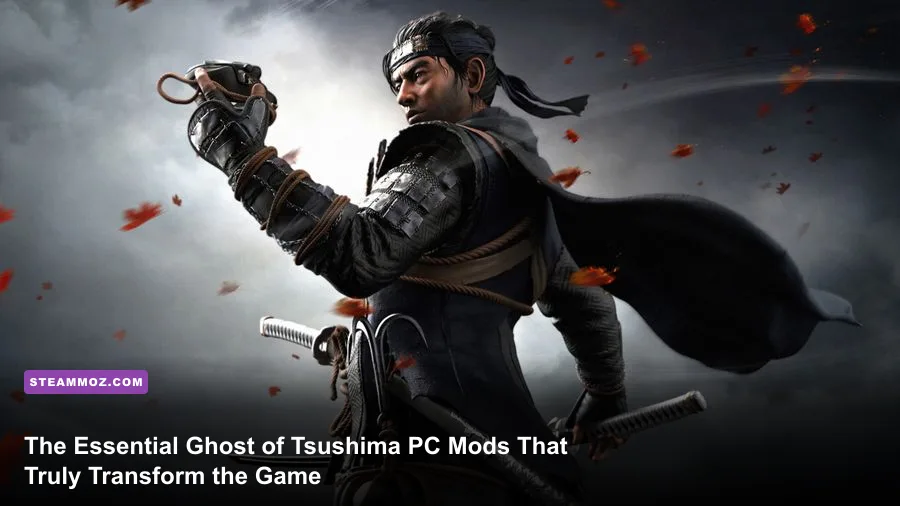
Nixxes delivered an exceptional PC port for Ghost of Tsushima Director's Cut on Steam, but running the vanilla installation leaves noticeable room for visual refinement, mechanical fluidity, and interface clarity. To get the best possible experience right now, you need a targeted setup: install the Intro Logo Skip to cut startup friction, drop in a calibrated Color Grading Neutralizer to remove the heavy green-tinted post-processing filter, dial in the Custom Field of View (FOV) Adjuster to stop the camera from suffocating your duels, and deploy the Instant Armor & Charm Preset Swapper so you aren't pausing the game mid-raid to switch gear. These mods don't break the artistic vision crafted by Sucker Punch Productions; instead, they polish away the console-specific constraints and let your modern PC hardware flex its full potential.
The Essential Mod Tier List: Prioritizing Your Tsushima Loadout
Modding Ghost of Tsushima on PC isn't like tearing open Skyrim or Cyberpunk 2077 with complex script engines. Because the engine handles game archives via proprietary packed formats, the most stable modifications rely on memory hooks, ReShade shaders, and direct loose-file archive injections found across the Nexus Mods Tsushima community. Ranking these mods helps you decide what belongs in your root folder right away versus what you can safely ignore if you prefer a stock playthrough.
Your goal is zero friction and maximum visual clarity. S-Tier mods solve objective engine annoyances that hold back the PC version, such as the locked FOV during exploration, unskippable PlayStation PC publisher intros, and chromatic aberration that blurs out fine foliage at 1440p and 4K. A-Tier mods sharpen combat and user interface ergonomics, letting you engage with enemy Mongol encampments without visual distraction or menu juggling. If you've been working on resolving low FPS bottlenecks on your rig, you'll also appreciate that the mods highlighted in this tier list introduce virtually zero frame time penalties.
| Mod Name | Tier Rating | Modification Category | Performance Impact | Primary Benefit |
|---|---|---|---|---|
| PlayStation Logo & Intro Video Skipper | S-Tier | Quality of Life | 0% (Instant Boot) | Eliminates 22 seconds of unskippable boot movies directly into the start menu. |
| Tsushima Natural Color & Lens De-Bloat | S-Tier | Visual / ReShade | ~1-2% FPS loss | Strips the muddy green-yellow grading and disables heavy chromatic aberration. |
| Field of View & Camera Distance Overhaul | S-Tier | Engine Tweak | 0% (Native hook) | Expands horizontal FOV from locked 70° to a customizable 85°-105° range. |
| Dynamic HUD & Diegetic Immersion Toggle | A-Tier | User Interface | 0% | Hides detection arcs and white button prompts until active combat starts. |
| Instant Charm & Armor Profile Hotkeys | A-Tier | Gameplay Ergonomics | 0% | Assigns dedicated keybinds to swap between Sakai Clan, Ghost, and Gosaku sets. |
| Brutal Gore & Persistent Decapitation FX | B-Tier | Combat Polish | <1% FPS loss | Extends blood splatters and makes dismemberment triggers persistent on the battlefield. |
| True Black Kurosawa Contrast Curve | B-Tier | Artistic Shader | ~2% FPS loss | Fixes elevated black levels in Kurosawa Mode for OLED and high-end HDR panels. |
By building your installation around this hierarchy, you preserve the underlying balance of the combat system while eliminating the legacy console concessions that hold back higher refresh rates and ultra-wide monitor configurations.

🎮 FORM
Looking to experience this game? Grab your digital key directly on our store for $14.99.
View on Steammoz Store →Visual Polish: Correcting Color Space, FOV, and Vignette
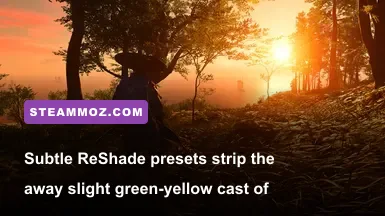
The PC version looks stunning out of the box, but Sucker Punch baked a very specific post-processing palette into the engine. While cinematic, it applies a persistent green-yellow wash over Izuhara, Toyotama, and Kamiagata. Furthermore, an aggressive vignette darkens the corners of your screen, which feels oppressive on 21:9 and 32:9 ultrawide monitors. Modding your visual pipeline cleans this up immediately without breaking the wind navigation system or the iconic golden leaves of the Golden Forest.
The premier way to fix this is with the Tsushima Natural Color & Lens De-Bloat package. Unlike aggressive presets that oversaturate colors until skin tones look sunburned, this shader profile recalibrates the white point. Shadows retain their natural cool tone, while highlights—such as the red maple leaves around Omi Village—pop with genuine contrast instead of looking baked into the background terrain. More importantly, it turns off chromatic aberration. When you're galloping across the grasslands on Nobu, thin blades of pampas grass will no longer show magenta and cyan fringing around your screen edges.
Equally critical is addressing the camera system. In the vanilla release, the third-person camera sits exceptionally close to Jin's right shoulder during open-world travel and snaps unpredictably during combat in tight bamboo groves. By using the Field of View & Camera Distance Overhaul, you can push the baseline exploration FOV from roughly 70 degrees up to 88 or 92 degrees. duels gain dramatic breathing room, and off-screen spear attacks become readable through peripheral vision rather than forcing you to constantly flick your mouse or right analog stick.
| Setting / Shader Profile | Target Resolution | VRAM Consumption | Visual Impact | Frame Rate Delta |
|---|---|---|---|---|
| Vanilla Cinematic Master | 1440p / 4K | Baseline (~6.2 GB) | Heavy color wash, forced vignette, noticeable edge blur on fast movement. | 0 FPS (Baseline) |
| Natural Tsushima ReShade (Lite) | 1440p / 4K | +45 MB | Neutral color balance, sharper foliage, natural white snow in Mount Jogaku. | -1.2 FPS average |
| Cinematic Kurosawa OLED Fix | 1440p / 4K (HDR) | +60 MB | True zero-IRE black levels, enhanced film grain simulation, high dynamic punch. | -1.8 FPS average |
| Complete Lens Clean (No CA/Vignette) | Ultrawide (3440x1440) | Negligible | Completely clear perimeter; eliminates corner darkening on panoramic displays. | +0.5 FPS (Edge recovery) |
Tuning your visuals this way brings an immense improvement in clarity. Just make sure your system isn't choked by unnecessary background rendering tasks; if you're dialling in your performance alongside these presets, you can cross-reference our guide on optimizing PC graphics settings for higher frame rates to ensure you keep your 1% lows well above the 60 FPS threshold.
Quality of Life and UI Mods You Should Never Play Without
Once your visual setup is calibrated, you need to tackle the user interface. Ghost of Tsushima was praised on console for its minimalist "Guiding Wind" navigation, yet the PC port often clutters your screen with floating controller prompts, button hints, and bright flashing detection arcs when sneaking through enemy territory. Turning these off manually in the vanilla menu disables too much helpful feedback, but UI mods provide surgical control over individual interface widgets.
The first mandatory installation is the PlayStation Logo & Intro Video Skipper. Every time you boot the game, you're forced to watch splash screens for PlayStation Publishing, Sucker Punch, and Nixxes. Replacing these files with a zero-byte dummy pack takes you directly from your desktop into the interactive main menu in under three seconds. If you boot the game multiple times a week or benchmark tweaks, this mod saves hours over the course of a full 60-hour campaign.
The second essential utility is the Instant Armor & Charm Preset Swapper. In vanilla gameplay, you'll naturally want the Traveler's Attire while riding through Izuhara to clear the fog of war and track artifacts. But the second a Mongol patrol spots you, you must pause, tab over to the Gear screen, equip the Sakai Clan Armor for the extra Standoff streaks, and reorganize your minor charms to match your melee damage stats. If an archer squad ambushes you 30 seconds later, you pause again to equip Tadayori's Armor for bow concentration.
This endless menu management completely ruins the pacing of Act 2 and Act 3. The hotkey mod allows you to bind three distinct loadout snapshots to your number row or a controller combo. Hitting your bound key instantly swaps Jin's armor, helmet, mask, and all six linked charms (like the Charm of Inari's Might and Charm of Amaterasu) in real time without entering a single menu. If you run into stability issues or stuttering while changing assets on the fly, our breakdown on preventing engine crashes and stabilizing frame times covers how Windows file allocation can cause hiccups during instant asset swaps.
Finally, grab the DualSense and Xbox Icon Fixer if you switch between gamepads. Depending on whether you launch via Steam Input or a direct USB-C connection, the game occasionally defaults to generic button glyphs. This mod forces native, high-resolution PlayStation symbols—including dynamic triggers and haptic feedback indicators—or crisp Xbox layout prompts based on your preference.
Combat Tweaks and Lethal Overhauls for Samurai Purists
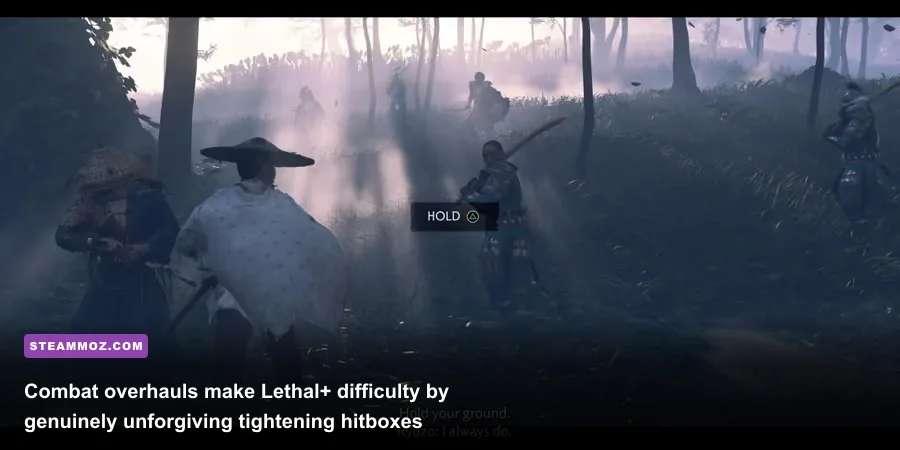
Combat in Ghost of Tsushima is already satisfying, but on PC at 120 FPS or higher, the game's parry windows and enemy attack tells can feel surprisingly wide. When you play on Lethal difficulty, Jin dies in one or two hits, but enemies also melt under simple Water Stance flurries. To create a deeply technical, skill-expressive combat experience that mirrors high-stakes samurai cinema, community creators have released game balance modifications that fine-tune enemy aggression, parry windows, and physical combat feedback.
The Lethal Precision & Aggression Overhaul modifies the internal AI director. In the standard game, enemies politely wait their turn to attack in groups of two or three. With the aggression mod active, Mongol shieldmen, brutes, and dual-wielding swordsmen coordinate simultaneous flanking attacks. Archers will deliberately fire into your blind spot while you are parrying a spearman's thrust. This forces you to utilize your entire arsenal—Ghost weapons like Smoke Bombs and Kunai are no longer "get out of jail free" buttons, but life-saving tactical repositioning tools.
To balance the intensified aggression, the mod sharpens Jin's defensive mechanics:
- True Perfect Parry Window: Reduces the parry leeway from roughly 200 milliseconds down to 110 milliseconds. You can no longer spam the L1/Q key to fish for a deflection; you must match the exact moment of steel contact.
- Decisive Stagger Scaling: Enemies with broken stagger bars recover 25% faster, forcing you to execute posture strikes immediately with Stone Stance against swordsmen or Wind Stance against spearmen.
- Bow Aiming Overhaul: Strips out the forced camera zoom when drawing the Half Bow or Longbow. You maintain full wide-angle situational awareness, turning Jin into an authentic mounted archer rather than zooming into an arcade scope view.
Complementing this balance shift is the Brutal Gore & Persistent Decapitation FX mod. Sucker Punch designed gruesome combat executions—such as the Slaughter technique unlocked during the Ghost Stance awakening in Act 2—but severed limbs and blood decals on snow fade within seconds to save memory on consoles. The PC mod overrides this garbage collection routine. Blood stains the ground throughout the entire fight, and dismemberment remains visible across the battlefield until you fast-travel away. If you notice slight frame time hitching when lots of particles accumulate on screen, check out our guide on tackling micro-stutters in demanding PC ports to ensure your shader cache is configured properly.
Installation Best Practices and Modding Stability on PC
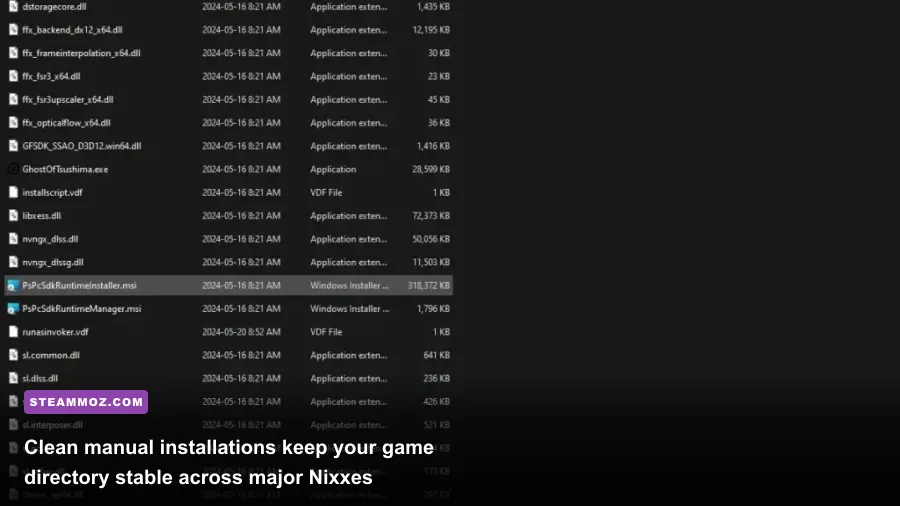
Because Ghost of Tsushima on PC uses Nixxes' custom streaming engine, dumping random files into your game directory without a plan will eventually cause boot crashes or corrupted autosaves. Following a strict installation procedure keeps your game running smooth through community patches and updates.
Most Tsushima mods fall into one of three formats:
- Loose Archive Replacements (.psarc or unpacked folders): These modify textures, audio buffers, and text strings. They belong in your
Ghost of Tsushima\assetsdirectory. Always create a backup copy of your original files before replacing anything. - ReShade Shaders and DLL Injections (dxgi.dll): These hook into DirectX 12 to adjust post-processing. Place them in the main executable root directory where
GhostOfTsushima.exesits. If you encounter crashes on launch, verify that third-party overlays (like MSI Afterburner or RivaTuner) aren't conflicting with your ReShade hook. - Memory & Save Hook Scripts: These use lightweight memory patchers to adjust camera FOV or unlock instant gear swapping. Ensure you always launch the patcher after the game reaches the main menu, unless the mod author provides a dedicated runtime launcher.
Whenever Nixxes drops a new hotfix through Steam, it's common for custom .dll hooks to temporarily break until mod authors update their pointers. If your game crashes after an official update, simply pull the injected DLLs out of your folder and run the game once to verify your save files. If you find yourself battling post-update stability issues, our troubleshooting walkthrough on remedying post-patch performance degradation provides proven diagnostic steps that apply to nearly any modern PC port.
Ghost of Tsushima is already one of the most visually mesmerizing open-world adventures in recent memory. By removing publisher splash screens, restoring natural color dynamics, opening up your field of view, and sharpening the lethal lethality of Jin Sakai's steel, these essential mods turn an exceptional console port into an absolute masterpiece of PC gaming.