The fastest Black Friday PC setup is rarely the one with every slider pushed to Ultra. For max FPS and genuinely smooth performance, start at 1440p, use DLSS or FSR Quality, disable costly ray-traced effects unless your GPU has headroom, cap frame rate a few frames below your monitor’s refresh rate, and tune shadows, volumetrics, reflections, and foliage first. That combination usually looks better in motion than unstable Ultra settings while delivering much steadier frame times.
There’s an important distinction here: high average FPS feels good, but consistent frame pacing feels better. A game averaging 120 FPS can still hitch badly if its 1% lows collapse to 45. The Black Friday PC you’re considering should therefore be judged by GPU memory, CPU consistency, cooling, and the settings you’ll actually use—not just a store card promising “4K gaming.”
Start With the Right Black Friday PC Target
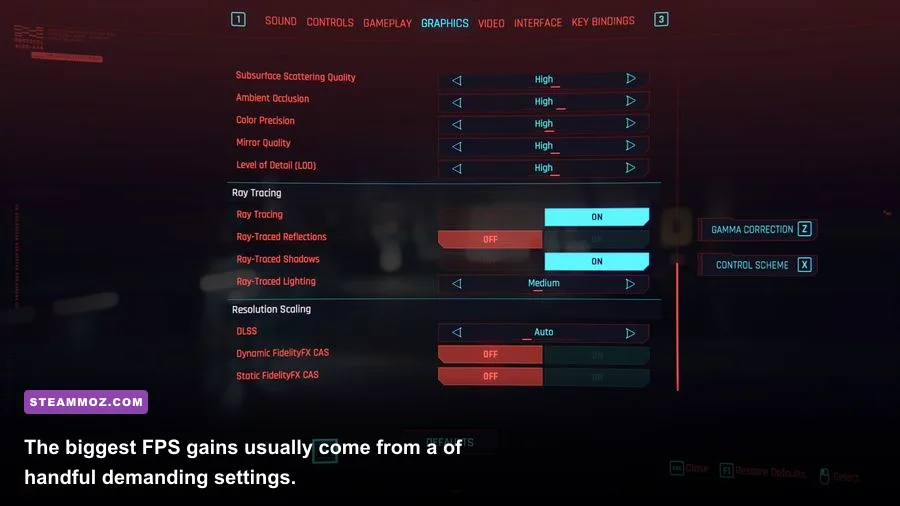
Before changing a single setting, decide what your machine is trying to achieve. A 1080p esports system wants low latency and very high refresh rates. A 1440p gaming PC needs a stronger graphics card and at least 12GB of VRAM for newer releases. A 4K build can look spectacular, but native 4K with ray tracing is still brutally expensive in games such as Cyberpunk 2077 and Alan Wake 2.
For a new purchase, 16GB of memory is the practical floor, while 32GB is the safer Black Friday target for modern open-world games, browsers, Discord, and background launchers. A six-core processor such as the Ryzen 5 7600 or Core i5-14600K can feed a high-refresh GPU well, although simulation-heavy games including Microsoft Flight Simulator and Dragon’s Dogma 2 benefit from faster cache and stronger single-thread performance.
| Target | sensible hardware baseline | Recommended gaming profile | Best use |
|---|---|---|---|
| 1080p, 144Hz | Six-core CPU, 8GB GPU, 16GB RAM | High settings, upscaling Quality | Competitive shooters and affordable systems |
| 1440p, 144Hz | Modern six-to-eight-core CPU, 12GB GPU, 32GB RAM | High/Ultra mix, upscaling Quality | The best all-round Black Friday PC target |
| 4K, 60-120Hz | Strong eight-core CPU, 16GB GPU, 32GB RAM | High settings, upscaling Balanced, selective RT | Cinematic single-player games |
Check the official Steam store system requirements for the games you actually play, but treat recommended specs as a starting point rather than a performance guarantee. They often omit the target resolution, quality preset, and expected frame rate.

🎮 FORM
Looking to experience this game? Grab your digital key directly on our store for $14.99.
View on Steammoz Store →Use This High-FPS Graphics Settings Baseline
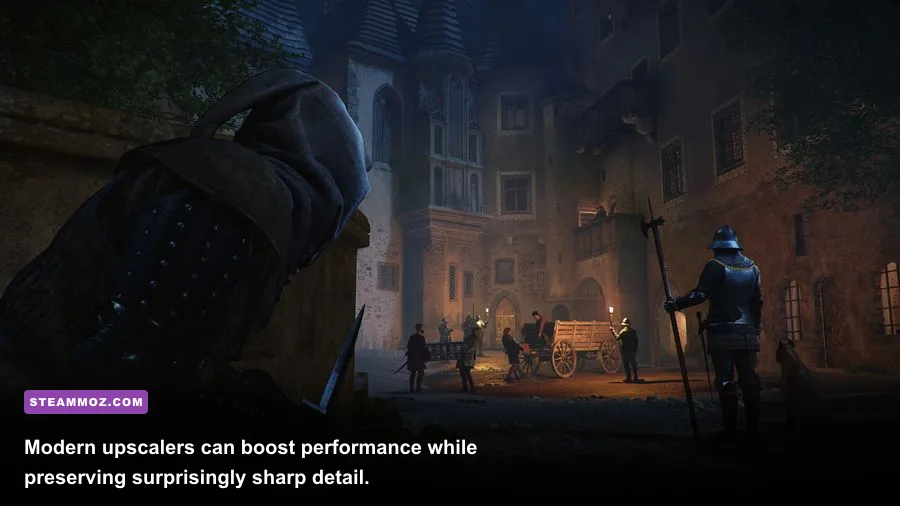
Run the game’s benchmark first if it has one. Cyberpunk 2077, Forza Horizon 5, and Shadow of the Tomb Raider all provide useful repeatable scenes. If there’s no benchmark, use the same save and route through a crowded area for at least 60 seconds. Change one setting at a time; otherwise, you won’t know what actually helped.
Begin with the High preset, not Low. High often preserves texture quality and geometry while avoiding the worst Ultra costs. Then make the following targeted changes. Texture quality is usually limited by VRAM rather than raw shader power, so an RTX 4070 or Radeon RX 7800 XT can often run Ultra textures at 1440p, while ray tracing, volumetrics, and reflections are more likely to destroy your frame rate.
| Setting | Recommended value | FPS impact | Visual note |
|---|---|---|---|
| Texture Quality | High or Ultra within VRAM limit | Low unless VRAM spills | Preserves surface detail; lower it only for stutter |
| Shadow Quality | High, then Medium if needed | Medium to high | Medium shadows usually remain convincing during movement |
| Volumetric Fog/Clouds | Medium | High | One of the easiest ways to recover GPU headroom |
| Screen-Space Reflections | High or Medium | Medium | Lower values affect wet floors and water more than characters |
| Foliage/View Distance | High | Medium to high CPU impact | Reduce one step if crowded areas cause 1% lows |
| Ambient Occlusion | High or SSAO | Low to medium | Keep it for contact shadows and depth |
| Motion Blur | Off or Low | Minimal FPS gain | Improves clarity, especially in shooters |
| Ray Tracing | Off, or selective medium | Very high | Use only when the GPU still has 25% headroom |
Don’t confuse resolution scaling with sharpening. In Call of Duty: Warzone, a 100% render resolution at 1440p is far more demanding than a Quality upscaling mode rendering internally around 67% to 75%, depending on the implementation. If the image looks soft, add moderate sharpening rather than jumping straight back to native resolution.
DLSS, FSR, XeSS, and Frame Generation Explained
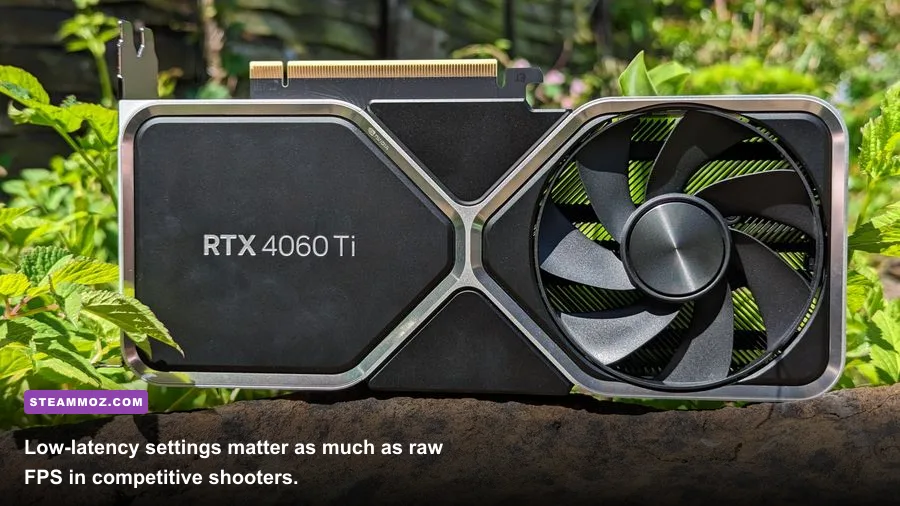
Upscaling is the biggest modern performance lever. NVIDIA DLSS Super Resolution is generally the first choice on GeForce RTX cards, AMD FSR works across a wider range of hardware, and Intel XeSS can look excellent on Arc GPUs while remaining available elsewhere. Start with Quality at 1440p and Balanced at 4K. Avoid Performance at 1080p unless you have no alternative; its lower internal resolution can make text, foliage, and thin wires shimmer.
Frame Generation is different. DLSS Frame Generation and AMD FSR 3 Frame Generation create extra displayed frames from rendered frames. They can make a single-player game look much smoother, but they don’t reduce the delay of the original rendered frames. You want a healthy base rate—roughly 60 FPS or higher—before enabling it. Running Frame Generation on a 35 FPS base can produce a high counter number while controls still feel sluggish.
For competitive games, prioritize native input response over visual smoothness tricks. In Counter-Strike 2, Valorant, and ranked Warzone, keep Frame Generation off, use the lowest sensible latency settings, and cap FPS only after checking your monitor’s behavior. NVIDIA’s official Reflex guide explains supported games and hardware paths.
| Mode | Best starting point | Use it when | Trade-off |
|---|---|---|---|
| Native Resolution | 100% render scale | You have substantial GPU headroom | Best detail, lowest FPS |
| DLSS/FSR/XeSS Quality | 1440p and 4K | You want the best image-performance balance | Slight reconstruction artifacts |
| DLSS/FSR Balanced | 4K or demanding ray tracing | Native performance misses your target | More softness and shimmer |
| Frame Generation | Only above roughly 60 base FPS | Single-player games and compatible GPUs | Can increase latency and artifacts |
Keep your GPU driver current, but don’t blindly update on tournament day. NVIDIA’s driver download page and AMD’s support portal are safer than third-party driver sites.
Make Frame Times Smooth, Not Just Fast
Enable FreeSync or G-SYNC Compatible mode if your monitor supports variable refresh rate. Then cap the game a few frames below the panel’s maximum: 141 FPS for 144Hz, 162 FPS for 165Hz, and 237 FPS for 240Hz. This keeps the GPU inside the VRR window and avoids repeatedly hitting the display ceiling.
Use the game’s own limiter when it behaves well. If it produces uneven pacing, RTSS is often more consistent. Watch the frametime graph with MSI Afterburner and RivaTuner rather than trusting only the large FPS number. A flat 8.3ms line represents roughly 120 FPS; spikes to 25ms are the hitches you feel as pauses.
CPU-limited games need a different approach. If the GPU sits at 70% usage while FPS refuses to rise, lowering resolution won’t help. Reduce simulation distance, crowd density, foliage distance, and physics-heavy options instead. Close browser tabs, disable unnecessary overlays, and make sure the game is installed on an SSD. Streaming-heavy titles can hitch badly from a hard drive even when average FPS looks acceptable.
For troubleshooting, Steamoz’s guides on ELEX crash and FPS fixes and EscapeVR low-FPS problems show why shader compilation, drivers, and background software deserve attention. Newer games may compile shaders on first launch, so don’t benchmark the opening five minutes and assume the whole game is broken.
Three Ready-to-Use Performance Profiles
1440p competitive profile
Use High textures, Medium shadows, Low volumetrics, High model detail, reduced foliage distance, motion blur off, ray tracing off, and DLSS or FSR Quality. Turn on Reflex or the game’s low-latency option. This is the profile to choose for Warzone, The Finals, and other games where a clear target matters more than cinematic reflections.
1440p cinematic profile
Keep High textures and geometry, raise shadows and ambient occlusion to High, use Quality upscaling, and enable only the ray-traced effect that changes the scene most. In Cyberpunk 2077, RT reflections are often more visible than RT lighting, while path tracing is a showcase mode rather than a sensible default for most Black Friday PCs.
4K living-room profile
Use High textures, Medium volumetrics, Balanced upscaling, and a 60 or 90 FPS cap depending on the display. Enable Frame Generation only when the base rate is stable. This profile works particularly well for controller-driven single-player games where a locked 60 FPS feels better than an erratic 85 to 120.
| Profile | Upscaling | Ray tracing | Frame-rate goal |
|---|---|---|---|
| Competitive 1440p | Quality | Off | 144-240 FPS |
| Cinematic 1440p | Quality | Selective Medium | 80-144 FPS |
| Living-room 4K | Balanced | Selective Low/Medium | 60-90 FPS locked |
Finally, spend Black Friday money intelligently. If your GPU is pinned at 99% and VRAM is full, a graphics-card upgrade changes everything. If the GPU is underused and the CPU is maxed in crowded scenes, buy a faster processor instead. If stutter appears during asset streaming, add a quality NVMe SSD and 32GB of RAM before chasing a more expensive monitor.
For extra game-specific tuning, Steamoz’s Far Cry 6 settings guide, Filament performance fixes, and Everspace 2 FPS troubleshooting are useful starting points. The winning setup isn’t the one that looks impressive on a product page—it’s the one that holds its target frame rate when the screen gets busy.