The best “mods” for Call of Duty: Warzone are safe companion tools and configuration tweaks—not DLL injectors, weapon unlockers, visual cheats, or anything that alters the game client. Use a legal loadout planner, an FPS and frame-time monitor, an audio profile, and a carefully tuned config, then pair them with a stable 120–144 FPS target. That combination improves aim consistency, information gathering, and preparation without putting your Activision account in the crosshairs of RICOCHET.
Warzone is not a traditional moddable PC game. Unlike a single-player shooter, it runs on a competitive live-service ecosystem with server-side progression, an anti-cheat system, and frequent weapon updates. A tool can be useful without being injected into the game. That distinction is the whole story here. Before downloading anything, check the official Warzone site and Activision support rules whenever a utility claims it can unlock cosmetics, expose enemies, reduce recoil, or change matchmaking.
What Counts as a Safe Warzone Mod?
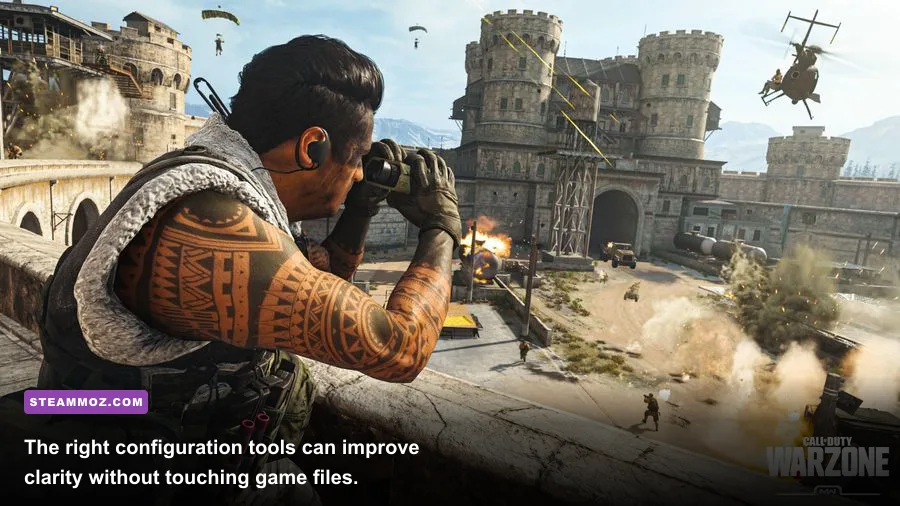
Think of these recommendations as a “modded experience” built around Warzone rather than inside it. A spreadsheet, browser app, GPU overlay, or Windows-level audio profile doesn't rewrite game memory. A cheat loader, injector, macro that automates recoil, or modified client does. That line isn't academic: RICOCHET can issue warnings, restrict matchmaking, suspend accounts, or permanently ban accounts associated with prohibited software.
The most useful category is external planning. A loadout database lets you compare weapons such as the MCW, Holger 556, Striker, Rival-9, and Pulemyot 762 after a patch, while a private notes sheet records recoil feel, optic preference, ammunition behavior, and effective range. It won't magically reveal secret damage values, but it stops you from rebuilding the same class every evening based on memory.
| Tool or Tweak | What It Changes | Risk Level | Best Use |
|---|---|---|---|
| Loadout planner or spreadsheet | External weapon and perk planning | Low | Testing combinations between matches |
| MSI Afterburner plus RTSS | Displays FPS, GPU load, temperature, and frame time | Low when downloaded from official sources | Finding stutter and thermal throttling |
| Windows headphone EQ | Changes system audio output | Low | Making dialogue and footsteps easier to separate |
| Recoil macro or automation script | Moves aim automatically | Prohibited | Do not use |
| DLL injector, unlock tool, or ESP overlay | Alters or reads the game client | Extremely high | Never install |
For general PC troubleshooting, Steamoz's crash and FPS fixes are also useful background reading. The principle is the same: diagnose the machine before blaming the game.

🎮 FORM
Looking to experience this game? Grab your digital key directly on our store for $14.99.
View on Steammoz Store →Build a Competitive FPS and Latency Profile
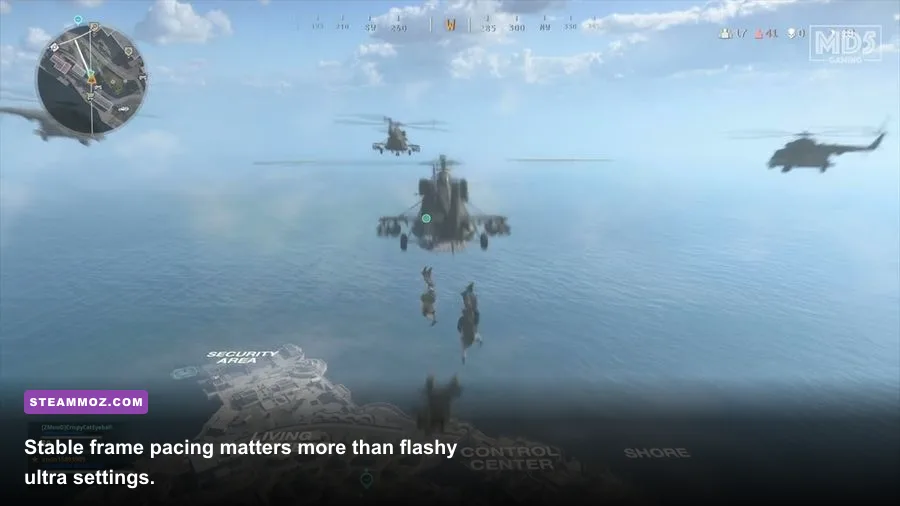
Performance is the first real upgrade. In a close gunfight, a steady 120 FPS is more valuable than a setup swinging between 170 and 75. At 120 FPS, each frame arrives every 8.33 milliseconds; at 60 FPS, it arrives every 16.67 ms. That doesn't make you twice as accurate, but it gives your input and visual updates a tighter rhythm. Frame-time spikes are especially damaging during parachute drops, smoke effects, and busy urban fights.
Start by setting a cap slightly below your display's refresh rate. For a 144Hz monitor, try 141 FPS; for 165Hz, try 160 or 162. Use an overlay such as RTSS to watch the graph, not just the headline number. A flat frame-time line is the target. If your GPU sits at 99% while the CPU has spare capacity, lower render resolution, shadow quality, or volumetrics. If one or two CPU threads are pinned, reduce simulation-heavy options and close browser tabs, launchers, and recording software.
| Warzone Setting | Recommended Competitive Value | FPS Impact | Visual Trade-Off |
|---|---|---|---|
| Display Mode | Fullscreen Exclusive or the game's lowest-latency option | Low to medium benefit | Better focus and fewer desktop interruptions |
| Upscaling | Native for powerful GPUs; Quality or Balanced for weaker cards | Medium to high gain | Balanced can soften distant targets |
| FidelityFX CAS | Use moderate sharpening after upscaling | Minimal cost | Improves edge definition; too much creates halos |
| Variable Rate Shading | On only if image quality remains acceptable | Small to medium gain | Can reduce detail in peripheral areas |
| Shadow Quality | Low or Normal | Medium gain | Less shadow detail, cleaner performance |
| Screen Space Reflections | Low or Off | Small to medium gain | Reflections look flatter |
| Particle Quality | Low or Normal | Medium gain in explosions | Less debris and effect detail |
| Depth of Field and Motion Blur | Off | Small gain | Sharper target tracking while moving |
Don't blindly copy a “pro config” from a random download. Warzone patches can reset options, and a config file from another build may cause strange behavior. Screenshot your settings, change one variable at a time, and test in the firing range or a low-stakes Plunder match. If frame pacing remains poor, compare your results with Steamoz's guide to maximizing FPS through graphics settings; the diagnostic method transfers cleanly even though the game is different.
Use Audio Tuning Instead of Footstep Cheats
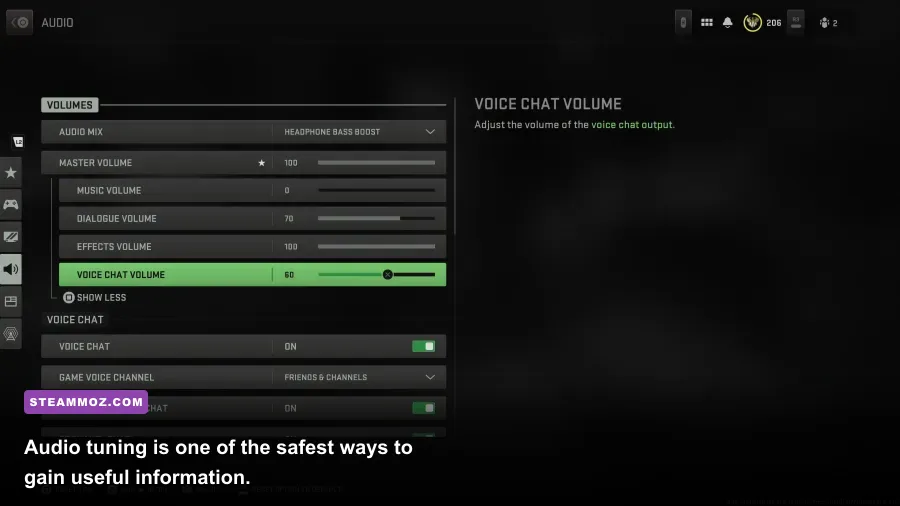
Audio is where players are most tempted by shady “mods,” but you don't need a radar-like overlay to hear an approaching squad. Warzone's audio mix is busy: killstreaks, announcer lines, armor plates, doors, and distant gunfire compete with footsteps. A clean system profile is safer and more useful than software promising impossible enemy awareness.
Begin with a wired headset or a reliable low-latency wireless model. In Warzone's Audio settings, test Headphones or Headphone Bass Boost against PC Speaker or Soundbar rather than assuming the loudest preset is best. Bass Boost can make explosions feel impressive but may mask the higher-frequency cues of movement and equipment. Lower music and cinematic volume aggressively, keep effects high, and reduce dialogue if the announcer overwhelms combat information.
Windows spatial audio and third-party virtual surround can conflict. Test one mode at a time in a private match: walk around a building, climb a ladder, open doors, and listen for left-right placement. If the image becomes hollow or footsteps seem farther away, turn the enhancement off. Avoid “loudness equalization” if it crushes the difference between a nearby footstep and a distant vehicle. Dynamic range matters; you want separation, not constant maximum volume.
| Audio Element | Starting Point | Why It Helps | Watch Out For |
|---|---|---|---|
| Effects Volume | 90–100 | Preserves footsteps, reloads, and equipment cues | May become fatiguing with loud headsets |
| Music Volume | 0–10 | Removes a major source of masking | Less dramatic match atmosphere |
| Dialogue Volume | 30–60 | Keeps callouts useful without dominating | Important warnings may be quieter |
| Voice Chat | Set separately from effects | Stops teammates burying movement audio | Very loud teammates still need muting |
| Spatial Audio | Choose one solution and test it | Can improve positional separation | Stacking effects often damages directionality |
Turn Loadout Planning Into a Real Advantage
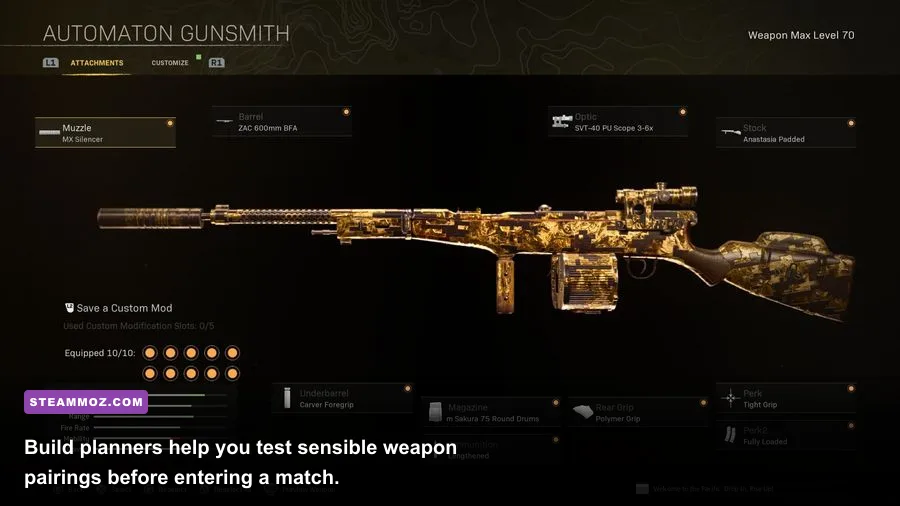
The strongest external “mod” is a disciplined loadout tracker. Warzone's weapon ecosystem changes too often for one universal class to stay best. Make columns for weapon, intended range, magazine size, optic, recoil direction, sprint-to-fire feel, and whether the gun needs a perk or ammunition attachment to work. Record actual match impressions instead of copying a tier list that was built before the latest balance patch.
Build around jobs. A long-range assault rifle such as the Holger 556 or MCW pairs naturally with a fast SMG like the Rival-9 or Striker when your squad expects mixed engagements. A heavier rifle can cover rotations across open ground, while the SMG handles stairwells and buy stations. If you prefer an LMG such as the Pulemyot 762, accept its slower handling and use it to lock lanes rather than forcing aggressive slide-cancels into every fight.
Perks should support the role, not decorate the class. A movement-focused setup rewards players who can break line of sight and re-challenge quickly; an information setup should prioritize UAV timing, equipment awareness, and a lethal-tactical pairing that clears rooms. Test one change at a time. Swapping an optic, magazine, and rear grip simultaneously makes it impossible to identify why the gun suddenly feels sluggish.
| Build Role | Primary Goal | Suggested Weapon Pair | Best Situation |
|---|---|---|---|
| Balanced squad anchor | Hold medium and long sightlines | MCW or Holger 556 plus Rival-9 | Urban rotations and rooftop overwatch |
| Aggressive entry | Win rooms and finish downs quickly | Striker plus a flexible assault rifle | Buy stations, stairwells, and redeploy fights |
| Lane controller | Sustain fire and deny crossings | Pulemyot 762 plus close-range SMG | Open terrain and fortified compounds |
| Low-recoil learner | Build consistency before speed | Holger 556 plus reliable shotgun or SMG | Players still learning recoil patterns |
For a useful habit, keep a “lost fight” note: range, first missed shots, armor state, cover, and whether you reloaded too early. That turns a loadout planner into a feedback loop. Steamoz's weapon-ranking breakdown offers a similar way to judge guns by role rather than hype.
Install, Test, and Remove Tools Without Risk
Download utilities only from the developer's official page or a trusted storefront. Scan installers, decline bundled software, and never disable antivirus or RICOCHET-related protection because a tool requests it. Overlay software should show performance data—not enemy positions, recoil compensation, hidden loot, or automation controls. If a program claims to “unlock all guns” or “make Warzone invisible to anti-cheat,” close it immediately.
Before every major Warzone update, capture your graphics, controller, mouse, and audio settings. After the patch, verify the game files through your launcher, rebuild shaders if prompted, and test the firing range before ranked or tournament play. Keep your GPU driver current but don't update five variables at once; a new driver, new upscaler, and new overlay together create a debugging nightmare.
Use this order for a clean setup:
- Set your monitor refresh rate correctly in Windows and Warzone.
- Choose a realistic FPS cap that your system can hold during explosions and busy drops.
- Disable motion blur, depth of field, and unnecessary overlays.
- Test one audio mix and one spatial-audio mode with a headset.
- Build two loadouts for different ranges and record how they perform.
- Play several matches before changing anything else.
If Warzone still crashes or stutters, treat that as a PC support problem rather than a reason to install a “performance mod.” Steamoz's low-FPS troubleshooting guide and settings optimization guide cover the same fundamentals: clean drivers, sensible presets, temperature checks, and controlled testing.
The result won't look like a modded sandbox, and that's the point. Warzone's safest transformation comes from removing latency, reducing visual clutter, sharpening audio decisions, and preparing weapons around your actual fights. Keep external tools outside the game client, respect Activision's RICOCHET anti-cheat information, and you'll gain the advantages that matter without turning one experimental download into a permanent account problem.