The best essential mods for Steam on Windows are not one-click magic files; they’re a dependable toolkit: Steam Workshop for safe subscriptions, Mod Organizer 2 or Vortex for serious load orders, ReShade for controlled visual upgrades, and framework tools such as BepInEx for games that need deeper customization. Used together, these tools can refresh a ten-year-old RPG, clean up a blurry shooter, and make a sprawling mod list manageable without turning your installation into digital spaghetti.
There’s an important distinction here. Steam is the storefront and launcher, while most “Steam mods” modify the individual game installed through Steam. Some projects alter the Steam client itself, but those can break after client updates and may violate Valve’s rules or trigger security warnings. This guide focuses on Windows tools that improve Steam games while keeping your library, saves, and troubleshooting routine under control.
Start With the Safest Steam Modding Route
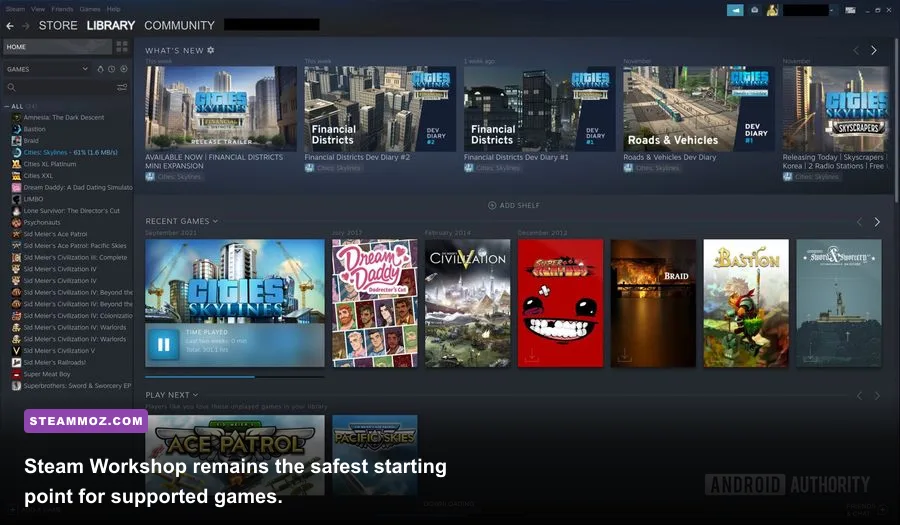
If a game supports Steam Workshop, begin there. Workshop subscriptions are tied to your Steam account, downloaded through Steam, and usually easier to remove than manually copied files. Games such as Skyrim Special Edition, Stellaris, Euro Truck Simulator 2, RimWorld, and Portal 2 have enormous Workshop ecosystems, though each game handles load order and compatibility differently.
Workshop is not automatically perfect. A popular item can still be outdated, conflict with a patch, or require another dependency. Before subscribing, read the description, check the last update date, scan the comments for current breakage, and note whether the author lists a required DLC. In Stellaris, for example, a total-conversion mod may need to match the game’s major version exactly. In RimWorld, Harmony and framework dependencies must load before many content mods.
| Mod Route | Best For | Risk Level | Windows Advice |
|---|---|---|---|
| Steam Workshop | Supported strategy, simulation, and sandbox games | Low to medium | Check dependencies and game-version compatibility |
| Nexus Mods with Vortex | Large libraries and beginner-friendly manual mods | Medium | Use profiles, deployment rules, and file conflict warnings |
| Mod Organizer 2 | Skyrim, Fallout, and complex RPG load orders | Medium | Keep a separate profile for every playthrough |
| Manual installation | Small fixes with clear developer instructions | Medium to high | Back up the game folder before copying files |
| Client modification | Steam interface customization | High | Expect updates to break it; never use unknown injectors |
For a first experiment, choose a cosmetic Workshop mod or a quality-of-life tweak rather than a total conversion. Test it for 15 minutes, quit normally, and relaunch. That small loop catches missing dependencies before you’ve invested 30 hours in a save that now refuses to load.
🎮 FORM
Looking to experience this game? Grab your digital key directly on our store for $14.99.
View on Steammoz Store →Mod Organizer 2 Is the Power User’s Essential
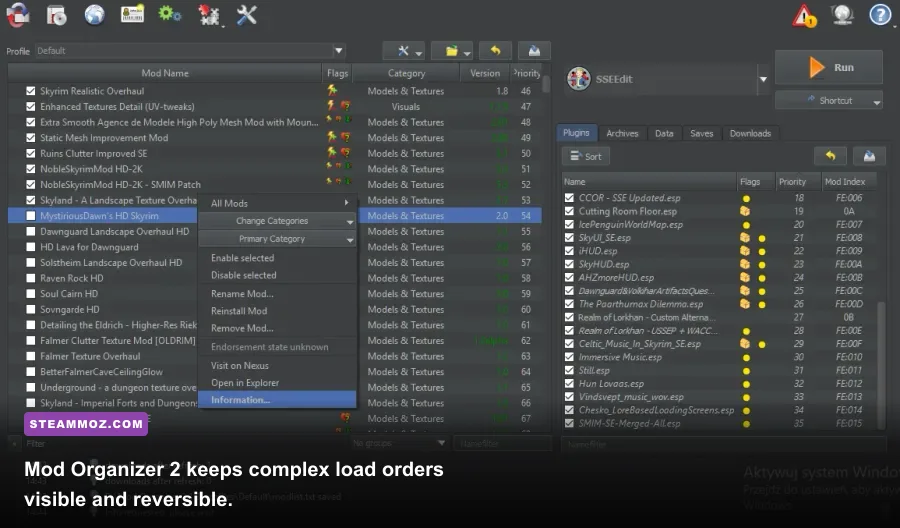
Mod Organizer 2 is the tool I’d recommend for heavily modded Bethesda games, particularly Skyrim Special Edition, Fallout 4, and Fallout: New Vegas. Its biggest advantage is a virtual file system: instead of dumping every file directly into the Steam game directory, MO2 presents the game with a controlled virtual view. Disable a mod, and its files disappear without forcing you to hunt through folders for leftovers.
That separation matters because load-order mistakes are often invisible. Two mods can replace the same texture, script, or plugin while Windows quietly accepts whichever file arrives last. MO2 exposes the conflict through its left and right panes, giving you a chance to decide whether a weather overhaul should win over a landscape pack or whether a bug-fix patch needs to load after the mod it repairs.
How to build a stable MO2 profile
Install MO2 outside Program Files, where Windows permissions can interfere with mod tools. Create a profile for the game, enable profile-specific saves and INI files, and launch the game through MO2 rather than the standard Steam shortcut when the instructions require it. Keep the base profile empty except for essential fixes. Then add mods in groups: framework, bug fixes, textures, gameplay, quests, and finally patches.
For Skyrim Special Edition, don’t treat SkyUI, Address Library for SKSE Plugins, and SKSE64 as interchangeable. SkyUI changes the interface, SKSE extends the scripting environment, and Address Library helps native plugins find the correct game addresses. A game update can break SKSE-dependent plugins even when the visual mods still work. That’s why experienced players often disable automatic updates or launch through a version-aware mod setup.
| MO2 Layer | Examples | Why It Matters | Recommended Order |
|---|---|---|---|
| Framework | SKSE, Address Library, Harmony | Provides functions other mods need | First |
| Bug fixes | Unofficial patches, engine fixes | Repairs known scripts and records | After frameworks |
| Assets | 4K textures, meshes, weather packs | Changes what the game displays | Before gameplay mods |
| Gameplay | Perks, combat, survival, AI | Changes rules and progression | After core fixes |
| Patches | Compatibility patches and conflict resolution | Makes overlapping mods cooperate | Last in the relevant group |
MO2’s learning curve is real, but it pays off. If a save suddenly crashes after you install a combat overhaul, disable only that profile entry and test again. You won’t need to reinstall the entire game. Our guide to ELEX crash and FPS fixes follows the same principle: isolate one variable instead of randomly deleting files.
Vortex Makes Large Mod Collections Less Intimidating
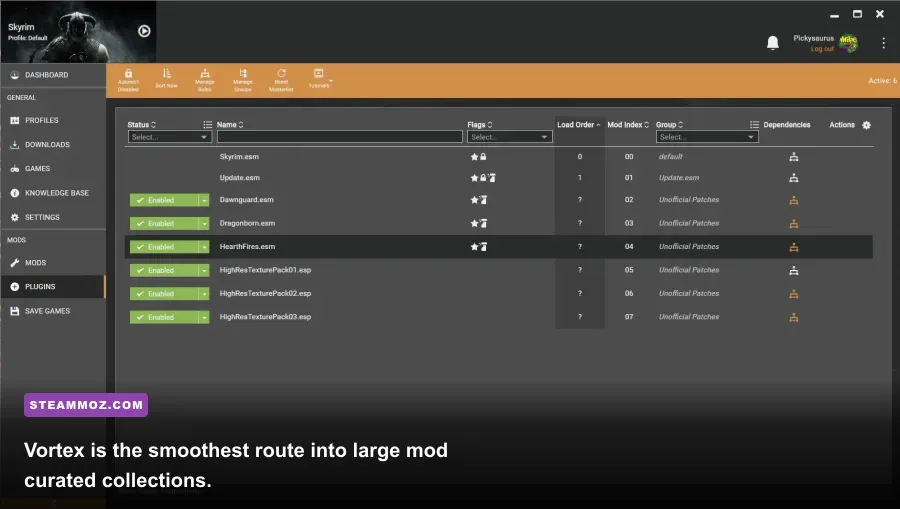
Vortex, Nexus Mods’ official manager, is the better starting point if MO2’s virtual file system feels like homework. It detects many Steam installations, downloads mods from Nexus Mods, flags file conflicts, and uses deployment to place the selected files into the game’s directory. For games such as Cyberpunk 2077, Starfield, Dragon Age: Inquisition, and Monster Hunter: World, Vortex can get you from an empty folder to a working collection quickly.
The word “quickly” needs an asterisk. Vortex can automate installation, not compatibility. If Mod A overwrites a file from Mod B, the conflict rules decide which one wins. Read the warning instead of clicking through it. A red conflict icon is not proof that something is broken, but it is a signal to understand the relationship before loading your save.
Vortex rules that prevent headaches
Use one Vortex profile per game configuration: vanilla, visual overhaul, and experimental gameplay are better kept separate. Deploy after each small batch, then launch and test. Don’t install 80 mods at once because a single failure becomes an archaeological dig. Save collection notes in a text file with mod names, versions, required DLC, and whether the mod affects an existing save.
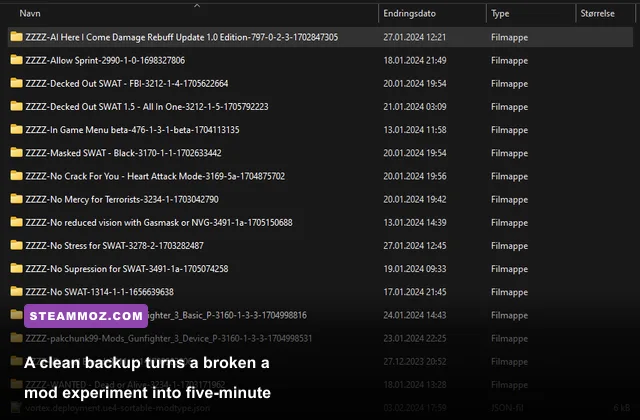
Mod managers also don’t replace backups. Copy your save folder to another drive before installing anything that adds quests, changes scripts, or rewrites progression. Steam Cloud is useful, but it is synchronization, not a time machine. If a damaged save syncs successfully, the cloud may preserve the problem across machines.
For games with unusually fragile performance, keep troubleshooting separate from mod selection. The settings approach in our Far Cry 6 FPS guide applies here too: change one setting, record the result, and don’t assume a prettier screenshot means a better playing experience.
ReShade Is the Best Visual Upgrade With a Catch

ReShade injects post-processing effects into a game after the image has been rendered. Its strongest uses are subtle: mild sharpening, better ambient contrast, a restrained color grade, and SMAA when a game’s anti-aliasing looks soft. It won’t replace a genuine texture pack, and it cannot magically improve geometry. Used badly, it produces crushed blacks, oversaturated grass, and a 12-frame-per-second slideshow.
Start with one effect at a time. CAS or LumaSharpen can restore clarity at 1080p, while Tonemap can correct a washed-out presentation. MXAO adds contact shadowing but is expensive in open worlds. Depth-of-field and cinematic grain are best reserved for screenshots; during combat they obscure silhouettes and make motion harder to read.
| ReShade Effect | Typical GPU Cost | Best Use | Competitive Advice |
|---|---|---|---|
| CAS or LumaSharpen | Low, usually 0–3% | Recovering detail after TAA | Generally safe |
| SMAA | Low, usually 1–4% | Reducing jagged edges | Test against built-in anti-aliasing |
| Tonemap | Low to medium | Contrast and color correction | Avoid crushing shadow detail |
| MXAO | Medium to high, often 5–15% | Extra contact shadows | Disable if frame pacing suffers |
| Depth of Field | Medium | Screenshots and photo mode | Disable for gameplay clarity |
Measure frame time, not just the average FPS counter. A preset that reports 90 FPS but introduces 1% lows in the mid-40s will feel worse than a clean 75 FPS lock. If your GPU is already close to full utilization, ReShade effects stack on top of the game’s existing cost. On an RTX 3060 at 1080p, a lightweight sharpen-and-color profile is sensible; a four-pass ray-traced preset is not a free upgrade.
BepInEx and Script Extenders Unlock Deeper Mods
Some of the most transformative mods cannot work as simple texture replacements. They need a framework that loads custom code, reads configuration files, or exposes new hooks to the game. BepInEx is one of the most common frameworks for Unity games, while game-specific script extenders such as SKSE, SFSE, and Cyber Engine Tweaks serve similar roles in other ecosystems.
Install these frameworks only from their official project page or a trusted mod page, and match the build to the game’s architecture. A 64-bit game needs the 64-bit package. Extracting a framework one folder too high is a classic mistake: the loader files must sit where the project’s instructions specify, usually beside the game executable or inside a prescribed subfolder.
After installation, launch once before adding plugins. A successful first boot should create a configuration or log folder. That log is your best friend when a mod fails. If the game crashes before the title screen, remove the last plugin, check the log for a missing dependency, and confirm that the Steam game version matches the framework release.
Never assume a code framework is safe for multiplayer. Anti-cheat systems can interpret DLL injection, overlays, or modified assemblies as prohibited behavior even when a mod is harmless in single-player. Keep modded and competitive installations separate, and remove third-party loaders before entering an online mode unless the developer explicitly supports them.
Performance Mods Should Come Before 4K Textures
The most valuable mod is often the one that makes the game stable. Start with engine fixes, community patches, shader compilation improvements, and stutter reduction before adding 4K textures or dense grass. A sharper screenshot is not worth hitching every time you enter a city.
Use Steam’s Properties menu to verify files when a mod is removed or the base game behaves strangely. Verification can restore overwritten vanilla files, but it may also remove manually installed files, so keep a list of what you added. For a clean reset, uninstall, delete the remaining game folder after backing up saves, and reinstall. That is slower than random troubleshooting, but dramatically more reliable.
| Profile | Target Hardware | Recommended Mod Mix | Performance Goal |
|---|---|---|---|
| Safe refresh | GTX 1650 / RX 570, 16GB RAM | Bug fixes, 2K textures, lightweight UI mods | Stable 60 FPS at 1080p |
| Balanced overhaul | RTX 3060 / RX 6700 XT, 16GB RAM | Visual pack, gameplay mods, restrained ReShade | 60–90 FPS at 1080p or 1440p |
| Heavy RPG setup | RTX 4070 / RX 7800 XT, 32GB RAM | Script-heavy quests, 4K assets, lighting overhaul | Locked 60 FPS with stable frame time |
| Mod testing profile | Any system | One new framework or plugin at a time | Fast diagnosis, not maximum visuals |
Watch VRAM usage as closely as average FPS. A 4K texture pack can look excellent while pushing an 8GB graphics card into streaming stutter. Lower texture quality before reducing resolution if the image is sharp but hitching; reduce shadows, volumetrics, and screen-space effects when the GPU is simply overloaded. For older systems, our Far Cry 2 PC requirements breakdown shows why sensible targets matter more than chasing ultra presets.
The Modding Rules That Keep Your Steam Library Healthy
Keep a vanilla profile, back up saves, and record every change. That sounds boring until a 100-hour campaign breaks because a quest script was removed mid-playthrough. Don’t uninstall script-heavy mods during an active save unless the author explicitly says it’s safe. Many mods write permanent data into saves, and removing their files can leave missing references behind.
Read changelogs, not just endorsements. Endorsement counts show popularity, not current compatibility. Avoid downloads that arrive as password-protected archives, executable “optimizers,” or suspicious DLLs with no source explanation. Scan files, keep Windows Defender active, and prefer open-source tools or established hosting platforms. If a mod asks for your Steam password, stop immediately; no legitimate game mod needs it.
Finally, give yourself an escape route. Export your Vortex load order, preserve your MO2 profile, keep original configuration files, and take a screenshot of your settings before changing them. When a modded Steam game works, it feels like you discovered a secret remaster. When it fails, a clean rollback is what separates a clever upgrade from an all-weekend reinstall.
For more focused performance work, see Steamoz’s EscapeVR crash and low-FPS fixes and Everspace 2 frame-rate troubleshooting. The core strategy remains the same: establish a stable vanilla baseline, add one meaningful change, test it properly, and only then build the next layer.
The Best Windows Steam Mod Setup, Ranked
S-Tier: Steam Workshop for supported games, Mod Organizer 2 for complex Bethesda load orders, and Vortex for accessible Nexus collections. These tools solve different problems and remain useful long after a single mod falls out of date.
A-Tier: ReShade, BepInEx, and game-specific script extenders. They can produce the biggest changes, but they demand version checks, performance testing, and a willingness to read installation notes. They’re essential once you understand your game’s mod ecosystem, not before.
B-Tier: Manual installs and Steam client customization. Manual files are fine for a tiny, well-documented fix, while client tweaks can make Steam look better. Neither belongs at the center of a long-term setup because updates and file conflicts make them fragile.
The winning combination for most Windows players is simple: use Workshop when the game supports it, choose Vortex for a friendly first collection, graduate to MO2 when conflicts become complicated, and reserve ReShade or script frameworks for a stable installation. Modding should expand your Steam library’s life, not make launching a game feel like maintaining a server.