
Square Enix delivered an audiovisual powerhouse with the PC release of Clive Rosfield's journey, but the base port arrived with irritating technical quirks: rigid 30 FPS cutscene caps, aggressive edge vignette, narrow field of view, and micro-stutters during heavy particle barrages. You can bypass almost all of these artificial barriers within minutes. Installing essential community utilities like FFXVI_Fix, an updated DLSS 3.7+ DLL, and targeted engine pak modifications instantly transforms the port into a fluid, responsive action masterpiece running comfortably at high refresh rates.
S-Tier Fixes: Unlocking Cutscenes, FOV, and Ultrawide Support
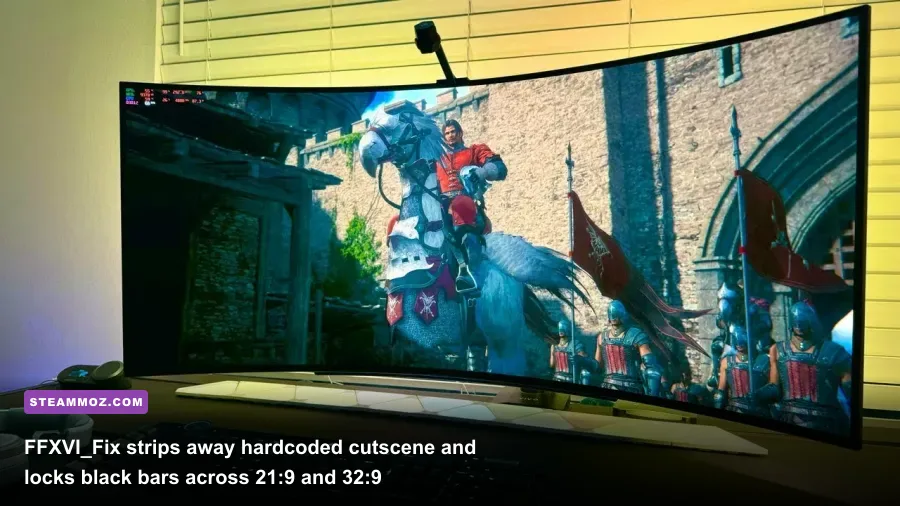
If you only download a single file before diving into Valisthea, make it FFXVI_Fix by community programmer Lyall. Out of the box, the PC port imposes a jarring 30 FPS cap on in-engine cutscenes, dialogue sequences, and user interface panels. Transitioning from a crisp 90 FPS combat encounter into a choppy 30 FPS conversation completely derails immersion. FFXVI_Fix directly hooks into the engine to unlock these cinematics to match your display's native refresh rate, instantly smoothing out every story beat.
Beyond frame limits, the tool addresses the port's claustrophobic default camera. During frantic clashes against fast boss encounters like Benedikta or Hugo Kupka, Clive's shoulder model can block your view of incoming enemy tells. By tweaking the configuration file (FFXVI_Fix.ini), you can expand Clive's Field of View by 10% to 25%, giving you a far better peripheral view of telegraphed sweeps and magic projectiles. Ultrawide users on 21:9 and 32:9 panels also get complete elimination of pillarboxing during cutscenes and menus without stretched UI elements.

🎮 FORM
Looking to experience this game? Grab your digital key directly on our store for $14.99.
View on Steammoz Store →Performance Enhancers: Eliminating Stutter and Upgrading Frame Gen
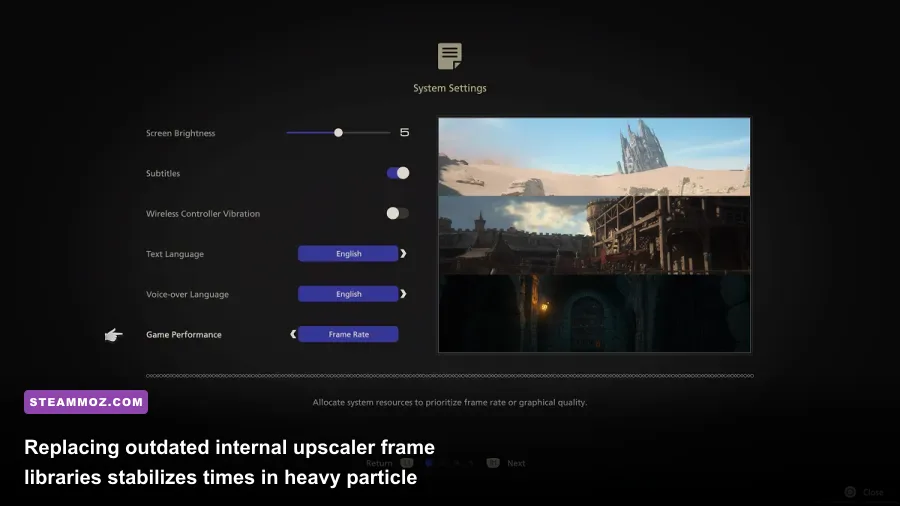
Heavy Eikon clashes—especially when stacking Phoenix Shift into Garuda's Gouge or Titan's Windup—generate dense volumetric lighting and particle simulations that hammer both CPU thread scheduling and GPU fill rates. Much like diagnosing problems in our breakdown of crashing and low FPS fixes, stabilizing frame delivery starts with addressing how the game handles memory allocation and modern scaling libraries.
The PC version ships with older upscaling files that cause ghosting artifacts around Clive's sword trails and slight micro-stutter when traversing dense hubs like the Hideaway or Martha's Rest. Swapping out the native nvngx_dlss.dll for version 3.7.10 (or newer) cleans up temporal anti-aliasing artifacts noticeably. For AMD and Intel users, pairing community frame-generation bridges like OptiScaler lets you unlock smooth frame generation without muddying fast combat motions. If your system struggles with frame delivery spikes, tweaking base visual parameters alongside our guide to settings for max FPS provides an excellent blueprint for managing GPU headroom under heavy loads.
| Mod / Utility | Tier Rating | Core Function | Performance & Visual Impact |
|---|---|---|---|
| FFXVI_Fix (Lyall) | S-Tier | Uncaps cutscenes, adds custom FOV, enables true ultrawide | Zero FPS penalty; drastically fixes frame-pacing jumps between cutscenes and play |
| DLSS / FSR DLL Swapper | S-Tier | Updates upscaler libraries to newest vendor revisions | Reduces ghosting around Clive's sword swings; improves upscaled image sharpness |
| Vignette & Blur Remover | A-Tier | Removes artificial screen-edge darkening and radial camera blur | Slight GPU relief; dramatically cleans up dark combat clarity in caves and dungeons |
| PlayStation UI Glyph Restorer | A-Tier | Restores DualSense prompt icons over Bluetooth or native direct-input | Zero impact; quality-of-life boost for controller accuracy during QTE sequences |
| Eikonic Cooldown Rebalance | B-Tier | Modifies ability recovery times and Stagger Will multipliers | Gameplay tweak only; speeds up combo flow during long trash-mob skirmishes |
Visual Cleanup: Purging Vignette, Aggressive Blur, and Green Tints
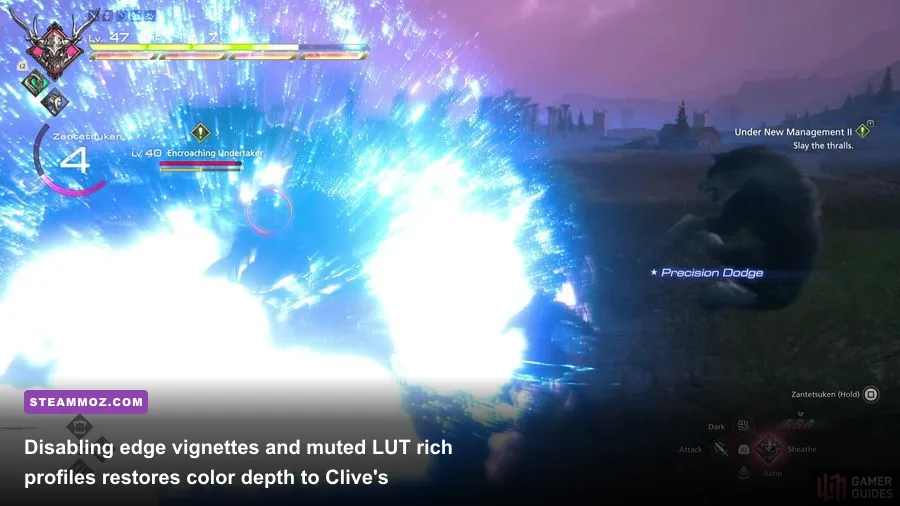
Square Enix went heavy on atmospheric post-processing filters in Final Fantasy 16. While cinematic, the aggressive edge vignette darkens up to 20% of your screen border, crushing shadow details in dimly lit caverns beneath Rosalith. You can pick up the official release over on the Final Fantasy 16 Steam store page, but clearing out these heavy filters requires dropping a couple of loose files into your directory.
The Disable Vignette and Chromatic Aberration mod (distributed via the Nexus Mods Final Fantasy 16 hub) strips away the artificial lens distortion. Pairing this with a subtle neutral Reshade preset removes the greenish-yellow color wash that blankets the imperial provinces, revealing natural skyboxes and realistic metallic sheen on Clive's armor plates. If you've spent time tuning low-level graphical profiles like those in our guide on settings for higher FPS, you know that ditching post-processing clutter clears up essential visual clarity during split-second parry windows.
Gameplay Overhauls: Rebalancing Eikonic Cooldowns and Early Game Pace
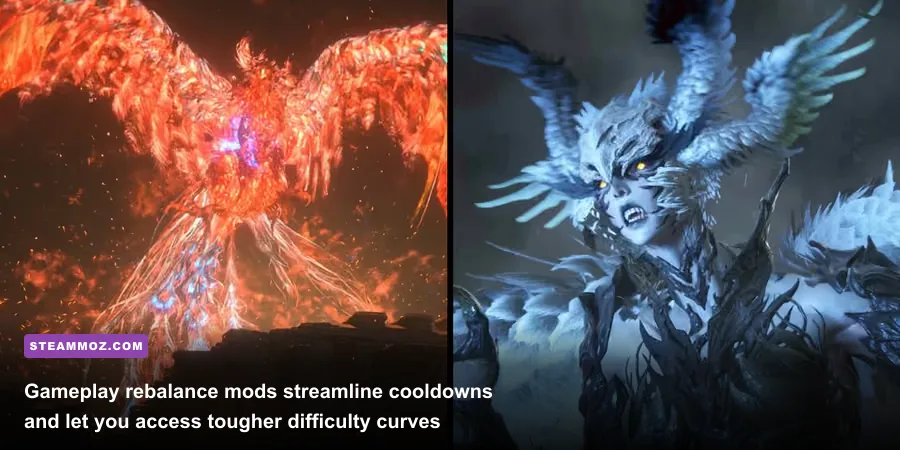
One common critique of the vanilla campaign is its rigid pacing. On your initial playthrough, "Action-Focused" mode can feel overly forgiving, while the true challenge—Final Fantasy Mode—remains artificially locked until credits roll. Veteran action players looking for tighter combat windows often find early battles dragged down by spongey basic enemies and overly long cooldowns on core abilities like Rising Flames or Scarlet Cyclone.
Gameplay modders solved this by delivering modular difficulty adjustments and ability rebalancers. With mods like Eikonic Flow, you can shave 15% to 25% off ability cooldowns while slightly tuning down raw base damage. This shift prioritizes active combo stringing—launching an enemy with Phoenix, holding them suspended with Garuda's Deadly Embrace, and finishing with a charged Titan strike—over passive waiting. Handling broad mechanical tweaks is similar to optimizing input responsiveness highlighted in our breakdown of fighting game PC specs and demands, where precise combat cadence makes every encounter satisfying.
| Combat Mod | Mechanical Shift | Target Enemy Type | Optimal Ability Pairing |
|---|---|---|---|
| Fast Eikonic CD | Reduces ability recovery by 20%; balances burst damage | Trash mobs & mid-tier mini-bosses | Phoenix Shift into Wicked Wheel aerial juggle |
| Aggressive AI Behavior | Cuts enemy attack idle timers by 35%; buffs projectile speed | Humanoid bosses & Akashic encounters | Precision Dodge counter-strikes and Titanic Block |
| Early Final Fantasy Mode | Unlocks hard-mode enemy groupings and lethal scaling from Level 1 | Full campaign progression | Full stagger rotations pairing Gouge with Lightning Rod |
If you run into stability issues or mid-fight crashes when testing gameplay balance scripts, reviewing our troubleshooting methods for preventing crashes and saving your FPS helps isolate faulty script hooks from actual GPU driver time-outs.
Cosmetics and Quality of Life: UI Tweaks and Outfit Swaps
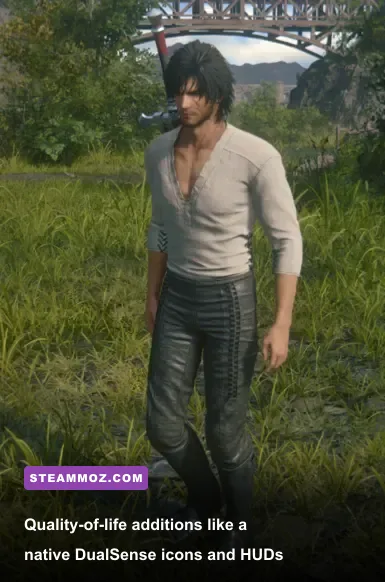
Rounding out your modding loadout comes down to interface refinement and custom visuals. When connecting a Sony DualSense controller wirelessly over PC Bluetooth, Final Fantasy 16 routinely defaults to generic Xbox button prompts. The PlayStation Glyph Restorer forces the UI to render authentic square, triangle, circle, and cross icons, which makes the rhythm of quick-time Cinematic Strikes and Cinematic Clashes much easier to read during intense set pieces.
Cosmetic modding has also flourished. You can swap Clive's standard Rosarian garb for alternate colorways, equip heritage attire, or even swap sword appearances to make your endgame blades resemble Cloud's iconic Buster Sword or classic franchise relics. For players who love capturing panoramic landscape shots across the Sanbreque capital or the crystalline shores of Dhalmekia, a simple Toggle HUD script mapped to your keyboard lets you wipe away health bars, damage numbers, and mini-map markers instantly.
Installing these modifications is straightforward: most texture and visual replacements use standard .pak files that drop right into your Final Fantasy XVI\ffxvi\Content\Paks\~mods folder (create the ~mods subfolder if it isn't there yet). For DLL-based injections like FFXVI_Fix, simply extract the files directly into the root folder where your main ffxvi.exe binary lives. For official patch documentation and port updates, keep tabs on the Square Enix Support Portal to ensure community script hooks remain compatible as future patches roll out.