When you're deep inside a tier-150 Greater Rift, your Barbarian whirlwinds straight into a cluster of eighty elite mobs, and Rend calculates bleed across the entire screen, your 200 FPS shouldn't crater into an unplayable 18 FPS slideshow. Diablo III might be a legendary isometric action RPG, but its proprietary engine—built in an era when dual-core processors were standard—still chokes on modern hardware if you leave its settings untouched. Achieving buttery, stutter-free performance isn't about throwing an expensive modern graphics card at the game; it's about eliminating the specific rendering traps, audio-thread bottlenecks, and config misfires that cause horrific 1% low frame drops. Drop Shadow Quality to Low, rein in your Sound Channels, disable Clutter Density, and tune your frame limits to match your monitor refresh rate. That immediate baseline alone will eliminate roughly eighty percent of the micro-stutters that ruin high-level pushes.
Core Video Settings That Actually Boost Diablo 3 Framerates
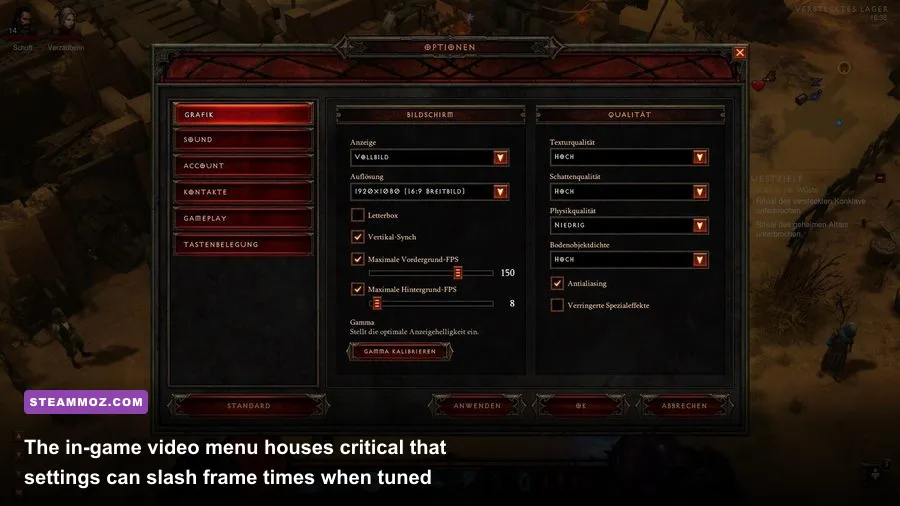
Diablo III's graphics menu looks deceptively simple, featuring barely a dozen toggles. Yet several of those toggles exert a massive, disproportionate drag on your CPU's single-core speed rather than your GPU. If you want consistently high framerates during hectic four-player public games or dense seasonal farming runs, you must treat every toggle with deliberate care. Just like we highlighted when analyzing settings for max FPS in modern shooters, knowing which switches directly hit draw calls makes all the difference.
Display Mode: Always select Fullscreen. While Windowed (Fullscreen) feels convenient for multi-monitor alt-tabbing, Windows Desktop Window Manager (DWM) forces an extra compositing pass that introduces frame pacing variance and slight input latency. True Fullscreen grants the official Diablo III portal client direct access to your GPU's swap chain, drastically improving frame delivery.
Shadow Quality: Set this to Low or Off. This is the single heaviest graphical performance killer in Sanctuary. Diablo III calculates dynamic shadow maps from dozens of moving, lunging monster models simultaneously. When you drop high-tier rift density onto the screen—especially on open maps like the Festering Woods or Southern Highlands—shadow rendering hammers the CPU draw thread. Dropping Shadows from High (Smooth) to Low instantly recovers up to 35% of your frame rate during massive pulls without noticeably diminishing the game's dark, gritty atmosphere.
Physics: Set this to Low. The physics slider governs ragdoll animations and environmental debris breaking when you smash pots, bones, and decorative crypt fixtures. On High, the game attempts to calculate individual trajectory physics for every shattered skeleton rib and falling cobblestone. When your Necromancer detonates a room using Corpse Explosion, high physics can stall your main game thread. Setting this to Low simplifies collision geometry calculations and eradicates severe frametime spikes.
Clutter Density: Turn this to Off or Low. Clutter scatters tiny grass blades, discarded skulls, and ambient dirt piles across the terrain. While atmospheric, these minute meshes multiply individual draw calls. Turning Clutter off clears out visual noise, making elite affix ground telegraphs—like Arcane Enchanted beams, Molten pools, and Desecrator patches—far easier to spot while handing you back a clean 8% to 12% frame boost.
Anti-Aliasing: Use FXAA or keep it Off if playing at 1440p or 4K. Diablo III's built-in anti-aliasing is an older post-processing pass. At native 1080p, FXAA smooths jagged monster outlines at virtually zero performance cost. If you are running 1440p or 4K resolution, pixel density is high enough that you can turn it completely off for maximum crispness and zero rendering latency.
Low FX: Check this box ON for high-density group play; leave it OFF for casual solo leveling. Low FX is Diablo III's built-in panic button for graphical overload. It strips away extraneous particle layers from explosive spell effects like Wizard's Meteor Shower, Demon Hunter's Multishot, and Witch Doctor's Acid Cloud. If your frame rate regularly tanks during intense 4-man Greater Rifts, checking Low FX is the silver bullet that keeps your frame rates stable.
| Graphic Setting | Recommended Value | Performance Impact | Visual Impact & Tactical Value |
|---|---|---|---|
| Display Mode | Fullscreen | Low (Stabilizes Frametimes) | Prevents DWM compositing lag; lowers input latency. |
| Resolution | Native Display Refresh | Moderate | Essential for crisp HUD and telegraph recognition. |
| Texture Quality | High | Negligible (VRAM Bound) | Any GPU with >2GB VRAM handles High without frame drops. |
| Shadow Quality | Low or Off | Extremely High (25-35% Gain) | Removes massive CPU shadow-mapping draw call bottlenecks. |
| Physics | Low | High during mob explosions | Stops Corpse Explosion and Ragdoll spikes cold. |
| Clutter Density | Off / Low | Moderate (8-12% Gain) | Cleans floor visuals; makes deadly elite affixes obvious. |
| Anti-Aliasing | Off (1440p+) / FXAA (1080p) | Low | Slight smoothing; turn off for maximum frame clarity. |
| Low FX | Checked (Enabled) | Massive in 4-Player Groups | Suppresses particle chaos so you can dodge fatal affixes. |
| Max Foreground FPS | Monitor Hz minus 3 | Prevents GPU Thermal Throttling | Pairs with G-Sync/FreeSync to guarantee flat frametime delivery. |
| Max Background FPS | 30 FPS | System Power Saver | Drops GPU power draw when alt-tabbed checking builds. |

🎮 FORM
Looking to experience this game? Grab your digital key directly on our store for $14.99.
View on Steammoz Store →Eliminating High-Density Rift Stutter: The Audio Engine Culprit
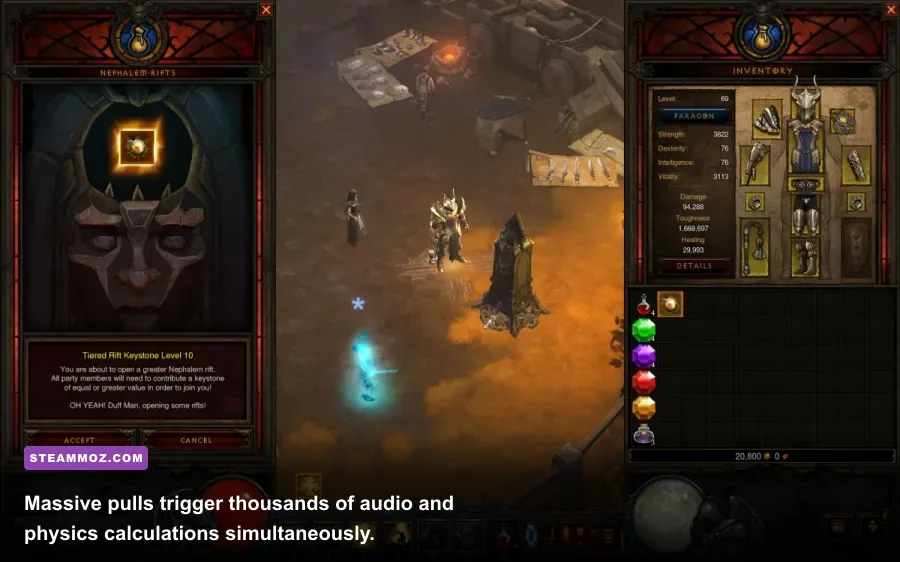
Ask seasoned veterans pushing competitive leaderboards what causes the dreaded "one-second freeze" when entering a room packed with 100 grotesque monsters, and they will give you a surprising answer: sound processing. Diablo III relies on an older implementation of the FMOD sound library. In high-density combat, every individual monster groans, swings, gets hit by Area Damage, triggers critical hits, and activates proc coefficients simultaneously. Each of these events queues a discrete sound channel voice.
By default, Diablo III often sets Channels to 128 (High). When your character unleashes rapid-hitting attacks—like a Frenzy Barbarian or a Strafe Demon Hunter—the game runs out of available hardware sound buffers and starts thrashing the primary CPU thread trying to prioritize playback. The result is a brutal micro-stutter that feels exactly like graphics card lag, but is completely rooted in the audio stack.
Open your in-game Sound options right now and change Sound Channels from 128 down to 32 (or even 16 (Lowest) if you are playing on older hardware or handheld PCs). You will not miss any essential combat audio cues; legendary beam drops, elite pack encounter alerts, and boss telegraphs will still ring through loud and clear. What will disappear, however, is the catastrophic micro-stutter that occurs the exact instant your primary attack strikes an enormous pull.
If you've tackled stubborn performance issues in other titles—much like diagnosing stutter fixes in challenging environments or applying tweaks that rescue frame pacing—you know that secondary subsystems like audio and legacy I/O frequently bottleneck modern hardware.
Crucial Config File Tweaks in D3Prefs.txt
The standard user interface only exposes a fraction of the engine's configuration toggles. To unlock the smoothest possible frame delivery, you'll want to take a brief trip into Diablo III's configuration text file, known as D3Prefs.txt. This file is stored in your personal user directory rather than the installation folder.
Close Diablo III and navigate to:
C:\Users\[YourUsername]\Documents\Diablo III\D3Prefs.txt
Open the file with Notepad or any standard text editor. Before making modifications, create a quick backup copy on your desktop. Once inside, locate and adjust the following specific lines:
DisableTrilinearFiltering: Change this value from 0 to 1 (DisableTrilinearFiltering "1"). Modern GPUs handle anisotropic filtering effortlessly, but the engine's internal legacy trilinear pass can create minor texture caching hitches during fast camera movement across dungeon tilesets. Toggling this off frees up minor rendering overhead.
HardwareClass: This parameter ranges from 1 to 6. It tells the game what performance tier it should assign to your hardware. Occasionally, Diablo III misreads modern architecture and defaults your system to HardwareClass "1" or HardwareClass "2", which restricts streaming memory pools. Manually setting this value to HardwareClass "4" or HardwareClass "5" ensures the engine uses adequate memory allocators without activating buggy experimental post-processing passes.
Limit Foreground Framerate: Ensure MaxForegroundFPS matches your active monitor's refresh rate ceiling. If you run a 144Hz panel with G-Sync or FreeSync, set this to 141. If you are on a 240Hz monitor, set it to 237. Leaving Diablo III's framerate uncapped causes the engine to render menus, loading portals, and static town hubs at 400+ FPS, driving GPU core temperatures up needlessly and causing thermal downclocking right before you dive into a demanding dungeon.
After saving your changes, right-click D3Prefs.txt, select Properties, and consider setting it to Read-only if you find the client persistently overrides your custom frame limits on restart.
64-Bit vs 32-Bit Client: Resolving Memory Leaks & Micro-Freezes
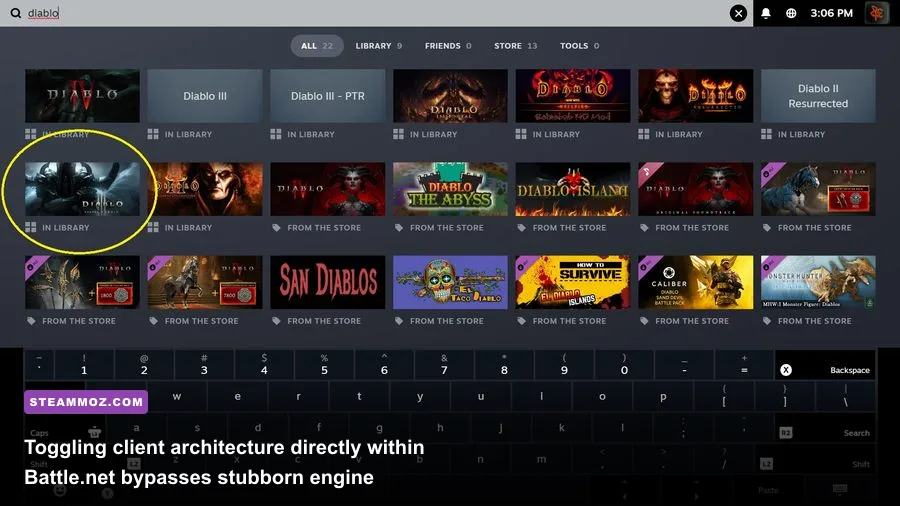
Several years into Reaper of Souls' lifespan, Blizzard introduced a dedicated 64-bit DirectX 11 client to replace the ancient 32-bit DirectX 9 executable. While the 64-bit client allows Diablo III to access more than 4GB of system RAM—drastically reducing out-of-memory crashes on high-resolution texture packs—it introduced an infamous micro-stutter issue on specific Windows configurations.
The problem stems from how the 64-bit client interacts with certain dynamic link library (DLL) hooks, Windows Game Mode, and modern multi-thread scheduling. If you experience persistent hitching every 5 to 10 seconds despite having low shadows and tuned audio channels, testing client architecture is your next logical step.
To check this, open the Blizzard Battle.net desktop app, navigate to the Diablo III tab, click the Options gear icon next to the Play button, and select Game Settings. Under the Diablo III heading, you will find an option titled Launch 32-bit client (instead of 64-bit).
If you're on a modern rig running Windows 10 or 11 with plenty of VRAM, the 64-bit client is generally preferred for overall stability. However, if micro-stutters persist, check the box to force the 32-bit client. Many players on older systems or budget configurations find the legacy 32-bit client offers noticeably flatter frametime consistency during intense skirmishes. Similar architecture toggles resolve hiccups across various engine generations, much like fine-tuning settings in Filament optimization passes or diagnosing frame-first crash remedies in dynamic action titles.
Additionally, check official advice within Blizzard's technical support database to verify that background overlays—such as Discord, GeForce Experience, or Razer Synapse—are not actively hooking into the 64-bit executable's render thread.
Optimizing High-Density Combat: Dealing with Area Damage Lag
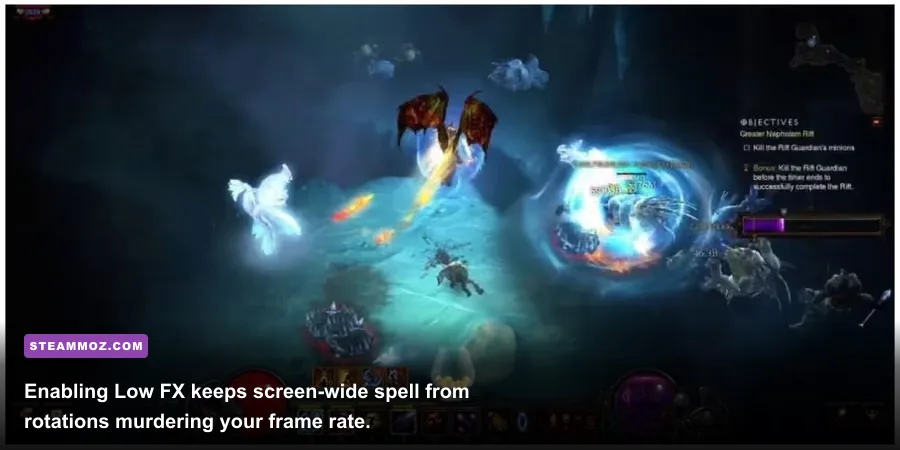
It is impossible to discuss Diablo III performance without addressing the elephant in the room: Area Damage (AD). In endgame Greater Rifts, Area Damage is a premier offensive stat. It grants every attack a 20% chance to deal a percentage of the damage dealt to all enemies within a 10-yard radius. While mathematically vital for leaderboard builds, Area Damage is computationally brutal.
When an aggressive Support Barbarian pulls 70 monsters into a tight vortex via Ground Stomp and Ancient Spear, and a Firebird Wizard or Rend Barbarian unleashes a flurry of attacks hitting 20 times per second, the math explodes exponentially:
70 monsters × 20 attacks/sec = 1,400 hits/sec × 20% AD proc = 280 mathematical area-of-effect calculations per second.
Each individual calculation must verify monster hitboxes, check defense stats, compute critical strike multipliers, apply bleed damage over time, and visually render numbers and impact effects. This generates severe server-side lag that manifests directly on your client as rubberbanding, frozen animations, and sudden delayed deaths.
While you cannot rewrite Blizzard's server networking code, you can protect your local client from choking on the visual feedback loop:
- Turn Off Damage Numbers: In Options > Gameplay, uncheck both Display Damage Numbers and Display Critical Numbers. When fighting giant density packs, your screen is flooded by hundreds of floating combat text sprites per second. Suppressing these numbers significantly unburdens your CPU's render queue.
- Disable Monster Health Bars: Uncheck enemy health bars for non-elite targets. Keeping health bars reserved strictly for Champions and Elites allows you to monitor dangerous affix health without rendering dozens of dynamic UI health bars overhead.
- Coordinate Support Build Paragon Points: If you run designated Support builds in 4-player groups (such as zMonk, zBarb, or zDemon Hunter), completely zero out your Area Damage node in your Paragon Utility tab. Support builds deal negligible base damage anyway; removing Area Damage calculations from their lightning-fast debuff attacks cuts computational strain in half.
| Hardware Profile Tier | Target Resolution & Refresh | Graphics Preset Profile | Audio Channels & FX Tweaks | Expected Framerate Floor |
|---|---|---|---|---|
| Budget Rig / Integrated Graphics | 1080p @ 60Hz | Textures High, Shadows Off, Physics Low, Clutter Off | Sound: 16 Channels, Low FX ON, Numbers OFF | Solid 60 FPS (Zero Dip Below 45) |
| Handheld PC (Steam Deck / ROG Ally) | 720p / 800p @ 60Hz | Textures High, Shadows Low, Physics Low, Clutter Off | Sound: 32 Channels, Low FX ON, Cap at 60 FPS | Locked 60 FPS with Great Battery Life |
| Mid-Range Battlestation | 1440p @ 144Hz | Textures High, Shadows Low, Physics Low, Clutter Low | Sound: 32 Channels, Low FX Solo OFF / Group ON | Locked 141 FPS (G-Sync Flawless) |
| High-End Competitive Rig | 4K @ 144Hz+ or 1440p @ 240Hz | Textures High, Shadows Medium/Low, Physics Low | Sound: 32 Channels, Low FX ON, Clutter Off | Blistering 200+ FPS in Intense Rifts |
Nvidia and AMD Control Panel Overrides for Diablo III
Relying solely on in-engine options leaves valuable performance on the table. Both Nvidia and AMD graphics drivers contain dedicated features that can iron out Diablo III's lingering frametime inconsistencies when applied directly to the game's executable (Diablo III64.exe).
Nvidia Control Panel Optimizations:
- Low Latency Mode: Set this to Ultra. This forces the driver to queue frames just-in-time, preventing your CPU from rendering too far ahead of the GPU. In fast-twitch isometric combat where immediate movement inputs save you from Grotesque death explosions, this makes click responses razor-sharp.
- Power Management Mode: Select Prefer Maximum Performance. Because Diablo III is an older title, modern GPUs will occasionally drop clock speeds down to eco-state mid-dungeon, mistaking low overall GPU utilization for an idle desktop. Forcing maximum performance keeps core and memory clocks locked at their highest operational frequencies, eliminating sudden stutter spikes when high density abruptly appears.
- Threaded Optimization: Set this explicitly to On rather than Auto to help distribute the game's legacy rendering pipeline across available CPU cores.
AMD Radeon Software Tweaks:
- Radeon Anti-Lag: Toggle this Enabled to minimize input lag during CPU-bound moments in heavy combat.
- Radeon Enhanced Sync: If you do not have a variable refresh rate monitor, use Enhanced Sync to eliminate screen tearing without the hard framerate penalties and input latency of traditional V-Sync.
- Tessellation Mode: Set to Override application settings and limit maximum tessellation to 16x. Diablo III's terrain meshes do not require high levels of driver tessellation, and capping this saves valuable memory bandwidth.
Fine-tuning older engines to run cleanly requires precision and patience. By stripping out bloated shadow routines, silencing sound-buffer overruns, locking down D3Prefs values, and curbing extraneous damage text, you transform Diablo III from an unpredictable, stutter-prone ARPG into a lightning-fast competitive machine. Step into your next Greater Rift with these configurations locked in, and you'll experience Sanctuary the way it was truly meant to be played: blistering, responsive, and completely uninterrupted.