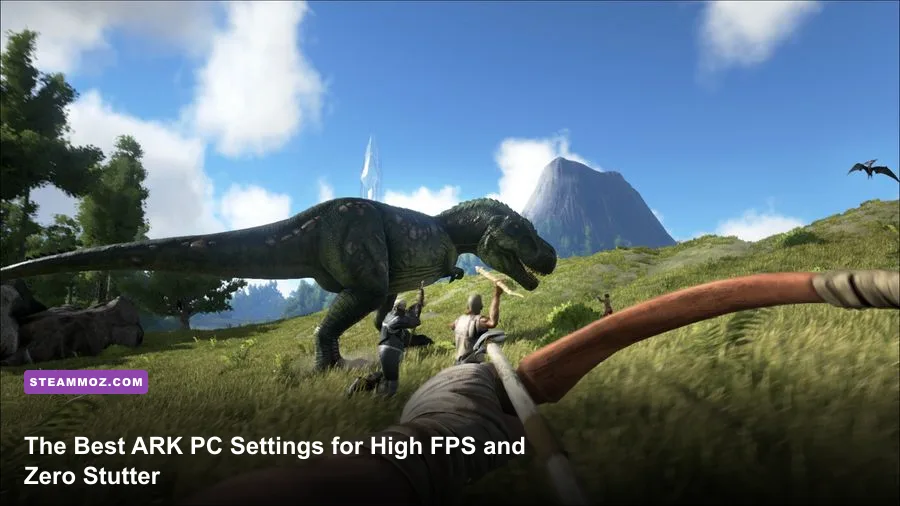
To stop ARK from stuttering and unlock silky-smooth frame rates on PC, you need to slash General Shadows to Medium, drop Terrain Shadows to Low, pull Sky Quality down to 25%, and keep Resolution Scale pinned at 100%. These single adjustments instantly strip away the game's heaviest rendering bottlenecks, clawing back 35 to 50 percent of your frame rate without turning your prehistoric paradise into a blurry mess. Paired with crucial launch arguments and targeted engine console tweaks, you can easily maintain a rock-solid 60 to 120 FPS even when sprinting through dense redwood biomes or defending massive mega-bases.
Core Video Settings: The Biggest FPS Leaks in ARK
ARK has a notorious reputation for brutalizing graphics cards, and for good reason. Developed on a heavily customized version of Unreal Engine 4 by Studio Wildcard, the game pushes thousands of dynamic assets, complex foliage shaders, and uncapped shadow cascades directly to your GPU. If you boot into the ARK: Survival Evolved Steam Store page version on default "Epic" settings, even modern mid-range cards like the RTX 4060 or RX 6700 XT will choke, dropping frames into the mid-30s during weather transitions.
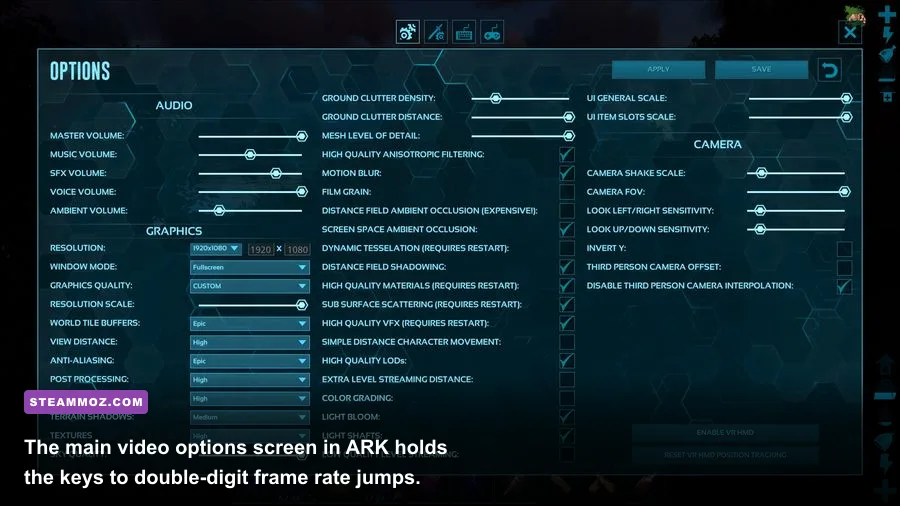
Understanding which settings destroy performance versus which ones preserve visual fidelity is the key to mastering ARK's video options. The absolute worst offender is General Shadows. This slider controls dynamic cascaded shadow maps for every tree, rock, creature, and base structure within your immediate rendering bubble. Running General Shadows on Epic forces your GPU to recalculate high-resolution shadow matrices for hundreds of overlapping jungle leaves simultaneously. Dropping this setting to Medium cuts the shadow resolution and reduces cascade splits, instantly granting a 20 to 30 percent boost to your average FPS while maintaining realistic ambient ground shading.
Next in line is Terrain Shadows. Unlike dynamic entity shadows, terrain shadows cast broad ambient occlusions across distant rolling hills and landscape geometry. The visual difference between Epic and Low is almost imperceptible while moving, yet Epic constantly runs costly depth passes over the terrain mesh. Toggle this down to Low; your eyes won't spot the loss, but your frame rate graph will stabilize immediately.
Then comes Sky Quality. ARK features dynamic volumetric clouds, moving sun flares, and multi-layered atmospheric scattering. When Sky Quality sits at maximum, the game runs expensive ray-marching shaders across the sky dome 24/7. Dialing this slider down to 25 or 30 percent eliminates the performance tax of high-sample volumetric clouds while keeping gorgeous day-night cycles and sunrise lighting completely intact. If you've tackled rendering bottlenecks in other unoptimized open worlds, like applying Far Cry 6 settings for max FPS, you know that dynamic world rendering requires balancing GPU rasterization with CPU asset calls.
Take extra caution with Resolution Scale. A common mistake among struggling players is dragging the Resolution Scale slider down to 70 or 80 percent. While this reduces rendering resolution and raises raw frame rates, it turns dinosaur textures into muddy sludge and makes foliage shimmer violently. Always keep Resolution Scale at 100% and lower geometry or shadow parameters instead. Clear pixel alignment is vital for spotting predators hiding in distant brush.
| Setting Name | Recommended Value | FPS Impact | Visual Impact & Tactical Reason |
|---|---|---|---|
| Resolution Scale | 100% (Maximum) | Extremely High | Maintains native display sharpness; lowering introduces severe blur. |
| World Tile Buffers | Medium (or High on 8GB+ VRAM) | Low - Medium | Controls asset caching; prevents micro-stutter when traversing zones. |
| View Distance | High | High | Critical for spotting hostile players and Alphas; Epic tanks base draw calls. |
| Anti-Aliasing | Medium or High | Moderate | Smooths jagged foliage edges. High offers great temporal stability without blur. |
| Post Processing | Medium | Moderate | Governs ambient bloom and depth passes; Medium avoids blinding glare. |
| General Shadows | Medium | Extremely High | The single biggest performance drain; Medium keeps shadows sharp nearby. |
| Terrain Shadows | Low | High | Culls distant terrain depth passes with almost zero visual penalty. |
| Textures | High / Epic | Very Low (VRAM bound) | Set based on VRAM. 6GB cards run High smoothly; 8GB+ cards handle Epic. |
| Sky Quality | 25% - 30% | High | Removes resource-heavy volumetric cloud passes while preserving lighting. |
| Ground Clutter Density | 20% - 40% | High | Controls small rocks and bushes; lower values improve dino visibility. |
| Ground Clutter Distance | 30% - 50% | Moderate | Reduces draw calls by culling non-interactive grass at medium ranges. |
| Mesh Level of Detail (LOD) | 80% - 100% | Moderate | Controls structure polygon detail; prevents ugly pop-in during fast flight. |
| Distance Field AO | Off | High | Simulates soft occlusion shadows under canopies; disables heavy compute passes. |
| Screen Space AO | Off or On (Rig Dependent) | Moderate | Adds subtle contact shadows; disable for an instant 4-6 FPS recovery. |

🎮 FORM
Looking to experience this game? Grab your digital key directly on our store for $14.99.
View on Steammoz Store →The Sweet-Spot Graphics Preset for 60 to 144 FPS
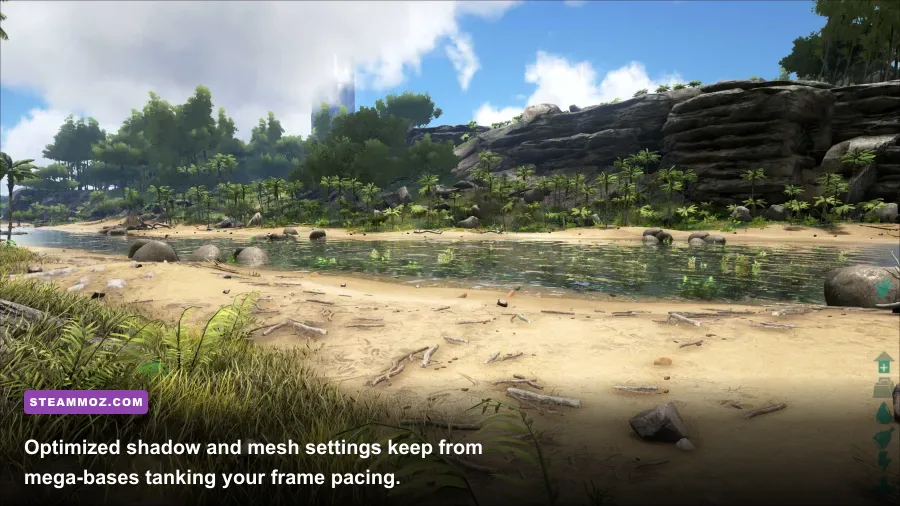
Finding the perfect balance between raw speed and gorgeous visuals means tuning your settings to your specific graphics card category. Rather than relying on Studio Wildcard's clumsy overall presets—which blindly shove every parameter up or down—crafting a customized profile unlocks the full capability of your hardware.
On budget machines equipped with cards like the GTX 1660 Super, RTX 3050, or RX 6500 XT, the objective is locking in a stable 60 FPS at 1080p. In competitive survival gameplay, fluctuating frame times cause missed spear throws and botched tranq dart shots. Setting Textures to High (provided you have 6GB of VRAM) keeps your weapons and tames looking crisp, while dropping Ground Clutter Density to 20% and switching off Distance Field Ambient Occlusion clears away CPU draw bottlenecks. Just as we covered in our guide to Elex PC fixes that stop crashes and rescue FPS, legacy engines frequently struggle with multi-threaded draw calls, so peeling away decorative clutter is critical.
Mid-range configurations packing an RTX 3060 Ti, RTX 4060, or Radeon RX 6700 XT have enough compute horsepower to target 75 to 90 FPS at 1440p. Here, you can safely elevate View Distance to High, push Textures to Epic, and bring Mesh LOD to 100%. This ensures that large metal or stone compounds render cleanly from great heights without polygon pop-in as you scout on an Argentavis or Pteranodon. Keep General Shadows at Medium and disable Motion Blur and Film Grain entirely—both settings degrade visual clarity and cost unnecessary rendering cycles.
High-tier enthusiast rigs sporting an RTX 4070, RX 7800 XT, or better can easily aim for 120 to 144 FPS at 1440p, or a locked 60+ FPS at native 4K. For these machines, View Distance can sit on Epic, Textures on Epic, and Anti-Aliasing on High. However, even on flagship silicon, keeping General Shadows at High rather than Epic and pinning Sky Quality to 40% prevents harsh 1% low frame time dips during thunderstorm weather transitions on maps like Ragnarok and Aberration.
| Hardware Tier | Target Resolution & FPS | Optimal Preset Profile | Key Hardware Adjustments |
|---|---|---|---|
| Budget Rig (GTX 1650 / RX 580 / RTX 3050) | 1080p @ 60 FPS | Performance Custom | Textures: Med-High; Shadows: Low; Clutter: 15%; All Sub-Checkboxes: Off. |
| Mid-Range Rig (RTX 3060 / 4060 / RX 6700 XT) | 1440p @ 75-90 FPS | Balanced Sweet-Spot | Textures: Epic; Shadows: Med; View Dist: High; Clutter: 35%; SSAO: Off. |
| High-End Rig (RTX 3080 / 4070 Ti / RX 7800 XT+) | 1440p/4K @ 100-144 FPS | Ultra-Competitive | Textures: Epic; View Dist: Epic; Shadows: High; Sky: 40%; SSAO: On. |
Check the bottom checkbox toggles inside the video menu as well. Ensure Motion Blur, Film Grain, and Distance Field Shadowing are completely unchecked. Turn off High Quality VFX—this toggle overloads alpha particle effects during flame arrow volleys and explosive raids, turning team fights into stuttering slideshows.
Crucial Steam Launch Options That Actually Boost Performance
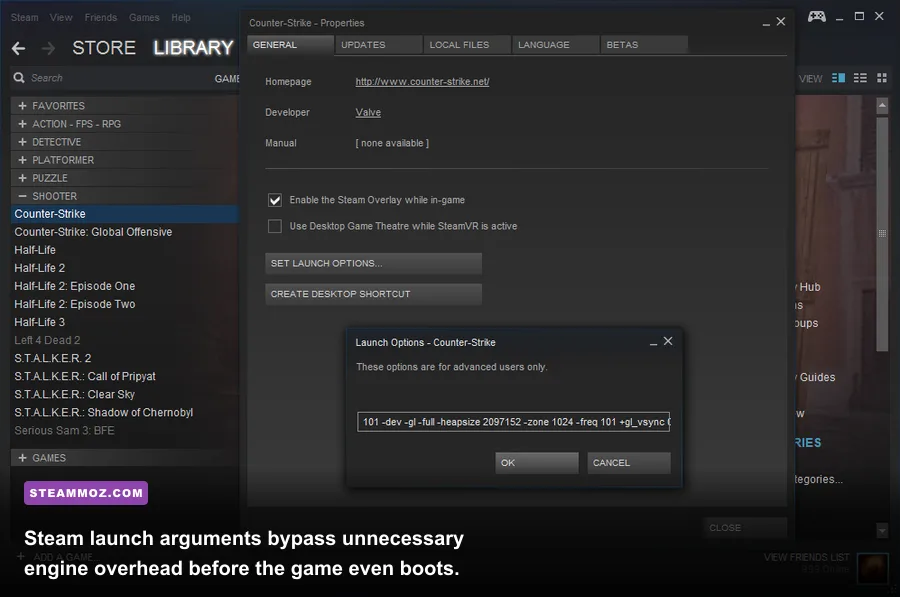
ARK's executable doesn't always initialize Windows hardware resources efficiently on its own. By injecting targeted command-line arguments directly into Steam, you force the engine to distribute workloads cleanly across all available CPU threads and trim dormant background subsystems before the title screen even renders.
To enter these parameters, open your Steam Library, right-click on ARK: Survival Evolved, select Properties, and locate the Launch Options input box at the bottom of the General tab. Copy and paste the following string:
-USEALLAVAILABLECORES -high -nomansky -lowmemory
Here is what each flag actually does under the hood:
- -USEALLAVAILABLECORES: Forces the Unreal Engine job manager to assign rendering tasks, physics, and world loading threads across all physical and logical CPU cores rather than bottling everything up in thread zero.
- -high: Instructs the Windows process scheduler to give ShooterGame.exe elevated CPU priority, preventing background utilities from stealing processor execution cycles during heavy gameplay.
- -nomansky: Strips away secondary volumetric cloud and celestial atmospheric layers. This single flag can recover 8 to 12 FPS on older processors.
- -lowmemory: Crucial if your gaming rig has 8GB or 12GB of system RAM. It compresses active asset tables, preventing the out-of-memory memory leaks ARK is infamous for during extended gaming sessions. Skip this flag if you have 32GB or more of fast DDR4/DDR5 RAM.
Be careful with outdated launch options you might see on old forum threads. Avoid using -sm4 or -d3d10 on modern systems. While these parameters forced ARK into legacy DirectX 10 mode years ago to salvage frames on ancient hardware, they break modern lighting shaders, cause severe texture artifacts, and turn water surfaces into opaque grey planes. Stick to thread allocation and memory streamlining for clean, bug-free performance. Even stylish indie games demand strategic tuning—take our tips for Filament Marmalade Edition higher FPS—yet ARK's Unreal backend pushes hardware into a whole different tier of punishment.
Engine Console Commands That Tame ARK's Wildest Lag Spikes
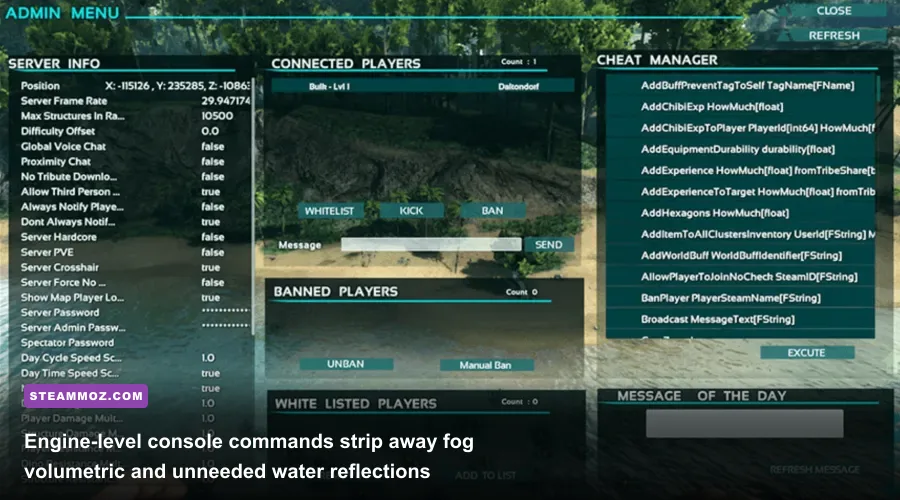
Even with customized video sliders and Steam flags, ARK has built-in environmental effects that cannot be toggled through the standard settings menu. Fortunately, you can open the in-game developer console at any time by pressing the Tab key (or the tilde key ~ depending on your keyboard layout) to issue real-time rendering overrides.
The most transformative command you can run is:
r.VolumetricCloud 0
Running this command immediately wipes out dynamic volumetric cloud rendering across the skybox. On maps like The Island, Fjordur, or Genesis, this instantly rewards you with a massive 15 to 25 FPS leap while removing the annoying blinding white haze that washes out mountaintop vistas. Don't worry—the sun, moon, and horizon colors remain entirely visible.
Next, tackle the blinding light glare reflecting off coastal waters and metal structures by entering:
r.BloomQuality 0 and r.LightShafts 0
By default, ARK's bloom and light shafts are aggressively over-tuned. Approaching a sandy beach at noon often results in a nearly white screen that obscures enemy dinos and tanks your GPU fill rate. Setting these to zero eliminates the blinding flash and recovers 3 to 5 FPS in daylight biomes.
If you're defending or attacking a massive base packed with hundreds of turrets and auto-breeding dino pens, water reflections will cripple your frame pacing. Run this command to kill redundant planar water calculations:
r.Water.SingleLayer.Reflection 0
To keep an eye on your real-time performance and frame times without needing third-party overlays, type stat fps into the console. If your frame rate holds steady but you still notice harsh judder during high-speed traversal, dynamic foliage generation is likely choking your memory buffer. Lower the foliage scaling dynamically with sg.FoliageQuality 1. Refer to community field tests on the Official ARK Wiki for deep documentation on how specific server configurations interact with client-side console inputs.
Deep INI Tweaks and Windows Adjustments for Seamless Play
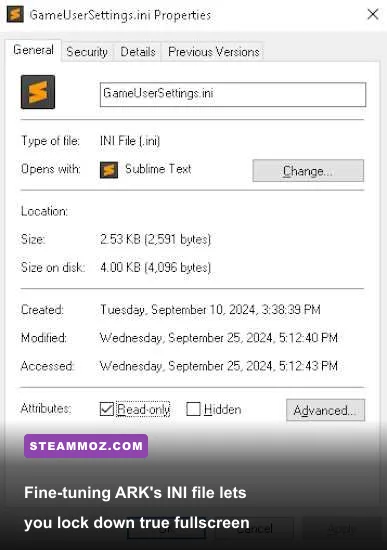
If you want to extract every drop of speed from your system, you have to dig into ARK's configuration files and configure Windows properly. Many display hitches stem from ARK failing to activate true exclusive fullscreen mode, defaulting instead to borderless windowed modes that introduce desktop compositing latency.
Navigate to your local ARK installation folder, typically found at:
Steam\steamapps\common\ARK\ShooterGame\Saved\Config\WindowsNoEditor
Locate the file named GameUserSettings.ini and open it using Notepad. Search for the following display parameters and modify their values directly:
FullscreenMode=0
LastConfirmedFullscreenMode=0
PreferredFullscreenMode=0
bUseVSync=False
Setting FullscreenMode=0 forces the game into exclusive fullscreen, granting your GPU direct control over the display surface. This eliminates micro-stutter caused by Windows desktop window managers and noticeably sharpens input response times. Disabling VSync in the file eliminates severe controller and mouse drag; if you experience screen tearing, cap your frame rate via the NVIDIA Control Panel or AMD Adrenalin software instead of using in-game VSync.
On the Windows side, ensure that Game Mode is enabled in your Windows 10/11 Settings. Windows Game Mode prioritizes system threads for active games while suspending unnecessary background tasks. Additionally, enable Hardware-Accelerated GPU Scheduling (HAGS) under your Windows Advanced Graphics Settings if you run a modern NVIDIA GTX 10-series/RTX or AMD RX 6000/7000 series card. HAGS offloads frame scheduling tasks directly to dedicated GPU memory processors, lowering CPU-bound frame latency significantly.
Memory paging management is equally vital. Much like diagnosing stability in EscapeVR basement crashing and low FPS, tracking memory leaks early prevents mid-tame crashes. ARK consumes vast amounts of virtual memory when streaming expansive biomes. If your Windows pagefile is locked to a small fixed size, the game will hard crash to the desktop with a "LowLevelFatalError" message. Set your Windows Virtual Memory paging file to "System Managed" or assign a custom 16GB-32GB pagefile pool on your fastest NVMe SSD.
If stuttering persists during rapid traversal, similar to flight sim asset streaming seen in our Everspace 2 FPS and crashing breakdown, your SSD transfer speed and pagefile size might be throttling world chunk loading. Never run ARK on a traditional mechanical hard drive; streaming uncompressed textures and landscape collisions off a spinning HDD causes multi-second freezes whenever you cross map borders. Moving ARK to an NVMe M.2 drive will cure 90 percent of real-time hitching on its own.
Dial in these optimized video sliders, establish your baseline with solid launch flags, and keep those essential console commands ready. You'll turn ARK from a notorious hardware crusher into a buttery-smooth, visually striking survival sandbox where every reaction counts.