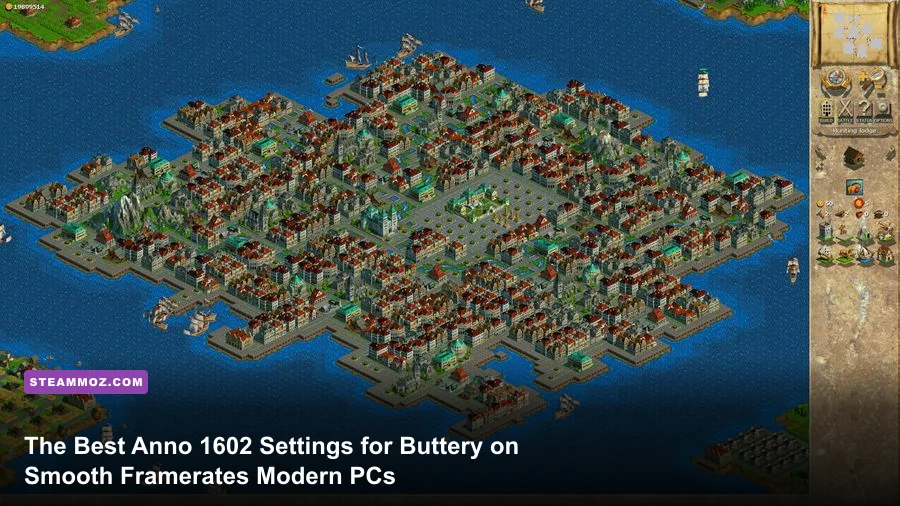
To lock Anno 1602 at a rock-solid, fluid frame rate on modern Windows 10 and Windows 11 systems, your battle isn't against GPU performance bottlenecks—it's against an obsolete DirectDraw rendering pipeline, broken high-refresh display timing, and single-threaded simulation hitching. If you're playing the Anno 1602 History Edition, the winning move is switching your display output to Borderless Windowed, setting your panel refresh rate to 60Hz (or an exact multiple like 120Hz with an external 60 FPS limiter), disabling in-game V-Sync in favor of driver-level Fast Sync, and enabling GPU Integer Scaling. If you're spinning up the classic 1998 CD-ROM or GOG release, your first step should be dropping the open-source cnc-ddraw wrapper into your root folder, which completely cures the unbearable 15 FPS mouse dragging, map stutter, and desktop crashes common on modern setups.
History Edition vs Classic: Decoding the Engine Bottlenecks
To optimize Anno 1602, you first need to recognize which underlying graphics pipeline you are actually running. The original 1998 title was programmed by Max Design around the long-retired Microsoft DirectDraw 5/6 API. It blits pre-rendered 2D isometric sprites directly to the frame buffer at fixed pixel resolutions like 640x480, 800x600, and 1024x768. Modern operating systems do not possess native hardware pipelines for DirectDraw blitting anymore. Instead, modern Windows routes those vintage calls through software emulation layers inside the Desktop Window Manager (DWM), creating brutal micro-stutters, color corruption, and erratic frame drops when you pan across populated islands.
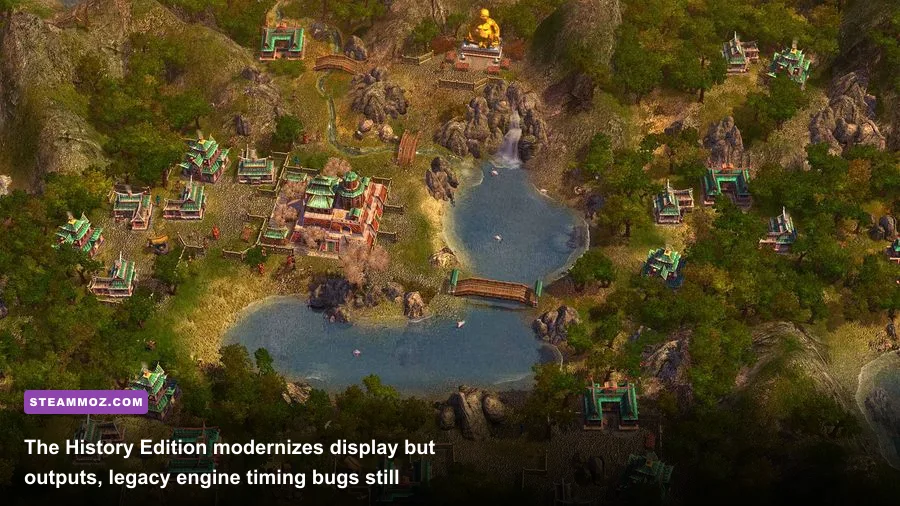
Ubisoft addressed many of these compatibility nightmares when releasing the Anno 1602 History Edition on the Ubisoft Store. This modern port wraps the ancient rendering logic inside a contemporary DirectX 11 container, unlocking native 4K display modes, multi-monitor safety, and borderless windowed playback. However, even the History Edition isn't immune to frame-pacing bugs. While modern graphics powerhouses run high-fidelity blockbusters without breaking a sweat—much like dialling in your rig using our Far Cry 6 GOTY settings guide—retro city builders come with an entirely different set of rendering constraints. The internal simulation logic in 1602 still executes on a rigid tick rate designed around 60Hz cathode-ray tube (CRT) monitors. When you run this codebase uncapped on a 144Hz, 165Hz, or 240Hz gaming panel, the visual camera interpolation falls completely out of sync with the underlying simulation clock, producing constant camera judder even when your framerate counter falsely displays triple digits.
Whether you purchased the game via the GOG Anno 1602 edition or modern Ubisoft digital ecosystems, stability depends on synchronizing the game's internal tick rate with your monitor's physical refresh cycle. Resolving this discrepancy is the difference between an unplayable slideshow and an authentic, buttery-smooth colony-building experience.

🎮 FORM
Looking to experience this game? Grab your digital key directly on our store for $14.99.
View on Steammoz Store →The Master Graphics Settings Hierarchy and FPS Impact
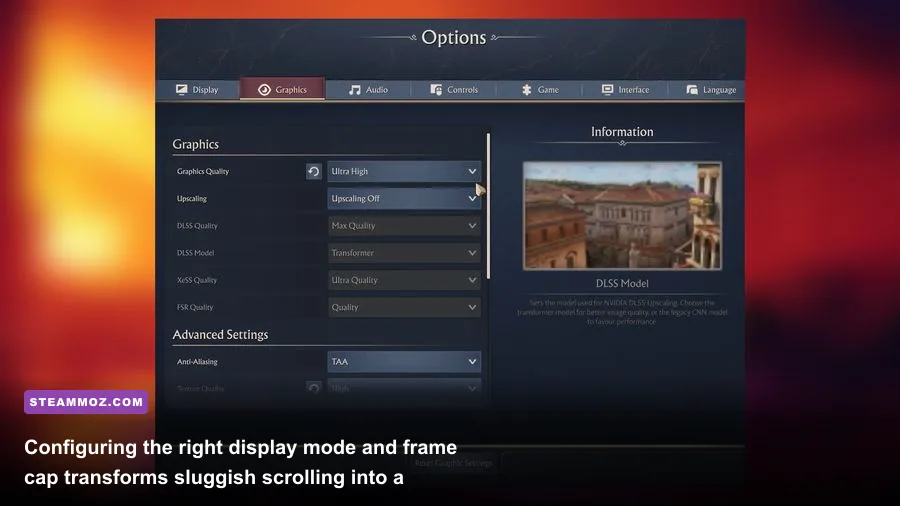
Because Anno 1602 does not feature a traditional 3D graphics menu crammed with shadow maps, volumetric fog, or anisotropic filtering toggles, your performance tuning focuses on display coordination, UI scaling mechanics, blitting buffers, and refresh behavior. When your display pipeline is tuned properly, you avoid the sudden frame dips that plague unoptimized PC experiences, an issue we also tackled in our ELEX FPS recovery guide.
| Setting Option | Recommended Value | Frame-Pacing Impact | Visual & Gameplay Effect |
|---|---|---|---|
| Display Mode | Borderless Windowed | Severe (Cures Alt-Tab Hitching) | Prevents DWM surface reconstruction crashes while maintaining desktop frame syncing. |
| Display Resolution | Native Panel (via Integer) | Low | Avoids blurry bilinear scaling; renders crisp 2D sprite edges across your monitor. |
| In-Game V-Sync | Off (Force via Driver) | High | The in-engine V-Sync flag causes erratic input latency and double-buffer frame drops down to 30 FPS. |
| Hardware Mouse Cursor | Enabled (On) | Critical | Decouples the mouse cursor refresh from the engine frame buffer to eliminate pointer lag. |
| UI / HUD Scale | 100% or 200% (History Ed.) | Medium | Odd scaling factors (like 125% or 175%) force bilinear filtering blur onto classic font assets. |
| Scroll Speed (Smooth Panning) | Middle Notch (40-50%) | Moderate | High scroll speed skips entire coordinate blocks per frame, creating artificial visual stutter. |
| Background Frame Limiter | Active / On | Low | Halts GPU core spikes when switching over to secondary spreadsheets or guides. |
Getting your in-game values right is half the battle. If you play on the History Edition, navigate to the display settings directly inside the updated launcher menu. Keep the Resolution matched to your native monitor canvas, but lock the in-game V-Sync switch to off. The built-in vertical synchronization toggle in the History Edition uses a rudimentary double-buffering scheme. The instant your system experiences even a microsecond of thread lock while calculating cargo shipments or pioneer migrations, the internal frame rate cuts straight from 60 FPS down to 30 FPS, causing an instant visual lurch.
Next, check the Hardware Cursor box. Without hardware cursor polling active, the game renders the gauntlet mouse pointer directly into the game's dirty-rectangles blit buffer. If a complex fleet battle breaks out or your market carts cause a brief computation spike, your mouse cursor will drag across the screen like it's stuck in wet concrete. Enabling the hardware cursor keeps the pointer operating at your mouse's native 1000Hz polling rate regardless of what the game's render thread is doing.
Driver-Level Tweaks: Integer Scaling and Refresh Rate Sync
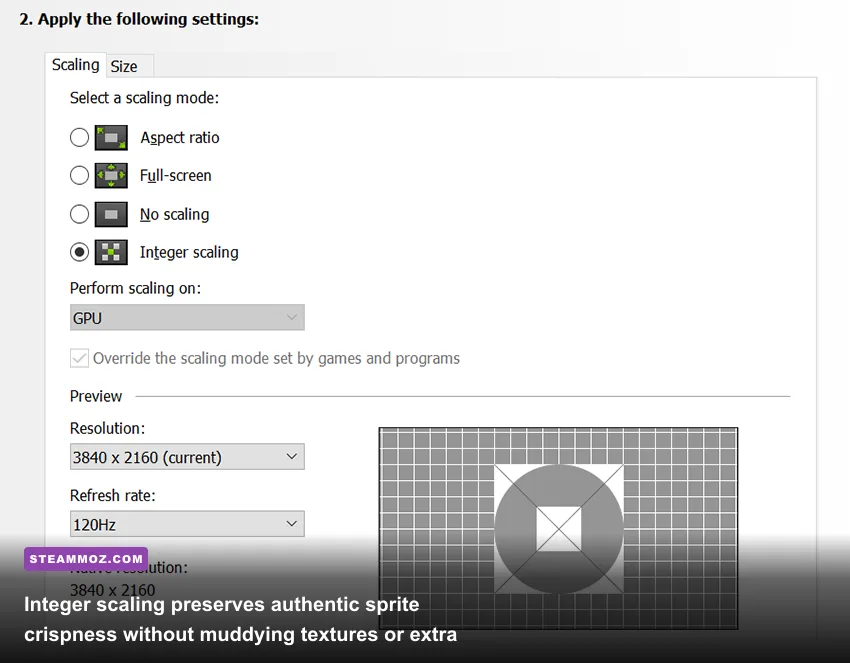
Because Anno 1602's visual assets were illustrated by hand for low-resolution CRT displays, stretching those pixels across modern 1440p or 4K monitors with standard GPU scaling introduces an ugly, smeared blur that strains your eyes during long sessions. Worse yet, standard GPU scaling can trigger subtle display presentation delays. This optimization logic mirrors the performance tuning workflows found in technical deep-dives like our Filament settings breakdown.
Both Nvidia and AMD drivers offer custom solutions to solve this without losing performance:
- Nvidia Control Panel Tuning: Open Nvidia Control Panel and navigate to Adjust desktop size and position. Under the scaling mode, select Integer Scaling and set the processing device to GPU. Next, move to Manage 3D Settings, locate the application profile for Anno 1602 (or add
Anno1602.exe), and set Max Frame Rate to 60 FPS. If you have an active G-Sync or FreeSync monitor, turn Monitor Technology to G-Sync Compatible, set Vertical Sync to Fast, and toggle Low Latency Mode to Ultra. - AMD Radeon Adrenalin Tuning: Open the Adrenalin software suite and select Anno 1602 under the Gaming tab. Toggle Radeon Super Resolution off, but turn on Integer Scaling. Under the display category, enable Radeon Enhanced Sync and configure Frame Rate Target Control (FRTC) strictly to 60 FPS. This prevents the card from rendering hundreds of duplicate frames that heat up your system while delivering zero visual benefit.
Why is the 60 FPS frame ceiling non-negotiable? Anno 1602 does not incorporate variable-rate frame interpolation for its isometric camera transitions. When you hit the arrow keys or drag your right mouse button to pan across your colony, the camera steps across the terrain grid using fixed tile increments. If your GPU outputs 144 frames per second while the engine updates positional coordinates at 60 steps per second, over half of the rendered frames are completely redundant copies. This leads to frame pacing mismatch, micro-judder, and uneven screen travel. Locking the presentation pipeline to 60 FPS creates a perfectly smooth 1:1 match with the engine's internal coordinate updates.
DirectDraw Wrappers and Config File Wizardry for Retro Releases
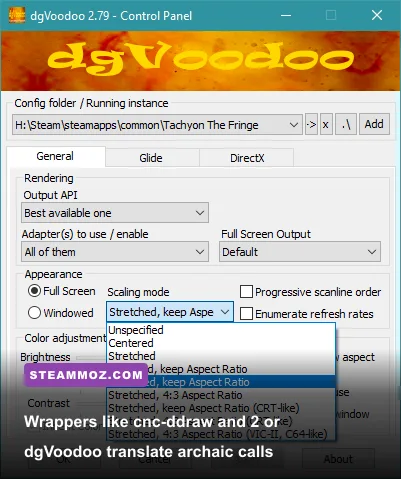
If you're booting up the legacy disc edition or the non-History GOG release, standard driver control panels won't rescue you from the quirks of archaic DirectDraw APIs. You need an intermediary translation layer that sits between the game executable and Windows. You can find deep community documentation for these tools across resources like PCGamingWiki's Anno 1602 index, but the following deployment method is the most reliable path to stability.
The gold standard for running legacy 1602 builds is cnc-ddraw. Download the latest compiled release archive from GitHub, unzip its contents, and place ddraw.dll alongside ddraw.ini directly into your primary Anno 1602 directory (where 1602.exe is located). Open ddraw.ini inside Notepad and alter the following parameters to overhaul the engine's graphics layer:
[ddraw]
mode=borderless
renderer=gdi
fullscreen=true
windowed=false
maintas=true
boxing=true
maxfps=60
savesettings=1
shader=shaders/interpolation/bilinear.glsl (or leave empty for raw pixels)
Setting renderer=gdi or renderer=opengl completely bypasses broken DirectDraw translation, handing surface presentation over to modern graphics rendering frameworks. The maintas=true parameter preserves the original 4:3 aspect ratio without horizontally stretching your islands into squashed, distorted landmasses. Meanwhile, boxing=true applies clean black pillarboxes on widescreen setups.
If you run into missing configuration settings or sound card buffer errors when saving your options, open your Windows Registry Editor (hit Win + R, type regedit, and hit Enter). Navigate down to:
HKEY_CURRENT_USER\Software\Max Design\Anno 1602
Verify that your installation directory strings and CD-ROM pathways point to valid modern folder locations. If you run the game off a modern secondary solid-state drive, broken registry pathing can cause the game to stall for several seconds every time it attempts to stream background ambient audio or sea shanties, manifesting as an apparent graphics stutter that is actually a storage-polling hang. Tracking down obscure technical bottlenecks like this is just as vital as resolving performance snags in other classic legacy titles, such as checking your hardware overhead against the Far Cry 2 PC specs.
Eliminating Late-Game Colony Stutter and Simulation Lag
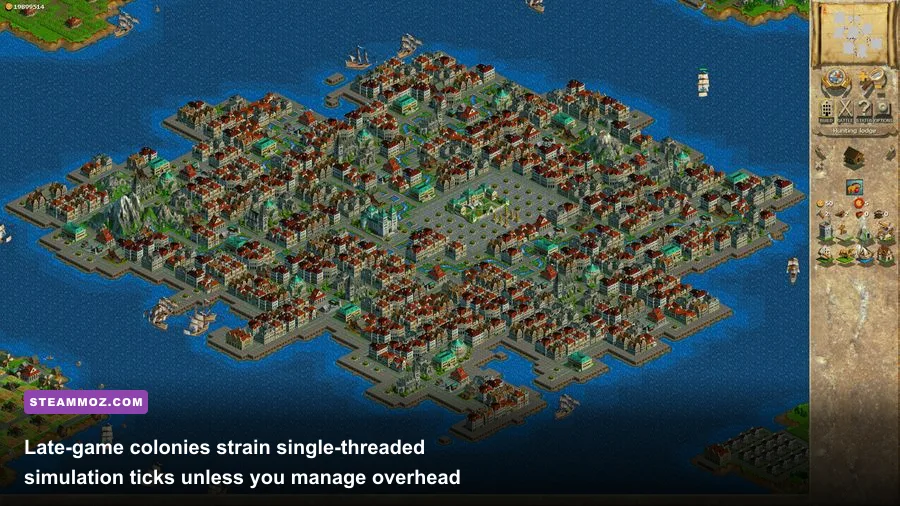
Once you advance through the citizen tiers—progressing from humble Pioneers and Settlers up to wealthy Citizens, Merchants, and Aristocrats—your performance demands shift dramatically. A fully built-out archipelago with ten developed islands, dozens of automated trade cutters, and thousands of active citizen pathfinding routines will inevitably introduce late-game simulation hitching.
In Anno 1602, the rendering loop and simulation loop are tied together on a single core of your processor. When pathfinding routines for cargo wagons, fire brigades, and market pushers encounter routing dead-ends, the entire CPU cycle stalls. The game cannot render the next visual frame until that single thread finishes evaluating citizen logic. This behavior often leads players to wrongly blame their GPU drivers, a misdiagnosis seen in other technical game freezes like those detailed in our EscapeVR PC crash troubleshooting guide.
To eliminate late-game simulation stutter, apply these optimization practices to your colonies:
- Streamline Road Intersections: Avoid complex road labyrinths around market places. The AI pathing code calculates movement cost along every branching paved stone tile. Lay out tight, circular urban grids around your production structures so hauling carts locate storage docks without traversing dead ends.
- Purge Overlapping Naval Trade Routes: If multiple automated sloops or frigates share identical pickup waypoints at a crowded harbor pier, their arrival will trigger docking queue recalculations. Space out secondary small warehouses along your island coasts to separate inter-island trade traffic from local island supply chains.
- Audio Thread Latency Workaround: High densities of production buildings (such as 15 Iron Smelters or Rum Distilleries grouped on one screen) trigger dozens of overlapping sound effects simultaneously. If your system runs an uncompressed spatial audio driver, this onslaught can choke the engine's audio buffer thread and cause visual stutters. In your operating system sound settings, drop your default format to 24-bit, 48000 Hz (Studio Quality) or 16-bit, 44100 Hz (CD Quality). Ancient DirectSound interfaces perform significantly better when freed from aggressive 192kHz upsampling overhead.
| Hardware Profile | Target Setup | Wrapper / Render Engine | Primary Driver Focus |
|---|---|---|---|
| Budget Laptop / Handheld | 1080p Borderless @ 60Hz | History Edition (Direct3D 11) | Set OS battery plan to High Performance to keep single-core clock speeds from dropping. |
| High-Refresh Desktop | 1440p Native @ 120Hz/144Hz | History Edition + Fast Sync | Lock 60 FPS in driver panel; toggle GPU Integer Scaling to kill bilinear blur. |
| Retro Purist Rig | Classic CD / GOG 4:3 Pillarbox | cnc-ddraw (GDI / OpenGL Backend) | Hardware cursor forced On; maintain 4:3 aspect ratio; clamp frame presentation strictly to 60 FPS. |
Dialling in Anno 1602 on a modern PC requires an approach suited to its vintage architecture. You don't need a high-end graphics card to get the best out of it; you just need to bypass obsolete API translations, lock your display synchronization down to a strict 60 FPS cadence, and give the single-core simulation engine room to breathe. Apply these tweaks, and your trade fleets will glide across the Caribbean waters with the crisp responsiveness and visual stability this legendary strategy title deserves.