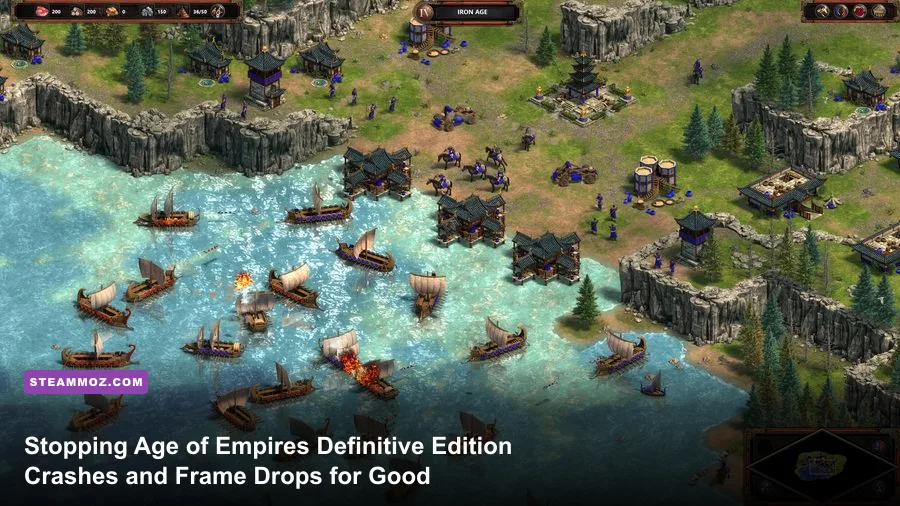
To eliminate stuttering, desktop crashes, and severe frame drops in Age of Empires: Definitive Edition on PC, you need to address three critical points immediately: override Windows high-DPI scaling, whitelist the game's executable inside Windows Security's Controlled Folder Access, and configure your dedicated GPU control panel to handle frame pacing instead of the aging Genie engine. If your game crashes straight to desktop right when launching or loading into a campaign scenario, installing the English (US) Windows Language Pack and enabling legacy DirectPlay will solve the vast majority of instant initialization failures without forcing a full reinstall.
Diagnosing the Bottlenecks Behind AoE: DE's Performance Drops
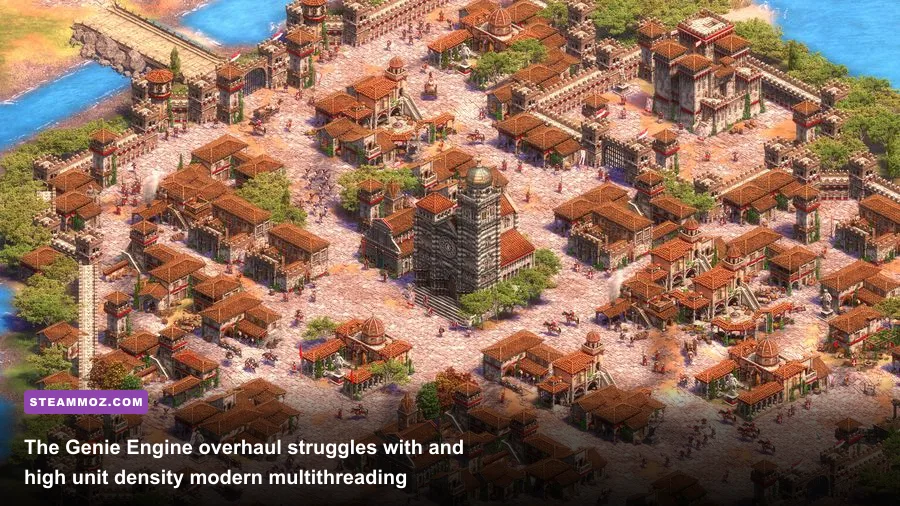
When Forgotten Empires rebuilt the 1997 classic for modern hardware, they layered high-resolution sprite rendering, dynamic zoom, and modern particle effects on top of the vintage Genie Engine. While the visual overhaul is striking, this hybrid architecture presents unique technical hurdles. The game engine remains predominantly single-threaded for core game simulation logic—specifically villager pathfinding, collision checks, and AI script execution. When your CPU cannot pump simulation frames fast enough, your modern graphics card sits starved for draw calls, manifesting as harsh micro-stutters rather than a steady slide down into lower average frame rates.
Furthermore, the optional Enhanced Graphics Pack (UHD) introduces massive uncompressed texture sprites into memory. Zooming completely out across a sprawling 8-player map causes your VRAM to churn relentlessly as high-resolution assets stream across the bus. If your graphics card features less than 6GB of dedicated VRAM, or if system memory paging cannot keep up, you'll experience severe stuttering whenever scrolling across the fog of war. Much like the resource-scheduling quirks we documented in our ELEX PC performance and crash guide, older hybrid architectures demand explicit driver-level rules to stop modern operating systems from putting critical execution threads to sleep.
Another major contributor to apparent frame hitching is the display pipeline. Age of Empires: Definitive Edition ties its visual presentation closely to your desktop's native refresh rate and Windows DWM (Desktop Window Manager). Running mixed-refresh monitors—such as a 144Hz primary gaming display paired with a 60Hz secondary chat monitor—frequently causes the game to hitch every time an application draws an update on the secondary screen. Understanding whether your issue stems from rendering overhead, CPU simulation limits, or operating system permissions dictates which fix will actually deliver results.
In-Game Graphics Settings Optimization: Maximize Clarity Without the Hitching
Tuning the in-game display menu of Age of Empires: Definitive Edition is not merely about finding acceptable visual compromises; it is about eliminating settings that introduce severe frame pacing variance. Many players crank every toggle under the assumption that a modern RTX or RX graphics card should blast through a classic RTS without breaking a sweat, only to find their frametimes fluctuating wildly between 16ms and 70ms during combat skirmishes.
Head to the game's Settings > Graphics menu and systematically adjust each parameter according to the hardware profile below. Pay special attention to the Zoom Level setting: pulling the camera back to its absolute maximum multiplies the active unit and building render count exponentially, straining both the draw-call limits of DirectX 11 and your CPU's single-core bandwidth.
| Setting | Recommended Value | Performance Impact | Strategic & Visual Effect |
|---|---|---|---|
| Resolution Scale | 100% (Native) | High | Never set above 100%. Supersampling crushes 2D sprite blitting performance. |
| UHD (Enhanced Graphics) | Off (Unless >8GB VRAM) | Very High | Disabling stops micro-stuttering on sub-8GB cards; removes zoom blur. |
| V-Sync | Off (Use Driver Lock) | Moderate | In-game V-Sync introduces noticeable cursor latency and frame delivery hitches. |
| Fog of War Quality | Low or Medium | Moderate | Reduces edge-shading computation overhead during fast camera pans. |
| Bloom | Off | Low | Sharpening visibility during combat; removes artificial glare on marble assets. |
| Vignette & Sharpening | Off / 50% | Negligible | Disabling vignette removes dark corner filters; sharpening restores asset crispness. |
| Max Zoom Level | Default (Middle) | High | Ultra-wide view distances overwhelm single-thread unit draw logic. |
If you're hunting for maximum responsiveness and high-frequency unit management, disabling the UHD texture pack is single-handedly the most effective step you can take. The standard assets were completely redrawn for 1080p and 1440p screens, and shedding the UHD pack frees up gigabytes of memory, stopping the harsh hitching that strikes when shifting focus from your home base across to an enemy settlement. If you appreciate granular tuning like this, check out our optimization breakdown for Filament Marmalade Edition frame rate tweaks, where balancing texture caches yields similarly dramatic frametime improvements.
Fixing Startup Crashes and Campaign Menu Freezes
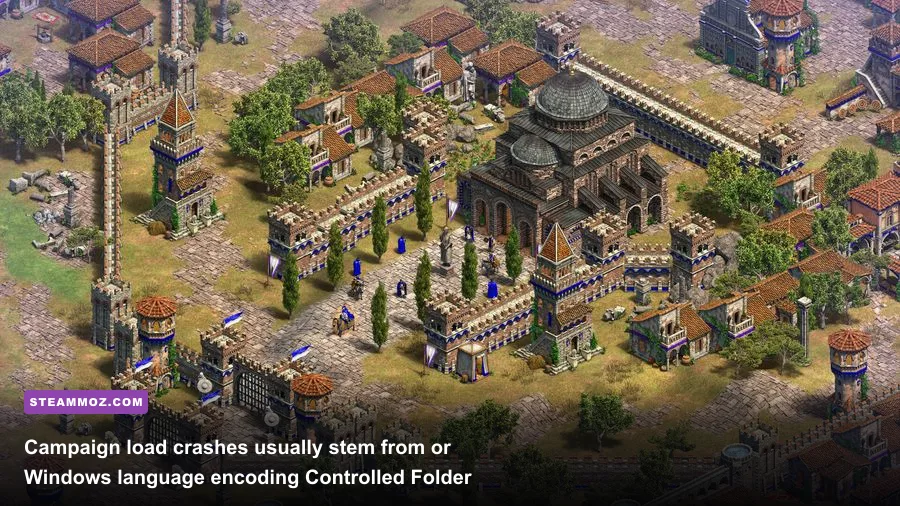
Nothing is more frustrating than booting the title only to have it vanish silently back to the desktop before reaching the main menu, or freezing completely the moment you click on the Egyptian or Greek campaigns. These crashes are almost never caused by faulty hardware. Instead, they are the result of three specific software conflicts baked into modern Windows 10 and 11 environments.
1. Whitelist the Game in Windows Controlled Folder Access
Age of Empires: Definitive Edition writes profile data, keybind configurations, and campaign progression directly into your local user directory located at C:\Users\[Username]\Games\Age of Empires DE. Windows 10 and 11 feature a built-in security layer called Controlled Folder Access (part of Ransomware Protection) that treats AoEDE.exe as an unauthorized foreign executable, violently blocking its write permissions and causing an instantaneous crash to desktop.
- Press the Windows Key, type Windows Security, and hit Enter.
- Navigate to Virus & threat protection, scroll down, and select Manage ransomware protection.
- Click Allow an app through Controlled folder access.
- Click Add an allowed app > Recently blocked apps. If you see
AoEDE.exe, click the plus icon. If not, select Browse all apps, navigate to your installation directory, and select the game's executable.
2. The Windows Regional Language Bug
An infamous, long-standing bug in the Definitive Edition engine causes the game's font rendering parser to crash when processing non-Latin system locales or customized Unicode formats. If your operating system's primary display language uses distinctive regional formatting, the engine will fail to initialize text strings for campaign dialogue and immediately fault.
To resolve this, open your Windows Settings, head to Time & Language > Language & Region, and ensure that English (United States) is installed. You do not have to switch your whole system interface over permanently, but ensuring the basic English language pack and speech components reside on your boot drive allows the engine's localization DLLs to map font characters safely without throwing an unhandled memory exception.
3. Enable Legacy DirectPlay Support
While the game has been updated to run on the modern DirectX 11 API, legacy communication routines from the original title remain deeply intertwined with Windows network protocols. If Windows has DirectPlay disabled, launch crashes are extraordinarily frequent.
- Press Windows Key + R, type
optionalfeatures, and press Enter. - In the Windows Features dialog, scroll down until you spot Legacy Components.
- Expand the folder, check the box for DirectPlay, and click OK.
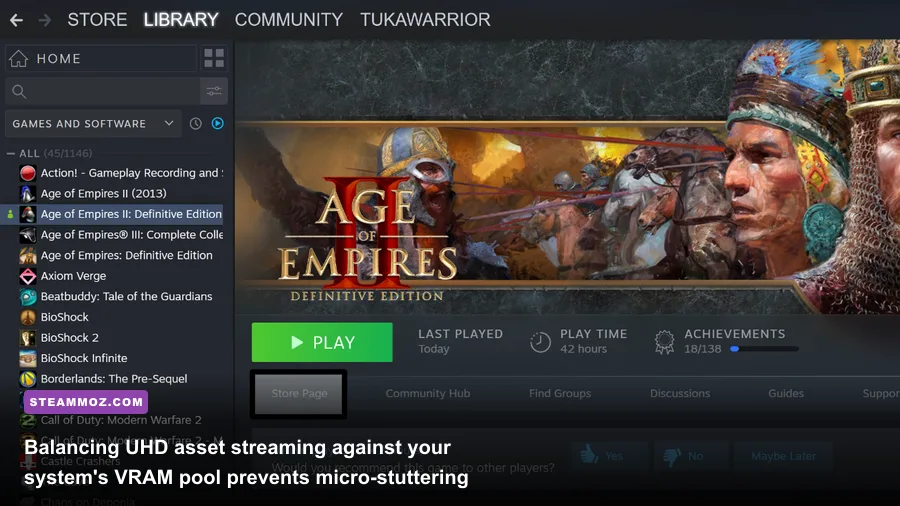
- Allow Windows to apply the files, restart your PC, and launch the title through your client of choice, whether that is the Microsoft Store or the Steam Store page for Age of Empires: Definitive Edition.
System-Level Tweaks: GPU Control Panel and Windows Environment Tuning
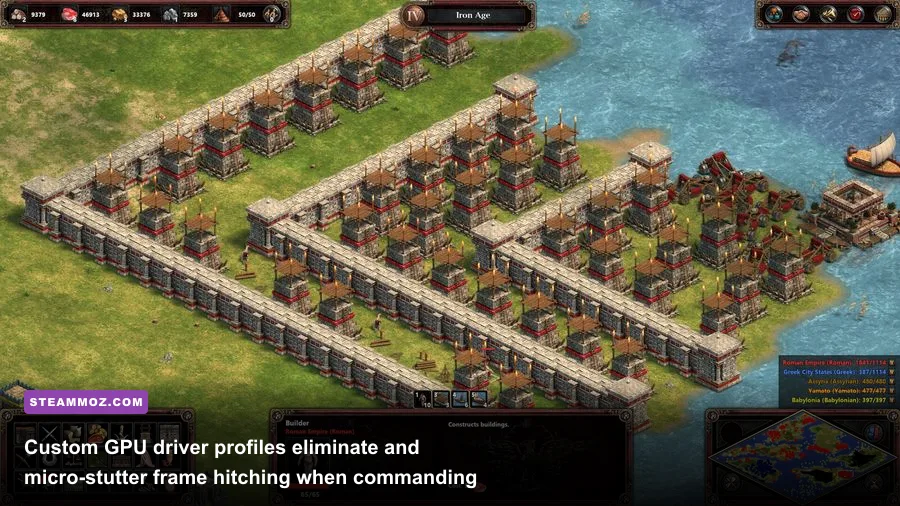
Because the game operates inside a borderless windowed presentation wrapper regardless of whether you select full-screen mode in-game, your graphics driver needs explicit instructions to prioritize continuous high performance and suppress desktop composition interruptions. These adjustments match the troubleshooting methodology we deployed in our guide to fixing Everspace 2 crashes and frame pacing.
NVIDIA Control Panel Calibration
Right-click your desktop, open the NVIDIA Control Panel, and select Manage 3D Settings > Program Settings. Click Add, select Age of Empires: Definitive Edition, and apply these specific overrides:
- Power Management Mode: Prefer maximum performance. This prevents clock drops during low-intensity build phases.
- Low Latency Mode: On. This keeps the render queue tight without overloading CPU draw dispatch.
- Max Frame Rate: Set this to 3 FPS below your display's native refresh rate (e.g., 141 FPS on a 144Hz screen, or 57 FPS on a 60Hz panel).
- Vertical Sync: On. Pair this with the driver frame cap to ensure smooth visual delivery without activating the game engine's buggy internal sync routines.
- Shader Cache Size: Set to 10 GB. A choked shader cache produces terrible stutter during the first encounter with unseen unit animations or siege attacks.
AMD Radeon Software Configuration
AMD users should launch the Adrenalin Software, jump to Gaming > Games, and select the game profile. Disable Radeon Chill, turn off Radeon Anti-Lag+ (which has historically tripped sync errors in older RTS netcode), and set Tessellation Mode to Override application settings with a maximum level of 16x. Ensure Wait for Vertical Refresh is set to Off, unless application specifies, relying instead on AMD's target frame rate control to maintain stability.
Overriding High DPI Display Scaling
Windows display scaling is notoriously disruptive to 2D isometric rendering pipelines. If you use scaling above 100% on a 1440p or 4K monitor (which is common for desktop readability), Windows attempts to stretch the game's surface output, introducing both blurry unit sprites and heavy micro-stutters during camera motion.
Navigate to the root folder where the executable lives. For Steam users, this is typically steamapps\common\AoEDE. Right-click AoEDE.exe, choose Properties, switch to the Compatibility tab, and click Change high DPI settings. Check the box labeled Override high DPI scaling behavior, and select Application from the drop-down menu. Click OK, then check Disable fullscreen optimizations on the main compatibility screen before hitting Apply.
Similar steps are mandatory for resolving visual oddities in other PC ports, as seen in our breakdown of EscapeVR: The Basement stability fixes. Giving the game engine full authority over viewport scaling avoids messy desktop window manager intervention.
Resolving Late-Game Multiplayer Lag, Pathfinding Hitches, and Memory Leaks
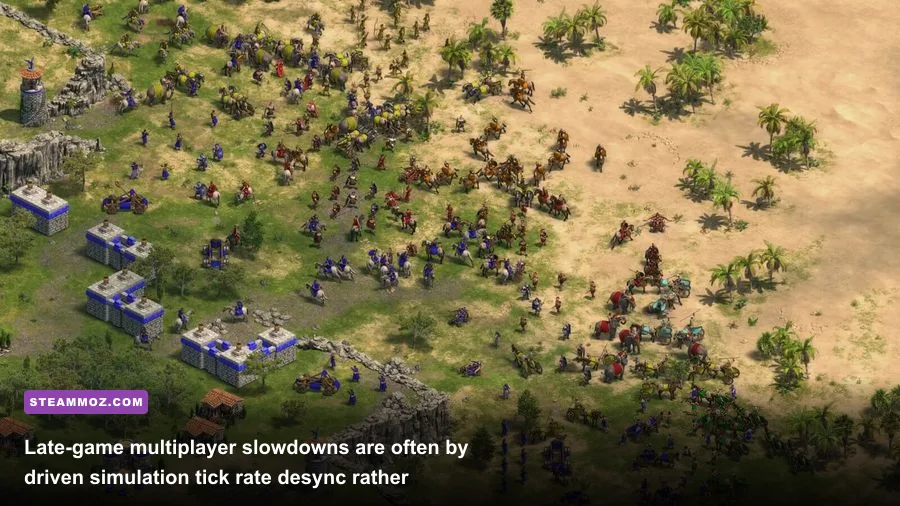
You might notice that your game runs at a butter-smooth 144 frames per second during the Stone Age and Tool Age, only to transform into a sluggish, jittery mess by the Iron Age when armies collide. This late-game performance cliff is rarely caused by your graphics card running out of horsepower. Instead, it stems from two specific culprits: CPU-bound pathfinding saturation and multiplayer lockstep network lag.
In massive matches featuring 6 to 8 players with population limits set to 200 or 250, the Genie Engine must continuously recalculate navigation paths across the tile grid for over a thousand active units. When cavalry, chariots, and hoplites crowd through narrow natural chokepoints or dense forests, the pathfinding algorithms run into complex collision loops. Because these simulations run on an internal game tick, any CPU bottleneck immediately feels like frame stuttering to the player, even if your overlay reports high frames per second.
| Observed Symptom | Probable Root Cause | Immediate Corrective Action | Target Fix Rate |
|---|---|---|---|
| Crash during campaign scenario launch | Folder permissions / Ransomware block | Add AoEDE.exe to Controlled Folder Access whitelist |
~85% Success |
| Instant crash to desktop on game launch | Missing DirectX runtimes / DirectPlay | Install DirectX End-User Runtimes and enable DirectPlay | ~90% Success |
| Choppy camera movement despite high FPS | High DPI scaling conflict with Windows DWM | Set High DPI Override to Application inside file properties | ~95% Success |
| Late-game combat stuttering (1000+ units) | Single-core CPU saturation & high zoom overhead | Lower Zoom level to 100%; disable UHD Asset pack | ~75% Success |
| Multiplayer hitching every few seconds | Network desync & packet drop on lockstep | Switch to wired Ethernet; verify router NAT status | ~80% Success |
| Visual stutter on multi-monitor setups | Mismatched refresh rates in Windowed mode | Align all display refresh rates or disable hardware acceleration in apps | ~85% Success |
In multiplayer matches, Age of Empires: Definitive Edition relies on deterministic peer-to-peer simulation synchronization. If a single player in your lobby suffers from high packet loss or severe machine-side slowdown, the game server delays the next world tick until that client responds. This shows up on your screen as a sudden freeze followed by an accelerated fast-forward motion, which players often mistake for a local GPU crash. Always play over a wired Ethernet connection, verify ping stability on the official Age of Empires website server status tracker, and avoid lobbies that force excessive population limits if you want smooth competitive play.
For aggressive memory management on systems with 8GB or 16GB of system RAM, make sure your Windows pagefile is configured properly. Do not disable your paging file under the false assumption that having ample RAM makes virtual memory obsolete. Set your pagefile to a fixed custom size (Initial: 8192 MB, Maximum: 16384 MB) on your fastest NVMe SSD. This stops Windows from dynamically expanding the virtual paging block right when intensive army battles trigger asset cache swaps.
The Clean Reinstall and Installation Verification Protocol
If you've applied these configuration tweaks and still find the title unstable, subtle corruption inside the game's shared archives or profile database may be the source of your misery. A standard uninstall through Windows rarely cleans out custom keybindings, leftover campaign progress files, or cached scenario assets that have become corrupted by engine patches.
To perform a pristine, factory-grade clean install, follow this sequence:
- If on Steam, right-click the game, select Properties > Installed Files > Verify integrity of game files. Wait for the scan to replace mismatched archives.
- If on the Microsoft Store / Xbox App, open Installed Apps in Windows Settings, click the three dots next to the game, choose Advanced options, and click Repair, followed by Reset if problems persist.
- Back up your campaign saves from
C:\Users\[Username]\Games\Age of Empires DEto a separate folder on your desktop, and then completely delete the original game folder located inside that directory. The game will regenerate a clean, uncorrupted folder profile automatically upon the next launch. - Download and install the official DirectX End-User Runtimes legacy installer directly from Microsoft. This reinstalls older DirectX 9 and DirectX 10 auxiliary runtime DLLs (like
d3dx9_43.dll) that modern Windows 11 installations omit by default, preventing quiet failures during audio or sprite initialization. - Disable aggressive third-party overlays, including Discord Overlay, MSI Afterburner / RivaTuner Statistics Server (set application detection level to None for
AoEDE.exe), and GeForce Experience in-game overlays. These tools attempt to hook their own rendering calls into the game's fragile presentation layer, which is a frequent cause of random crashes during match loading.
Much like the hardware matching principles we outlined in our Edna & Harvey system requirements guide, classic software wrapped in updated engines requires your operating system to play by older rules. Taking control of folder security, locking your frame rate externally, and turning off the resource-heavy UHD pack transforms Age of Empires: Definitive Edition from a temperamental launcher into the rock-solid, ultra-responsive historical battlefield it was always meant to be. If you also enjoy tinkering with performance profiles across other genres, take a look at our Far Cry 6 settings guide for higher frame rates to get the most out of your modern PC rig.