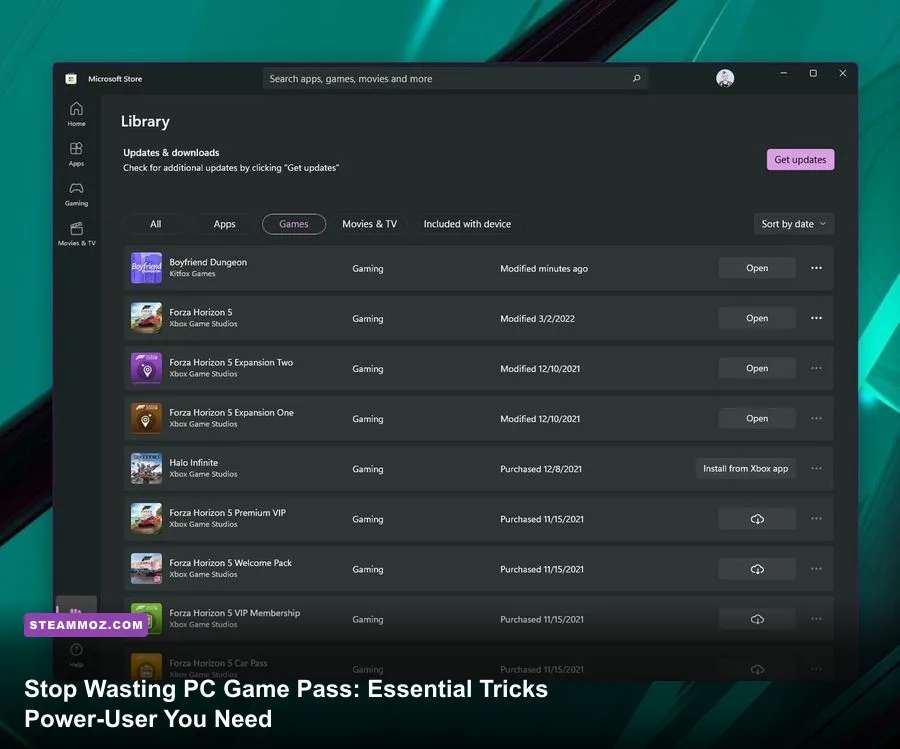
If you treat PC Game Pass like a standard launcher where you simply click install, finish a campaign, and repeat, you are tossing half of your subscription's value directly into the recycling bin. Microsoft's desktop platform has shed the bloated, encrypted restrictions that defined its disastrous early years, evolving into an ecosystem packed with modding hooks, multi-launcher cross-entitlements, and cloud testing tools. Getting the most out of PC Game Pass requires treating the Xbox app not as a digital storefront, but as a modular platform that needs manual tuning, system-level tweaks, and aggressive ecosystem mining to deliver maximum return on your monthly investment.
Unlock Direct Folder Access and Enable Third-Party Modding
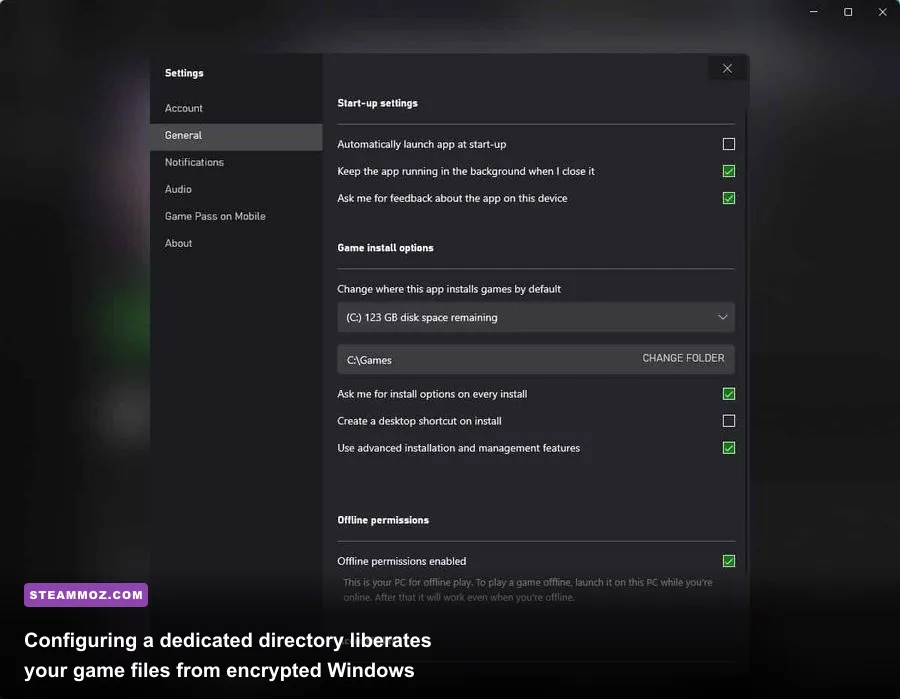
For years, the biggest complaint leveled against PC Game Pass was the dreaded WindowsApps folder. Games were locked away behind impenetrable Windows system permissions, blocking custom configuration files, Reshade injections, and loose-file asset swaps. Microsoft officially addressed this by rolling out open file management, but millions of users still install titles using legacy, locked container protocols simply because they never toggled the setting.
To break your games out of system quarantine, open the desktop Xbox App for PC, click your gamer profile avatar in the top-left corner, and select Settings > General. Under the Game Install Options section, point your default installation path to a dedicated, unencrypted folder outside your root Windows drive—such as D:\XboxGames. For any game already installed, navigate to its library card, hit the three dots next to the play button, click Manage > Files, and verify that the installation allows you to browse local files. If a game supports direct modification, hitting Browse will launch Windows Explorer straight into the game's root directory.
This single adjustment unlocks game-changing modifications. In Starfield, you can immediately drop StarfieldCustom.ini overrides into your root folders to fix native field-of-view lockouts, or drop script extenders and custom textures straight into place. For titles like Palworld or Unreal Engine 5 releases, having direct directory access allows you to inject custom Engine.ini parameters to eradicate native temporal anti-aliasing ghosting and bypass aggressive volumetric fog. If you hit unexplained crashes after altering root files, running a quick integrity check via the Xbox app's Verify and Repair button restores default binary hashes without forcing you to re-download an entire 80GB package. This approach mirrors the troubleshooting flexibility found in our guide to troubleshooting crashes and low FPS across finicky PC runtimes.
Connect EA Play, Ubisoft, and Riot for Massive Content Injections
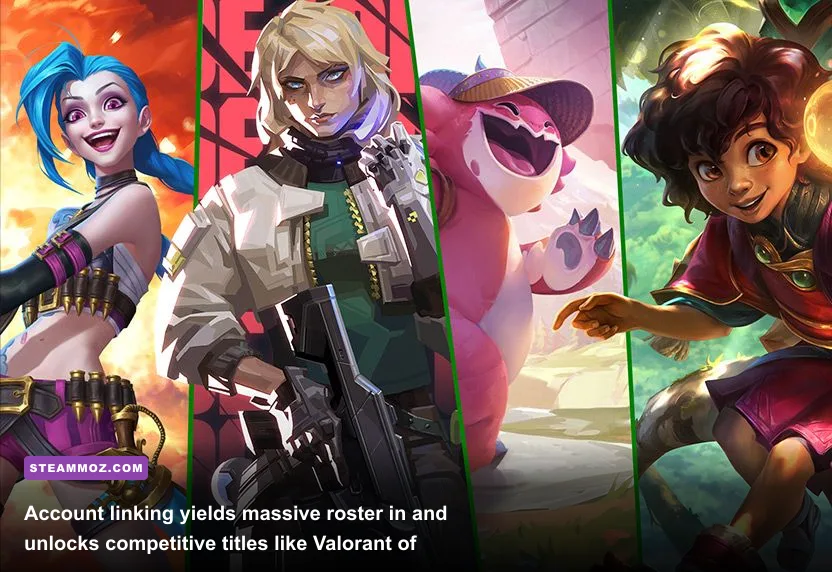
PC Game Pass is not a walled garden; it acts as a universal passkey for partner ecosystems that many subscribers completely forget to claim. Your monthly fee automatically includes a full tier of EA Play PC and seamless hooks into Ubisoft Connect and Riot Games. Leaving these third-party accounts disconnected is leaving hundreds of dollars in retail games and in-game unlocks sitting on the table.
The most lucrative partnership belongs to Riot Games. When you link your Xbox identity with your Riot account, you receive instantaneous day-one access to the entire champion roster in League of Legends (over 160 champions unlocked), all playable Agents in Valorant, and foundational card packs in Legends of Runeterra. New agents and champions unlock on their respective launch days the exact second their game servers go live. If you were to purchase those rosters piecemeal through store credits, you would spend hundreds of dollars. The moment your PC Game Pass subscription lapses, your roster access locks back down to whatever you unlocked natively, but your earned match XP, skins, and career account stats remain permanently intact.
For Electronic Arts titles, you must bypass the outdated Origin platform and download the official EA App desktop client. Once you install the client and link your credentials via the Xbox app, your PC Game Pass entitlement populates the complete EA Play Play List inside the EA App. This grants zero-cost access to massive franchises like Dead Space (Remake), Star Wars Jedi: Survivor, and the Battlefield back catalog. Similarly, linking your Ubisoft Connect profile drops marquee open-world epics into your local Ubisoft client. To see how these linked ecosystems deliver across major publishers, look at the unlock breakdown below.
| Partner Platform | Required Secondary Client | Key Day-One Unlocks | Subscriber Advantage |
|---|---|---|---|
| Riot Games | Riot Client | All League Champions & Valorant Agents | Bypasses hundreds of hours of character grind |
| EA Play | EA App | Full EA Play List library & 10-hour trials | 10% discount on microtransactions & EA digital buys |
| Ubisoft Connect | Ubisoft Connect | Select Far Cry, Assassin's Creed, & R6 titles | Seamless cloud cross-saves with native PC achievements |
| Battle.net | Battle.net Desktop | Diablo IV, StarCraft back catalog | Native client updates without Windows Store bottlenecks |
Keep in mind that downloads initiated through partner launchers manage their own shader pre-compilations and install depots. When managing heavy installations from Ubisoft or EA, ensure you maintain adequate drive overhead to prevent stuttering issues identical to those explored in our Far Cry 6 GOTY settings for max FPS teardown.
System-Level Tuning: Tame Windows 11 and Game Bar Overhead
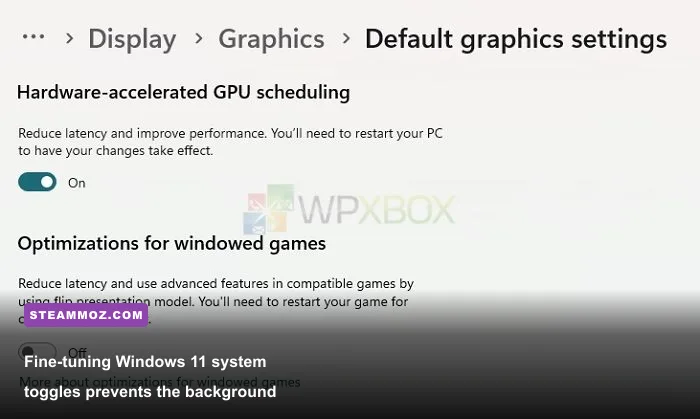
The PC Game Pass framework relies on native Windows system hooks, which means your operating system configuration dictates your frame pacing far more aggressively than it does on platforms like Steam or GOG. Running the service on default Windows 11 settings often causes micro-stuttering, blown-out color grading, and unwanted memory allocation to background telemetry services.
Start by auditing the Windows Xbox Game Bar. Press Win + G, navigate to the settings cog, and inspect your capture settings. If you already use modern display suites like NVIDIA ShadowPlay or AMD Adrenalin for clip recording, you must disable the Game Bar's background recording feature immediately. Background capture via the Windows GameDVR pipeline constantly buffers video frames into system RAM, generating persistent frame-time spikes in asset-heavy open-world games. Turning off Game Bar recording can restore 4% to 8% of low-end 1% frame times on systems running mid-range hardware.
Next, tune your display pipeline using modern Windows 11 features: Auto HDR and DirectStorage. For HDR monitor owners, Auto HDR upgrades hundreds of older DirectX 11 and DirectX 12 Game Pass titles with calculated tone mapping that approaches native HDR mastering. However, running Auto HDR without running the official Windows HDR Calibration tool from the Microsoft Store leaves highlight luminance completely unmapped, clipping whites at 1,000 nits on monitors capped at 400 nits. Calibrate your display profile first, then toggle Auto HDR within your system graphics settings. If you encounter frame drops in intense indie puzzlers or high-refresh action titles, check our technical breakdown on Filament settings for higher FPS to see how display buffer configurations stabilize internal engine loops.
| Windows System Setting | Default State | Recommended Tuning | Performance Impact |
|---|---|---|---|
| Hardware Accelerated GPU Scheduling (HAGS) | Off (on some builds) | ON | Required for DLSS 3 Frame Gen; slashes input latency |
| Xbox Game Bar Background Capture | On | OFF | Eliminates micro-stutter; recovers 3-5% 1% low FPS |
| Auto HDR | On | ON (Calibrated) | Expands color luminance; negligible GPU hit (<1 FPS) |
| Game Mode | On | ON | Prevents Windows Update from eating disk I/O in-game |
| DirectStorage (Firmware/OS Hook) | Automatic | Active on NVMe Gen 3/4+ | Cuts level load times up to 70% in supported games |
Games that support DirectStorage—such as Forza Horizon 5 or Senua's Saga: Hellblade II—bypass the CPU entirely when streaming assets from a fast NVMe drive into your GPU's VRAM. If your primary installation drive is an aging SATA SSD or mechanical drive, move those specific titles to an NVMe PCIe lane. The resulting elimination of mid-game traversal hitches transforms titles prone to stutter into razor-sharp experiences. If your system still suffers instability after adjusting these toggles, apply the structural recommendations found in our deep dive on Elex PC fixes that stop crashes and rescue your FPS to ensure memory allocation stays properly partitioned.
Exploit Cloud Gaming for Instant Zero-Download Triage
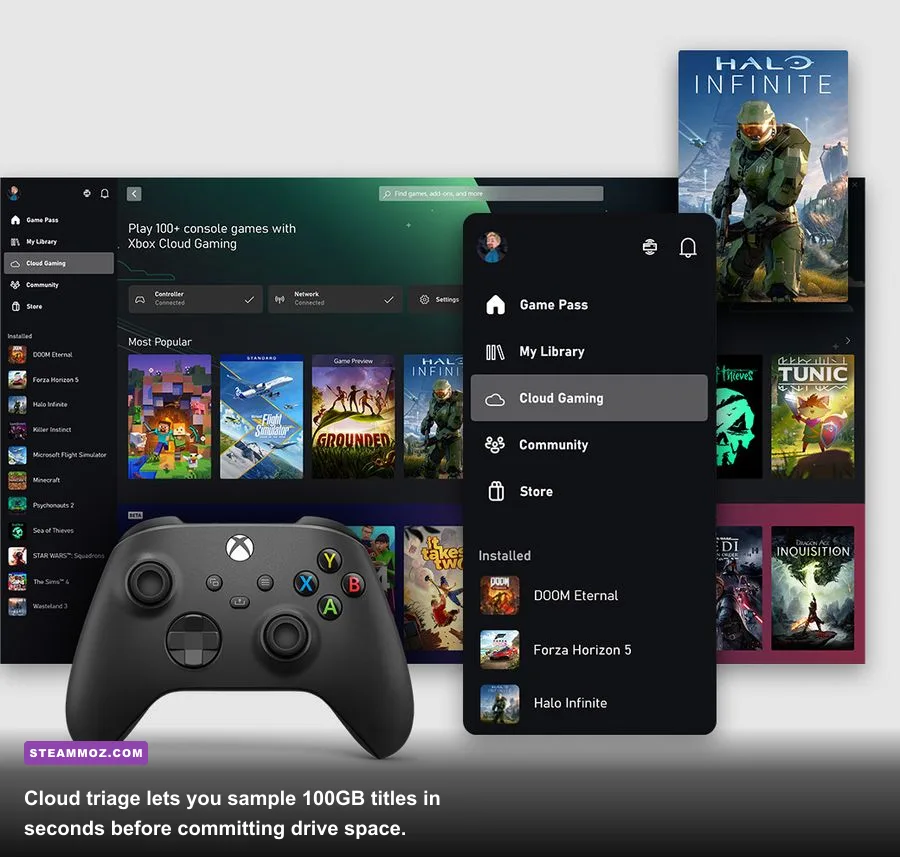
Modern game sizes are out of control. Downloading 140GB for a massive space sim or an sprawling RPG only to discover twenty minutes later that the mechanics feel clunky or the art style does not click is an egregious waste of bandwidth, storage, and personal time. This is where Xbox Cloud Gaming—accessible via PC Game Pass Ultimate—becomes a secret power-user triage tool rather than just a casual streaming fallback.
Whenever a high-capacity release hits the catalog, do not immediately hit the install button. Instead, look for the small cloud icon right beside the install prompt. Launching the game via cloud streaming spins up a remote Xbox Series X server blade, dropping you straight into the main menu within thirty seconds. Use this remote session to test the core mechanics: evaluate the introductory pacing, inspect the inventory complexity, and judge whether the fundamental gameplay loop warrants a permanent home on your high-speed SSD.
Because the Game Pass infrastructure features seamless Xbox Play Anywhere cross-saves, every single minute of progress you make during a cloud triage session is instantly synced to your Microsoft profile. If you decide the game is a must-play, initiate the local install overnight. When you launch the native PC binary the next day, the game automatically pulls down your cloud save from the servers, landing you right where you left off. The local version provides uncompressed 4K rendering, unlocked frame rates, and native mouse-and-keyboard input, while the cloud session saved you from committing 100GB of drive space to a title you might have dropped inside half an hour.
For games that demand pristine rendering fidelity, native local execution will always reign supreme. Space exploration titles and high-density simulations pushing heavy geometry pipelines will inevitably drop frames over network streams. If you make the leap to local hardware on these titles, consult our performance triage on Everspace 2 FPS fixes to keep your local rig running butter-smooth across demanding space environments.
Fund Your Membership Pass with Microsoft Rewards
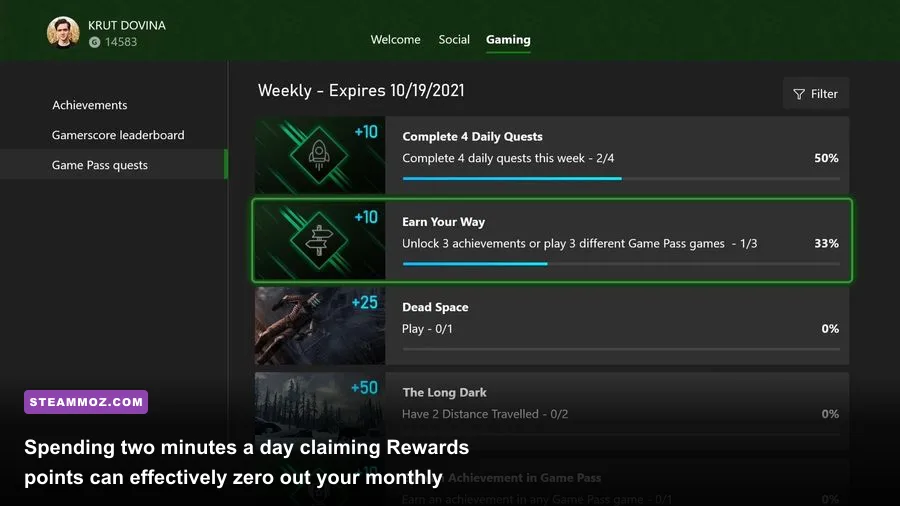
One of the most overlooked realities of the Microsoft gaming ecosystem is that you should virtually never pay full cash price for your ongoing PC Game Pass subscription. Microsoft maintains a massive, fully integrated loyalty framework known as Microsoft Rewards, and engaging with its bare minimum daily milestones generates enough digital currency to auto-renew your PC access indefinitely.
Inside the Xbox PC app and the mobile Xbox app, you will find a dedicated Rewards tab tracking daily, weekly, and monthly quests. These are not tedious hurdles; the vast majority trigger from simply launching a PC game for fifteen minutes, claiming a single daily achievement, or keeping your daily login streak alive. When paired with passive web tasks like standard browser searches through the Edge engine, the point accumulation ramps up fast. A single month of PC Game Pass redemption typically costs between 7,000 and 9,250 Microsoft Rewards points depending on current promotional redemption tiers and whether you enable the automated "Auto-Redeem" discount option.
Here is the exact daily routine that keeps your points balance capped:
- Play a PC Game (Daily): Launch any lightweight installed indie title in the background while working or checking emails. Running it for 10-15 minutes awards up to 50 points per day.
- Earn an Achievement (Daily): If you play actively, your natural achievement progression cashes out daily bonus points. Keep a few quick-completion indie titles installed solely to pop rapid achievements when you need a fast point boost.
- Keep the Mobile App Streak (Weekly): Opening the Xbox app on your smartphone daily builds a continuous streak multiplier that nets up to 250 bonus points every single week.
- Enable Auto-Redeem: Do not hoard your points to manually buy full-retail digital codes. Set your target reward inside the Rewards console dashboard to auto-redeem a one-month PC Game Pass code on the first day of every month. This applies an automatic point discount, cutting the acquisition cost by nearly 10% compared to manual checkout.
Committing just three minutes of attention to these daily milestones eliminates subscription fees entirely. You keep continuous access to hundreds of titles, enjoy day-one first-party blockbusters, and retain all linked partner privileges without your credit card ever taking a hit.
Clean Up Abandoned Delivery Optimizations and Dead Temp Files
The Windows architecture that powers the Xbox app features a hidden storage sinkhole known as Delivery Optimization. By default, Windows turns on peer-to-peer downloading to speed up local network installations. If you own multiple PCs in your household, this feature can be helpful. However, the background cache that manages these file transfers frequently forgets to purge temporary decompression assets after an installation finishes, slowly devouring tens of gigabytes of your primary operating system drive.
To reclaim this ghost storage, open your Windows Settings, go to System > Storage > Temporary Files, and look for Delivery Optimization Files. Do not be surprised if this single checkbox holds 30GB to 50GB of orphaned game files left behind by previous Game Pass patches. Check the box and run an immediate purge. Furthermore, navigate to Settings > Windows Update > Advanced Options > Delivery Optimization, and dial back the background download bandwidth limits. Restricting these permissions ensures the Xbox app does not monopolize your entire network interface while downloading title updates in the background.
Finally, whenever you uninstall a game through the Xbox app, verify that its custom directory actually vanished. While modern updates handle uninstallation cleanly, heavily modded games that contain custom injected DLLs, loose texture packs, or user-generated save folders will leave those foreign files sitting on your drive indefinitely. A quick thirty-second sweep of your dedicated XboxGames directory after uninstalling a massive title like an RPG or a survival sandbox guarantees your precious NVMe capacity stays primed for the next major drop. Take control of your folders, optimize your operating system hooks, sync your external accounts, and you will turn PC Game Pass from a standard subscription into the most efficient gaming hub on your PC.