When your cutlass swings freeze mid-duel or your game abruptly drops to desktop just as a Reaper Galleon rolls alongside your ship, performance issues ruin the pirate sandbox faster than a powder keg in your hull. The primary culprit behind the sudden epidemic of stuttering, frame rate drops, and hard crashes in Sea of Thieves on PC is the game's finicky DirectX 12 implementation paired with Easy Anti-Cheat (EAC) background hooks and corrupted shader pipelines. Forcing the client back to DirectX 11, expanding your driver-level shader cache, and dialing down heavy compute hogs like Shadow Detail and Particle Effects immediately rectifies erratic frame times and stabilizes your voyages.
DirectX 11 vs DirectX 12: Fixing Instant Desktop Crashes
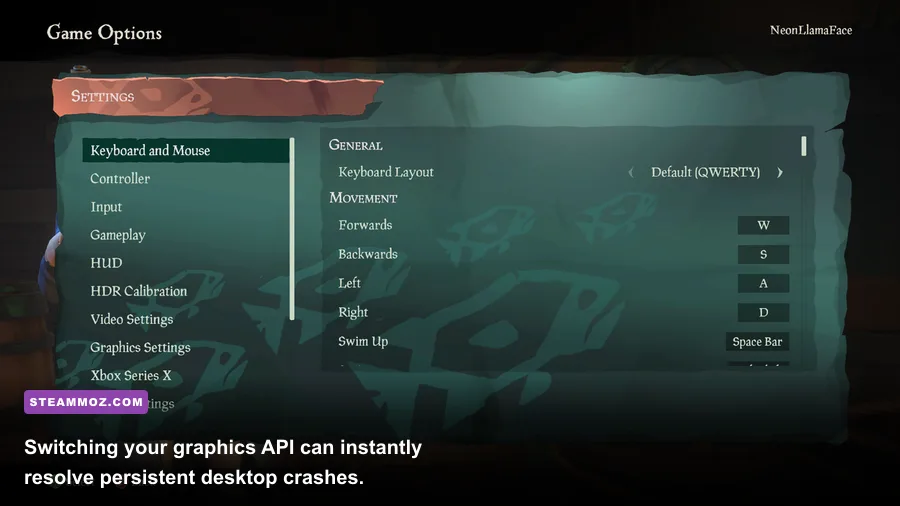
Ever since developer Rare transitioned Sea of Thieves to modern Xbox GDK infrastructure and introduced native DirectX 12 support, PC swashbucklers have reported sudden, unprompted crashes directly to desktop without an error prompt—or worse, a hard freeze accompanied by a "Video driver crashed and was reset" notification. Under the hood, Sea of Thieves' DirectX 12 implementation suffers from aggressive memory allocation bugs and fragile handshakes with specific GPU architectures, especially older Nvidia Pascal (GTX 10-series), Turing (RTX 20-series), and select AMD Radeon RX 5000-series cards.
When DirectX 12 hits a memory paging roadblock while streaming high-resolution textures across dense outposts like Sanctuary Outpost or the sprawling stone fortress of Port Merrick, the render thread crashes. If you are experiencing sudden CTDs (Crash to Desktop), switching your graphics API to DirectX 11 is the single most reliable stability fix available. Much like dealing with instability in other modern open-world engines—a problem we have broken down in our guide to fixing DX12 instability and crashes—reverting to a mature render path eliminates driver timeouts entirely.
To force DirectX 11, load into the main tavern menu and head to Settings > Video Settings > Graphics API, then change the selection from DirectX 12 to DirectX 11. Confirm the prompt and restart the game. If your game crashes before you can even reach the settings menu, you can force the launch parameter externally:
- Steam Users: Right-click Sea of Thieves in your Steam Library, select Properties, stay on the General tab, and paste
-dx11or-d3d11into the Launch Options field. - Xbox App / Microsoft Store Users: Navigate to your local AppData folder via Windows Run (
Win + R) by typing%localappdata%\Athena\Saved\Config\WindowsNoEditor\. OpenGameUserSettings.iniin Notepad, search for the linePreferredGraphicsAPI=, set its value toDX11, save the file, and set it to "Read-Only" in its file properties window to prevent the launcher from reverting it.
The Ultimate Sea of Thieves Graphics Settings Optimization Table
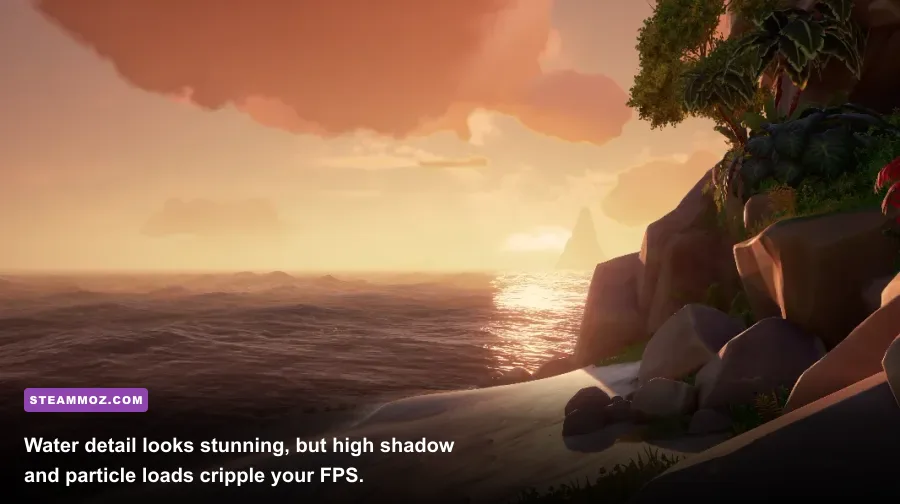
Sea of Thieves features one of the most stunning dynamic water simulations in video game history, but maxing out every slider under the "Mythical" preset creates brutal performance penalties without delivering noticeable graphical upgrades. Shadow cascades, screen-space reflections, and volumetric lighting cause severe GPU bottlenecks whenever cannonballs kick up water plumes or storms roll overhead. Similar to fine-tuning visual parameters outlined in our PC settings tuning guide, strategic adjustments will claw back 30 to 45% more frames while preserving visual clarity.
| In-Game Setting | Optimal Competitive Value | FPS Performance Impact | Visual Quality & Gameplay Trade-off |
|---|---|---|---|
| Water Detail | Rare | Medium (~8% gain) | Preserves realistic wave deformation and physics; drops costly distant foam calculations. |
| Shadow Detail | Common / Rare | Very High (~18% gain) | Mythical crushes GPU compute with real-time dynamic foliage shadows. Rare keeps clean outlines. |
| Model Detail | Mythical | Low (~3% loss) | Crucial for competitive PvP; prevents enemy pirate and ship silhouette pop-in at long distances. |
| Particle Effects | Rare | High (~12% gain) | Drastically reduces frame drops during chaotic naval combat involving multiple firebombs and blunderbombs. |
| Lighting Detail | Rare | Medium (~7% gain) | Softens internal lantern illumination and cave torches without destroying moody ambient lighting. |
| Animation Quality | Mythical | Very Low (<2% impact) | Keeps skeletal rigging smooth for wildlife, skeletons, and crewmates with negligible performance cost. |
| Resolution Scaling | 100% (Native) | Extreme (Scales with res) | Avoid setting above 100%. If on a budget GPU at 1440p, set to 90% for a massive rendering boost. |
After adjusting your base settings, pay close attention to Buffering and Frame Rate Limiting. If you run an adaptive-sync monitor (G-Sync or FreeSync), lock your frame rate slightly below your monitor's maximum refresh rate (e.g., 141 FPS on a 144Hz panel) inside your GPU driver software, disable the in-game V-Sync, and set Buffering to Double Buffering. This bypasses input latency penalties while eliminating micro-stutters during heavy camera pans across your ship's deck, a frame-pacing trick we often highlight when tackling issues like those found in our display optimization breakdowns.
Eliminating Shader Compilation Stutter and Texture Pop-in
Do you notice your game hitching violently for a second every time you step foot on an island like Plunder Valley, or when you fire a cannon for the first time in a play session? That jarring hitch is shader compilation stutter. While modern gaming engines attempt to compile shaders asynchronously, Sea of Thieves frequently dumps or recompiles shaders on the fly when the Windows graphics cache fills up.
To eliminate this, you need to expand your GPU's driver shader storage buffer. By default, both Windows and display drivers limit shader caches to meager thresholds that modern games fill in mere hours:
- Nvidia Users: Open the Nvidia Control Panel, select Manage 3D Settings under the Global Settings tab, scroll down to Shader Cache Size, and change it from Driver Default to 10 GB (or Unlimited if you have ample SSD space). Click Apply.
- AMD Users: Open AMD Software: Adrenalin Edition, navigate to the Gaming > Graphics tab, expand the Advanced section, and click Reset Shader Cache to clear out stale, fragmented data accumulated from prior game updates.
- Windows Cache Purge: Press the Windows key, search for Disk Cleanup, select your primary
C:drive, uncheck everything except DirectX Shader Cache, and click OK. This wipes corrupted cached pipelines, allowing Sea of Thieves to cleanly rebuild its cache upon your next launch.
Equally important is physical drive throughput. Sea of Thieves streams an enormous amount of high-resolution foliage and asset data dynamically without traditional loading screens. Running this game from a mechanical 7200 RPM Hard Drive guarantees stuttering, missing textures, and invisible skeleton enemies. Move the installation folder to a high-speed NVMe or SATA SSD. If you have tackled stubborn memory-streaming hitches before, such as the open-world loading freezes detailed in our guide to troubleshooting open-world RPG crashes, you know that dynamic asset-streaming architectures demand fast solid-state storage.
Tackling Beard Error Codes and Easy Anti-Cheat Launch Failures
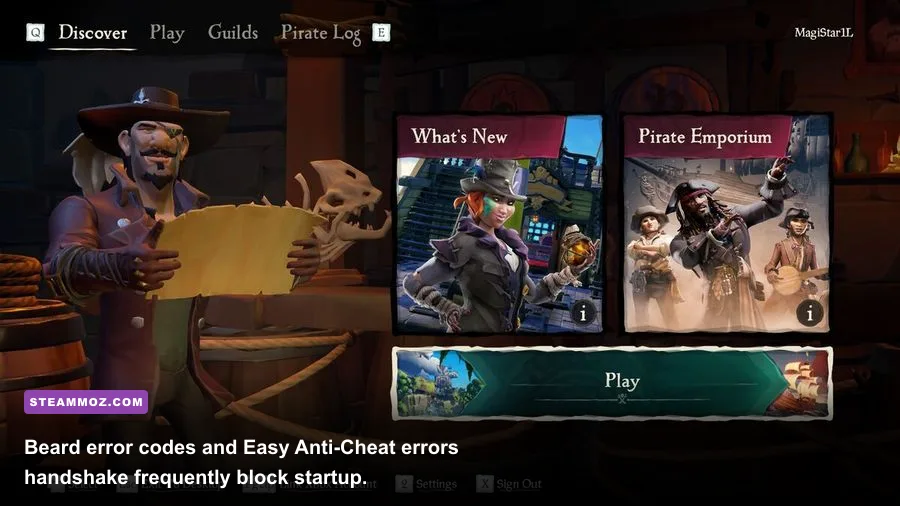
Performance problems in Sea of Thieves aren't solely tethered to GPU rasterization; corrupted network handshakes and anti-cheat mismatches can cause severe client hanging or prevent the game from booting entirely. When Easy Anti-Cheat encounters unverified system files, out-of-date certificates, or conflicting third-party overlays (like older RivaTuner Statistics Server hooks or custom antivirus software), it forces a silent shutdown or triggers one of Rare's infamous nautical "Beard" errors.
| Error Code / Crash Prompt | Underlying Root Cause | Exact Practical Fix |
|---|---|---|
| Ashbeard | Xbox Live sign-in desynchronization or logged-out profile. | Sign out of the Xbox App and Windows Game Bar, restart PC, and sign back in to re-authenticate credentials. |
| Hazelnutbeard | Network connection timeout connecting to game servers. | Flush DNS via command prompt (ipconfig /flushdns) and cycle your router to clear stale routing tables. |
| Kiwibeard | Server maintenance or multiple account authentication conflict. | Check server status on the official Sea of Thieves support portal; sign out secondary Microsoft accounts in Windows Settings. |
| EAC: Untrusted System File | Corrupted system DLLs or modified game executables blocked by Easy Anti-Cheat. | Run sfc /scannow in elevated CMD; verify game file integrity via Steam or Xbox App. |
| D3D Device Removed | Unstable GPU overclock or aggressive driver power management state. | Disable custom GPU overclocks in MSI Afterburner; set Power Management to "Prefer Maximum Performance" in GPU control panel. |
If Easy Anti-Cheat repeatedly throws errors on startup, navigate to your Sea of Thieves installation directory (typically SteamLibrary\steamapps\common\Sea of Thieves\EasyAntiCheat), right-click EasyAntiCheat_EOS_Setup.exe, run it as Administrator, and select the Repair service option. Just like debugging launcher hurdles in other Unreal Engine titles—such as those covered in our troubleshooting guide for game crashes—repairing the anti-cheat runtime clears bad hooks without requiring a full 100GB re-download.
Network Latency vs Micro-Stutter: Fixing Rubberbanding on High Seas

Many PC players mistake server-side rubberbanding for client hardware stuttering. When your pirate hitches backwards while sprinting or jumps fail to register on the deck, you are likely suffering from packet desynchronization with Rare's Azure game servers. Sea of Thieves runs at a dynamic server tick rate that aggressively throttles physics updates during high-load world events like the Fort of the Damned or the Fleet of Fortune.
To pinpoint whether your drops are hardware- or network-driven, enable the built-in diagnostic HUD. Go to Settings > Gameplay > Show Performance Counters and toggle it to All. This displays your FPS, Ping, and Packet Loss simultaneously on your screen:
- If your FPS counter dips below your monitor's baseline while your Ping stays flat, the bottleneck is local GPU/CPU hardware rendering. Revisit your Shadow and Particle settings.
- If your Ping spikes wildly or you see red Packet Loss warnings while FPS remains locked at 120+, the hitching is purely network routing. Switch off Wi-Fi in favor of a wired Cat6 Ethernet cable, disable bandwidth-hogging background cloud backups (OneDrive, Google Drive), and verify your NAT type inside the Xbox App networking settings.
Lastly, ensure Windows Game Bar background recording is turned off. Head to Windows Settings > Gaming > Captures and turn off "Record what happened." This background encoder constantly buffers video memory on your GPU, stealing precious memory bandwidth from the game's texture-streaming engine. With your graphics API locked to DirectX 11, shaders cleanly cached, and visual bloat trimmed, you can finally run the open seas at silky-smooth, competitive frame rates without fear of a desktop crash ruining your hard-earned loot haul.