Modern Warfare 2's PC performance issues almost always boil down to three root culprits: the engine botching your CPU thread count inside its configuration file, your VRAM target choking background Windows processes, or corrupted shader caches triggering catastrophic DirectX error 0x887A0005. If your frame rate tanks mid-gunfight or the game abruptly drops to desktop without warning, you don't need to reinstall your entire 120GB client. By tuning the hidden RendererWorkerCount setting in your hardware profile, clamping the VRAM scale target to a balanced ceiling, and nuking unstable graphics settings like On-Demand Texture Streaming, you can lock in fluid frame times and wipe out crashes entirely.
Dialing In Competitive Graphics Settings for Raw Performance
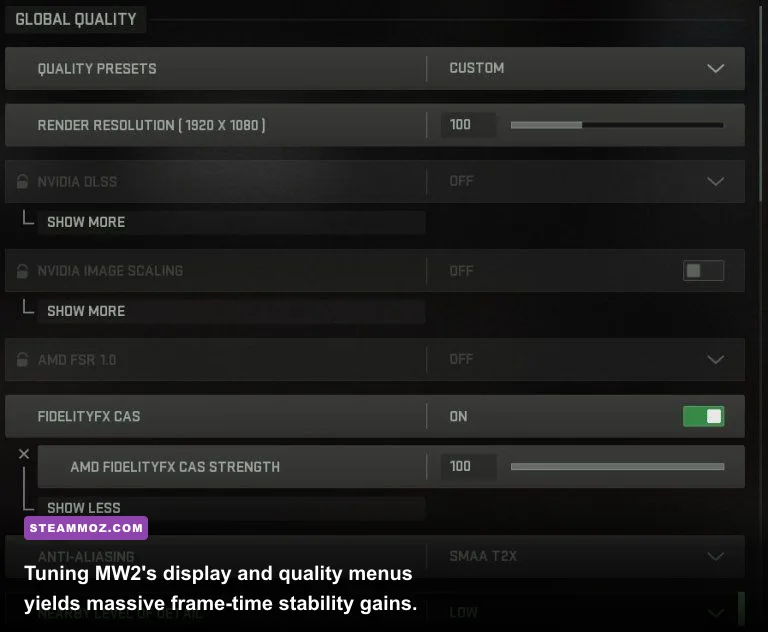
Infinity Ward's IW 9.0 engine looks phenomenal when dialed up, but its default presets will hammer your hardware with visual clutter that ruins your competitive readability and destroys your frame pacing. Much like we tackled when dialing in Far Cry 6 settings for max FPS, competitive shooters require you to ruthlessly prioritize frame consistency over cinematic fluff.
Start by heading into your Display tab. Set your Display Mode strictly to Fullscreen Exclusive. Borderless Windowed mode may make tab-switching seamless, but it introduces measurable desktop composition input latency and prevents your GPU driver from allocating 100% of its resources to the title. Ensure your Screen Refresh Rate matches your monitor's highest capability (144Hz, 240Hz, or beyond), and lock Dynamic Resolution to Off—dynamic scaling introduces erratic rendering jumps that throw off your muscle memory during long-range gunfights.
Next, move directly to the Quality tab. Turn On-Demand Texture Streaming OFF immediately. This setting continuously downloads high-resolution assets in the background across your live internet connection while you play, which leads to sudden micro-stuttering whenever the client buffers new operator skins or weapon blueprints. For upscaling, skip standard DLSS or FSR if you are running at 1080p or 1440p on modern GPUs; instead, choose FidelityFX CAS and set the strength between 50 and 75. FidelityFX CAS applies a pristine sharpening filter at native resolution without introducing temporal blur or ghosting around iron sights.
| Setting | Recommended Value | FPS Impact | Competitive & Stability Note |
|---|---|---|---|
| On-Demand Texture Streaming | Off | High (Frame Pacing) | Prevents background bandwidth usage and sudden asset-streaming hitches. |
| Spot Cache | High / Ultra | Minimal | Pre-loads flashbang and explosion lighting into VRAM to stop combat freezing. |
| Particle Quality Level | Low | Moderate (6-8%) | Eliminates massive frame drops during point-blank cluster strikes and thermite burns. |
| Shadow Map Resolution | Normal / Low | High (10-12%) | Retains basic player shadow outlines while drastically reducing GPU raster load. |
| Ambient Occlusion | Off | Moderate (5%) | Brightens dark corners inside buildings, making enemy corner-campers easy to spot. |
| Screen Space Reflections | Off | Moderate (4-6%) | Removes distracting floor reflections on wet surfaces like the Al Bagra Fortress tiles. |
| Depth of Field / Motion Blur | Off | Low | Total blur removal; necessary for split-second peripheral target acquisition. |
One setting you must never set to Low is the Spot Cache. Setting Spot Cache to High or Ultra forces your GPU to store map lighting points in dedicated video memory. When set to Low, the engine attempts to generate lighting on the fly every time someone throws a grenade, fires an RPG, or triggers a killstreak, inducing brutal quarter-second lockups. Striking this balance between visual clarity and stability matches the approach we used in our Filament Marmalade Edition FPS guide.
Fixing the Dreaded Shader Cache and Error 0x887A0005 Crashes
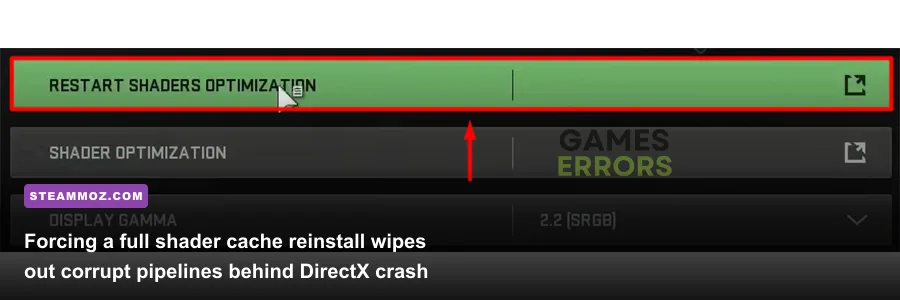
The most infuriating obstacle on PC is the sudden mid-match crash to desktop accompanied by Error Code: 0x887A0005 (0x887A0006) (6068) D. This specific sequence signals that the DirectX 12 rendering pipeline timed out, commonly known as a "Device Removed" or "TDR" (Timeout Detection and Recovery) event. When your graphics driver stops responding for even a millisecond because a corrupt shader instruction hung the pipeline, Windows forcibly terminates the game client.
To repair this, your first move is a complete shader wipe. Boot the game, open the Graphics menu, go to the Display tab, scroll down, and click Restart Shader Optimization. Exit Modern Warfare 2 immediately. Next, clear your physical DirectX cache by running Windows Disk Cleanup on your primary drive (ensure "DirectX Shader Cache" is checked), or manually delete the cache folders located in %localappdata%\NVIDIA\DXCache (or the AMD DXCache equivalent in your AppData directory). For extra measure, check the Modern Warfare II Steam Community discussions to see if the newest patch requires a specific GPU driver hotfix.
After purging the cache files, relaunch the game via Steam or Battle.net. Let the shaders recompile uninterrupted on the main menu until the progress bar reaches 100%. Do not enter the Gunsmith, do not browse operator camos, and do not queue for matchmaking while shaders compile. Running game assets while the CPU tries to compile heavy AVX instructions guarantees corrupted pipeline state objects (PSOs), which leads directly back to crash loops. We resolved similar game engine hangs when diagnosing Everspace 2 crashing fixes.
If you're still experiencing crashes, use Display Driver Uninstaller (DDU) in Windows Safe Mode to scrub your graphics drivers completely before performing a clean install from Nvidia Official Driver Downloads or AMD's driver portal. Avoid installing optional driver telemetry or experimental beta branches that frequently clash with Activision's proprietary anti-cheat driver, RICOCHET.
Modifying Renderer Worker Count in the Config File
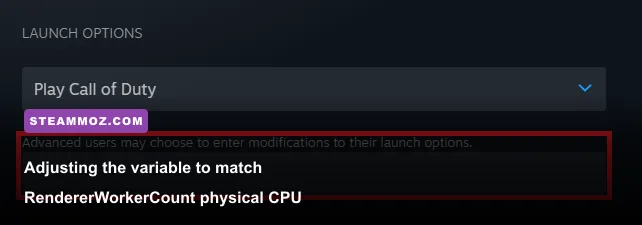
By default, Modern Warfare 2 tries to detect how many CPU cores to allocate to its rendering engine. More often than not, it guesses incorrectly. It frequently assigns too many threads—attempting to run rendering workers on hyper-threaded logical threads or low-power efficiency cores (E-cores)—or chokes high-end chips by setting the thread worker pool to an arbitrary value like 2 or 3. This mismatch results in constant frame time spikes, giving you the sensation of low FPS even when your counter displays 120 FPS.
Here is how to manually force the engine to utilize your actual physical performance cores:
- Completely close Modern Warfare 2, Battle.net, and Steam.
- Open Windows File Explorer and navigate to:
Documents\Call of Duty\players. - Locate the file named
options.3.cod22.cst. - Right-click the file and open it using Notepad or Notepad++.
- Press
Ctrl + Fand search forRendererWorkerCount.
You'll see a line formatted like this: RendererWorkerCount:0.0 = "X", where X is an integer. You must change this integer to match your CPU's physical performance core count, ignoring hyper-threading or simultaneous multithreading (SMT):
- AMD Ryzen 5 (5600X, 7600X): Set value to
"6". - AMD Ryzen 7 (5800X3D, 7700X, 7800X3D): Set value to
"8". - AMD Ryzen 9 (5900X, 7900X): Set value to
"6"(to align strictly with one CCX cluster) or"12". - Intel Core i5 (12600K, 13600K): Set value to
"6"(your 6 Performance Cores). - Intel Core i7/i9 (12700K, 13700K, 13900K, 14900K): Set value to
"8"(matching the 8 Performance Cores).
Save the file and close Notepad. Right-click options.3.cod22.cst, choose Properties, check the Read-only attribute box, and hit Apply. This ensures the game client won't overwrite your tuned thread values every time an update launches. Addressing thread distribution like this cures system-level bottlenecks similar to the troubleshooting steps in our Elex PC crash and FPS solutions.
Optimizing Memory Allocation and Eliminating Micro-Stutters
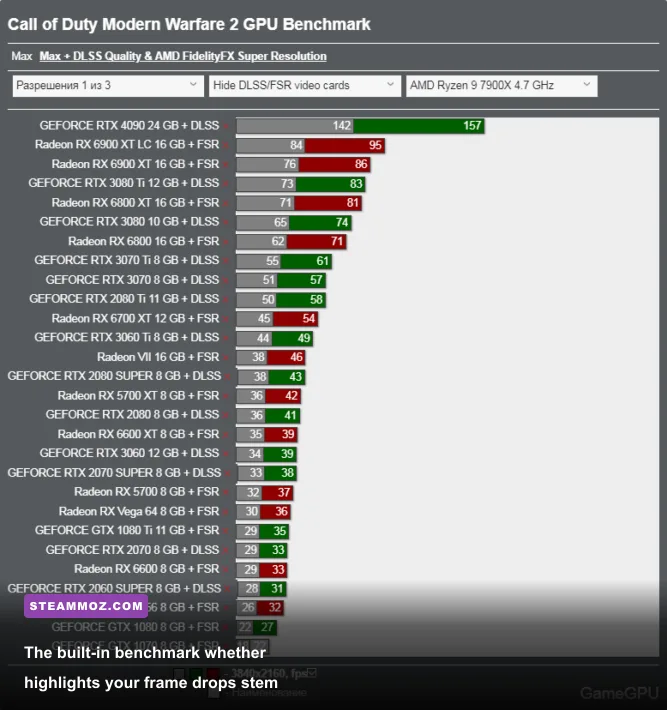
The next major culprit behind micro-stutters is the in-game Video Memory Scale slider. Most players assume sliding this to 90% gives the game more headroom to run fast. In reality, setting it to 90% forces the engine to aggressively claim almost your entire VRAM buffer. When Windows Desktop Window Manager (DWM) or background tools like Discord need even a few hundred megabytes of VRAM, the system runs out of room and begins thrashing data out to your slow system RAM or Windows pagefile, triggering severe frame drops.
Slide your Video Memory Scale down to 70% or 80%. Giving your operating system a 20-30% breathing room cushion keeps your system snappy and completely eliminates that jarring 1-second freeze that occurs when turning quickly toward complex geometries in Warzone or Ground War maps.
| Hardware Component | Stock Value / Issue | Tuned Value | Expected Performance Delta |
|---|---|---|---|
| Video Memory Scale | 90% (VRAM Saturation) | 70% - 80% | Eliminates swap-file micro-stuttering; 0% average FPS loss. |
| RendererWorkerCount | Auto / Thread Overload | Physical P-Core Count | Improves 1% low frame rates by 25-40%; stabilizes frame times. |
| Windows Hardware GPU Scheduling (HAGS) | Off (Default on older installs) | On (Windows 10/11) | Reduces CPU rendering overhead and unlocks lower input latency. |
| Third-Party Overlays | Active (Discord, Geforce, RTSS) | Completely Disabled | Prevents DirectX hook corruption and 0x887A0005 crashes. |
| Windows Pagefile | System Managed (Dynamic) | Custom (16GB - 24GB Static) | Stops out-of-memory lockups on 16GB RAM rigs during long sessions. |
Third-party software hook conflicts cause just as many issues as in-game toggles. Modern Warfare 2's anti-cheat engine monitors your PC's active hooks closely. Applications with overlay hooks—such as Discord's game overlay, Nvidia GeForce Experience ShadowPlay overlays, MSI Afterburner/RivaTuner Statistics Server, and Razer Synapse—frequently collide with the engine's memory space. Disable these overlays completely. If you run into odd stability quirks across other demanding titles, compare these steps with our rundown of EscapeVR crashing and low FPS tweaks.
Double-check your operating system's base configuration against the game's actual demands. If your rig sits near the hardware margins, verify your hardware capabilities just as you would when reviewing Fatal Fury City of the Wolves PC specs. On systems with 16GB of DDR4 or DDR5 RAM, set a static Windows Pagefile on your fastest NVMe SSD (e.g., Initial: 16384 MB, Maximum: 16384 MB). This prevents Windows from dynamically resizing the virtual memory page during intense firefights.
Network Latency, Packet Burst, and In-Game Diagnostics
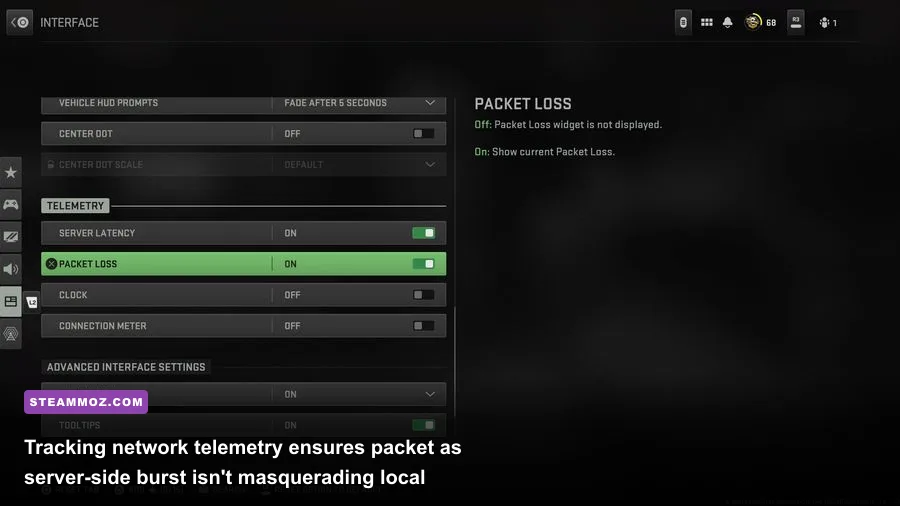
Sometimes what feels like a graphical stutter has nothing to do with your GPU. Modern Warfare 2 suffers from persistent "Packet Burst" issues, signaled by three orange or yellow overlapping squares on the left side of your screen. When server packets arrive out of order, the client snaps your operator back into place, which feels virtually identical to a sudden hardware frame drop.
Turn on MW2's built-in telemetry counters under Settings > Interface > Telemetry. Enable:
- FPS Counter
- Server Latency
- Packet Loss
- CPU Time
- GPU Time
Keep a close eye on the CPU Time and GPU Time readouts during matches. If your GPU Time is 5ms but your CPU Time spikes to 14ms when the game stutters, your CPU is failing to feed frames quickly enough. That confirms you need to adjust your RendererWorkerCount or dial back CPU-heavy settings like Particle Quality and Ragdolls. Conversely, if your frame times stay rock-solid but you notice your Packet Loss jumping above 0% alongside latency spikes, your stuttering is purely network-driven.
To curb server-side packet burst, switch from Wi-Fi to a dedicated Cat6 Ethernet cable, reboot your router to flush stale routing tables, and check Activision Support for known server-side maintenance outages. Also, make sure your operating system's networking drivers are fully patched through Microsoft Windows Support updates.
Once you implement these targeted adjustments—capping VRAM scale, configuring proper CPU thread workers, purging corrupted shader files, and disabling overlay hooks—Modern Warfare 2 will run with clean frame pacing. Your 1% low frame rates will stay high, your gunfights will feel razor-sharp, and you can finally grind your weapon camos without worrying about unexpected desktop crashes.