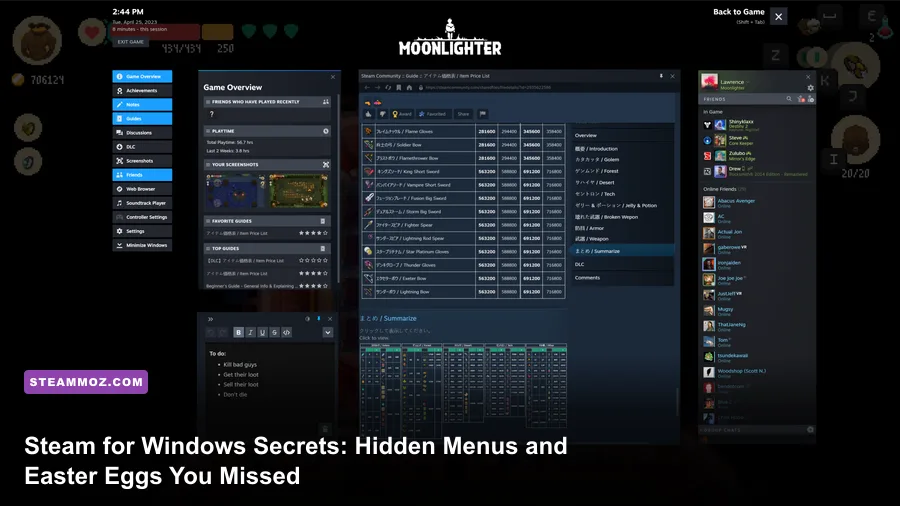
You probably fire up Steam every single day, click directly into your favorite shooter or RPG, and completely ignore the client housing your collection. Behind Steam's sleek Chromium-based interface sits over two decades of legacy C++ code, forgotten developer switches, hidden diagnostic environments, and vintage Valve audio files. Whether you need to recover a mod-broken game version using the raw terminal or want to dig up remnants of the 2003 "green Steam" era, Windows users have access to an entire underbelly of client secrets. Much like hunting down rare relics in games where players seek out Everspace 2 secret locations and hidden rewards or track down Eternal Destiny secret locations, probing Valve's desktop client uncovers an astonishing toolkit hiding in plain sight.
The Hidden Steam Console: Unlocking Valve’s Diagnostic Sandbox
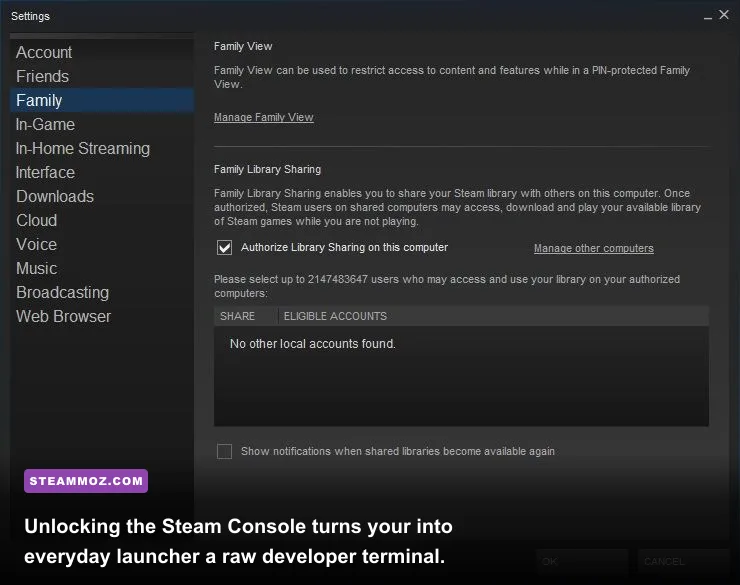
Most players interact with the standard Store, Library, Community, and Profile tabs. Valve, however, baked an entire developer command terminal directly into the Windows client that stays invisible until manually summoned. It's not a third-party hack or unsupported mod; it is an official client sandbox designed for Steamworks engineers and hardware testers.
To enable it, press Win + R on your keyboard, type steam://open/console, and hit Enter. Instantly, a fifth top-level tab titled CONSOLE appears right next to your profile name in the Steam interface. If you prefer to make this permanent, right-click your Steam desktop shortcut, select Properties, and append -console to the end of the Target path (for instance, "C:\Program Files (x86)\Steam\steam.exe" -console).
Inside this terminal, you bypass the consumer UI and interact with Valve's backend infrastructure via raw text commands. Here is what you can actually do with it:
- Depot Downloading (
download_depot <appid> <depotid> <manifestid>): This is the holy grail for modders. When a sudden studio update breaks script extenders in titles like Skyrim, Fallout 4, or Baldur's Gate 3, the console lets you pull exact legacy manifests directly from Valve's Content Delivery Network without third-party tools. - License Auditing (
licenses_print): Dumps an unformatted, chronological ledger of every single package, beta key, free-to-play entitlement, and complimentary license attached to your SteamID since account creation. - Cache Verification Bypass (
apps_check_hashes <appid>): Runs a deep file-check against Valve's primary hash manifest without locking up your Steam client's standard UI thread.
When you're dealing with stubborn launch errors or background hitches, accessing low-level diagnostics gives you real control, much like applying targeted Elex PC fixes that stop crashes and rescue your FPS instead of guessing blindly.
🎮 1bitHeart
Looking to experience this game? Grab your digital key directly on our store for $2.99.
View on Steammoz Store →Big Picture Mode’s Secret Inputs and Valve Nostalgia
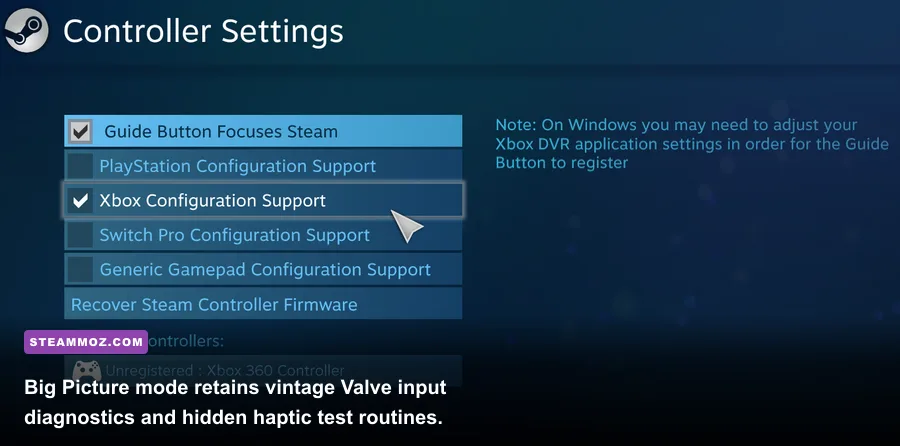
When Valve overhauled Big Picture Mode to match the Steam Deck's DeckUI, they quietly retained low-level controller calibration subroutines and audio test routines. If you hook up a gamepad, click the Big Picture icon in the top right, and navigate to Settings > Controller, you're looking at a standard consumer menu. But holding down specific button combinations triggers hidden hardware diagnostics.
Under the Test Device Inputs screen, entering the classic Konami Code (Up, Up, Down, Down, Left, Right, Left, Right, B, A on an Xbox layout, or Cross, Circle on PlayStation) switches the test suite into a real-time analog stick jitter telemetry monitor. This is not just a retro gimmick; it outputs real-time polling data, deadzone drift graphs, and raw haptic motor frequency sliders that aren't visible on the primary settings card.
Furthermore, Valve left custom vibration waveforms buried inside this diagnostic view. You can fire linear frequency sweeps through DualSense or Steam Controller linear resonant actuators, playing vintage 8-bit musical scales directly through the controller's internal weights. It proves how much hardware tinkering DNA Valve left behind from the early Steam Machine experiments.
Secret URL Protocols and Diagnostic Screens That Actually Matter
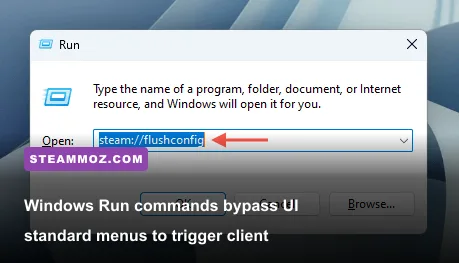
The Windows operating system registers the steam:// URI scheme across your entire local environment. This means the Windows Run prompt, web browsers, and desktop command shells can talk straight to the client without touching the graphical menu. While casual users know basic game-launch links, Valve engineered dozens of diagnostic entry points that bypass the heavy modern user interface.
These commands are critical lifesavers when your client locks up, displays the black-screen browser glitch, or stalls during cloud synchronization handshakes. Instead of enduring a full reinstall and re-downloading terabytes of game installs, you can trigger internal repair scripts natively.
| Command (Win + R) | Target System | Primary Function | Risk & Utility Level |
|---|---|---|---|
steam://flushconfig |
Client Config & Cache | Purges corrupted UI data, clears web cache, refreshes core engine files without touching installed games. | Safe / Essential Fix |
steam://open/console |
Developer Terminal | Enables the developer tab for depot rollbacks, package audits, and real-time network logs. | Safe / Advanced Utility |
steam://checksysupdate |
Bootstrapper Engine | Forces an immediate checksum comparison against the newest official Valve client binaries. | Safe / Maintenance |
steam://open/minigames |
Steam Community API | Directs the internal browser to hidden web framework mini-games during Valve seasonal sales. | Safe / Easter Egg |
steam://nav/games/details |
Local Database | Bypasses CEF web rendering and brings up the ultra-lightweight database view of your library. | Safe / High Performance |
steam://unlockh264 |
Hardware Encoder | Re-registers proprietary video decoding codecs used for In-Home Remote Play streaming. | Safe / Troubleshooting |
These protocols give you the exact diagnostic efficiency required when tackling stubborn system-level glitches, echoing the troubleshooting mindset used for sorting out EscapeVR The Basement crashing and low FPS fixes. For complete documentation on system commands, consult the Valve Developer Community Command Line Documentation.
Buried in the Directory: Hidden Audio Files and Legacy Remnants
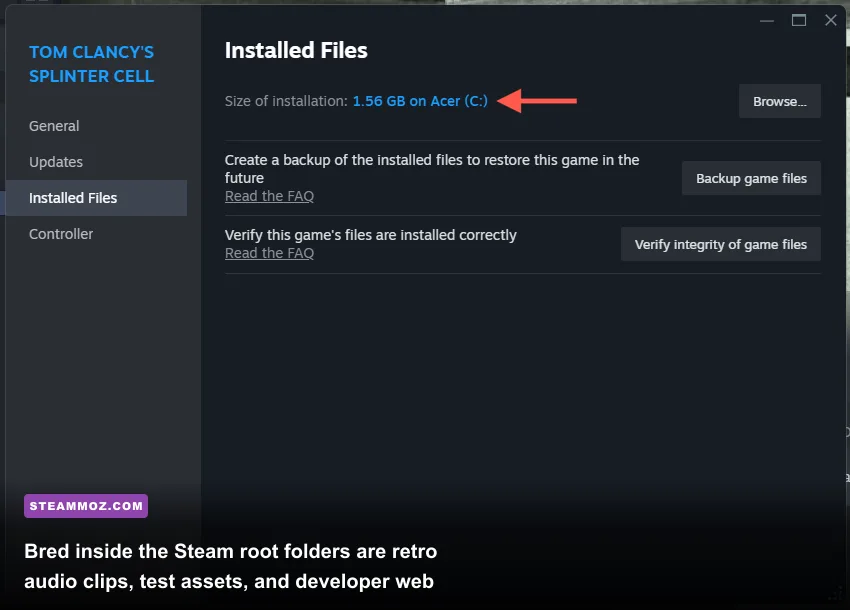
If you have had Steam installed on your Windows machine through multiple hardware upgrades, your C:\Program Files (x86)\Steam directory is effectively a digital archaeological dig. Valve rarely deletes legacy assets outright; they simply orphan them in subdirectories while pointing newer code elsewhere.
Navigate directly to Steam\friends\ or Steam\resource\ within Windows File Explorer. Inside, you will discover the original 16-bit PCM uncompressed .wav audio files dating back to the platform's 2003 launch:
message.wav: The iconic, blunt friend message chime that defined early Counter-Strike 1.6 and Half-Life 2 LAN sessions.friend_join.wav: The subtle acoustic alert when a mutual contact logged into friends network.voice_dialing.wav: Relic audio from Valve's earliest, highly compressed peer-to-peer VoIP experiments from 2006.
Beyond retro sound files, modern Steam runs on a modified instance of the Chromium Embedded Framework (CEF). This means the entire client interface is effectively an optimized website rendered inside a desktop frame. You can actually inspect the client exactly like a web developer inspects a web page.
If you launch Steam with the command parameter -cef-enable-debugging, you can open Google Chrome or Microsoft Edge, browse to http://localhost:8080, and view the raw HTML, CSS stylesheets, and DOM trees of your active Steam client. Inside the CSS stylesheets, Valve's front-end developers have left humorous ASCII art, developer notes regarding legacy graphics bugs, and unused UI prototype buttons for abandoned features.
Understanding how background software processes consume memory helps you squeeze every ounce of performance out of your rig, just like fine-tuning Filament Marmalade Edition settings for higher FPS or adjusting Far Cry 6 GOTY upgrade pass settings for max FPS.
Steam Music Player and the Valve Soundtrack Easter Egg
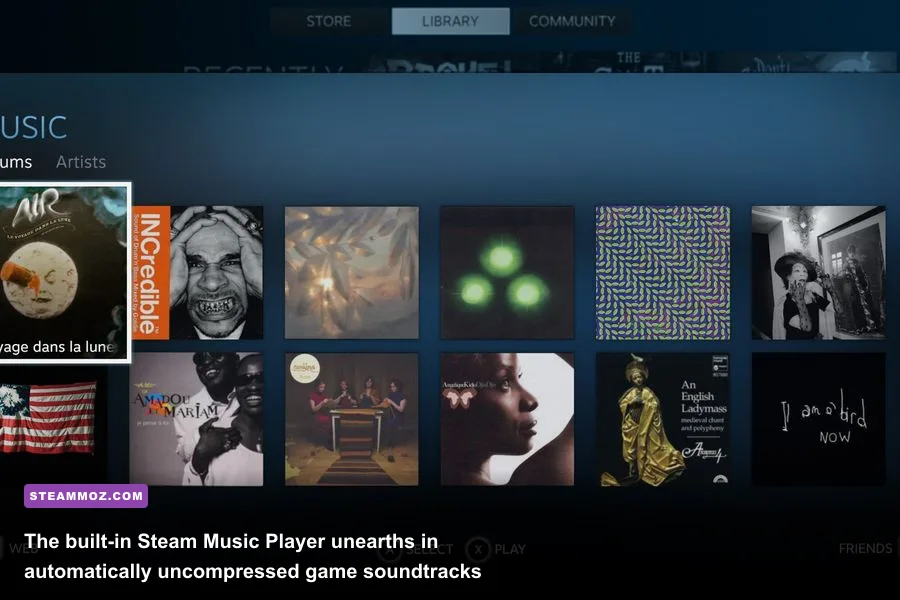
Buried deep within the top navigation bar under View > Music Player sits one of Steam's most neglected features: a fully functional local media playback engine. While modern gamers default to Spotify or external players, Valve built this offline audio engine specifically to bridge the gap between game directories and audio libraries.
The real secret lies in its background crawler. Go to Steam > Settings > Music, and look at the crawling directory. If you own any GoldSrc or Source engine titles (such as Half-Life, Half-Life 2, Portal, or the episodes), hitting Scan Now triggers an automated unpacking routine. The client crawls into the packed VPK or GCF game archives, unearths high-bitrate MP3 and FLAC audio files that never shipped as standalone soundtrack purchases, and automatically organizes them into playable albums complete with hidden official album art.
Valve even tucked uncompressed ambient tracks and unused vocal files from the G-Man and GladDOS directly into these sound tables. You can verify official package structures via the Steam Storefront, where soundtracks are now treated as independent media libraries rather than simple DLC add-ons.
Mastering Client Flags: Command-Line Switches Every Power User Needs
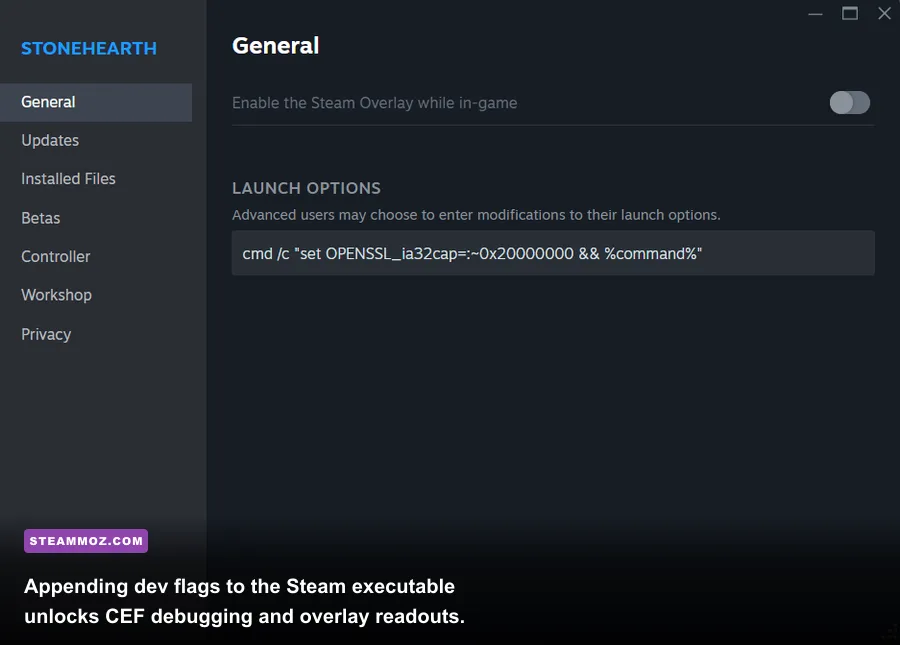
Power users don't run vanilla executables. By creating custom Windows shortcuts to steam.exe, you can radically transform how the software allocates RAM, renders GPU accelerated elements, and operates on low-spec hardware or headless gaming servers. These launch arguments override standard client behaviors, offering performance boosts and clean diagnostic modes.
| Launch Switch | Engine Target | RAM / VRAM Impact | Tactical Use Case |
|---|---|---|---|
-no-browser |
CEF Web Instances | Saves ~400MB to 900MB RAM | Disables all embedded web helper processes; runs Steam purely as a lightweight game launcher. |
-vgui (Legacy Flag) |
UI Engine Subsystem | Minimal GPU overhead | Forces legacy fallback rendering pathways when integrated GPU drivers crash modern CEF windows. |
-gameoverlayperf |
In-Game Overlay | Zero measurable impact | Displays real-time render latency and frametime graphs of the overlay hook itself. |
-silent |
Windows Bootstrapper | Reduces boot time spikes | Starts Steam minimized to the system tray without spawning the primary home window. |
-cef-force-32bit |
Memory Allocator | Caps CEF process pools | Restricts background web helper processes from ballooning memory on budget Windows rigs. |
-dev |
Developer Logging | Minor disk write overhead | Generates comprehensive debug dumps inside the Steam\logs\ folder for connection profiling. |
For those running budget configurations or ultra-tuned gaming rigs, combining -no-browser with a dedicated desktop shortcut turns the platform into a lean, mean launchpad that consumes virtually no idle memory while you push maximum frame rates. If you encounter issues while tweaking internal settings, the official Steam Support Portal and the active community on the Steam Community Hub offer troubleshooting steps to restore default startup values.
Steam for Windows is far more than a digital checkout register with a "Play" button. Underneath its modern store panels lies an intricate sandbox of developer consoles, hidden protocol triggers, audio archives, and hardware diagnostic environments. Taking advantage of these backdoors gives you total authority over your client, your library rollbacks, and your hardware performance.